
How to read the Insights tab
See at a glance how much you have searched, saved, unlocked and sent, which categories and cities have contact forms, and how many credits you used. It takes about two minutes.
Before you start
- Nothing to prepare. The numbers fill in as you search and unlock lists
Open the Insights tab
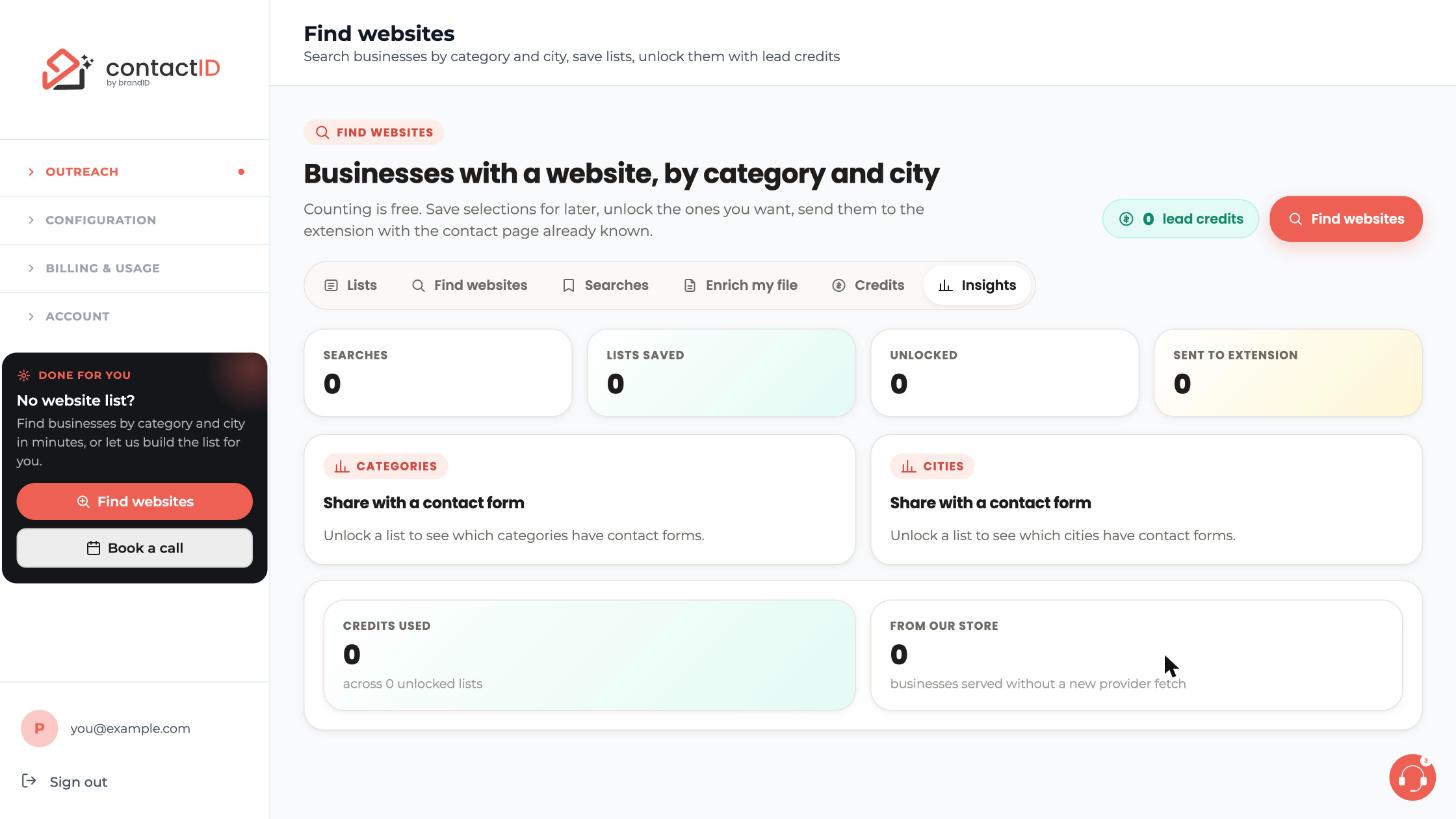
Go to Outreach, then Find websites, and click the Insights tab, the last one in the row. In this example every number is 0 because nothing has been searched yet.
Read the four counters
The top row sums up your activity in Find websites:
- Searches
- Lists saved
- Unlocked
- Sent to extension
Together they show how far you have come from searching to a list that is in the extension.
Read the Categories and Cities panels
The two panels titled Share with a contact form show the share of businesses with a contact form, one by category and one by city. They stay empty with the message Unlock a list to see which categories have contact forms (or cities) until you have unlocked a list.
Use them to see which categories and cities have the most websites with a form contactID can fill.
Read Credits used and From our store
At the bottom, Credits used shows how many lead credits you spent, for example across 0 unlocked lists. From our store shows how many businesses were served without a new provider fetch, that is from the contactID catalog.
Use Insights next to the rest of Find websites
Insights is a summary of your searching and unlocking. For one list, open the list page and look at the contactID column, which shows sent, failed or not sent for every business. For the quality percentages on a city, go back to the finder and read the city card.
Tips
- If the Categories and Cities panels are empty, unlock a list first.
- Compare the Categories panel with the quality hints on the city cards to decide where to search next.
- Credits used lets you check your spending against the balance on the Credits tab.
If something goes wrong
Every Insights number is 0.
Insights sums up what you have done in Find websites. Search, save a selection or unlock a list and the numbers fill in. The Categories and Cities panels need an unlocked list.
Where do I see what happened to each business?
On the list page, in the contactID column: sent, failed or not sent.
Where do I see the quality percentages for a city?
On the city cards in the finder. They appear once there is enough data behind them. See How to filter your Find websites results.
Related how-to guides
Still stuck? We’re happy to help.
Install the extension, start a free trial, or reach out to support.




