
How to choose what happens with required questions
Decide whether contactID skips a website whose form requires an answer your Agent does not have, or answers it neutrally and sends. It takes a couple of minutes.
Before you start
- contactID installed in Chrome and signed in to your account
- An Agent already set up (see the guide on creating your first Agent)
Open Settings and go to Required questions
In the left sidebar, click Configuration, then click Settings. Open it in the Chrome where contactID is installed and where you are signed in to the same account, because each computer keeps its own settings.
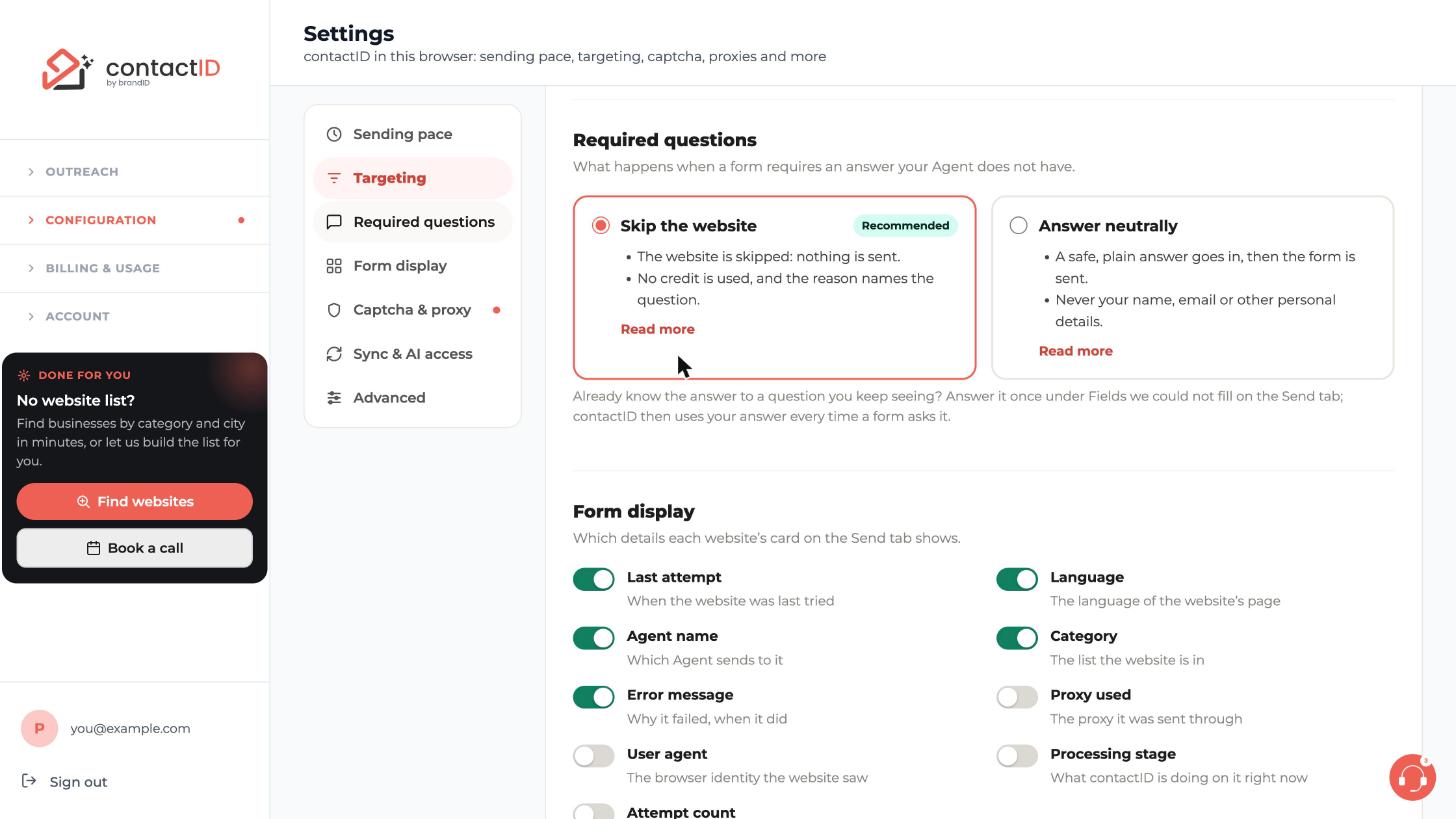
Click Required questions in the list on the left of the page. The section asks what happens when a form requires an answer your Agent does not have.
Understand the two choices
- Skip the website (marked Recommended): the website is skipped and nothing is sent. No credit is used, and the reason names the question.
- Answer neutrally: a safe, plain answer goes in, then the form is sent. It never uses your name, email or other personal details.
Click Read more on a card for the details of that choice.
Pick one and press Save
Click the round button on the card you want, then press Save at the top right of the page. contactID uses the choice at once.
Know what Answer neutrally writes
With Answer neutrally, contactID writes N/A in a required text box. In a required date, time or number box it uses today’s date, 09:00 or the lowest allowed number. In a required list it picks Other, Not sure or the first ordinary choice, and never a newsletter.
It never makes up your email, phone, name, company, address, country, state or gender. A form that requires a budget, a company size or a timeline is still skipped until you answer it once yourself.
Answer a question once and reuse the answer
If you keep seeing the same question, answer it once instead. Open the Send tab of the side panel and find the card Fields we could not fill. Pick your answer in the list, or choose Another answer… to type one, and press Save. contactID then uses your answer every time a form asks that question.
Press Send again on the card to put back in the queue the websites that now have every answer they need. Before you do, check that your Agent and message are still right.
Tips
- Skip the website is the recommended choice because nothing is sent unless contactID has a real answer.
- Saved answers are kept for each Agent in the browser where you gave them. The Agent tab lists them under Answers to form questions, where you can remove one with its x.
- If a form needs one of your own details, such as a phone number or job title, add it to the Agent instead, then press Retry on the website’s card.
If something goes wrong
A website was skipped with a reason that starts with Not sent, no credit used.
The form required something your Agent does not have, and the reason names it. Answer it once under Fields we could not fill on the Send tab, or add the detail to your Agent, then retry the website.
I chose Answer neutrally but a website was still skipped.
A form that requires a budget, a company size or a timeline is still skipped until you answer it once on the Send tab. Your name, email, phone and similar details always come from your Agent and are never invented.
A form’s list has no choice that matches my saved answer.
The question comes back on the card with that website’s own choices. Pick the one that says the same thing as your answer.
Related how-to guides
Still stuck? We’re happy to help.
Install the extension, start a free trial, or reach out to support.




