
How to connect Cursor, VS Code or Windsurf
Add DMpro to your code editor’s MCP settings, sign in and start asking from the editor’s AI chat. Each editor takes a few minutes.
Before you start
- A DMpro account
- Cursor, VS Code with GitHub Copilot, or Windsurf installed
- A browser for the DMpro sign-in
Open the Apps tab and copy the address
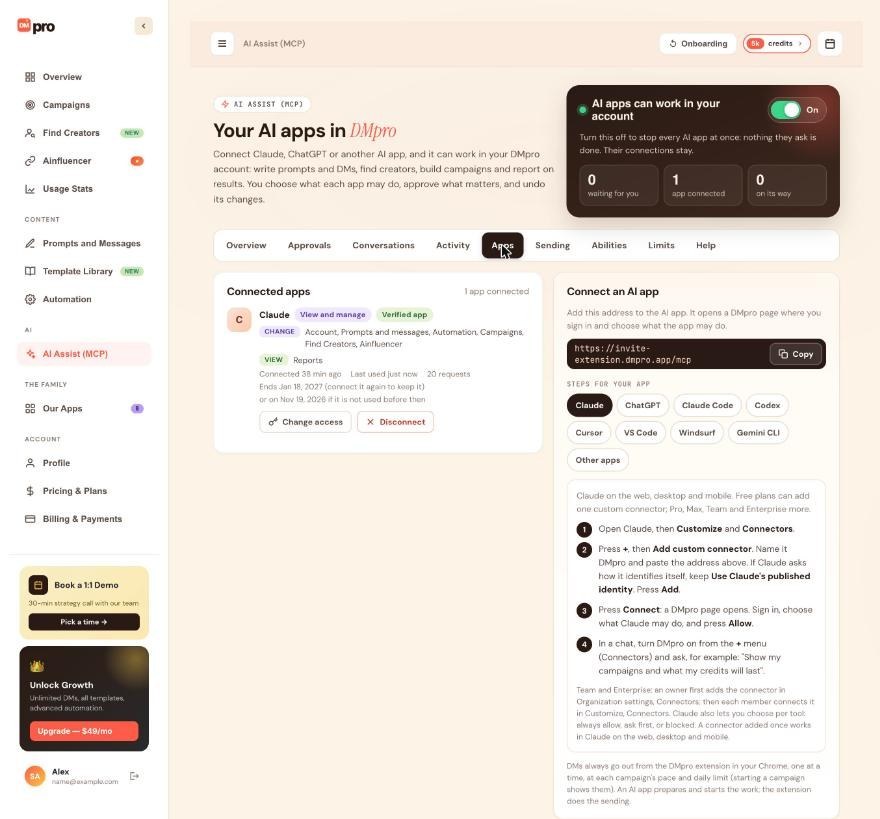
On the dashboard, open AI Assist (MCP) and click the Apps tab. In Connect an AI app, click the Cursor, VS Code or Windsurf chip to see that editor’s steps. The address everywhere is:
https://invite-extension.dmpro.app/mcp
Cursor
Choose Cursor and click Add to Cursor. Cursor opens and asks you to install it. Or open Cursor Settings, then MCP (Tools and Integrations) and add a custom MCP server, or put this in ~/.cursor/mcp.json:
{
  "mcpServers": {
    "dmpro": { "url": "https://invite-extension.dmpro.app/mcp" }
  }
}
Next to dmpro press Connect (or Login) and sign in to DMpro in the browser.
VS Code
DMpro works with GitHub Copilot in VS Code, in Agent mode. Choose VS Code and click Add to VS Code. Or run MCP: Add Server from the Command Palette, choose HTTP, paste the address and name it dmpro, or put this in .vscode/mcp.json:
{
  "servers": {
    "dmpro": { "type": "http", "url": "https://invite-extension.dmpro.app/mcp" }
  }
}
Start the server when VS Code asks and sign in to DMpro in the browser. Then use Copilot Chat in Agent mode.
Windsurf
In Windsurf (called Devin Desktop in its newest versions) open MCP servers in the Cascade panel and choose to configure them. Add this to the MCP configuration file (mcp_config.json):
{
  "mcpServers": {
    "dmpro": { "serverUrl": "https://invite-extension.dmpro.app/mcp" }
  }
}
Refresh the servers and sign in to DMpro when asked.
Sign in and choose what the editor may do
DMpro’s own page asks for your email and the 6-digit code it sends you. Then choose View only, View and manage or Choose per area and press Allow.
VS Code is recognized and shows Verified app. Cursor and Windsurf register themselves when they connect, so they show Not verified. That is normal. Tick I trust [app] and I started this connection myself. before you press Allow, and only if you did start it.
Try it and check the dashboard
In the editor’s AI chat, ask a harmless question such as “Show my campaigns and what my credits will last.” Then open AI Assist (MCP), Apps: the editor is listed under Connected apps.
Tips
- Windsurf allows 100 tools in total across all its servers. DMpro uses fewer than 60. If you reach the limit, turn off tools you do not need.
- Start with View only for a new editor, and widen access later with Change access.
- The editor never sees your email code, and no editor can send a DM by itself.
If something goes wrong
My editor shows DMpro as Not verified
This is expected for Cursor and Windsurf. They register themselves with DMpro when they connect. Connect only if you started it yourself and tick the trust box on the consent page.
Windsurf says I reached the tool limit
Windsurf allows 100 tools across all its servers. Turn off tools from other servers you do not need.
The server does not start or shows no sign-in
Check that the address is exactly the DMpro address, then start or refresh the server (Connect, start when VS Code asks, or refresh in Windsurf). If it still fails, remove dmpro and add it again.
I see “AI apps are paused on your account”
On the AI Assist (MCP) page turn AI apps can work in your account back on, then press Check again on the consent page.
Related how-to guides
Still stuck? We’re happy to help.
Create your account, or reach out to support.




