
How to connect Claude Code, Codex or Gemini CLI
Connect a terminal AI app to DMpro with one command and a browser sign-in. Each takes a few minutes.
Before you start
- A DMpro account
- Claude Code, Codex or Gemini CLI already installed
- A computer with a browser (the sign-in opens in it)
Copy the DMpro address
The address is:
https://invite-extension.dmpro.app/mcp
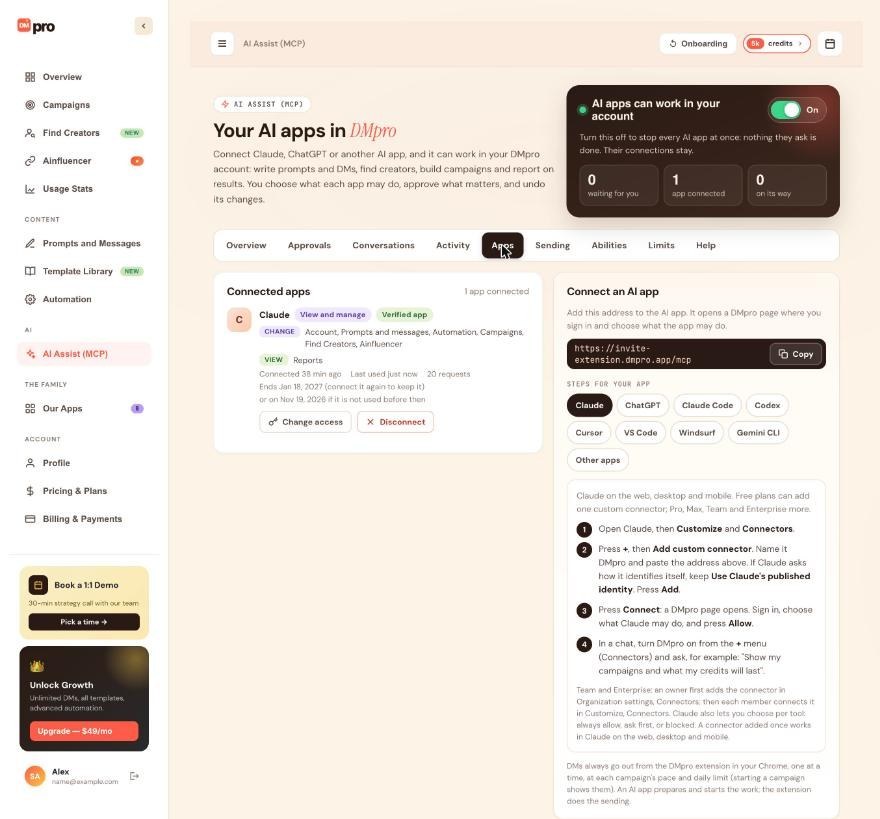
You can also copy it on the dashboard: AI Assist (MCP), Apps tab, Connect an AI app, Copy. The chips Claude Code, Codex and Gemini CLI show the same commands with copy buttons.
Claude Code: add the server and sign in
In a terminal with Claude Code installed, run:
claude mcp add --transport http dmpro https://invite-extension.dmpro.app/mcp
Then run /mcp inside Claude Code, choose dmpro and sign in to DMpro in the browser that opens. Add --scope user to the command if you want DMpro in every project.
Codex: add the server and log in
The Codex CLI, its IDE extension and the Codex app share one setup. Run:
codex mcp add dmpro --url https://invite-extension.dmpro.app/mcp
codex mcp login dmpro
The second command opens the sign-in in your browser. If you prefer to edit the file yourself, add this to ~/.codex/config.toml and then run codex mcp login dmpro:
[mcp_servers.dmpro]
url = "https://invite-extension.dmpro.app/mcp"
Gemini CLI: add the server and sign in
On a computer with a browser, run:
gemini mcp add --transport http dmpro https://invite-extension.dmpro.app/mcp
Then run /mcp auth dmpro inside Gemini CLI and sign in to DMpro in the browser. Add -s user to the command if you want DMpro in every folder.
Sign in and choose what the app may do
Each app opens DMpro’s own sign-in page. Enter your DMpro email and the 6-digit code DMpro sends you, then choose View only, View and manage or Choose per area under What may it do? and press Allow.
Claude Code and Codex show as Verified app. Gemini CLI registers itself when it connects and shows Not verified: tick I trust [app] and I started this connection myself. before you can press Allow. Do that only if you ran the command yourself.
Try it and check the dashboard
In the terminal app, ask something harmless first, such as “Show my campaigns and what my credits will last.” Then open AI Assist (MCP), Apps on the dashboard: the app is listed under Connected apps with its access badge and the time it connected.
Tips
- Start with View only for a new app. Widen it later with Change access.
- The app never sees your email code. You type it on DMpro’s own page.
- DMpro emails you whenever a new app connects. If you did not start a connection, click Disconnect on that app.
If something goes wrong
The browser did not open or the sign-in never finished
Run the sign-in step again: /mcp in Claude Code, codex mcp login dmpro in Codex, or /mcp auth dmpro in Gemini CLI. Gemini CLI needs a computer with a browser. If it keeps failing, remove dmpro in the app and add it again.
I see “DMpro does not know this app” or “This link does not match the app”
Remove dmpro in the app, add it again and start the connection from the app. An old or partial link will not work.
The app says it needs the campaigns:write permission
The access you gave does not include Campaigns. On the Apps tab click Change access, set the area to View and change and save. Widening access needs a fresh 6-digit code.
The app started a campaign but nothing is sent
The DMpro extension does the sending. Keep Chrome open with the extension signed in.
Related how-to guides
Still stuck? We’re happy to help.
Create your account, or reach out to support.




