
How to connect another AI app
Any AI app that supports remote MCP servers with sign-in can use DMpro. This guide shows what the app needs and how to add DMpro in about five minutes.
Before you start
- A DMpro account
- An AI app that supports remote MCP servers (Streamable HTTP) with sign-in (OAuth)
Check what the app needs
The app must support remote MCP servers (Streamable HTTP) and sign-in with OAuth. Examples named in the Help Center: Le Chat by Mistral, Perplexity, Zed and Copilot Studio. Claude, ChatGPT, Claude Code, Codex, Cursor, VS Code, Windsurf and Gemini CLI have their own guides.
Copy the DMpro address
On the dashboard open AI Assist (MCP), click the Apps tab and click Copy in Connect an AI app. The Other apps chip shows these general steps. The address is:
https://invite-extension.dmpro.app/mcp
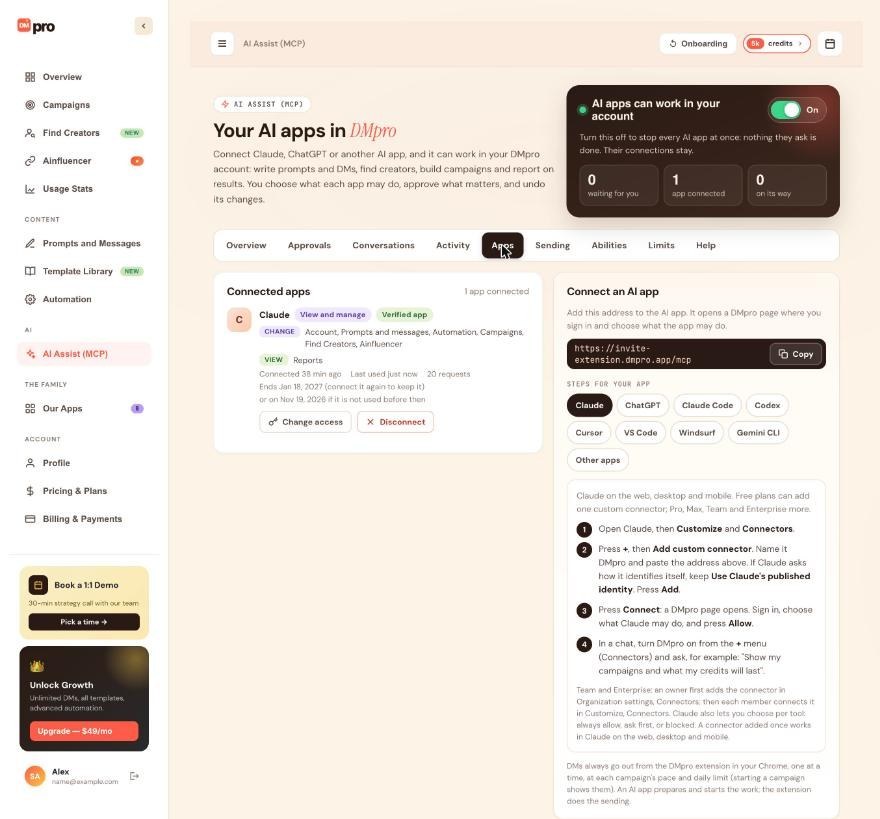
Add it as a remote MCP server or custom connector
In the app, find where you add a connector, an app or an MCP server by its address, and paste the DMpro address. The app finds the sign-in by itself. Where to look in a few apps:
- Le Chat: Intelligence, Connectors, Add Connector, Custom MCP Connector (an admin may need to add it).
- Perplexity: Settings, Connectors, add a custom connector.
- Zed: add the address under
context_serversin its settings.
Menus change from time to time, so treat these as pointers.
Sign in and choose what the app may do
DMpro opens its own page. Enter your DMpro email and the 6-digit code it sends you (the app never sees the code). Choose View only, View and manage or Choose per area under What may it do?.
Apps DMpro does not recognize show Not verified and a message that DMpro cannot verify the app. Connect it only if you set it up yourself, tick I trust [app] and I started this connection myself., then press Allow.
Confirm the connection and try a request
DMpro shows that the app is connected. On the dashboard open AI Assist (MCP), Apps: the app should be listed under Connected apps with its access badge. Then ask the app for something harmless, such as “Show my campaigns and what my credits will last.”
For developers
The Abilities tab has a For developers part with the technical details: the address, transport, protocol versions, sign-in, scopes, every tool and the limits per account. The public guide is at https://invite-extension.dmpro.app/docs/ai.
Tips
- The app’s menus may differ from the pointers above. Look for adding a connector, an app or an MCP server by its address.
- Once connected, the app can use only the areas you allowed, and you can narrow them any time with Change access on the Apps tab.
- The connection lasts 90 days, or ends after 30 days unused. Connect again from the app to keep it.
If something goes wrong
The app does not offer a way to add an MCP server
Then it cannot connect to DMpro. DMpro needs an app that supports remote MCP servers with OAuth sign-in. Try one of the apps with their own guide.
“DMpro does not know this app”, “This link does not match the app” or “This link is not complete”
The app’s earlier registration with DMpro ended, or the return link in the sign-in link is wrong or missing. Remove DMpro in the app, add it again, and start the connection from the app.
I cannot press Allow
For a Not verified app you must first tick the trust box. If the page says AI apps are paused, turn the master switch on at the top of the AI Assist (MCP) page and press Check again.
I see “This part of DMpro is not available to AI apps”
That part is never open to AI apps (for example payments or your sign-in). Do it yourself in the DMpro dashboard.
Related how-to guides
Still stuck? We’re happy to help.
Create your account, or reach out to support.




