
How to turn off all AI apps or disconnect one
Stop every AI app at once with one switch, or end a single app’s access for good. Either takes under a minute.
Before you start
- You are signed in to the DMpro dashboard
Open the AI Assist (MCP) page
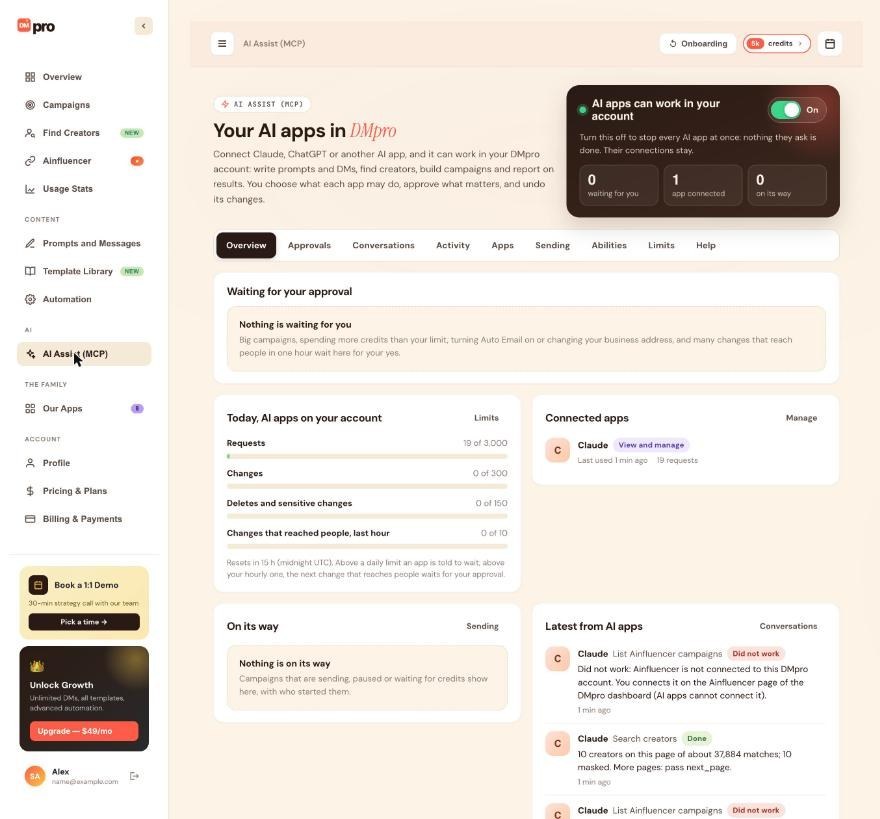
Click AI Assist (MCP) in the left menu (under AI). At the top right is the box AI apps can work in your account with an On / Off switch, and counters for requests waiting for you, apps connected and what is on its way.
To stop every app at once, turn the switch off
Click the switch so it shows Off. Nothing any AI app asks is done from then on, and the apps’ connections stay. You can turn it back on at any time.
Pause campaigns that are already sending
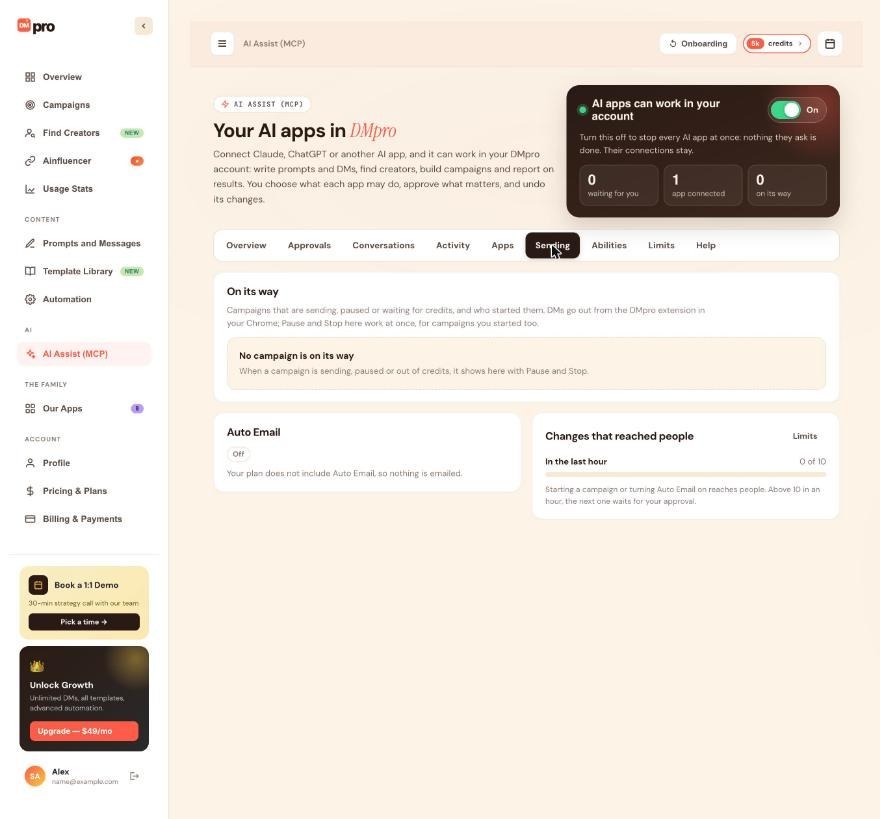
Open the Sending tab. On its way lists campaigns that are sending, paused or out of credits, and who started them. Click Pause to pause one (a paused campaign stops within about 30 seconds and can be resumed later) or Stop to stop it for good. When more than one is sending, Pause every campaign pauses them all. The same tab has the Auto Email card with Turn Auto Email off.
Turn the apps back on later
Click the switch so it shows On again. If an app’s consent page says AI apps are paused, turn them back on here, then press Check again on that page. If it says DMpro support stopped AI apps for your account, only support can lift that. Write to [email protected].
To end one app’s access, click Disconnect
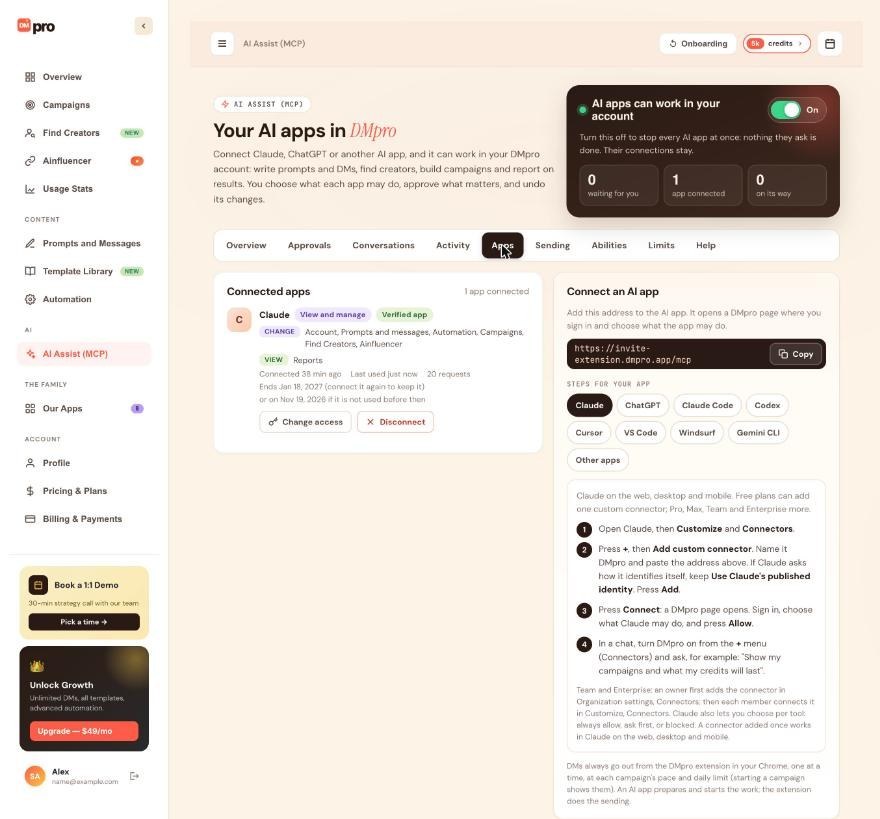
Open the Apps tab. On the app’s card click Disconnect.
With several apps, Disconnect every app ends them all.
Or just narrow its access
If you only want to limit the app, click Change access instead and set areas to Off or View. Less access applies from the app’s next request.
Tips
- DMpro emails you whenever a new app connects. If you did not start that connection, click Disconnect on it and write to [email protected].
- Apps also end on their own: after 90 days, or after 30 days unused. The Apps tab shows when each one ends, and Ended in the last 30 days says why.
- Disconnect apps you no longer use.
If something goes wrong
I turned the switch off but a campaign is still sending
The switch only stops what apps ask next. Pause the campaign on the Sending tab, or on the Campaigns page.
An app disappeared from Connected apps on its own
Connections end by themselves after 90 days, after 30 days unused, when the app connects again and the new connection replaces the old one, or when its sign-in key was used twice. Look under Ended in the last 30 days on the Apps tab for the reason, and connect the app again from the app if you want it back.
I see “AI apps are stopped on your account”
This is different from the switch you control: DMpro support turned AI apps off for this account. Write to [email protected].
I disconnected the wrong app
Connect it again from that app: you sign in with the 6-digit code and choose what it may do. Requests that were waiting for your approval were closed, so ask the app again.
Related how-to guides
Still stuck? We’re happy to help.
Create your account, or reach out to support.




