
How to set limits for AI apps
Set the three limits above which an AI app’s request has to wait for your approval. It takes about two minutes.
Before you start
- At least one AI app connected (limits apply to all your apps)
- Access to your DMpro email if you want to raise a limit
Open the Limits tab
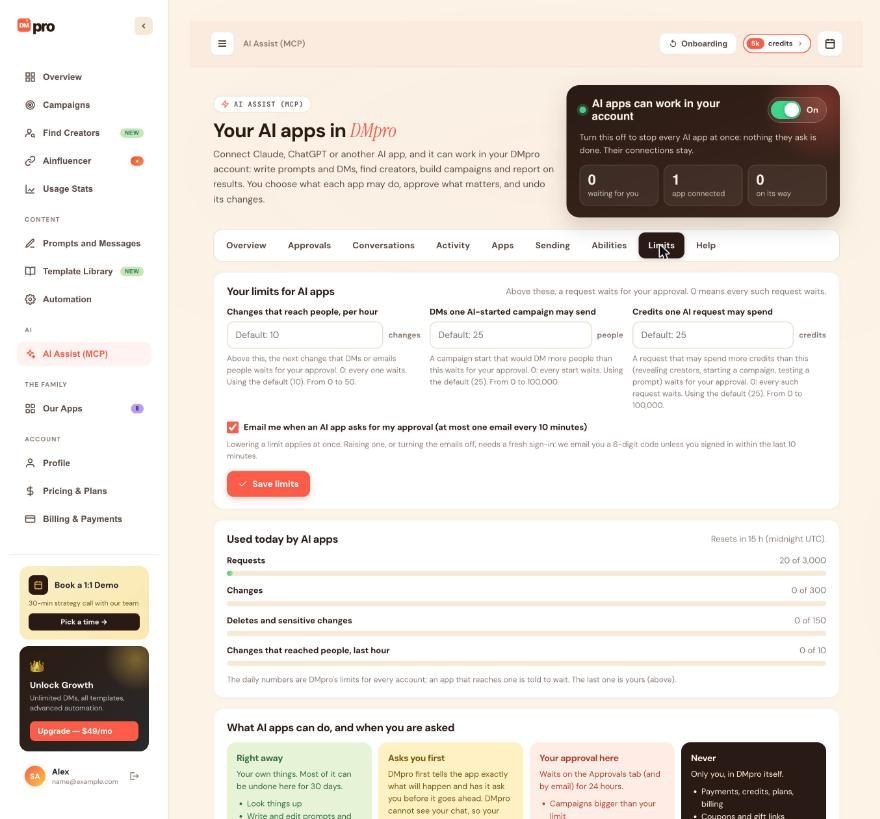
On the dashboard click AI Assist (MCP) in the left menu, then the Limits tab. The page is called Your limits for AI apps. Its note reads: above these, a request waits for your approval, and 0 means every such request waits.
Understand the three limits
- Changes that reach people, per hour: above this, the next change that DMs or emails people waits for your approval. Default 10, from 0 to 50.
- DMs one AI-started campaign may send: a campaign start that would DM more people waits for your approval. Default 25, from 0 to 100,000.
- Credits one AI request may spend: a request that may spend more (revealing creators, starting a campaign, testing a prompt) waits for your approval. Default 25, from 0 to 100,000.
Type your numbers
Type a number in each box, or leave a box empty to use its default. For example, enter 0 in DMs one AI-started campaign may send if you want every campaign an AI app starts to wait for you.
Choose whether DMpro emails you
The checkbox Email me when an AI app asks for my approval (at most one email every 10 minutes) controls approval emails. Leave it ticked if you do not watch the dashboard all day. Turning it off needs a fresh sign-in code.
Press Save limits
Click Save limits. Lowering a limit applies at once. Raising a limit, or turning approval emails off, needs a fresh sign-in: DMpro emails you a 6-digit code unless you signed in within the last 10 minutes. Enter it to finish.
Check the meters below
Under Used today by AI apps you can see Requests, Changes, Deletes and sensitive changes and Changes that reached people, last hour, each as used out of an allowed number (for example 0 of 10 for the last one, which is your own hourly limit). The daily numbers are DMpro’s limits for every account, not yours to change, and reset at midnight UTC. An app that reaches one is told to wait.
Tips
- The last section of the Limits tab, What AI apps can do, and when you are asked, explains the four tiers: Right away, Asks you first, Your approval here and Never.
- Pausing is never limited. An app can pause a campaign right away, because stopping is always safe.
- A request waiting for you appears on the Approvals tab. See the guide on approving or rejecting requests.
If something goes wrong
Save limits asks me for a code
You raised a limit or turned approval emails off, and you last signed in more than 10 minutes ago. Enter the 6-digit code DMpro emails you. Lowering a limit never needs one.
A campaign my AI app started is waiting instead of running
It went above one of your limits (for example more people than the campaign limit). Open the Approvals tab, read the request and approve or reject it. Requests expire after 24 hours.
The app says “Too many requests for this DMpro account”
It reached one of DMpro’s per-account limits shown under Used today by AI apps. The app says when to try again, and the daily numbers reset at midnight UTC.
Every request waits for me
A limit set to 0 makes every such request wait. Check the three boxes on the Limits tab and raise the one you want (raising needs the code).
Related how-to guides
Still stuck? We’re happy to help.
Create your account, or reach out to support.




