
Paid Bookings
Take payment for meetings via the bookme gateway, your own Stripe, or PayPal. Fees, payouts, refunds, and what happens when a customer does not pay.
Connecting Stripe lets paid bookings be charged straight into your Stripe account, with your share transferred instantly after each booking. You do not need Stripe to take payments at all: the bookme payment gateway works with no setup.
1. Two Ways To Get Paid
- bookme Payment gateway. Customers pay brandID; your share builds up on the Earnings page and is paid out to you. No Stripe or PayPal account needed. Higher platform fee, delayed payouts.
- Your own Stripe (or PayPal). Customers pay your account directly; brandID’s fee is taken from the payment. Lower fee, instant payouts.
2. Connect Stripe
Open Integrations, find Stripe, and click Connect. Stripe’s onboarding asks for your business details and bank account. When it is complete the card shows Active, Instant payouts. If you leave onboarding early, the card shows “Setup incomplete” and a button to finish it.
3. Use It On An Event
Event wizard, step 1, Is this a paid appointment?: set the price and currency, then under How you get paid choose Your Stripe. Publish.
4. What Customers Can Pay With
Cards, Apple Pay, and Google Pay through Stripe Checkout. The checkout page opens after the customer picks a time and fills in the form; the slot is held for 30 minutes while they pay.
5. Payouts And Balance
With your own Stripe, money lands in your Stripe balance and follows your Stripe payout schedule. Bookings paid through the bookme gateway appear on the Earnings page; once Stripe is connected they are auto-transferred to it.
6. Disconnect
Disconnect from the Stripe card on the Integrations page. Events set to “Your Stripe” then cannot be booked until you pick another gateway for them.
PayPal is connected by entering your PayPal Merchant ID. Events set to “Your PayPal” then send customers through PayPal checkout, paying your account directly.
1. Find Your Merchant ID
In PayPal, open your account settings, Business information; the PayPal Merchant ID is a string of 8 to 32 letters and numbers. It is not your email address.
2. Connect
Open Integrations, find PayPal, click Connect, paste the Merchant ID, and save. The card shows “Merchant” with your ID once accepted.
3. Use It On An Event
Event wizard, step 1: paid appointment, price and currency, How you get paid: Your PayPal.
4. How Checkout Works
After picking a time and filling in the form, the customer is taken to PayPal to approve the payment, then back to bookme, where the payment is captured and the booking confirmed. A slot is held for the customer while they are at PayPal; an approval that never completes releases the slot again.
5. One Gateway Per Event
Each event uses one gateway: bookme gateway, your Stripe, or your PayPal. You can connect both Stripe and PayPal and choose per event.
Price, currency, and payment gateway are set in the first step of the event wizard. Paid events work on every plan; only the platform fee differs.
1. Turn On Payment
Open the event, step 1 Type & name, and answer Is this a paid appointment? with yes.
2. Price And Currency
Enter the amount and pick the currency: USD, EUR, GBP, CAD, AUD, or IRR.
3. How You Get Paid
- bookme Payment gateway: no Stripe needed; delayed payouts through the Earnings page.
- Your Stripe: instant payouts to your Stripe account (must be connected).
- Your PayPal: instant payouts to your PayPal account (Merchant ID must be saved).
The wizard shows the platform fee percentage for each option on your plan.
4. What The Customer Sees
The price on the event card and the event page, and a checkout step after the booking form. The confirmation email states the amount paid.
5. Group And Team Events
Every seat of a group event is charged separately. On a team event the payment goes to the gateway of the event’s creator.
6. Changing The Price Later
Edit the event; the new price applies to new bookings only. Existing bookings keep what they paid.
An event can be priced in USD, EUR, GBP, CAD, AUD, or IRR.
1. Choosing
Pick the currency next to the price in the event wizard. It is per event, so you can offer one session in USD and another in EUR.
2. What Your Gateway Must Support
Your Stripe or PayPal account must be able to accept the currency you choose; Stripe and PayPal convert or refuse according to your account’s settings. The bookme gateway settles in the event’s currency on the Earnings page.
3. Customers Paying In Another Currency
The customer’s bank or card provider converts at their rate. The amount they are charged is the event price in the event’s currency.
4. Subscriptions
bookme plans (Pro, Elite, Organization seats) are billed in US dollars.
Refunds are issued by the host from the Meetings page, in full, through the gateway that took the payment. An invitee cancelling does not trigger a refund by itself.
1. Refund While Cancelling
Open the booking on Meetings and click Cancel booking. For a paid booking the cancel panel offers Refund in full (the default) or Keep the payment. Confirm; the refund is sent through Stripe or PayPal and the invitee is told.
2. Refund Without Cancelling
Open the booking; under Payment click Refund in full. Useful when you keep the meeting but waive the fee, or after a quiet cancellation.
3. When The Invitee Cancels
Their cancel page releases the slot and tells you. Money is not moved automatically. Decide from the booking’s details: Refund in full, or nothing, according to your policy.
4. Timing And Partial Refunds
Refunds go back to the original card or PayPal account and typically take 5 to 10 days to appear. Only full refunds are available in bookme; for a partial refund use your Stripe or PayPal dashboard.
5. Who Can Refund
The event’s creator (the account the payment went to). Co-hosts can cancel but not refund.
bookme charges a percentage of each paid booking. The rate depends on your plan and on whether you use the bookme gateway or your own Stripe or PayPal. Stripe or PayPal processing fees are separate.
1. Current Rates
| Plan | bookme payment gateway | Your own Stripe or PayPal |
|---|---|---|
| Starter | 20% | 15% |
| Pro | 20% | 5% |
| Elite | 20% | 3% |
2. How The Fee Is Taken
- Own gateway: the customer pays your account; brandID’s fee is collected from the payment (a Stripe application fee, or a PayPal platform fee). Stripe’s or PayPal’s own processing fee applies on top, as on any payment you take.
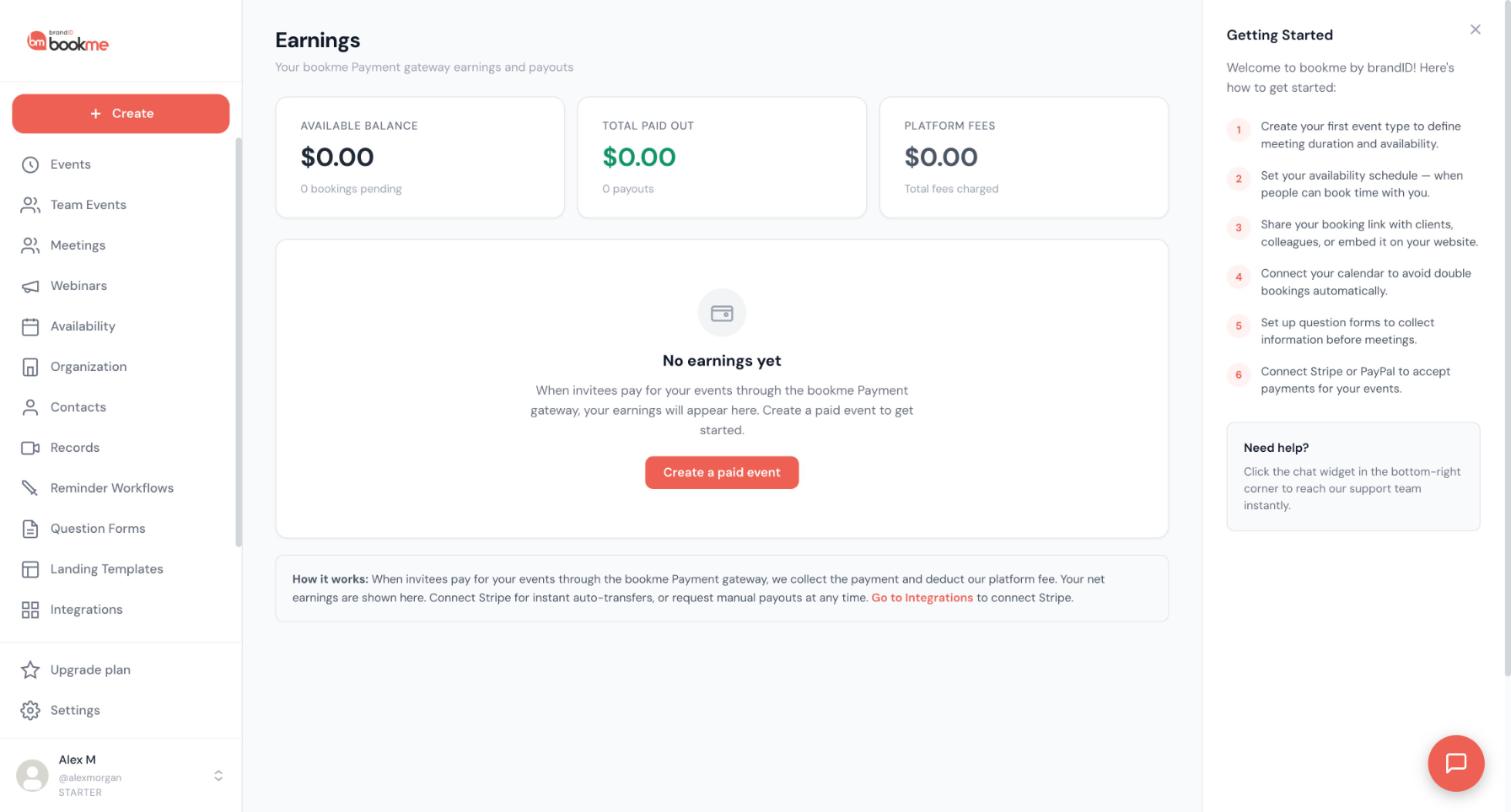
- bookme gateway: the customer pays brandID; the Earnings page shows the gross amount, the fee, and your share.
3. Where To See Your Fee Rate
The event wizard shows the exact percentage next to each gateway option for your current plan, and the Earnings page totals the fees charged.
4. Free Events
No fee.
5. Subscription Bookings Limit
Separate from fees: each plan includes a number of bookings per month (Starter 10, Pro 100, Elite unlimited). Bookings beyond that are $1 (Starter) or $0.50 (Pro) each, whether paid or free.
Payouts depend on the gateway: your own Stripe or PayPal pays you directly and instantly; the bookme gateway holds your share on the Earnings page until it is transferred or paid out.
1. Your Own Stripe Or PayPal
The customer’s payment goes to your account at checkout. Your Stripe balance follows your Stripe payout schedule; PayPal funds are in your PayPal balance at once.
2. bookme Payment Gateway
Open Earnings in the sidebar. You see your available balance, the fees charged, the total paid out, and a transaction history (date, gross, fee, your share, status).
To withdraw:
- Transfer to Stripe. If your Stripe account is connected, click it and the balance is transferred to your Stripe balance. Future gateway payments are then auto-transferred as they come in.
- Request manual payout. If you do not use Stripe, request a payout; brandID processes it manually and the history shows it as paid out.
3. Status Of A Payment
- Pending: the booking is paid and your share is waiting for a transfer or payout.
- Paid: transferred or paid out.
- Refunded: returned to the customer.
4. Minimums And Timing
There is no minimum for a transfer to Stripe. Manual payouts are handled by brandID; write to [email protected] if a requested payout has not moved within a few business days.
Booking payments are visible per booking on the Meetings page and, for the bookme gateway, as a ledger on the Earnings page. Your own subscription receipts come from Stripe.
1. Per Booking
Every paid booking on Meetings shows a Paid chip with the amount. Its details show the gateway (Stripe or PayPal) and the refund button. Filter Meetings by status to find them.
2. Earnings Page
For bookme-gateway payments, the transaction history lists each payment with date, gross, fee, your share, and status, plus totals for fees and payouts.
3. Your Own Stripe Or PayPal
Payments to your own accounts are listed in your Stripe or PayPal dashboard with full detail, receipts, and exports.
4. Subscription Charges
Pro, Elite, and Organization charges are made by Stripe, which emails a receipt for each payment when receipts are enabled for the charge.
5. Exports
There is no CSV export of bookings in bookme yet. Use your gateway’s export, or a webhook workflow to log bookings as they happen.
A paid slot is held while the customer pays. If they never finish, the hold expires, the slot is released, and nothing is charged.
1. The Hold
When a customer submits the booking form on a paid event, bookme reserves the slot as a “checkout in progress” booking and opens Stripe Checkout or PayPal. The reservation lasts about 30 minutes.
2. If They Do Not Pay
After the checkout expires (and at the latest 35 minutes after it started), the reservation is cancelled automatically, the time is offered again, and the customer is not charged. No confirmation emails were ever sent for it.
3. What You See
On the Meetings page the reservation shows as “Pending payment” while it is open, and afterwards as a cancelled row marked Unpaid with the reason “The checkout was not completed in time”. You cannot bring such a booking back; the customer simply books again.
4. Payment Approved But Confirmation Failed
If a payment succeeds after the reservation expired (rare), bookme refunds it automatically rather than confirming a slot that is no longer held. The customer sees a message asking them to book again.
5. Failed Cards
A declined card stays on the Stripe Checkout page for the customer to try another method within the hold window. bookme sends no recovery emails; the customer can return to your booking page any time.
There are no discount codes, coupons, or trial sessions in bookme. Use separate event types to offer different prices.
1. A Free Intro Next To A Paid Session
Create a free “15-minute intro” event and a paid “60-minute session”. Most hosts get the paid booking from the intro, no code needed.
2. A Discounted Event Shared Privately
Duplicate the paid event, lower its price, and share only its direct link with the people who should get the price. It is still visible on your booking page, so name it clearly (“Alumni rate: coaching session”).
3. Gateway-Side Discounts
Stripe promotion codes are not applied to bookme checkouts.
4. Waiving A Fee After The Fact
Refund in full from the booking’s details on Meetings if you decide not to charge someone.
Still stuck? We’re happy to help.
Create your bookme account, see pricing, or reach out to support directly.




