Learning how to go live on Instagram takes about thirty seconds. Working out why the Live option is missing from your app takes considerably longer, and that is the question most people actually arrive with.
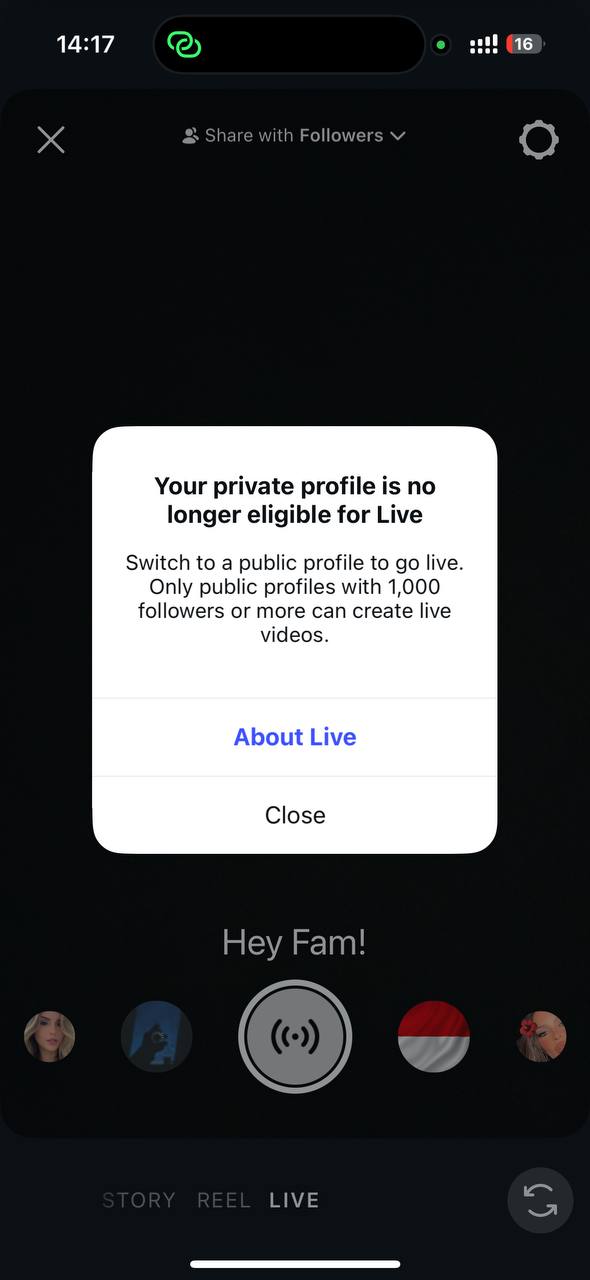
The answer is usually the same two things. Instagram requires a public account with at least 1,000 followers, and if either is missing the Live option simply is not there. Private accounts get told outright, as the screenshot below shows.
Below are the requirements in full, the mobile steps, the desktop route through Live Producer, and a troubleshooting table for every other reason the button disappears.
Once the broadcast ends, the clip is worth more than the stream was, and best Instagram bio ideas cover the profile people land on afterward.
Key Takeaways
Key Takeaways
- Going live on Instagram is free and takes seconds: tap plus, swipe to Live, add a title, tap Go Live
- You need a public account and at least 1,000 followers. Private accounts are blocked outright, with an on-screen message saying so
- Below 1,000 followers, get invited instead. An eligible creator can add you as a guest, which reaches their whole audience
- Practice mode broadcasts to nobody, which is the single most underused feature and the right way to test
- Desktop requires Live Producer and streaming software connected over custom RTMP, not the standard app flow
- You can invite up to three guests and schedule a broadcast up to 90 days ahead
- Mobile lives run up to four hours, while Live Producer sessions are considerably shorter
What Is Instagram Live?
Instagram Live is a real-time video broadcast to your followers. It appears at the front of the Stories bar with a colored ring, and followers can be notified the moment it starts.
Unlike a Reel or a Story, it is unedited and interactive. Viewers comment, send reactions and request to join, and you respond as it happens.
The broadcast disappears when it ends unless you save it, which is where most of the value is lost. A one-hour live can produce a dozen clips, which is the same repurposing logic behind making money on TikTok.
| Instagram Live | Reels | Stories | |
|---|---|---|---|
| Format | Real-time video | Edited short video | Short clips or photos |
| Length | Up to 4 hours on mobile | Up to 3 minutes | 60 seconds per card |
| Interaction | Live comments and guests | Comments after posting | Replies and polls |
| Lifespan | Gone unless saved | Permanent on profile | 24 hours |
| Reach | Followers, plus notifications | Non-followers via recommendations | Mostly followers |
| Best for | Q&A, launches, real conversation | Discovery and growth | Daily presence |
Can You Go Live on Instagram? Requirements
Two conditions decide it. Your account has to be public, and you need at least 1,000 followers. Miss either and the Live option does not appear in the create menu.
Instagram is explicit about the first one. Attempting to go live from a private account produces a message telling you to switch to public before continuing.
| Requirement | Applies to | What to do if you fail it |
|---|---|---|
| Public account | All broadcasts | Switch from private in account settings, then reopen the app |
| 1,000 followers | All broadcasts | Ask an eligible creator to invite you as a guest instead |
| Latest app version | All broadcasts | Update from the App Store or Play Store |
| No active violations | All broadcasts | Check Account Status in settings and wait out or appeal |
| Camera and mic permissions | All broadcasts | Enable both in your device settings for Instagram |
| Professional account | Desktop only | Switch to Creator or Business, free and reversible |
💡 Check it in ten seconds:
Open Instagram, tap the plus icon, and look at the options. If Live is there, you meet both conditions and can broadcast now. If it is missing, check your follower count and privacy setting first, since those account for most cases before anything technical is worth investigating.
How to Go Live on Instagram
The mobile flow is identical on iPhone and Android, and it is the same whether you searched for how to go live on IG, on Insta, or by the full name. This is how do I go live on Instagram in its simplest form.
1Open the create menu
Tap the plus icon at the top of the screen, or swipe right from your feed to open the camera.
2Select Live
Scroll the mode options at the bottom until you reach Live. If it is not there, the troubleshooting section covers why.
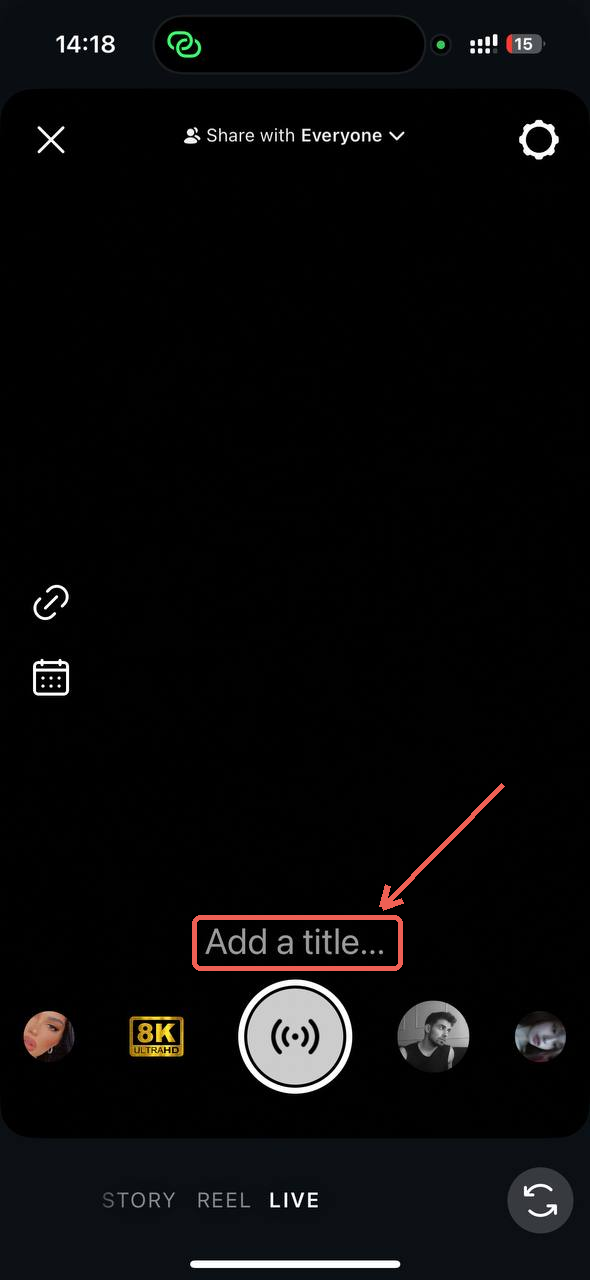
3Add a title
Tap the title field on the left and describe what the broadcast is about. Titles show in the Stories bar and materially affect whether people tap.
4Add a link or schedule it
Two icons sit on the left edge of the setup screen and both are easy to miss. The chain link adds a destination to your broadcast, and the calendar schedules it for later.
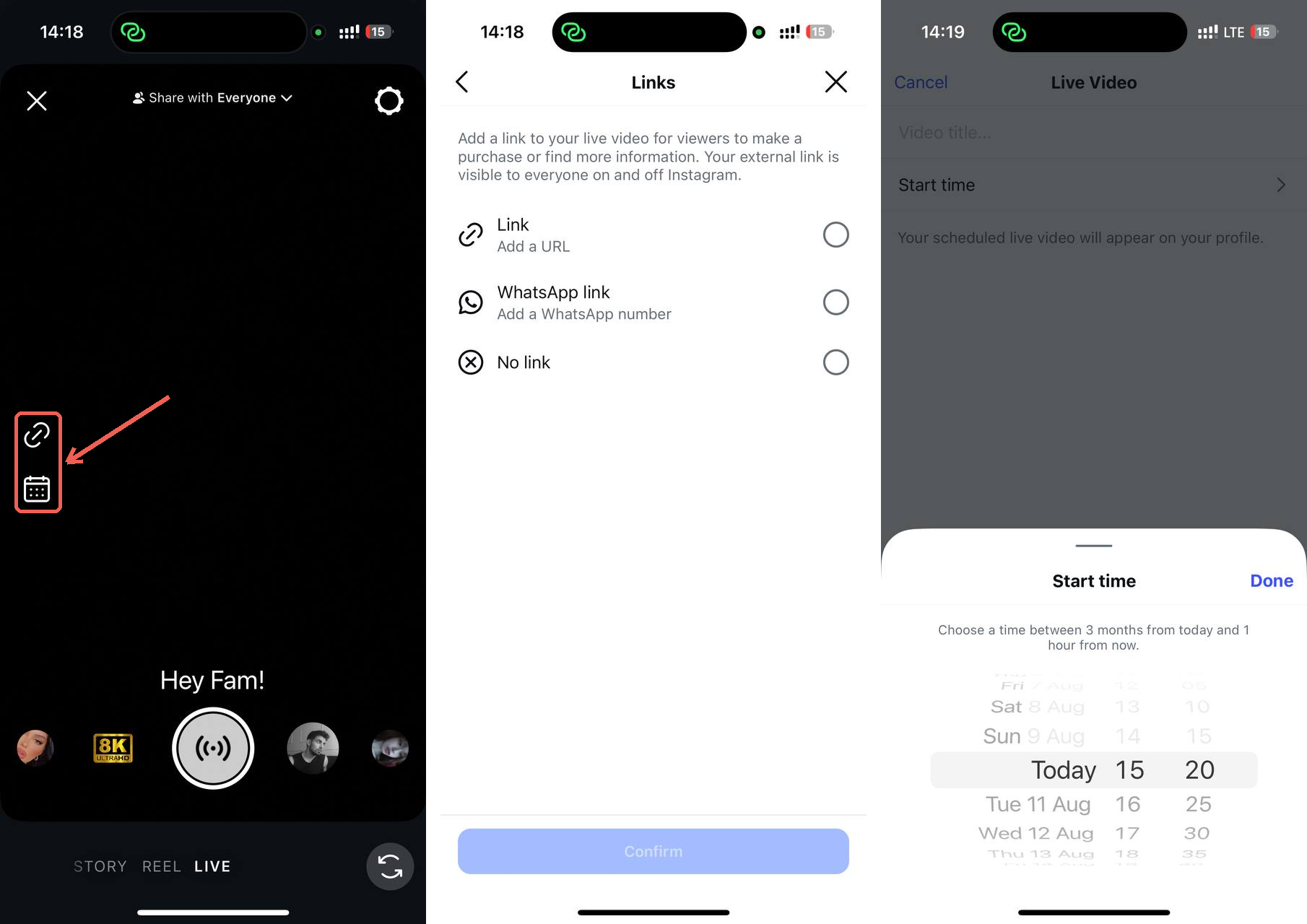
The link option is the more valuable of the two and almost nothing written about Instagram Live mentions it. You can attach a URL or a WhatsApp number, and Instagram states the external link is visible to everyone on and off Instagram.
For anyone selling something, that turns a broadcast into a checkout. A viewer who asks where to buy taps the link instead of being told to check your bio.
The calendar icon schedules the broadcast instead. Instagram accepts any start time between one hour from now and three months ahead, and the scheduled live then appears on your profile so followers can set a reminder.
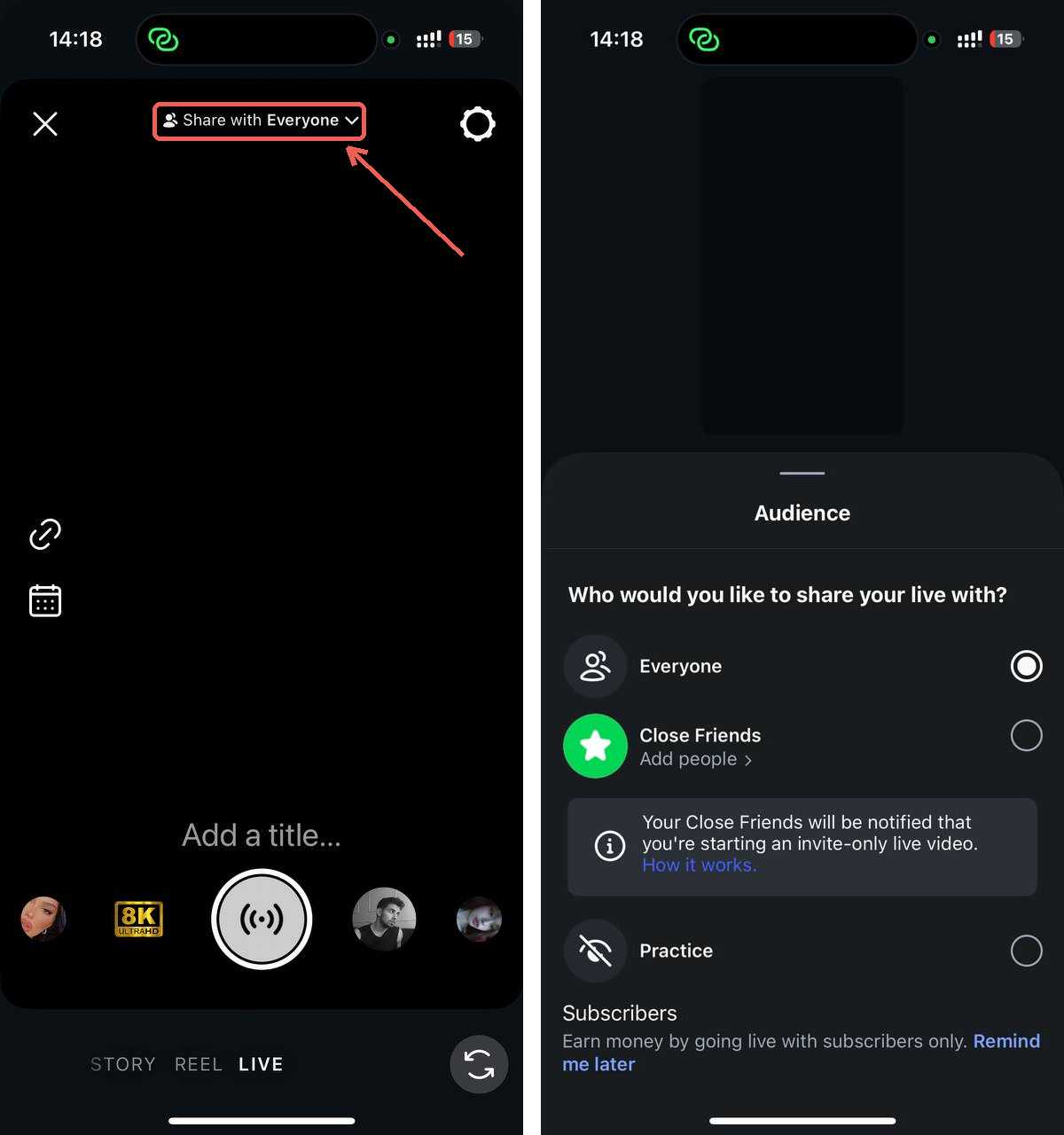
5Choose your audience
Tap the audience icon to pick Public or Practice. Practice broadcasts to nobody, which lets you check lighting, framing and audio first.
6Tap Go Live
Instagram counts down, then notifies followers. Your live moves to the front of their Stories bar with a Live badge.
7End and choose what happens next
Tap End, then confirm. You are offered options to share a clip to Reels, save to your device, or discard. Discarding is the default mistake.
How to Go Live on Instagram on PC
Instagram has no standard desktop broadcast button. Going live from a computer runs through Live Producer, which accepts a feed from streaming software over custom RTMP.
It requires a professional account, and Instagram confirms this one directly.
- 1- Switch to a professional account in settings if you have not already. It is free and reversible.
- 2- Open instagram.com on desktop, click the plus icon, then choose Live from the menu.
- 3- Name the broadcast and set the audience to Practice while you test, or Everyone when ready.
- 4- Copy the RTMP URL and stream key that Instagram generates. The key is temporary and regenerates each session.
- 5- Open your streaming software such as OBS, Streamlabs or StreamYard, and add Instagram as a Custom RTMP destination.
- 6- Set the canvas to vertical 9:16. Horizontal feeds are cropped and zoomed to fit, so build for vertical even if the camera is not.
- 7- Start streaming in the software, wait for the preview to appear in Live Producer, then click Go Live.
| Mobile app | Live Producer on desktop | |
|---|---|---|
| Account needed | Standard account | Professional account, confirmed |
| Setup time | Seconds | 20 to 40 minutes the first time |
| Maximum length | Up to 4 hours | Considerably shorter, around an hour |
| Multiple cameras | No | Yes, through the software |
| Graphics and overlays | No | Yes |
| Guests | Up to 3 | Handled in the software, not by Instagram |
| Comment moderation | Yes | Not supported in Live Producer |
| Best for | Everyday broadcasts | Produced events and interviews |
Why Can’t I Go Live on Instagram?
The Live option vanishing is the most common problem with this feature, and Instagram gives no error message explaining it. These are the causes in rough order of likelihood.
| Cause | How to confirm | Fix |
|---|---|---|
| App out of date | Check the store for a pending update | Update, then force-close and reopen |
| Account is private | Settings, then Account privacy | Switch to public |
| Under 1,000 followers | Check your profile count | Grow, or ask a larger account to invite you as a guest |
| Active guideline violation | Settings, then Account Status | Wait out the restriction or appeal |
| Recent violation cooldown | Account Status shows recent removals | Restrictions usually lift after a set period |
| Camera or mic permissions denied | Device settings, then Instagram | Enable both, then reopen the app |
| Connection too weak | Run a speed test | Use wifi, or move closer to the router |
| Regional or age restriction | Feature missing with no other cause | Some features roll out unevenly by country |
| Cached app fault | Nothing else applies | Log out, clear cache, log back in |
If you are asking why can’t I go live on Instagram, start with the top two rows. A private account or a count under 1,000 explains the overwhelming majority of cases, and everything below them is comparatively rare.
💡 The workaround nobody mentions:
If you cannot start a broadcast yourself, you can still appear in one. A creator who is eligible can invite you as a guest, and your face, name and handle reach their entire audience. For anyone below a follower threshold, being invited is faster than qualifying.
Instagram Live Features Worth Using
Most broadcasts use the camera and nothing else, which leaves the useful half of the feature untouched.
- Practice mode broadcasts to nobody. Use it to check framing, lighting and audio before anyone sees you.
- Guests, up to three, who share the screen with you. Both audiences see the broadcast, so it is the fastest reach mechanism available.
- Scheduling between one hour and three months ahead, which puts the broadcast on your profile with a reminder followers can tap.
- A live link or WhatsApp number, attached before you start and visible to viewers on and off Instagram. This is the most commercially useful feature Instagram Live has and the least discussed.
- Q&A and question stickers, which give you a queue to work through instead of silence.
- Pinned comments, so someone arriving twenty minutes late immediately knows the topic.
- Product tagging for eligible accounts, letting viewers buy without leaving the stream, which is the closest Instagram gets to selling digital products natively.
- Comment moderation and keyword filters, worth configuring before you need them rather than during.
- Gifts and badges, which let viewers pay you during the broadcast. Each Star is worth about a cent, and the thresholds sit alongside every other route in how many followers on Instagram to get paid.
When Can You Go Live on Instagram?
Whenever you like, though the answer people are usually after is when it is worth doing.
Instagram notifies followers when you start, so timing decides how many are awake and free to tap. Check your own audience’s active hours in Insights rather than trusting a generic best-time chart.
What you broadcast about matters more than the hour, and some subjects hold a live audience far better than others. The best Instagram niches differ sharply on how much there is to actually say in real time.
- Weekday evenings between roughly 7pm and 9pm local time work for most consumer audiences.
- Lunchtime on weekdays suits B2B and professional audiences better than evenings.
- Consistency beats timing. A live at the same hour weekly outperforms a better-timed one nobody expected.
- Announce it beforehand. A Story the day before typically doubles the audience against going live unannounced. Your bio is doing that job the rest of the time, and motivational bios for Instagram cover what it should say.
- Stay on longer than feels natural. Viewers accumulate over the first ten minutes, so ending at five guarantees a small audience.
What to Do After the Broadcast
This is where most of the value is lost. The stream ends, the file disappears, and an hour of material produces nothing.
- Share to Reels immediately. Instagram offers this at the end, and it is the only moment it is one tap.
- Download the full recording to your device before dismissing the prompt. There is no second chance.
- Cut the three strongest moments into separate clips. A question answered well is a Reel on its own.
- Post a Story recap with the single best fifteen seconds and a link to the replay.
- Note the questions you were asked. They are a content calendar written by your audience.
- Point the traffic somewhere. A broadcast drives people to your profile, so one of the best link in bio tools decides whether that visit turns into anything.
Where brandID Fits
A live broadcast sends people to your profile, and the profile gives them one link. What sits behind it decides whether the broadcast produced anything beyond views.
That applies twice over now, because the live link described in step four points somewhere too. One URL has to cover every product you mention across an hour of talking.
brandID turns that single link into a page holding whatever you were talking about, so a viewer who was interested has somewhere to go while they still are.
- One page for everything you mentioned during the stream, rather than one destination chosen in advance.
- Sell directly through digital products, subscriptions and tipping, which suits the moment right after a live better than any other.
- Earn commission on products you recommended, through an affiliate marketplace carrying over 5 million products from more than 2,000 brands.
- Capture emails, so the people who showed up are reachable next time without depending on a notification.
- Free plan with a custom domain, and creators keep 95% of every sale on the free plan and 100% on any paid plan using their own gateway.
Mistakes to Avoid
- Going live with no title. The title is what appears in the Stories bar, and an untitled live asks people to gamble.
- Ending after five minutes. Viewers arrive over the first ten, so a short broadcast guarantees an empty room.
- Filling silence with apology. Nobody is watching the view count except you.
- Skipping practice mode. Two minutes of testing prevents the most common failures, which are audio and framing.
- Discarding the recording. The clips are worth more than the broadcast, and the offer to save appears once.
- Reading comments instead of talking. Long pauses while you scroll are the fastest way to lose a viewer.
Conclusion
The mechanics are trivial. Tap plus, choose Live, name it, broadcast. Everything difficult about this feature sits either side of that: whether the option appears at all, and whether you do anything with the recording.
If the button is missing, work down the troubleshooting list in order rather than assuming a follower threshold. If it is there, use practice mode first, stay on longer than feels comfortable, and save the file before you dismiss the prompt.
The broadcast is temporary by design. What you cut out of it does not have to be.
Frequently Asked Questions
How Do You Go Live on Instagram?
The flow is identical on iPhone and Android. If Live is not among the options, your account is not currently eligible or the app needs updating.
Can You Go Live on Instagram Without 1,000 Followers?
You can still appear in someone else’s broadcast. An eligible creator can invite you as a guest, which puts you in front of their entire audience without needing to qualify yourself.
Why Can’t I Go Live on Instagram?
Less common causes are an outdated app, an active community guidelines violation, or denied camera and microphone permissions. Check Account Status in settings for restrictions.
How Do I Go Live on Instagram From a PC?
Add those to streaming software such as OBS or StreamYard as a Custom RTMP destination, set the canvas to vertical 9:16 to avoid cropping, start the stream, then click Go Live once the preview appears. A professional account is required.
What Is Instagram Live?
It differs from Reels and Stories in being unedited and interactive. The broadcast disappears when it ends unless you save it or share it to Reels.
Can You Add a Link to an Instagram Live?
It is the most useful feature for anyone selling or recommending products during a broadcast, because a viewer asking where to buy can tap through immediately rather than being sent to your bio.
How Long Can an Instagram Live Last?
Length is rarely the constraint in practice. Viewers accumulate over the first ten minutes, so the more common error is ending too early rather than running out of time.
Can You Go Live on Instagram With Someone Else?
This is the most effective growth mechanism the feature has, because the broadcast surfaces to both audiences at once. It is also the workaround for anyone who cannot start a live themselves.
Does Instagram Notify Followers When You Go Live?
That notification is why timing matters. Scheduling a live up to 90 days ahead also creates a reminder button followers can tap in advance.
How Do I Save an Instagram Live?
The most useful approach is to save the full file, then cut the strongest three or four moments into separate Reels. An hour of live material usually contains several standalone clips.
When Can You Go Live on Instagram?
Check your own audience’s active hours in Insights rather than following a generic chart. Consistency matters more than the specific slot, since a live at the same time each week builds an audience that expects it.
 Summarize this article with: