
How to undo what an AI app changed
Reverse a change an AI app made to your own things, for example a prompt or a setting. You have 30 days, and it takes a minute.
Before you start
- The change was made in the last 30 days
- You are signed in to the DMpro dashboard (apps cannot undo anything themselves)
Open the Activity tab
On the dashboard click AI Assist (MCP), then the Activity tab (Everything AI apps asked). It opens on Changes. The other filters are All, Reached people and Refused, and a menu next to them picks one app. Look-ups show only under All.
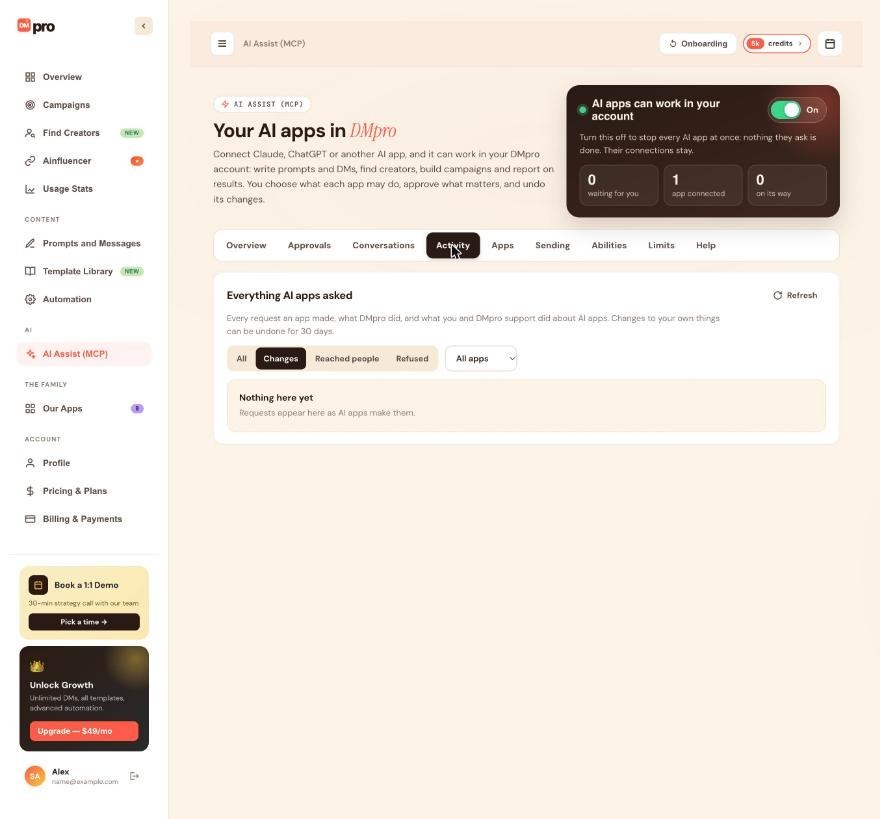
Find the change
Each row shows who did it (the app, You, or DMpro support), what was asked, a summary, the time and a status such as Done, Refused, Asked the user first or Waiting for you. Click Show older to load earlier requests. You can also open the Conversations tab, click Open on the chat you remember and read it as an exchange, with Undo next to each change.
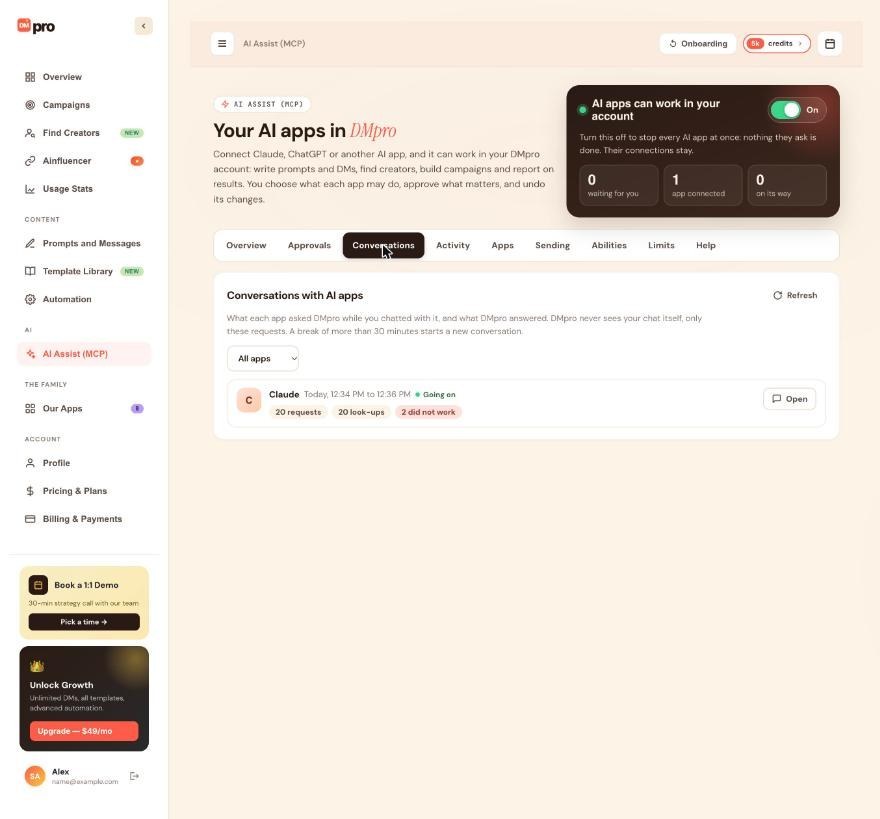
Check what Undo will do
Hover over Undo next to the change. It shows what will be undone and until when. Most changes to your own things can be undone for 30 days:
- prompts and own DMs (created, edited or deleted; a deleted one comes back as a copy)
- the active prompt, the active own DM and the message mode
- profile and business details, the lead value for ROI, sending settings, extension settings and Auto Email
- campaign rotations, and a campaign draft (undo deletes it while it is still a draft)
- creator lists you created, renamed or changed, saved searches, and the Ainfluencer campaign your prompts use
Click Undo
Click Undo. DMpro puts the earlier state back, and the row shows Undone with the time, so the history stays complete. Your own undos are listed too.
If it changed again since
If the thing was changed again after the app’s change, DMpro shows what changed since and gives you two choices: Undo anyway or Keep it. Read the details before you choose, because Undo anyway overwrites the newer version.
Know what cannot be undone
Tips
- Only you can undo, and only on your AI Assist (MCP) page. AI apps cannot undo anything themselves.
- Check Activity from time to time. It is the quickest way to spot a change you did not expect.
- DMpro keeps each request (without passwords or keys) for 12 months.
If something goes wrong
I do not see an Undo button on a row
The change is older than 30 days, it was not a change to your own things (a DM sent or a reveal), or the row is Refused or only a look-up. Make sure the filter is on Changes or All.
I cannot find the change in Activity
The tab opens on Changes and may be filtered to one app. Pick All and All apps, and click Show older.
A deleted prompt came back with a different name or as a copy
That is how undoing a prompt delete works: the prompt returns as a copy. Make it active again with Set active on Prompts and Messages if you need it.
Can I take back DMs a campaign already sent?
No. Sent DMs, sent emails, spent credits and creator reveals cannot be undone. If a campaign is still sending, click Pause or Stop on the Sending tab to halt the rest.
Related how-to guides
Still stuck? We’re happy to help.
Create your account, or reach out to support.




