
How to approve or reject an AI request
Decide on a request an AI app has left waiting in DMpro. It takes a minute, and you should decide within 24 hours.
Before you start
- An AI app connected to DMpro that has asked for something above your limits
Notice that a request is waiting
A request waits when it needs your yes: a campaign start bigger than your limit, more credits than your limit, turning Auto Email on, switching it to With every DM or changing your business address, many changes that reach people in one hour, or a prompt test when your credit limit is 0. You can see it in three places: the number next to AI Assist (MCP) in the left menu, Waiting for your approval on the Overview tab, and an email if approval emails are on (at most one every 10 minutes).
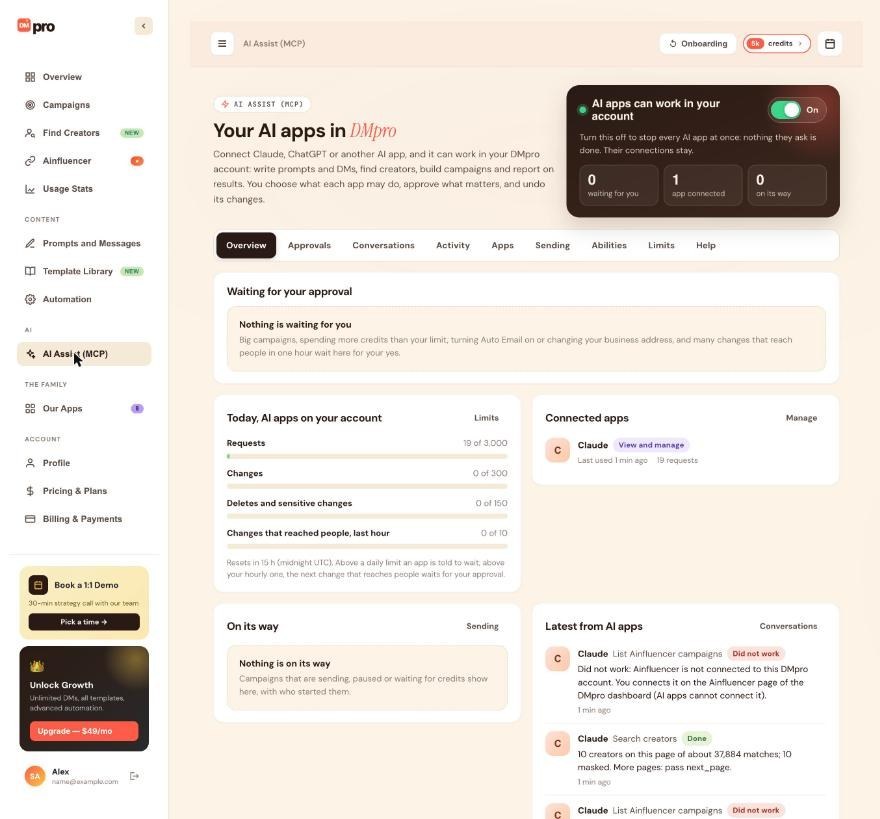
Open the Approvals tab
Click AI Assist (MCP), then the Approvals tab. Requests are listed under Waiting for you. When nothing waits, you see Nothing is waiting for you. The tab states that nothing happens until you approve and that requests expire after 24 hours.
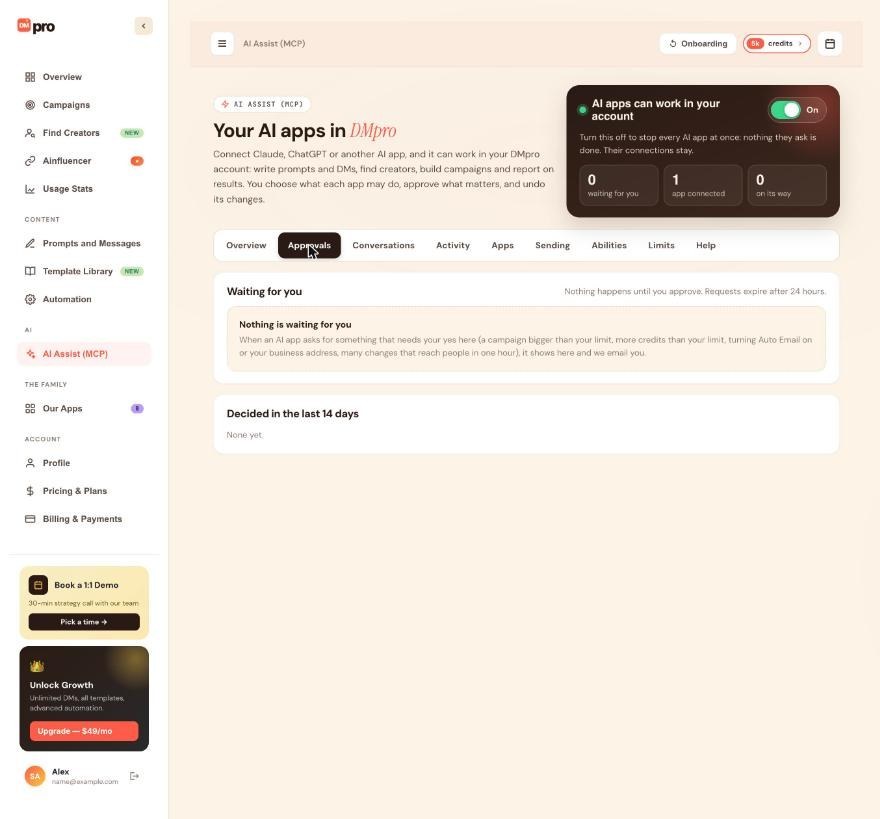
Read the request
Each request shows the app, what it wants to do, why it waits, the facts (for example how many people it would DM, the platform and the credits), when it was asked and when it expires. Check the numbers against what you asked the app to do.
Press Approve and run it, or Reject
- Approve and run it: DMpro runs the request once, as you. A campaign you approve to start is picked up by the extension in your Chrome.
- Reject: nothing happens. The app sees that you rejected it.
Check what happened
Scroll to Decided in the last 14 days. Each decided request shows how it ended: Approved and done, Approved, did not work, Rejected, Expired or Closed. For approved ones, Show what it gave back shows the result the app received. The app can also check its own result.
If it says something changed
DMpro runs an approved request only if it still does what you saw. If the people, the cost or the pace changed meanwhile, nothing is done and you see a message to ask the AI app again. The app then creates a new request with the current numbers.
Tips
- Requests you ignore are not run. They expire after 24 hours.
- A campaign an AI app starts shows on the Sending tab as By an AI app, with Pause and Stop buttons, in case you want to halt it after approving.
- Lower the three limits to see more requests, and raise them to see fewer. See the guide on setting limits.
If something goes wrong
I cannot approve: “AI apps are paused on your account”
The master switch at the top of the AI Assist (MCP) page is off. Turn it on first, then approve.
The request says “Closed: the app is no longer connected”
You disconnected the app, which closes its waiting requests. Connect it again from the app and ask again.
I approved a campaign but nothing is sent
The DMpro extension does the sending. Keep Chrome open with the extension signed in, then check the Sending tab and the campaign’s daily limit and delays.
I never saw the approval email
Check the checkbox on the Limits tab and your spam folder. The email is sent at most once every 10 minutes, and the request is always on the Approvals tab anyway.
Related how-to guides
Still stuck? We’re happy to help.
Create your account, or reach out to support.




