
How to connect Claude to DMpro
Add DMpro to Claude as a custom connector so you can ask Claude to look at your campaigns, write prompts and more. It takes about two minutes.
Before you start
- A DMpro account (the sign-in page can create one with the same email code)
- A Claude account. Free plans can add one custom connector; Pro, Max, Team and Enterprise can add more
- Team and Enterprise: an owner must add the connector first (see step 2)
Copy the DMpro address
Every AI app connects to the same address:
https://invite-extension.dmpro.app/mcp
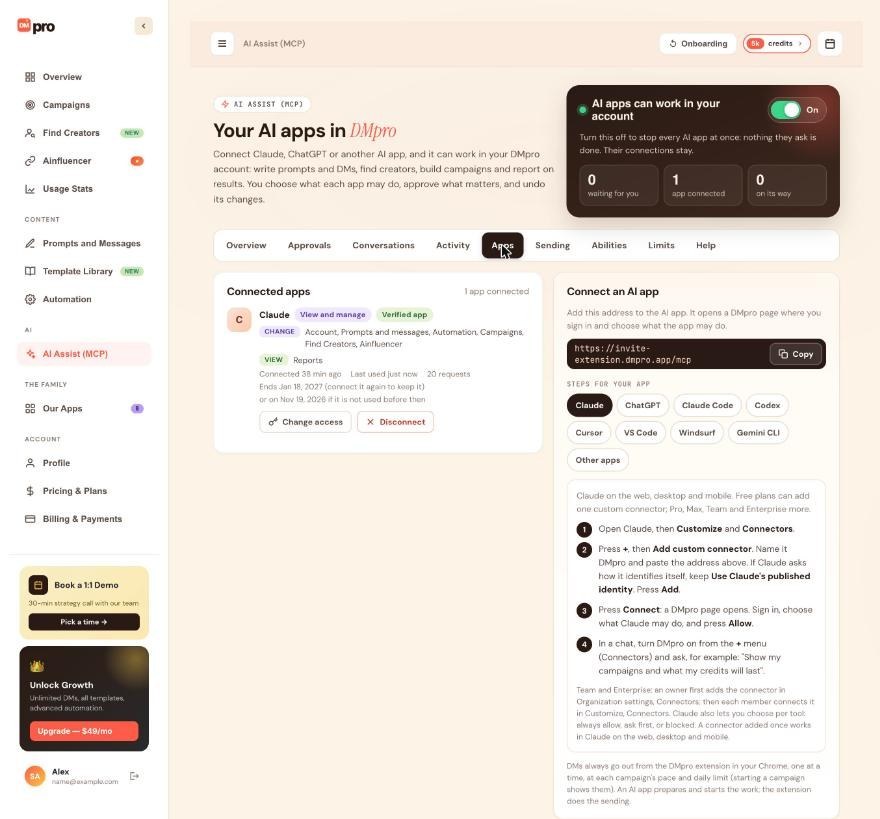
The easiest way to copy it is on the dashboard: open AI Assist (MCP) in the left menu, click the Apps tab, and in the Connect an AI app card click Copy. Under Steps for your app, the Claude chip shows the same steps you are about to follow.
Open Claude’s connector settings
In Claude, open Customize, then Connectors.
Add DMpro as a custom connector
- Press +, then Add custom connector.
- Name it
DMproand paste the address. - If Claude asks how it identifies itself, keep Use Claude’s published identity.
- Press Add.
DMpro now appears in your connector list, but it is not signed in yet.
Press Connect and sign in to DMpro
Press Connect. A DMpro page opens in your browser and says the app wants to work in your DMpro account. Enter your DMpro email and the 6-digit code DMpro sends you. If you are already signed in to DMpro but signed in more than 10 minutes ago, DMpro asks for a fresh code first.
Claude never sees your code. You type it on DMpro’s own page.
Choose what Claude may do and press Allow
Under What may it do? pick one level:
- View only: Claude looks things up and changes nothing.
- View and manage: Claude writes prompts and DMs and builds campaigns and creator lists. Anything that reaches people or spends credits still asks you first.
- Choose per area: set each area to Off, View or View and change.
Claude shows as Verified app. DMpro marks View and manage as recommended for verified apps that ask to make changes. Read the It will be able to and It can never lists, then press Allow. You should see a message that Claude is connected. See it in DMpro opens the Apps tab.
Use DMpro in a chat
Start a chat in Claude, open the + menu, find Connectors and turn DMpro on. Then ask, for example:
Show my campaigns and what my credits will last
Claude reads your account and answers. On the dashboard, the Apps tab now lists Claude under Connected apps with its access badge, and Activity lists what it asked.
Tips
- Claude also lets you set each DMpro tool to always allow, ask first or block. DMpro’s own rules (asks first, approvals and limits) apply on top, whatever you choose in Claude.
- DMs still go out from the DMpro extension in your Chrome, one at a time. Claude prepares and starts the work; it cannot send a DM by itself.
- The connection lasts 90 days, or ends after 30 days unused. Each app shows its end date on the Apps tab.
If something goes wrong
DMpro does not show up in my chat
Turn DMpro on in the chat from the + menu under Connectors. If it still does not show, click Disconnect on Claude in the Apps tab and connect it again from Claude.
Claude shows a generic or old icon
Claude takes a custom connector’s icon from the website icon of the address’s main domain (dmpro.app), not from DMpro’s connection. A generic or outdated icon does not mean anything is wrong.
No sign-in code arrives, or the code is rejected
Check your spam folder, then ask for a new code. A message such as “Please wait N seconds before asking for a new code” means you asked too quickly. If the code expired or has too many wrong tries, ask for a new one.
The consent page says AI apps are paused
You (or DMpro support) turned the master switch off. On the AI Assist (MCP) page, turn AI apps can work in your account back on, then press Check again on the consent page.
Related how-to guides
Still stuck? We’re happy to help.
Create your account, or reach out to support.




