
How to connect ChatGPT to DMpro
Add DMpro to ChatGPT as an app in developer mode, sign in and choose what ChatGPT may do. Allow about five minutes.
Before you start
- A DMpro account
- ChatGPT on the web, on a plan that allows custom apps (see step 1)
- On a Business workspace, an admin may need to allow developer mode first
Check that your ChatGPT plan allows it
Apps that can change things in DMpro need a ChatGPT Business, Enterprise or Edu workspace, used on the web. On Pro, ChatGPT can only look things up. Free and Plus cannot add custom apps.
Copy the DMpro address
The address is:
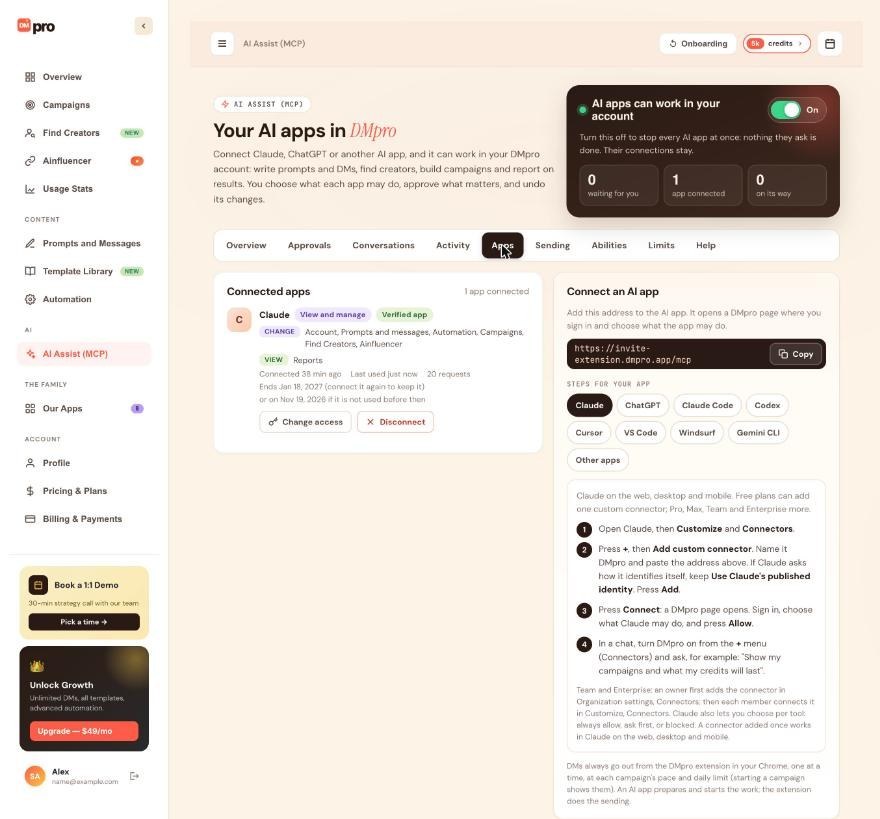
https://invite-extension.dmpro.app/mcp
On the dashboard, open AI Assist (MCP), click the Apps tab, and in Connect an AI app click Copy. Pick the ChatGPT chip under Steps for your app to see these steps next to the address.
Turn on developer mode
In ChatGPT open Settings, then Apps (called Connectors in older versions), then Advanced settings, and turn on Developer mode.
Create the DMpro app
Create an app and fill in:
- Name:
DMpro - Address: paste the DMpro address
- Sign-in: keep OAuth
Save it. ChatGPT then sends you to DMpro to sign in.
Sign in to DMpro and press Allow
On DMpro’s own page, enter your DMpro email and the 6-digit code that DMpro emails you. Under What may it do? choose View only, View and manage or Choose per area, read the lists of what the app will and can never do, then press Allow. ChatGPT is recognized by DMpro and shows as Verified app.
Use DMpro in a chat
Open a chat, add DMpro from the + menu and ask what you need, for example: “Show my campaigns and what my credits will last.” ChatGPT reads your account through DMpro and answers in the chat.
Then check the dashboard: AI Assist (MCP), Apps now lists ChatGPT under Connected apps with its access badge, the time it connected and the date the connection ends. The Activity tab lists each request ChatGPT made.
Tips
- ChatGPT changes its menus often. Look for adding an app, a connector or a custom MCP server by its address.
- Nothing ChatGPT does can send a DM by itself. DMs go out from the DMpro extension in your Chrome at each campaign’s pace and daily limit.
- Check Activity on the AI Assist (MCP) page from time to time to see exactly what ChatGPT asked DMpro.
If something goes wrong
I do not see DMpro in the ChatGPT chat
Add the app to the chat from the + menu. If it still does not show, click Disconnect on the app in the DMpro Apps tab and connect it again from ChatGPT.
ChatGPT can look things up but cannot change anything
Either your ChatGPT plan only allows lookups (Pro), or you chose View only on the DMpro consent page. For the second case, open the Apps tab, click Change access and set the areas you want to View and change. Widening access needs a fresh 6-digit code.
The sign-in code does not arrive or is rejected
Check spam, then ask for a new code. If you see “Too many tries” or “Too many wrong codes”, ask for a new code. DMpro asks for a code even when you are signed in if your last sign-in is older than 10 minutes.
I see “DMpro does not know this app” or “This link does not match the app”
Remove DMpro in ChatGPT, add it again, and start the connection from ChatGPT (not from an old link).
Related how-to guides
Still stuck? We’re happy to help.
Create your account, or reach out to support.




