
AI Assist (MCP)
Connect Claude, ChatGPT, Cursor and other AI apps to your DMpro account, choose what they may do and stay in control.
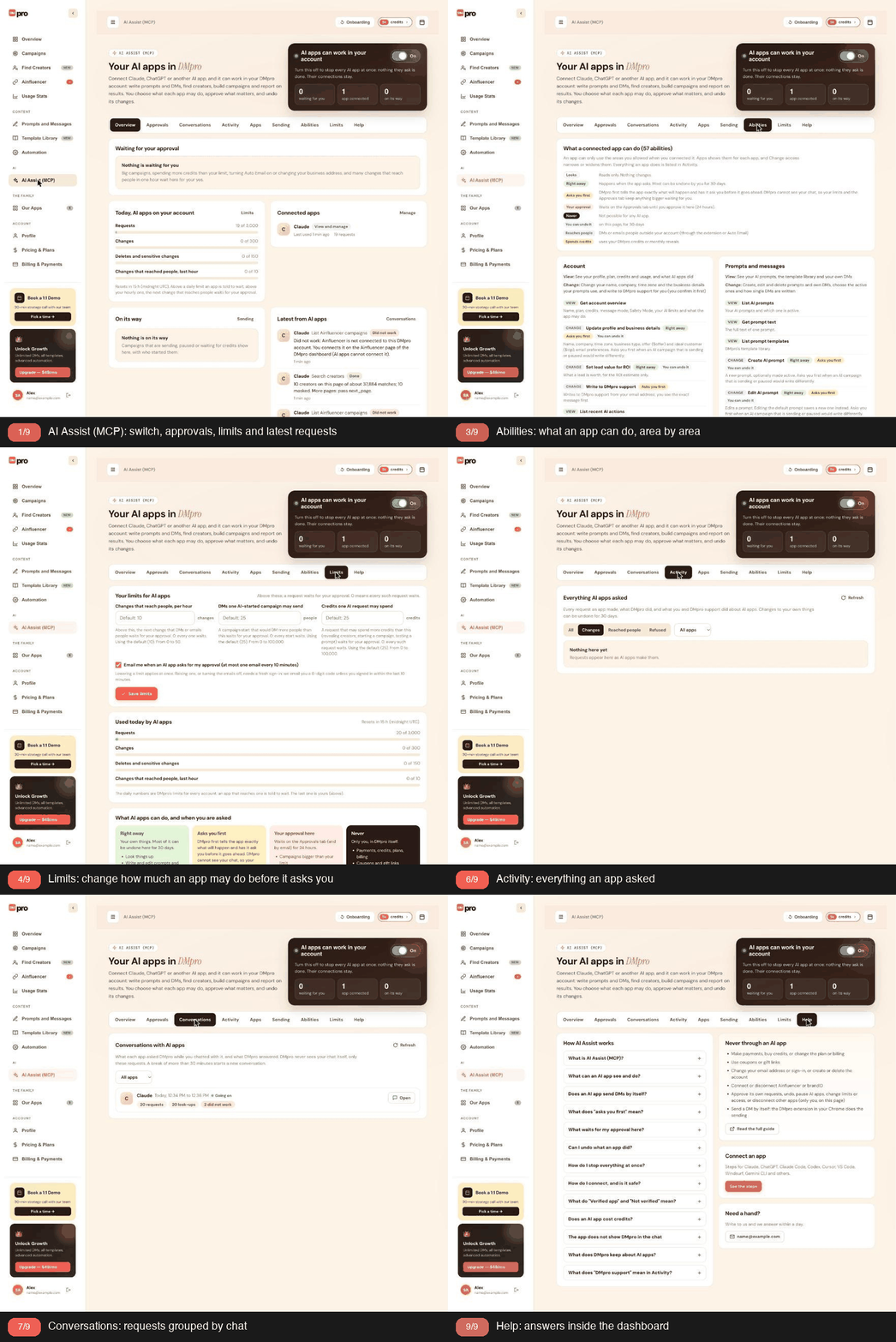
AI Assist (MCP) lets AI apps like Claude and ChatGPT work in your DMpro account for you, within limits you set, and this article explains what it is and how it works.
1. What It Is
MCP (Model Context Protocol) is the open standard AI apps use to connect to other services. With AI Assist (MCP), you connect an AI app to DMpro once, then ask in the chat:
- “Write three DM prompts for skincare creators.”
- “Make a campaign draft for this list with my own DM.”
- “Turn Safety Mode on.”
- “How are my campaigns doing?”
The app works in your DMpro account, as you, within what you allow.
2. One Address For Every App
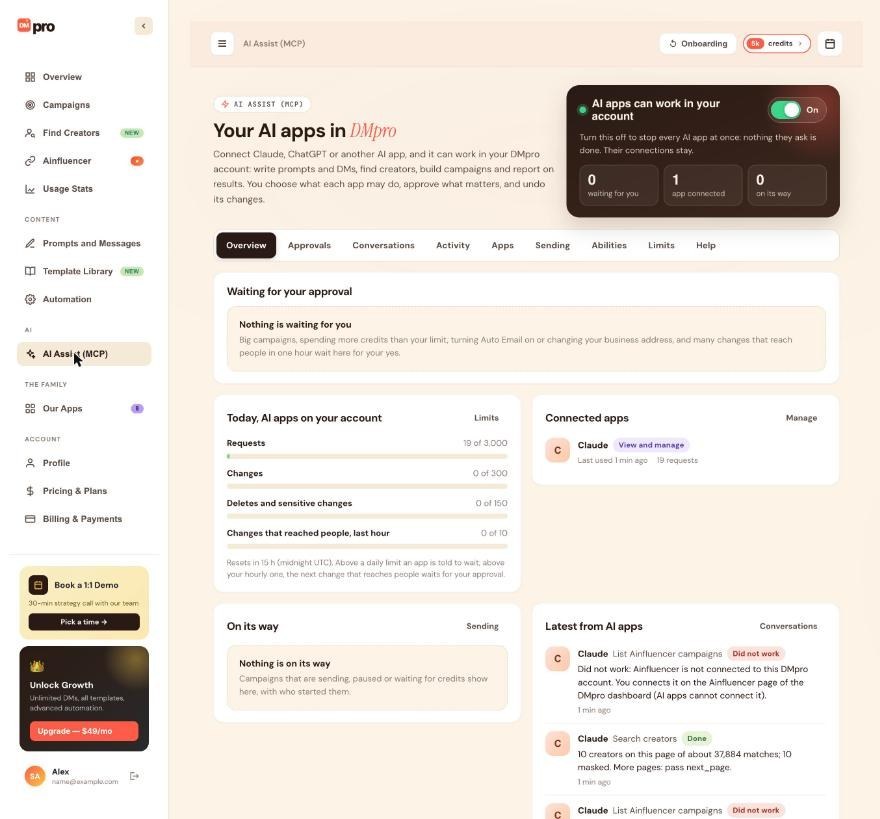
Every app connects to the same address:
https://invite-extension.dmpro.app/mcp
The app opens a DMpro page where you sign in with your email code and choose what it may do.
3. What An App Can Do
Only the areas you allow: Account, Prompts and messages, Automation, Campaigns, Find Creators (when available on your account), Ainfluencer and Reports. See “What Can An AI App Do In DMpro, And What Can It Never Do?”.
4. You Stay In Control
- Changes to your own things happen right away, and most can be undone for 30 days.
- Anything that reaches people, spends credits or deletes for good asks you first.
- Bigger requests wait for your approval in DMpro.
- Payments, plans, sign-in and the account itself are never available to an app.
5. The Extension Still Does The Sending
An AI app prepares and starts the work, but DMs always go out from the DMpro extension in your Chrome, one at a time, at each campaign’s pace and daily limit.
6. Your Control Panel
On the dashboard, AI Assist (MCP) (in the left menu under AI, or AI Assist (MCP) in the extension’s account menu) shows your connected apps, what waits for your approval, everything the apps did, and every control. See “The AI Assist (MCP) Page: A Tour Of Every Tab”.
7. Ready-Made Requests
Apps that show an MCP server’s prompts (often in a / or + menu) offer eight from DMpro: DMpro account checkup, Write an AI prompt for my DMs, Write my own DM with variations, Find creators to DM, Launch a DM campaign, Campaign report, Make my sending safer, and Stop all sending now.
8. What It Costs
Asking DMpro through an app is free. Things cost what they cost in DMpro itself: 1 credit per AI-written DM and per own DM sent, 1 credit per prompt test, and 3 credits for each creator reveal past your monthly reveals (when Find Creators is available on your account).
Related questions:
DMpro works with the major AI apps and any app that connects to remote MCP servers with sign-in, and this article lists them and what each needs.
1. Apps With Step-By-Step Guides
- Claude on the web, desktop and mobile.
- ChatGPT on the web.
- Claude Code in a terminal.
- Codex: the Codex CLI, its IDE extension and the Codex app.
- Cursor.
- VS Code with GitHub Copilot in Agent mode.
- Windsurf (called Devin Desktop in its newest versions).
- Gemini CLI in a terminal.
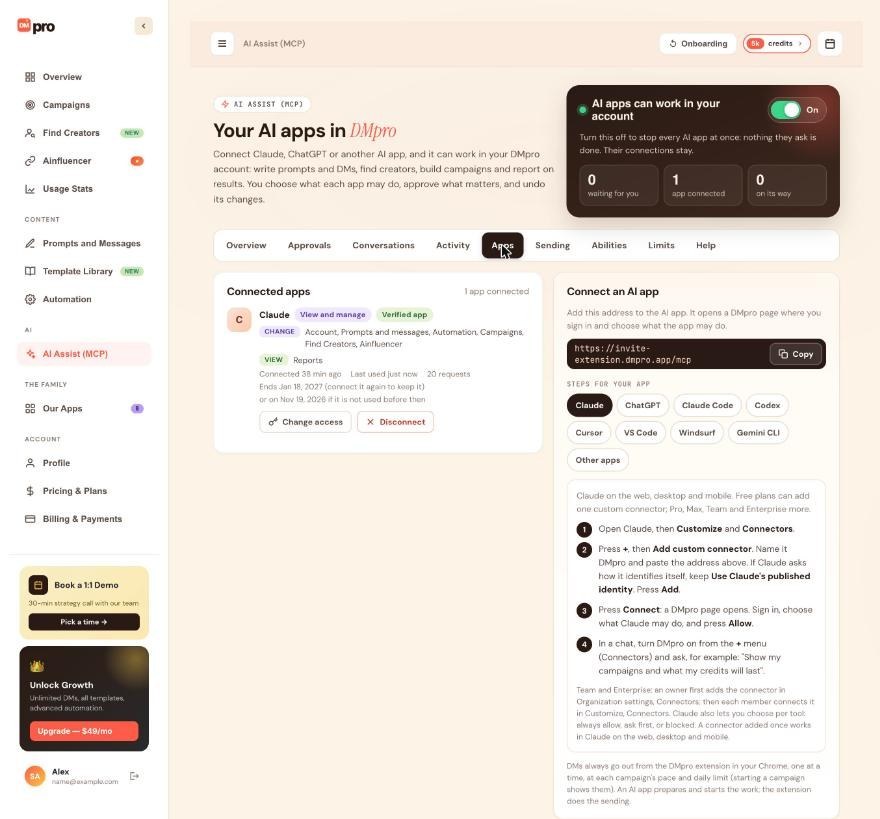
The dashboard’s AI Assist (MCP), Apps tab has the steps for each, with copy buttons, and so does the public guide at https://invite-extension.dmpro.app/docs/ai.
2. Other Apps
Any app that connects to remote MCP servers with sign-in (OAuth) works, for example Le Chat by Mistral, Perplexity, Zed and Copilot Studio. See “How To Connect Other AI Apps”.
3. Plan Requirements In The AI Apps
DMpro’s guide notes these requirements on the apps’ side:
- Claude: free plans can add one custom connector; Pro, Max, Team and Enterprise more.
- ChatGPT: apps that can change things need a Business, Enterprise or Edu workspace, on the web. On Pro, ChatGPT can only look things up. Free and Plus cannot add custom apps.
4. Verified Apps
DMpro recognizes Claude, Claude Code, ChatGPT, Codex and VS Code from their published address and shows them as Verified app. Other apps (Cursor, Gemini CLI, Windsurf and more) register themselves when they connect: they work the same, but show Not verified, and DMpro asks you to confirm you trust them.
5. Menus Change
AI apps change their menus from time to time. If yours look different, look for adding a connector, an app or an MCP server by its address.
Related questions:
Connecting Claude takes a minute, and once added the connector works in Claude on the web, desktop and mobile; this article walks through it.
1. Copy The DMpro Address
https://invite-extension.dmpro.app/mcp
You can also copy it from the dashboard: AI Assist (MCP), Apps, Connect an AI app, Copy.
2. Add The Connector In Claude
- Open Claude, then Customize and Connectors.
- Press +, then Add custom connector.
- Name it DMpro and paste the address. If Claude asks how it identifies itself, keep Use Claude’s published identity.
- Press Add.
3. Connect And Sign In
Press Connect. A DMpro page opens: sign in with your email code, choose what Claude may do, and press Allow. See “The Consent Screen: Signing In And Choosing What An App May Do”.
4. Use It In A Chat
In a chat, turn DMpro on from the + menu (Connectors) and ask, for example: “Show my campaigns and what my credits will last.”
5. Team And Enterprise
An owner first adds the connector in Organization settings, Connectors; then each member connects it in Customize, Connectors.
6. Per-Tool Choices In Claude
Claude also lets you choose, for each tool, to always allow it, ask first, or block it. DMpro’s own rules (asks first, approvals and limits) apply in any case.
7. The Icon Claude Shows
Claude shows a custom connector’s icon from the website icon of the address’s main domain (dmpro.app), not from DMpro’s connection itself. If you see a generic or an old icon, that is why; the connection works normally.
Related questions:
ChatGPT connects to DMpro as an app in developer mode, and this article walks through the steps.
1. What You Need
Apps that can change things need a ChatGPT Business, Enterprise or Edu workspace, on the web. On Pro, ChatGPT can only look things up. Free and Plus cannot add custom apps.
2. Turn On Developer Mode
Open Settings, then Apps (Connectors in older versions), then Advanced settings, and turn on Developer mode. On Business, a workspace admin may need to allow it first.
3. Create The App
Create an app: name it DMpro, paste the address https://invite-extension.dmpro.app/mcp, and keep the sign-in on OAuth.
4. Sign In To DMpro
Sign in to DMpro when asked, choose what ChatGPT may do, and press Allow.
5. Use It In A Chat
In a chat, add DMpro from the + menu and ask what you need.
6. If Your Menus Look Different
ChatGPT changes its menus often. Look for adding an app, a connector or a custom MCP server by its address.
Related questions:
Terminal-based AI apps connect to DMpro with one command and a browser sign-in, and this article gives the exact steps for each.
1. Claude Code
In a terminal with Claude Code installed, run:
claude mcp add --transport http dmpro https://invite-extension.dmpro.app/mcpThen run /mcp in Claude Code, choose dmpro and sign in to DMpro in the browser that opens. Add --scope user to the command to have DMpro in every project.
2. Codex
The Codex CLI, its IDE extension and the Codex app share the same setup. Run these commands (the second one opens the sign-in):
codex mcp add dmpro --url https://invite-extension.dmpro.app/mcp
codex mcp login dmpro
Or add this to ~/.codex/config.toml yourself, then run codex mcp login dmpro:
[mcp_servers.dmpro]
url = "https://invite-extension.dmpro.app/mcp"
3. Gemini CLI
In a terminal, on a computer with a browser, run:
gemini mcp add --transport http dmpro https://invite-extension.dmpro.app/mcpThen run /mcp auth dmpro in Gemini CLI and sign in to DMpro in the browser. Add -s user to the command to have DMpro in every folder.
4. Signing In
Each one opens DMpro’s own sign-in page in your browser. You sign in with your email code and choose what the app may do; the app never sees your code.
Related questions:
Code editors connect to DMpro through their MCP settings, two of them with a one-click button, and this article gives the steps for each.
1. Cursor
On the dashboard’s AI Assist (MCP), Apps tab, choose Cursor and click Add to Cursor: Cursor opens and asks you to install it. Or open Cursor Settings, then MCP (Tools and Integrations), and add a custom MCP server, or put this in ~/.cursor/mcp.json:
{
  "mcpServers": {
    "dmpro": { "url": "https://invite-extension.dmpro.app/mcp" }
  }
}
Next to dmpro, press Connect (or Login) and sign in to DMpro in the browser.
2. VS Code
DMpro works with GitHub Copilot in VS Code, in Agent mode. On the Apps tab, choose VS Code and click Add to VS Code. Or run MCP: Add Server from the Command Palette, choose HTTP, paste the address and name it dmpro, or put this in .vscode/mcp.json:
{
  "servers": {
    "dmpro": { "type": "http", "url": "https://invite-extension.dmpro.app/mcp" }
  }
}
Start the server when VS Code asks and sign in to DMpro in the browser. Then use Copilot Chat in Agent mode.
3. Windsurf
In Windsurf (called Devin Desktop in its newest versions), open MCP servers in the Cascade panel and choose to configure them. Add this to the MCP configuration file (mcp_config.json):
{
  "mcpServers": {
    "dmpro": { "serverUrl": "https://invite-extension.dmpro.app/mcp" }
  }
}
Refresh the servers and sign in to DMpro when asked. Windsurf allows 100 tools in total across all its servers; DMpro uses fewer than 60. If you reach the limit, turn off tools you do not need.
4. Not Verified Is Normal Here
Cursor and Windsurf register themselves with DMpro when they connect, so they show as Not verified. On the consent screen, tick that you trust the app and started the connection yourself.
Related questions:
Any AI app that connects to remote MCP servers with sign-in can use DMpro, and this article explains how to add it.
1. What The App Needs
Support for remote MCP servers (Streamable HTTP) with sign-in (OAuth). Examples: Le Chat by Mistral, Perplexity, Zed and Copilot Studio.
2. Add The Address
Add https://invite-extension.dmpro.app/mcp as a remote MCP server or custom connector. The app finds the sign-in by itself.
3. Sign In
Sign in to DMpro when asked and choose what the app may do. You always sign in on DMpro’s own page; the app never sees your email code.
4. Where To Find It In Some Apps
- Le Chat: Intelligence, Connectors, Add Connector, Custom MCP Connector (an admin may need to add it).
- Perplexity: Settings, Connectors, add a custom connector.
- Zed: add the address under context_servers in its settings.
5. For Developers
The Abilities tab has a “For developers” part with the technical details: the MCP address, transport, protocol versions, sign-in, scopes, every tool and the limits per account. The public guide at https://invite-extension.dmpro.app/docs/ai has the address, transport, protocol versions, sign-in and scopes.
Related questions:
When you connect an AI app, DMpro opens its own consent page where you sign in and decide what the app may do, and this article explains every step.
1. Sign In
“[App] wants to work in your DMpro account. Sign in with your DMpro email: we send you a 6-digit code.” Enter your email and the code. New to DMpro? The same code creates your free account.
If you are already signed in to DMpro but signed in more than 10 minutes ago, DMpro asks for a fresh 6-digit code first, because connecting gives the app access to your account.
2. Who Is Asking
- Verified app: “DMpro recognizes [app] by its published address.”
- Not verified: “DMpro cannot verify this app.” Connect it only if you set it up yourself and trust it. If an unverified app uses the name of a well-known app, DMpro adds a warning: press Cancel if you did not just start the connection from that app.
3. Choose What It May Do
Under What may it do?:
- View only: “Looks things up: your prompts, campaigns, creators and reports. Changes nothing.”
- View and manage: “Works for you: writes prompts and DMs, builds campaigns and creator lists. Anything that reaches people or spends credits asks you first; big requests wait for your approval in DMpro.”
- Choose per area: set each area to Off, View or View and change.
DMpro marks one level Recommended: View and manage for verified apps that ask to make changes, View only for the others.
4. Read What It Will And Will Never Do
It will be able to lists each area you allowed. It can never lists what no app can do: pay, buy credits, or change your plan or billing; use coupons or gift links; change your email or sign-in, or create or delete your account; approve its own requests, undo, pause AI apps or change your limits.
5. Trust Tick For Unverified Apps
For an app that is not verified, tick “I trust [app] and I started this connection myself.” before you can allow it.
6. Allow Or Cancel
Press Allow to connect, or Cancel. DMpro shows “[App] is connected” and takes you back to the app. See it in DMpro opens the Apps tab.
7. How Long It Lasts
“The connection lasts 90 days, or ends after 30 days unused.” DMpro also emails you when a new app connects.
8. If AI Apps Are Paused
If you paused every AI app on the AI Assist (MCP) page, the consent page says so. Turn them back on there, then press Check again.
Related questions:
An AI app can only work in the areas you allowed, and some things are never possible through any app, and this article lists both.
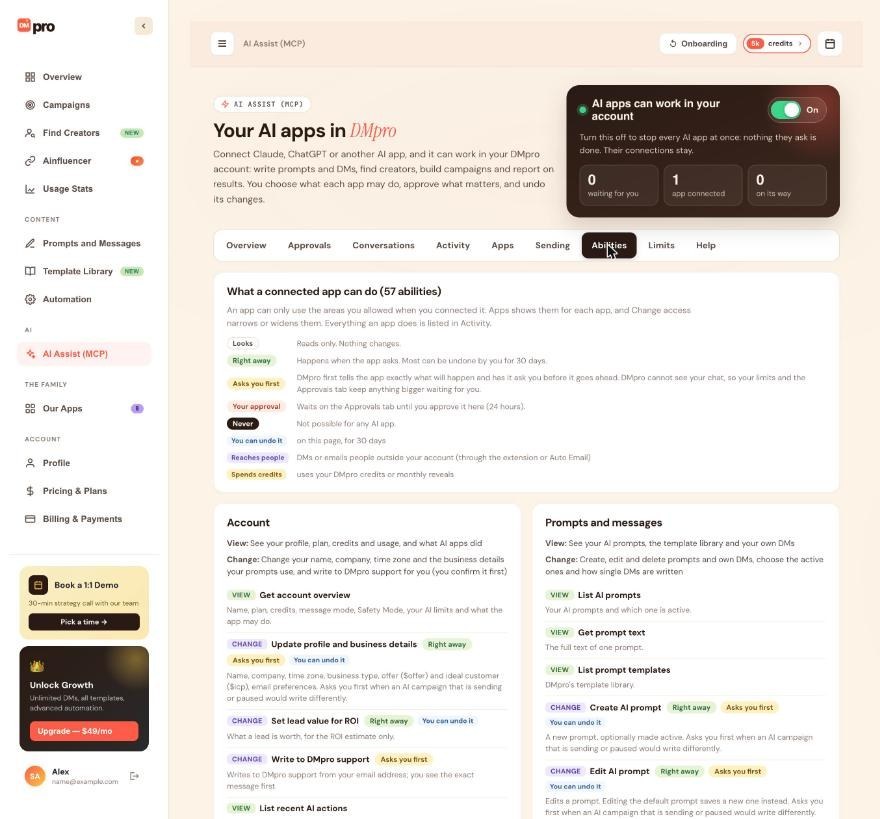
1. The Seven Areas
- Account: see your profile, plan, credits and usage, and what AI apps did. Change your name, company, time zone and the business details your prompts use, and write to DMpro support for you (you confirm it first).
- Prompts and messages: see and create, edit and delete prompts and own DMs, choose the active ones and how single DMs are written, add templates, and test a prompt (1 credit, asks first).
- Automation: see and change Safety Mode, sending limits and delays, Auto Send DM and Auto Email. Loosening asks you first; turning Auto Email on waits for your approval (and needs a Growth, Professional or Enterprise plan and your business address).
- Campaigns: see campaigns and every recipient’s result; create drafts, add usernames, change a rotation, pause, start, stop and delete campaigns (starting, stopping for good and deleting ask you first; big starts wait for your approval).
- Find Creators (when available on your account): search the creator catalog, reveal creators (you confirm what it uses), and manage your lists and saved searches.
- Ainfluencer: see your Ainfluencer connection and its campaigns, and choose the Ainfluencer campaign your prompts use.
- Reports: see your DM activity, usage, ROI and credit runway (view only).
2. Every App Can Also
Check what became of a request that waited for you (only its own requests).
3. Never Through An AI App
- Make payments, buy credits, or change the plan or billing.
- Use coupons or gift links.
- Change your email address or sign-in, or create or delete the account.
- Connect or disconnect Ainfluencer or brandID.
- Approve its own requests, undo, pause AI apps, change limits or access, or disconnect other apps (only you, on the AI Assist page).
- Send a DM by itself: the DMpro extension in your Chrome does the sending.
4. When Each Ability Happens
The Abilities tab marks each ability:
- Looks: reads only. Nothing changes.
- Right away: happens when the app asks. Most can be undone by you for 30 days.
- Asks you first: DMpro first tells the app exactly what will happen and has it ask you before it goes ahead.
- Your approval: waits on the Approvals tab until you approve it (24 hours).
It also flags abilities with You can undo it, Reaches people and Spends credits.
5. What You See Of Other People’s Text
Text from profiles, the creator catalog or Ainfluencer briefs reaches the app marked as information only, never as instructions, so a bio cannot tell the app what to do.
Related questions:
When you ask an AI app to write, use or send messages, it follows the same rules as DMpro itself, and this article explains what changes in your account when it does.
1. “Use This Prompt” Or “Use This DM”
When you tell an app to use a prompt or an own DM, it makes that prompt or own DM the active one and switches the message mode to it, so single-profile DMs use it too. This is the same as Set active (or Set as active DM) followed by Use AI Prompt (or Use Your Own DM) on Prompts and Messages. If an AI campaign that is sending, paused or out of credits follows your active prompt, making another prompt active asks you first, because that campaign would write with it too.
2. Just Saving Something
A prompt or own DM an app only creates is saved, not used. It shows on Prompts and Messages, and nothing changes until it is made active. (The very first own DM in your account becomes the active own DM by itself, but single-profile DMs keep following the message mode.)
3. Campaigns With A Named Prompt
When an app creates an AI campaign for a prompt you name, that prompt becomes your active prompt, because AI campaigns write each DM with the active prompt at the moment it is written (unless they rotate 2 or more prompts). Your AI-written single-profile DMs use it too, but the message mode does not change. If an AI campaign that is sending, paused or out of credits would then write differently, the app asks you first.
4. Campaigns With Your Own DM
An own DM campaign sends the own DM chosen when it was created (your active own DM unless you name another), in its latest saved text. So when an app edits that own DM while the campaign is sending, paused or out of credits, it asks you first. If the own DM is deleted, the campaign keeps sending the copy saved when it was created.
5. Drafts First
An app creates campaigns as drafts. Nothing is sent until the campaign starts, and starting always asks you first. Above your limits (people per campaign, credits per request, or changes that reach people per hour), the start waits for your approval instead. See “AI Assist Limits: The Hourly Limit On Changes That Reach People And More”.
6. Changes That Reach Running Campaigns Ask First
Editing, deleting or switching the prompt an AI campaign writes with, changing its rotation, or changing $offer, $icp or the Ainfluencer campaign behind $campaign_* asks you first while such a campaign is sending, paused or out of credits. So does editing the own DM an own DM campaign sends, or deleting it when the campaign’s saved copy reads differently.
7. The Extension Still Sends
A campaign an app starts runs in the DMpro extension in your Chrome like any other campaign. The AI Assist Sending tab marks it By an AI app and shows which app started it.
8. Undo
Most of these changes can be undone from Activity for 30 days, which puts back the previous active prompt, active own DM and message mode. A draft campaign can be undone (deleted) while it is still a draft, and that also makes your previous prompt active again if the app changed it.
Related questions:
For anything that reaches people, spends credits or deletes for good, DMpro makes the AI app check with you before it goes ahead, and this article explains how that works.
1. Two Steps
When an app asks for such a change, DMpro does not do it right away. It answers the app with exactly what will happen (for example who and how many people a campaign would DM, the pace and the credits) and tells it to ask you. Only a second request, after you agree, goes ahead.
2. Bound To That Exact Request
The second step only works for exactly the same request, within 10 minutes, once. If what it would do changes meanwhile (more people, a different cost), the app has to ask again.
3. What Asks You First
- Starting or resuming a campaign.
- Stopping a campaign for good, deleting a campaign, deleting a creator list.
- Revealing creators, when available on your account (uses monthly reveals, then credits).
- Testing a prompt with DMpro’s AI (1 credit).
- Faster sending (Safety Mode off, a higher daily limit, shorter delays) and turning Auto Send DM on.
- Writing to DMpro support for you.
- Changing what a campaign that is sending, paused or out of credits sends (the prompt, rotation or details an AI campaign writes with, or the own DM an own DM campaign sends).
4. Why Your Limits Still Matter
DMpro cannot see your chat, so it cannot know whether the app really asked you. That is why your limits stand behind it: beyond them, a request waits on the Approvals tab until you approve it in DMpro. See “Approving Or Rejecting Requests That Wait In DMpro”.
5. Stopping Is Always Allowed
Pausing a campaign or turning Auto Email off happens right away, with no question asked.
Related questions:
Bigger requests from AI apps wait in DMpro until you approve them, and this article explains what waits, how to decide and what happens next.
1. What Waits For Your Approval
- A campaign start that would DM more people than your limit for one AI-started campaign.
- A request that would spend more credits than your limit for one AI request.
- Turning Auto Email on, switching it to With every DM, or changing your business address.
- Any change that reaches people once you passed your hourly limit for such changes.
- A prompt test when your credit limit per request is 0.
2. Where To Find Them
- The dashboard’s left menu shows a count next to AI Assist (MCP).
- Overview shows “Waiting for your approval”.
- The Approvals tab lists everything under Waiting for you.
If approval emails are on, DMpro emails you when a request waits (at most one email every 10 minutes).
3. Read The Request
Each request shows the app, what it wants to do, why it waits, the facts (for example people it would DM, platform, credits), when it was asked and when it expires.
4. Decide
- Approve and run it: DMpro runs the request once, as you. A campaign you approve to start is picked up by the extension.
- Reject: nothing happens. The app sees that you rejected it.
While AI apps are paused, you cannot approve (“AI apps are paused on your account. Turn them back on first, then approve.”). Requests from an app you disconnected are closed (“Closed: the app is no longer connected.”).
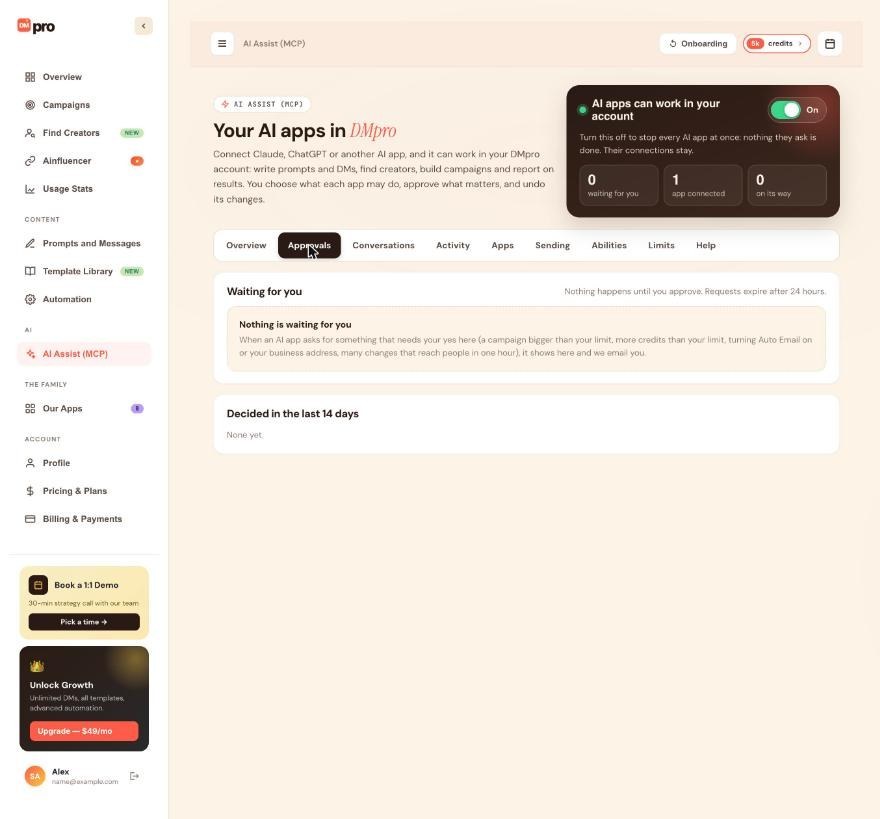
5. Requests Expire After 24 Hours
Nothing happens until you approve. A request you do not decide on expires after 24 hours.
6. If Something Changed Meanwhile
DMpro runs an approved request only if it still does what you saw (for example the same people, pace and credits). Otherwise you see “What this would do changed since you were asked (for example the number of people, the cost or the pace), so nothing was done. Ask the AI app again to get a new request with the current numbers.” A draft campaign whose start waits for approval cannot grow in the meantime.
7. Decided Requests
Decided in the last 14 days lists what happened: Approved and done, Approved, did not work, Rejected, Expired or Closed. For approved requests, Show what it gave back shows the result the app received. The app can also check the result itself.
Related questions:
AI apps work within your own limits and DMpro’s limits per account, and this article explains each one and how to change yours.
1. Your Three Limits
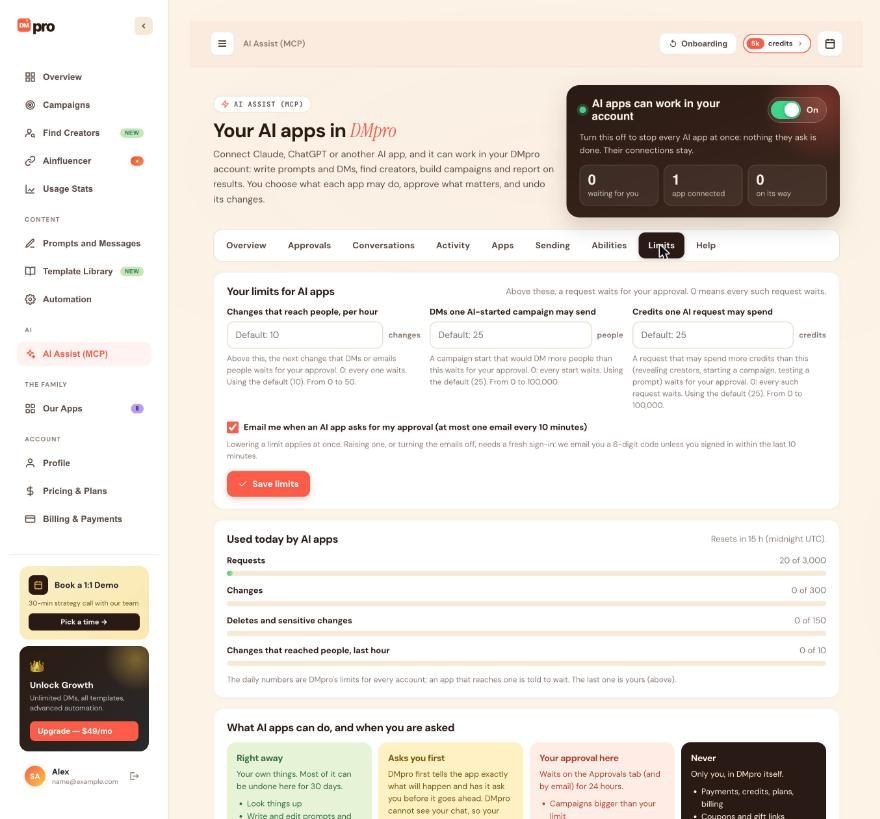
On the Limits tab (“Above these, a request waits for your approval. 0 means every such request waits.”):
- Changes that reach people, per hour. Above this, the next change that DMs or emails people waits for your approval. Default 10, from 0 to 50.
- DMs one AI-started campaign may send. A campaign start that would DM more people waits for your approval. Default 25, from 0 to 100,000.
- Credits one AI request may spend. A request that may spend more (starting a campaign, testing a prompt, revealing creators) waits for your approval. Default 25, from 0 to 100,000.
Each box shows its default; leave a box empty to use it.
2. What Counts As Reaching People
Starting or resuming a campaign that sends DMs (one that only writes messages does not count), turning Auto Email on or changing it while it is on, and changes to what a sending campaign sends. Each one takes its place in the hour’s count when it actually goes ahead, and one that fails gives it back. Approved ones count too.
3. Changing Your Limits
Type the new numbers and click Save limits. Lowering a limit applies at once. Raising one, or turning approval emails off, needs a fresh sign-in: DMpro emails you a 6-digit code unless you signed in within the last 10 minutes.
4. Approval Emails
“Email me when an AI app asks for my approval (at most one email every 10 minutes).” Turn it off on the Limits tab (that needs the code).
5. DMpro’s Limits Per Account
Used today by AI apps shows meters for:
- Requests: by default 90 a minute and 3,000 a day.
- Changes: by default 20 a minute and 300 a day.
- Deletes and sensitive changes: by default 30 an hour and 150 a day.
The daily numbers reset at midnight UTC. An app that reaches one is told to wait (“Too many requests for this DMpro account… Try again in…”).
6. The Ladder
The Limits tab ends with “What AI apps can do, and when you are asked”: Right away, Asks you first, Your approval here, and Never.
Related questions:
Most changes an AI app makes to your own things can be undone for 30 days, and this article explains how and what cannot be undone.
1. Where To Undo
Open AI Assist (MCP), Activity (or the change inside its conversation on the Conversations tab) and click Undo next to the change. Hovering shows what will be undone and until when.
2. What Can Be Undone
For 30 days, most changes to your own things:
- Prompts and own DMs (created, edited or deleted; a deleted one comes back as a copy).
- The active prompt, the active own DM and the message mode.
- Profile and business details, the lead value for ROI, sending settings, extension settings and Auto Email.
- Campaign rotations, and a campaign draft (undo deletes it while it is still a draft).
- Creator lists you created, renamed, added to or removed from (a deleted list cannot be undone), saved searches (when Find Creators is available on your account), and the Ainfluencer campaign your prompts use.
3. If It Changed Since
If the thing changed again after the app’s change, DMpro shows what changed since, with Undo anyway and Keep it.
4. What Cannot Be Undone
DMs sent, emails, credits spent and creator reveals cannot be taken back. That is why those ask you first or wait for your approval.
5. Only You Can Undo
AI apps cannot undo anything themselves. Undo is only on your AI Assist (MCP) page.
6. Your Own Undos Are Listed Too
Activity shows what you undid (“Undone” with the time), so the history stays complete.
Related questions:
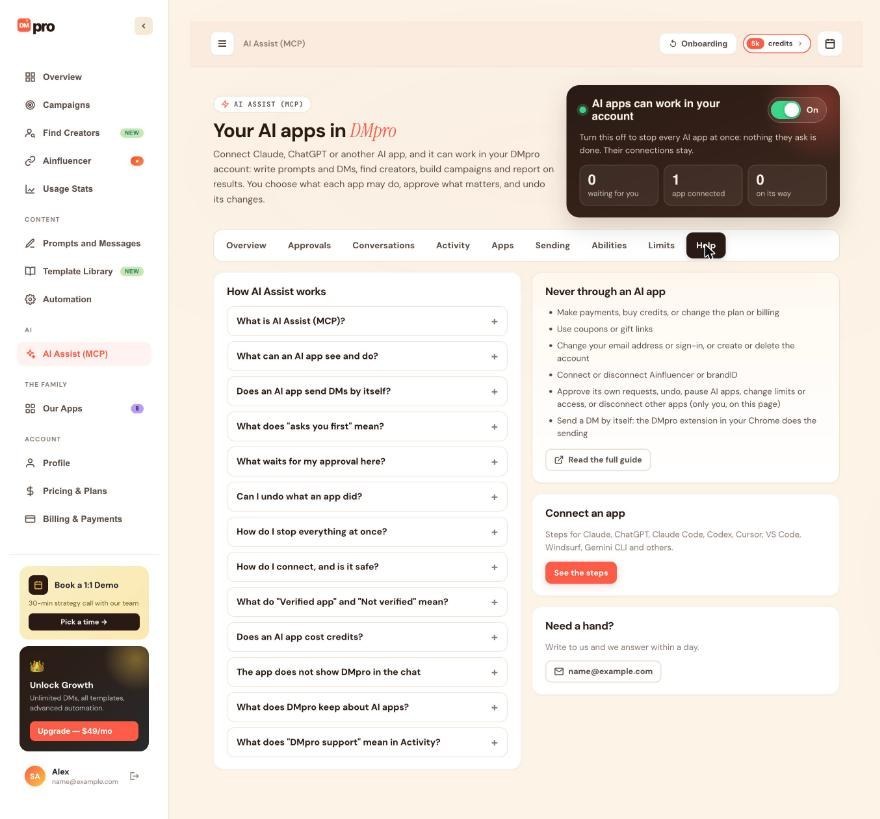
The AI Assist (MCP) page on the dashboard is your control panel for AI apps, and this article walks through the switch at the top and all nine tabs.
1. Opening It
Click AI Assist (MCP) in the dashboard’s left menu (under AI), or AI Assist (MCP) in the extension’s account menu. The number next to it in the menu is how many requests wait for your approval.
2. The Switch At The Top
“AI apps can work in your account” with an On / Off switch. Turn it off to stop every AI app at once: nothing they ask is done, and their connections stay. Campaigns already sending keep going; pause them on the Sending tab. Next to it: how many requests wait for you, how many apps are connected, and what is on its way.
3. The Nine Tabs
- Overview: what waits for your approval, today’s numbers (“Today, AI apps on your account”), Connected apps (with Manage and Add another app once an app is connected), what is on its way, and the latest requests. With no app yet, it shows “Connect your first AI app”.
- Approvals: requests waiting for you (Approve and run it, Reject) and those decided in the last 14 days.
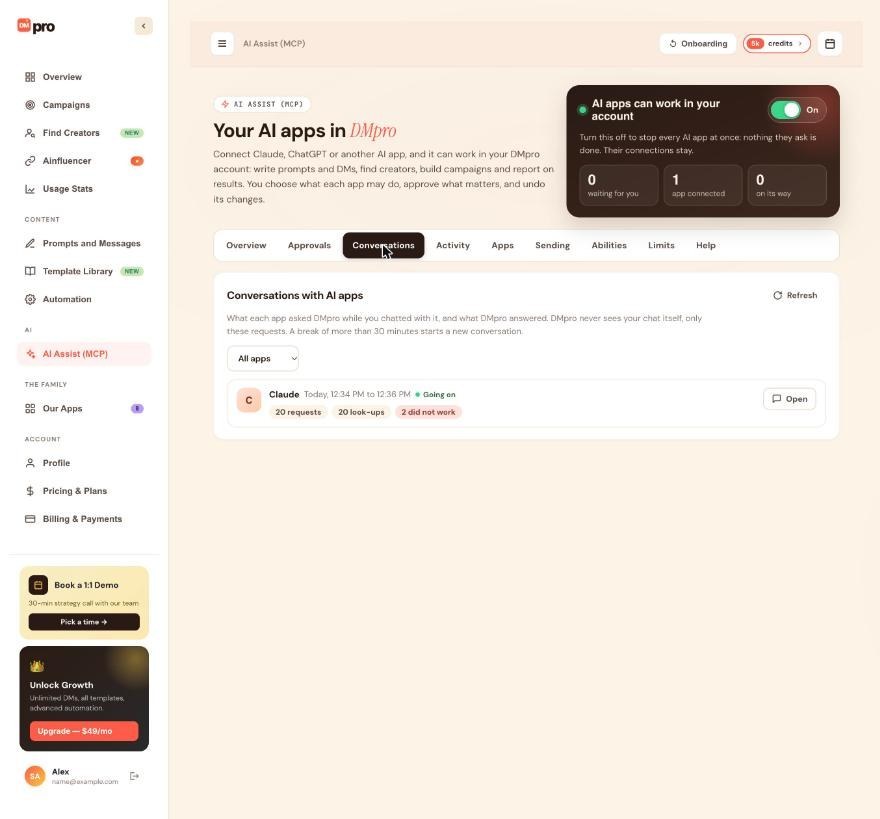
- Conversations: what each app asked DMpro while you chatted with it, grouped into conversations.
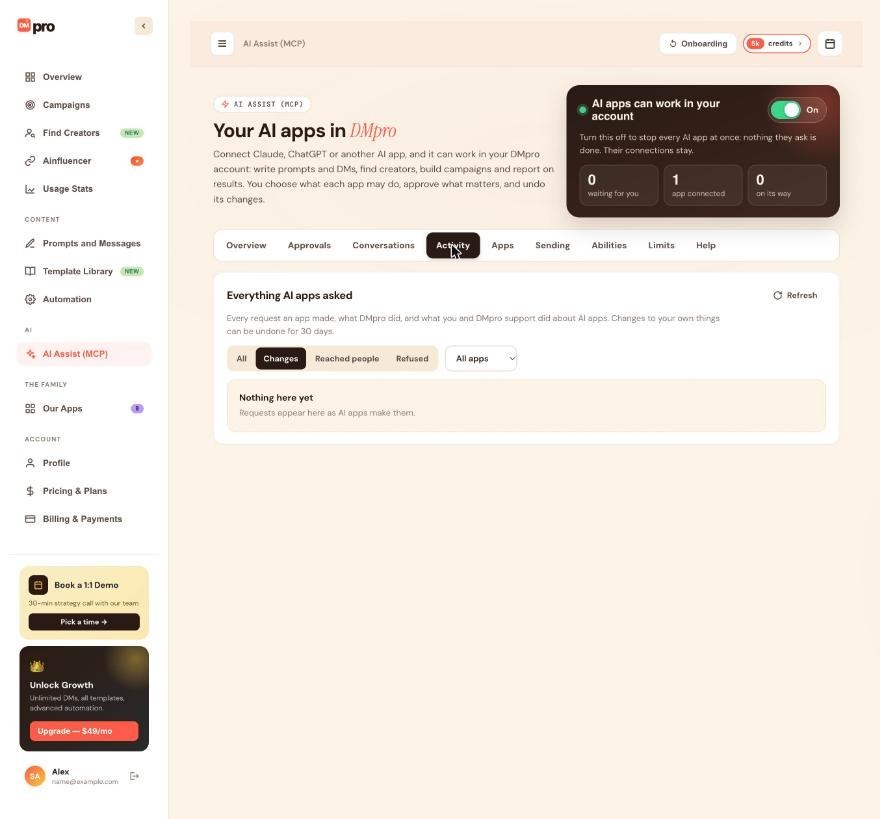
- Activity: every request, filtered by All, Changes, Reached people or Refused, and by app, with Undo.
- Apps: every connected app with what it may do, Change access and Disconnect, apps that ended in the last 30 days, and Connect an AI app with the address and the steps for each app. Add another app (on Overview and at the top of Apps) takes you to Connect an AI app.
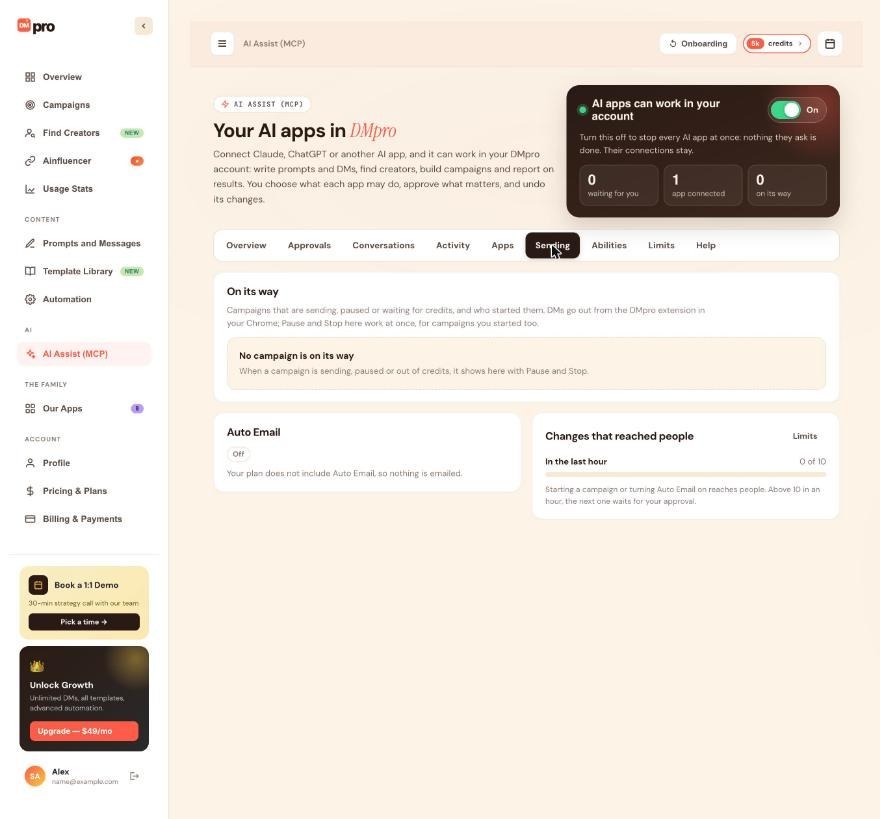
- Sending: campaigns that are sending, paused or out of credits and who started them, with Pause and Stop for good on each one (and Pause every campaign when more than one is sending; a paused campaign stops within about 30 seconds), the Auto Email card with Turn Auto Email off, and the changes that reached people in the last hour.
- Abilities: everything an app can do, when it asks you first, the never list, and a part for developers.
- Limits: your three limits, approval emails, today’s meters and the ladder of what happens when.
- Help: answers in plain words, the never list, a link to the full guide and support.
4. Links To A Tab
/dashboard#ai-assist opens the page, and #ai-assist/approvals or #ai-assist/apps opens a tab. DMpro’s emails use these links, and they still work after you sign in.
5. Live Updates
The page refreshes by itself while it is open.
Related questions:
DMpro records every request an AI app makes, and this article explains how to read the Activity and Conversations tabs.
1. Activity
“Everything AI apps asked”: every request an app made, what DMpro did, and what you and DMpro support did about AI apps.
- Filters: All, Changes, Reached people, Refused, and a menu to pick one app (connected or ended). The tab opens on Changes, so look-ups show only under All.
- Each row: who (the app, You, or DMpro support), what was asked, a summary, the time, and a status such as Done, Did not work, Refused, Limited, Asked the user first, Waiting for you, Undone or Reached people, and Preview for a change the app only previewed.
- Undo where possible. See “Undoing What An AI App Changed”.
- Show older loads earlier requests.
2. Conversations
“What each app asked DMpro while you chatted with it, and what DMpro answered.” DMpro never sees your chat itself, only these requests. A break of more than 30 minutes starts a new conversation.
Each conversation shows the app, when it happened (“Going on” while it continues), chips such as requests, look-ups, changes, waiting for you, asked you first, reached people and did not work, and short highlights. Click Open to read it as an exchange: what the app asked, then what DMpro did, with Undo where possible.
3. “DMpro Support” Rows
Something DMpro support did for your account, usually because you asked or to keep it safe: disconnecting an app, stopping AI apps for a while, setting your limits, closing a request that waited for you, or pausing a campaign.
4. How Long DMpro Keeps It
Each request (what was asked, without passwords or keys, and what happened) is kept for 12 months. What an approved request gave back is kept with the request for 180 days.
Related questions:
You can narrow, widen or end an AI app’s access at any time, and connections also end on their own, and this article explains both.
1. See What Each App May Do
On the Apps tab, each app shows its level (View only, View and manage or Custom access), Verified app or Not verified, the areas it may Change and View, when it connected, when it was last used, its number of requests, and when the connection ends.
2. Change Access
Click Change access, set each area to Off, View or View and change, and save.
- Less access applies from the app’s next request.
- More access needs a fresh sign-in (DMpro emails you a 6-digit code unless you signed in within the last 10 minutes) and reaches the app within 15 minutes. For an app that is not verified, tick that you trust it and connected it yourself.
3. Disconnect
Click Disconnect to end an app’s access for good. Its requests waiting for your approval are closed, and a campaign it already started goes on until you pause or stop it (Sending tab). With several apps, Disconnect every app ends them all. To use an app again, connect it again from the app: you sign in and choose what it may do.
4. When Connections End On Their Own
- After 90 days (“It reached 90 days. Connect it again to keep using it.”).
- After 30 days unused (“It was not used for 30 days.”).
- When the app connects again and the new connection replaces the old one.
- For your safety, when its sign-in key or code was used twice (it may have been copied).
- When DMpro support disconnects it, DMpro no longer allows that app, the account is suspended, or the app disconnects itself.
Each app shows when it ends, and Ended in the last 30 days says why an app ended.
5. The App’s Key
An app’s key works 15 minutes and renews by itself, so a change you make reaches it quickly.
Related questions:
AI Assist (MCP) is built so an AI app can help without taking control of your account, and this article sums up the protections and good habits.
1. Safe Sign-In
You sign in on DMpro’s own page; the app never sees your email code. DMpro emails you whenever a new app connects, so you notice a connection you did not start. If you did not start it, open AI Assist (MCP), click Disconnect on that app, and write to [email protected].
2. You Choose The Access
Start with View only for apps you are trying out. Verified apps (Claude, Claude Code, ChatGPT, Codex, VS Code) are recognized by DMpro; for others, connect only apps you set up yourself.
3. Layers Of Control
- Never: payments, plans, billing, coupons, gift links, sign-in and the account itself.
- Asks you first: anything that reaches people, spends credits or deletes for good.
- Your approval: bigger requests, Auto Email and many changes in one hour wait for you.
- Undo: most changes to your own things, for 30 days.
4. The Extension Does All Sending
No AI app sends a DM by itself. DMs go out from the DMpro extension in your Chrome, one at a time, at each campaign’s pace and daily limit.
5. Stop Everything At Once
Turn off the switch at the top of the AI Assist (MCP) page: nothing an AI app asks is done until you turn it back on. Then pause running campaigns on the Sending tab (Pause on each, or Pause every campaign when more than one is sending). Disconnecting an app ends its access for good.
6. Other People’s Text Is Never An Instruction
Profile bios, creator data and Ainfluencer briefs reach the app marked as information only, so a bio cannot tell the app what to do.
7. DMpro Support Can Help
DMpro support can stop AI apps for your account if needed; the page then shows their note, and only support can lift it. Write to [email protected] with any question.
8. Good Habits
- Keep your limits low until you are comfortable.
- Read what the app says before you agree to a step that asks you first.
- Check Activity from time to time, and disconnect apps you no longer use.
Related questions:
Most problems with AI apps come down to sign-in, access or a paused switch, and this article lists the common messages and fixes.
1. The App Does Not Show DMpro In The Chat
In Claude, turn DMpro on in the chat from the + menu (Connectors). In ChatGPT, add the app to the chat from the + menu. If it still does not show, disconnect it on the Apps tab and connect it again from the app.
2. Claude Shows A Generic Or Old Icon
Claude takes a custom connector’s icon from the website icon of the address’s main domain (dmpro.app), not from DMpro’s connection. A generic or outdated icon does not mean anything is wrong.
3. Sign-In Problems
- No code arrives: check spam, then ask for a new code. “Please wait [N] seconds before asking for a new code” means you asked too quickly.
- “This code expired. Ask for a new one.”, “Invalid code” with the tries left (on the sign-in page), or “That code is not right. 4 tries left.” (for the code DMpro asks for when you are already signed in): request a fresh code.
- “Too many tries. Ask for a new code.” or “Too many wrong codes. Ask for a new one.”: ask for a new code.
- DMpro asks for a code although you are signed in: your last sign-in is older than 10 minutes, and connecting or widening access needs a fresh one. “A code was just sent. Check your inbox, or ask for a new one in [N] seconds.” means one is on its way; “Too many codes this hour. Try again later.” means you asked for more than DMpro allows in an hour.
4. “DMpro Does Not Know This App” Or “This Link Does Not Match The App”
“DMpro does not know this app” means the app’s sign-up with DMpro ended because it was not used for a long time. “This link does not match the app” means the return address in the link does not belong to that app, and “This link is not complete” means part of it is missing. In each case, remove DMpro in the app, add it again, and start the connection from the app.
5. “AI Apps Are Paused” Or “Connecting AI Apps Is Paused”
- “AI apps are paused on your account”: you paused them. Turn the switch on at the top of the AI Assist (MCP) page.
- “AI apps are stopped on your account” or “AI apps are turned off for this DMpro account by DMpro support”: write to [email protected].
- “Connecting AI apps is paused” (“Connecting AI apps is turned off for a while. Please try again later.”) or “AI Assist is paused for everyone right now”: DMpro paused AI apps for every account for a while. Your connections stay; try again later.
6. “This Part Of DMpro Is Not Available To AI Apps”
DMpro refused part of a request because that part is not open to AI apps. Do it yourself in the DMpro dashboard.
7. “This Needs The campaigns:write Permission” (Or Another Area)
The app’s access does not include that area, and Activity shows it as Refused, for example “Not allowed for this app: change Campaigns”. Allow it when the app asks you to sign in again, or use Change access on the Apps tab.
8. “Too Many Requests For This DMpro Account”
The app reached one of DMpro’s limits per account. It says when to try again; the daily limits reset at midnight UTC.
9. A Request Is “Waiting For You”
It needs your approval: open the Approvals tab. Requests expire after 24 hours.
10. The App Started A Campaign But Nothing Is Sent
The DMpro extension does the sending. Keep Chrome open with the extension signed in; see “Why Isn’t My Campaign Sending?”.
11. Still Stuck
Write to [email protected] with the app’s name, what you asked and the time; the Activity tab shows what DMpro received.
Related questions:
Still stuck? We’re happy to help.
Create your account, or reach out to support.




