
How to share your booking link
bookme gives you a link for your whole booking page and a direct link for each event type. Copy the one that fits and put it wherever people reach you.
Before you start
- A bookme account
- At least one published event type
Know which link you need
You have two kinds of link:
- Your booking page:
bookme.brandid.app/book/your-username. It lists every live event type, and people choose the one they want. - A direct event link:
bookme.brandid.app/book/your-username/event-slug. It skips the list and opens that event’s date picker.
Use the booking page for general places such as a bio or business card, and a direct link when you mean one specific meeting.
Copy your booking page link
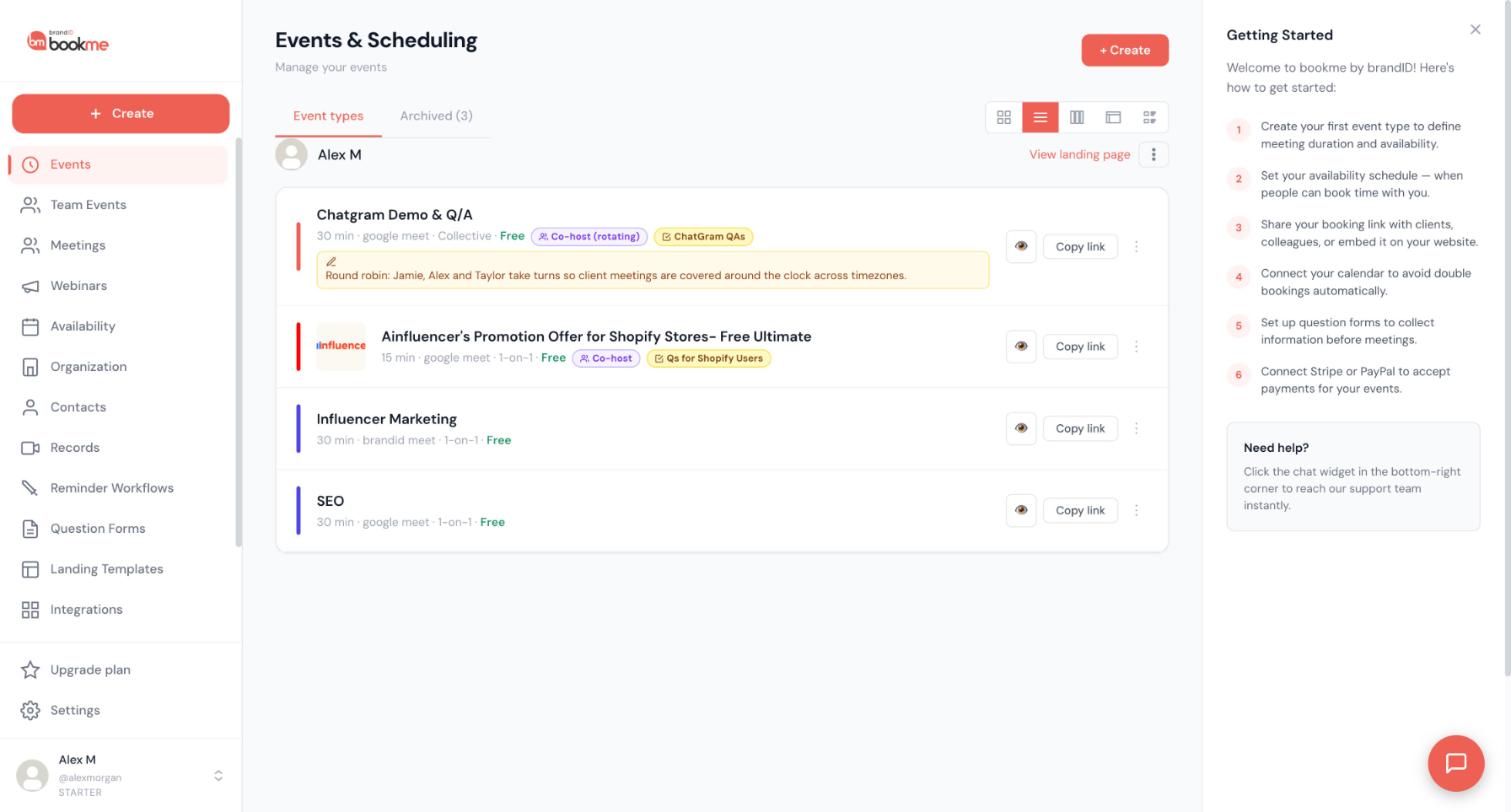
On the Events page the header shows your name with View landing page, and the small menu next to it offers Copy Link. You can also copy it from the Embed page with Copy direct link while All events (scheduling page) is selected, or read it under your username in Settings.
Copy a direct link for one event
On the Events page every event card has a Copy link button. Click it and paste the link wherever you need it.
Preview it like an invitee
Click the eye icon on an event card to preview it. For the full picture, open your link in a private (incognito) window, so you see the page without your dashboard session. Try it on your phone as well, because most invitees open booking links from an email on a phone.
Put the link where people look
- Email signature: after you save an event, the “is live” screen has Copy an email signature line, which copies Book a time with me: followed by the event link. For all your events, paste your booking page link instead.
- Social profiles: add it to the website field on LinkedIn or X, or the links section on Instagram.
- Share buttons: the “is live” screen also has Email, LinkedIn, X and WhatsApp buttons with a ready message.
- QR code: the “is live” screen has a QR code tab with a download. It points at that event’s direct link.
Pre-fill the visitor’s details (optional)
You can add a name and email to a link so the form is already filled in, for example bookme.brandid.app/book/your-username/intro-30?name=Ana%20Lopez&[email protected]. It works well in a CRM or a newsletter tool.
Keep your links working
Your username and each event’s slug are part of the link. If you change either one, update every place you shared the old link.
Tips
- Lead with the value in a post, not just the link: “I am opening five free strategy calls this week, grab one here.”
- A pasted bookme link shows a bookme by brandID preview card, not your photo or name, so say who you are in the post text.
- Booking pages are always served from bookme.brandid.app. To get a shorter link, set up a redirect on your own domain that points to your page.
If something goes wrong
My link shows a not-found page.
Check the event is published. A draft’s link does not work, and neither does the link of an archived event. Restore it from the Archived tab or publish the draft.
A link I shared stopped working after I renamed things.
Changing your username or an event’s slug changes the link, and the old one stops working at once. Replace it in your email signature, website and social profiles.
The link opens but shows no times.
Check the event’s schedule has days switched on, then look at date overrides, minimum notice and the bookable-up-to window. The troubleshooting checklist in the Help Center walks through each one in order.
Related how-to guides
Still stuck? We’re happy to help.
Create your bookme account, see pricing, or reach out to support directly.




