
Embeds, Links & Sharing
Share your booking link, embed it on your site, generate QR codes, and deep-link to specific event types.
bookme gives you two kinds of links: your booking page (all your live events on one landing page) and a direct link for each event type that opens its calendar straight away.
1. Your Booking Page Link
The link to your landing page is:
bookme.brandid.app/book/your-username
It shows every live event type using the landing template you picked. Find and copy it in three places:
- Events page: the header shows your name with View landing page, and the small menu next to it has Copy Link and Design Templates.
- Landing Templates page: “Your booking page” is printed with the full link, and a preview button opens it in a new tab.
- Embed page: Copy direct link with “All events (scheduling page)” selected.
2. Direct Event Links
Each event type has its own link:
bookme.brandid.app/book/your-username/event-slug
It skips the landing page and opens that event’s date picker. On the Events page every event card has Copy link and Preview (the card menu also has View booking page and Copy link). Right after you save an event in the wizard, the “your event is live” screen shows the link with a Copy button, share buttons, and the embed and QR code tabs.
The slug is set on the first step of the event wizard; changing it changes the link, so update anywhere the old one was shared.
3. Which Link To Share
- Booking page for general places: email signature, social bio, business card. People choose the event themselves.
- Direct event link when you mean one thing: “Here is the link to book a 30-minute intro call.”
4. Team Pages
Organizations also get team booking pages at bookme.brandid.app/team/your-team-slug, which list several members and their events on one page.
5. Pre-Filled Links
You can add the visitor’s name and email to any booking link so the form is already filled in:
bookme.brandid.app/book/your-username/intro-30?name=Sarah%20Chen&[email protected]
bookme uses these when a host sends someone a “book another time” link, and you can do the same from your CRM or newsletter tool.
6. Tracking Parameters
You can append UTM parameters (?utm_source=linkedin) and the page still works, but bookme does not store them on the booking. To know where bookings come from, add a “How did you find me?” question to the event’s question form instead.
7. Custom Domains And Short Links
Booking pages are always served from bookme.brandid.app; there is no custom domain option and no built-in link shortener. A redirect on your own domain (yourbrand.com/book) or a public shortener gives you a shorter link that forwards to your page.
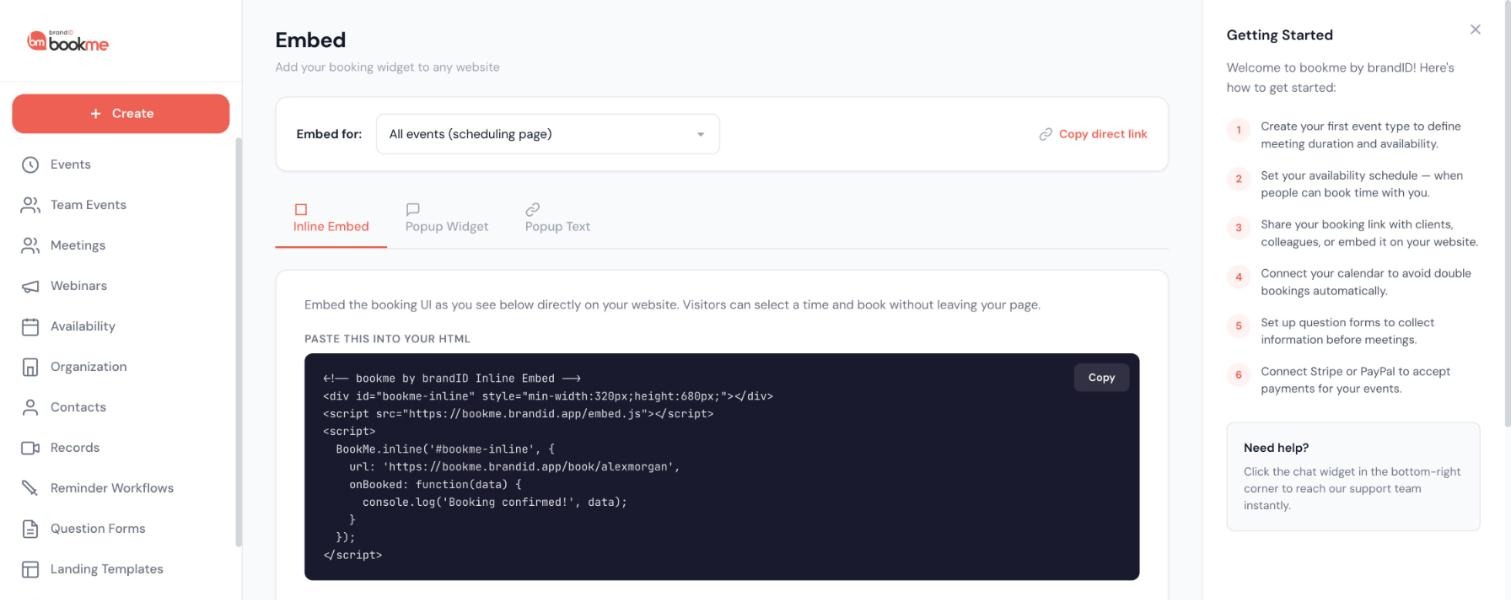
The Embed page generates ready-to-paste code so visitors can book from your own website without leaving it. Three styles are available: an inline embed, a floating popup widget, and a popup link.
1. Open The Embed Page
Click Embed in the sidebar (or Add to Website in an event’s card menu). At the top, Embed for: lets you embed All events (scheduling page) or one specific event; the code below updates as you switch. Copy direct link copies the plain link for the same choice.
2. Inline Embed
The Inline Embed tab shows the booking page inside a box on your page, with a live preview underneath. The snippet is:
<!-- bookme by brandID Inline Embed -->
<div id="bookme-inline" style="min-width:320px;height:680px;"></div>
<script src="https://bookme.brandid.app/embed.js"></script>
<script>
  BookMe.inline('#bookme-inline', {
    url: 'https://bookme.brandid.app/book/your-username',
    onBooked: function(data) {
      console.log('Booking confirmed!', data);
    }
  });
</script>
The embedded page runs in a lighter “embed mode”: no page background, no floating logo, and it tells the container its height, so the box grows with the content instead of showing a scrollbar.
3. Popup Widget
The Popup Widget tab adds a floating button that opens the booking page in an overlay. Set the Button Text, Button Color, and Position (Bottom Right, Bottom Center, Bottom Left) and copy the code, which goes just before the closing body tag of your site:
<!-- bookme by brandID Popup Widget -->
<script src="https://bookme.brandid.app/embed.js"></script>
<script>
  BookMe.popupWidget({
    url: 'https://bookme.brandid.app/book/your-username',
    text: 'Book a meeting',
    color: '#EE6055',
    position: 'right',
    onBooked: function(data) {
      console.log('Booking confirmed!', data);
    }
  });
</script>
4. Popup Text
The Popup Text tab turns any link or button you already have into a booking trigger. Set the Link Text and Link Color; the code is:
<!-- bookme by brandID Popup Link -->
<script src="https://bookme.brandid.app/embed.js"></script>
<a href="#" onclick="BookMe.popup({ url: 'https://bookme.brandid.app/book/your-username' }); return false;">
  Schedule a meeting
</a>
5. Paste It Into Your Site
- WordPress: a Custom HTML block.
- Webflow: an Embed element.
- Squarespace: a Code block.
- Wix: an HTML embed.
- Plain HTML, Next.js, React: paste the snippet into the page or component. In React, load embed.js once and call
BookMe.inlineafter the container is mounted.
6. Know When Someone Books
Every style accepts an onBooked callback that runs when a booking is confirmed inside the embed, with the booking details as its argument. Use it to fire your analytics event or show a thank-you message.
7. Verify
Open your live page, check that dates load, and make a test booking with your own email. Then cancel it from your Meetings page.
You can embed one event instead of the whole booking page, so a “Book a demo” section on your site opens straight into that event’s calendar.
1. Pick The Event On The Embed Page
On the Embed page, change Embed for: from “All events” to the event you want. All three code snippets now point at the event’s direct link (bookme.brandid.app/book/your-username/event-slug).
2. Or Take It From The Event Itself
Right after you save an event in the wizard, the “your event is live” screen has an Embed tab with the same three styles (Inline, Popup widget, Popup link) already filled in for that event, with Copy embed code. The event card menu on the Events page has Add to Website, which opens the Embed page.
3. Use Cases
- Demo request page: inline embed of the “Demo” event, nothing else on the page.
- Pricing page: a popup widget for a “30-minute strategy call”.
- Blog post: a popup link at the end of the article.
- Emails: embeds do not run inside email; link to the event instead.
4. Pre-Fill The Form
Add the name and email to the URL inside the snippet when your site already knows them (a logged-in area, for example):
url: 'https://bookme.brandid.app/book/your-username/demo?name=Sarah%20Chen&[email protected]'
Answers to your custom questions cannot be pre-filled.
5. What Cannot Be Changed
The embed shows the event as it appears on your booking page: the event’s title, duration, description, and colour come from the event settings. There is no separate option to hide the header inside the embed.
6. Mobile
The inline embed is a single column on phones and grows to its content; the popup styles open a centred card that takes almost the full width of a phone screen, with its own close button.
A booking link in your signature turns replies into meetings. bookme gives you a ready signature line, and you can turn it into a button in your email client.
1. Copy The Signature Line
On the “your event is live” screen (shown after you save an event), under Put it where people already look, click Copy an email signature line. It copies:
Book a time with me: https://bookme.brandid.app/book/your-username/event-slug
For a signature that offers all your events, use the booking page link from the Events page instead.
2. Make It A Button (Optional)
Most email clients let you style a link. Paste this into a signature editor that accepts HTML, replacing the link with yours:
<a href="https://bookme.brandid.app/book/your-username"
  style="display:inline-block;padding:8px 16px;background:#EE6055;color:#ffffff;border-radius:8px;text-decoration:none;font-weight:600;">
  Book a meeting
</a>
3. Paste It In
- Gmail: Settings, See all settings, General, Signature. Paste the line, select it, and use the link button to attach the URL.
- Outlook (desktop): File, Options, Mail, Signatures.
- Outlook (web): Settings, Mail, Compose and reply.
- Apple Mail: Mail, Settings, Signatures.
4. Different Signatures, Different Events
Use direct event links to send different audiences to different events: a sales signature to the demo event, a recruiting signature to the interview event.
5. If You Change Your Username Or Slug
Old links stop working, so update every signature that carries them.
A booking link in your social profile is one of the best-converting places for it. Here is how to share it, and what the preview looks like when you do.
1. Share Buttons In bookme
The “your event is live” screen (after saving an event) has Send it buttons for Email, LinkedIn, X, and WhatsApp with a ready message, plus Copy. The onboarding Share step offers WhatsApp, LinkedIn, and X for your booking page.
2. Put The Link In Your Bio
- LinkedIn: Profile, Contact info, Website. Add the link and label it “Book a call”.
- X: Edit profile, Website.
- Instagram: Edit profile, Links. Instagram allows a few links; if you use a link-in-bio tool, add your booking page there.
- TikTok, YouTube: the profile website field or channel links.
3. What The Preview Card Shows
When you paste a bookme link, the platform shows a bookme by brandID preview card: the bookme banner image, the product title, and a short description. The card does not yet show your photo, name, or event title, so put those in the post text itself (“Book 30 minutes with me here”).
4. Posting About It
Lead with the value, not the link: “I am opening five free strategy calls this week, grab one here.” Pin the post on LinkedIn or X so it stays at the top of your profile.
5. Stories
On Instagram Stories, use the link sticker with your booking page or a direct event link.
6. Which Link
Share the booking page in bios (people pick the event) and a direct event link in a post about one offer.
A QR code puts your booking link on business cards, signage, and packaging. bookme generates one for each event type.
1. Open The QR Code Tab
Save an event in the wizard (create a new one, or open an existing event and click through to save). The “your event is live” screen appears; open the QR code tab. The code points at that event’s direct link and is labelled “Scan to open the booking page”.
2. Download
Click Download SVG. SVG scales to any size without blurring, so the same file works on a card and on a banner. If you need a PNG or PDF, open the SVG in any image editor and export it.
3. Booking Page Or One Event?
The built-in code is per event. For a code that opens your whole booking page, paste bookme.brandid.app/book/your-username into any QR generator (most are free) and download it.
4. Print Well
- Keep the code at least 2.5 cm (1 inch) wide.
- Leave a clear margin around it.
- Dark code on a light background; avoid recolouring it.
- Print one sample and scan it with an iPhone and an Android phone before a big print run.
5. Track Scans
bookme does not record where a booking came from. If you want to know, use a dedicated event type for print material (for example “Consultation (from the card)”) so its bookings are separate on your Meetings page.
Still stuck? We’re happy to help.
Create your bookme account, see pricing, or reach out to support directly.




