
How to create your bookme account and set up your page
Sign up with Google or with your email, claim a username, and finish the short onboarding wizard. You end up on your dashboard with a booking link ready to share.
Before you start
- An email address you can open, or a Google account
- A username in mind (3 to 30 characters)
Open the sign-up page
Go to bookme.brandid.app and click Start Free. Log In opens the same flow, so either button works.
The free Starter plan does not ask for a phone number, a credit card or an ID document. A card is only collected if you later upgrade to a paid plan.
Choose how you sign in
You have two options:
- Continue with Google uses your Google identity and pre-fills your name and email. There is no code and no password.
- Continue with your email: enter your email and bookme emails you a 6-digit code. A password is optional. Leave it empty and you sign in with a fresh emailed code each time, or add one later under Settings, then Password.
Each email address can belong to only one bookme account. If the address already has one, bookme asks you to sign in instead.
Verify your email (email sign-ups only)
Type the 6-digit code from your inbox into the sign-up screen. Signing up with Google skips this step because Google has already verified your address.
If the code does not arrive within a minute, check your spam or junk folder, confirm you typed the right address, and click Resend code. You can also allow the sender [email protected] in your email settings.
Claim your name and username
Enter your name and pick a username. It becomes your booking link: bookme.brandid.app/book/your-username.
- 3 to 30 characters.
- Lowercase letters, numbers, hyphens and underscores only.
- It must be unique, and reserved words such as admin, api, login or settings are not allowed. bookme suggests alternatives if yours is taken.
Your real name or business name is easy to remember and easy to type.
Walk through the onboarding wizard
After you claim your account, the wizard asks you to:
- Pick what you mostly use bookme for. This pre-fills a sensible first event type.
- Review that event: its name, duration, location, and price if it is paid.
- Set up your team. This screen appears only if your first event is a team event. On Starter that event is saved locked until you upgrade or switch it to a solo event.
- Set your time zone and weekly availability.
- Grab your booking link to share.
You can refine every one of these settings later. Connecting your calendar is not part of the wizard; it is one of the next steps in the Getting Started panel.
Use the Getting Started panel
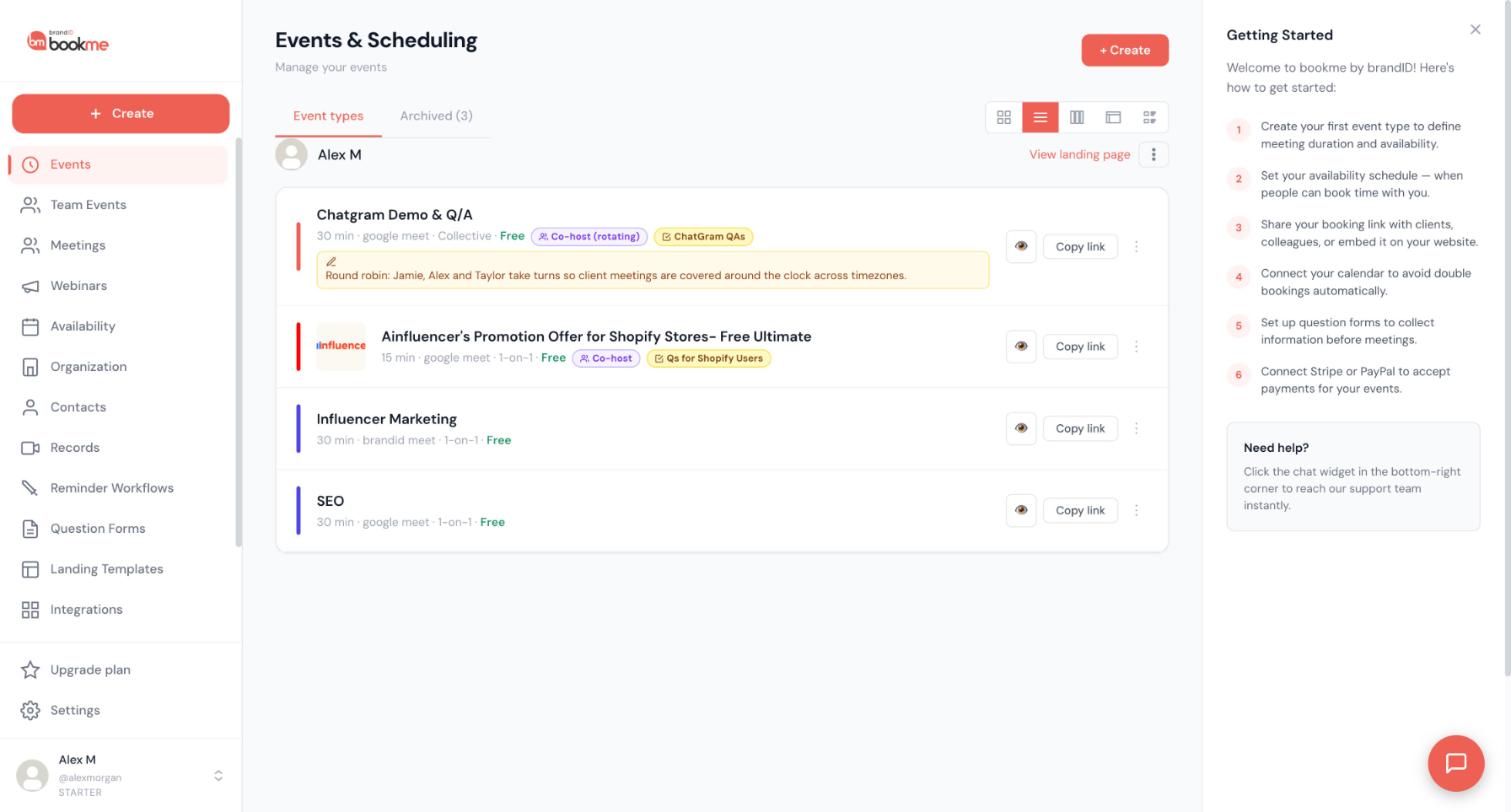
Onboarding leaves you with a live event type and a default availability schedule, which is all a booking link needs. Everything else is optional.
The Getting Started checklist panel appears on the right of your dashboard. It suggests six next steps: create your first event type, set your availability schedule, share your booking link or embed it on your website, connect your calendar, set up question forms, and connect Stripe or PayPal to accept payments.
Click the X at the top of the panel to close it whenever you like. It does not track milestones and it never blocks anything.
Test your booking page
Open bookme.brandid.app/book/your-username in a private (incognito) window to see exactly what an invitee sees. You can even book your own event as a test. It appears on your Meetings page with a You booked chip.
Tips
- Use your real name or business name as your username. Avoid random numbers unless they mean something to you, and shorter is easier to say out loud.
- bookme does not offer custom domains. Every booking page lives under bookme.brandid.app. To show it on your own site, use the Embed page instead.
- Starter is free. Your plan and your bookings this month are shown under Upgrade plan in the sidebar whenever you want to check them.
If something goes wrong
The 6-digit code does not arrive.
Check your spam or junk folder, make sure the address is typed correctly, and click Resend code. There is a 30-second cool-down between sends and at most 6 codes per address per hour. Signing in with Google needs no code.
My username is rejected or already taken.
Usernames must be 3 to 30 characters of lowercase letters, numbers, hyphens and underscores, and cannot be a reserved word. If the name is taken, bookme suggests alternatives. Adding your profession or city is usually better than adding numbers.
I want a second account on the same email.
An email address can only be tied to one bookme account. Use several event types under one account instead, since each can have its own name, description, duration and price. For a different booking page you need a different email address.
Related how-to guides
Still stuck? We’re happy to help.
Create your bookme account, see pricing, or reach out to support directly.




