
How to choose a landing page template and cover photo
Your landing page template sets the look of your public booking page. Pick one, add a cover photo and your page changes straight away, with nothing else to reconfigure.
Before you start
- A bookme account
- A wide cover image if you want a banner (1200×400 is recommended)
Open Landing Templates
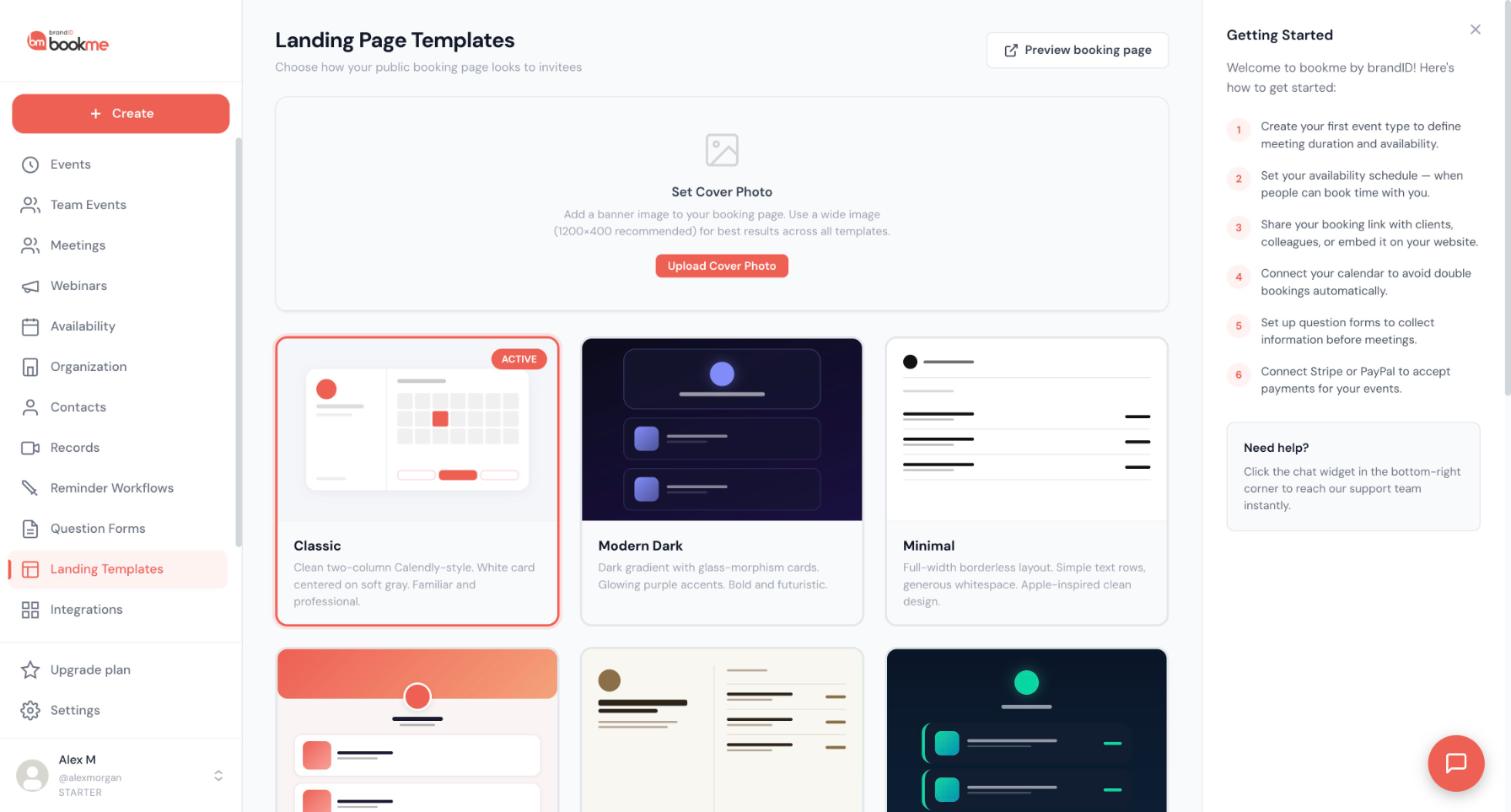
Click Landing Templates in the sidebar. The page is titled Landing Page Templates. It shows a cover photo box at the top and a card for each template below, with the one in use marked ACTIVE. The Preview booking page button at the top right opens your page in a new tab.
Add a cover photo
In the Set Cover Photo box click Upload Cover Photo. bookme recommends a wide image of 1200×400 pixels for the best result across all templates. You get a crop step so you can pick the visible area.
You can set the same image from Settings, Profile, under Cover Photo / Banner.
Compare the templates
- Classic: a clean two-column layout with a white card on soft gray. Familiar and professional.
- Modern Dark: a dark gradient with glass-morphism cards and glowing purple accents.
- Minimal: a full-width borderless layout with simple text rows and generous whitespace.
- Showcase: a big hero cover with an overlapping avatar and horizontal service cards with thumbnails.
- Elegant: serif type, warm ivory tones and an editorial split layout.
- Neon: dark navy with cyan and teal accents and glowing borders.
- Corporate: a navy header bar with grid event cards.
Scroll the page to see every card. Modern Dark and Neon are dark, and the others described here are light. There is no light and dark toggle, because dark or light is a property of the template.
Apply a template
Click the card of the template you want. It becomes active at once, for your booking page and for every event page under it. Your events, questions and availability stay exactly the same.
Match the template to your profile
Templates draw on your profile: display name, tagline, bio, profile photo, brand name and cover photo. Hero-style templates such as Showcase and Modern Dark look best with a cover photo. Event cards use each event’s own colour and cover image, which you set in the Details step of the event wizard.
Preview it
Click Preview booking page, or open your link in a private window. Look at it on your phone too, since most invitees open booking links from an email on a phone. If it is not right, go back and click another card.
Tips
- Pick the template that matches the rest of your brand, not the one that looks most exciting on its own. If your invitees come from a corporate site, Corporate or Classic looks at home.
- Give related events the same colour, for example all sales calls coral and all workshops green, so the page reads as a set.
- When you embed your page on your own site, the template still applies but the outer background and padding are removed so it blends in.
If something goes wrong
I cannot switch my booking page to dark mode.
There is no light and dark toggle, and the page does not follow the visitor’s system setting. Dark is a property of the template, so choose Modern Dark or Neon for a dark page.
My cover photo is cropped oddly.
Use a landscape image, ideally 1200×400, and use the crop step after you upload to choose the visible area. Different templates show the cover in different places.
I changed the template but my page looks the same.
Open your booking link in a private window. That shows it exactly as a visitor sees it, without your dashboard session.
Related how-to guides
Still stuck? We’re happy to help.
Create your bookme account, see pricing, or reach out to support directly.




