
How to add contact channels for your follow-up emails
Contact channels are optional profile fields that become merge variables in your email workflows. Fill in the ones you want to share and drop them into a sign-off.
Before you start
- A bookme account
- The contact details you are happy to share with people who book you
Open the Contact channels section
Click Settings in the sidebar and stay on the Profile tab. Scroll down to Contact channels. The note under the heading says these fields are exposed as merge variables in your email workflows, so add them only for channels you want to share in your follow-up emails.
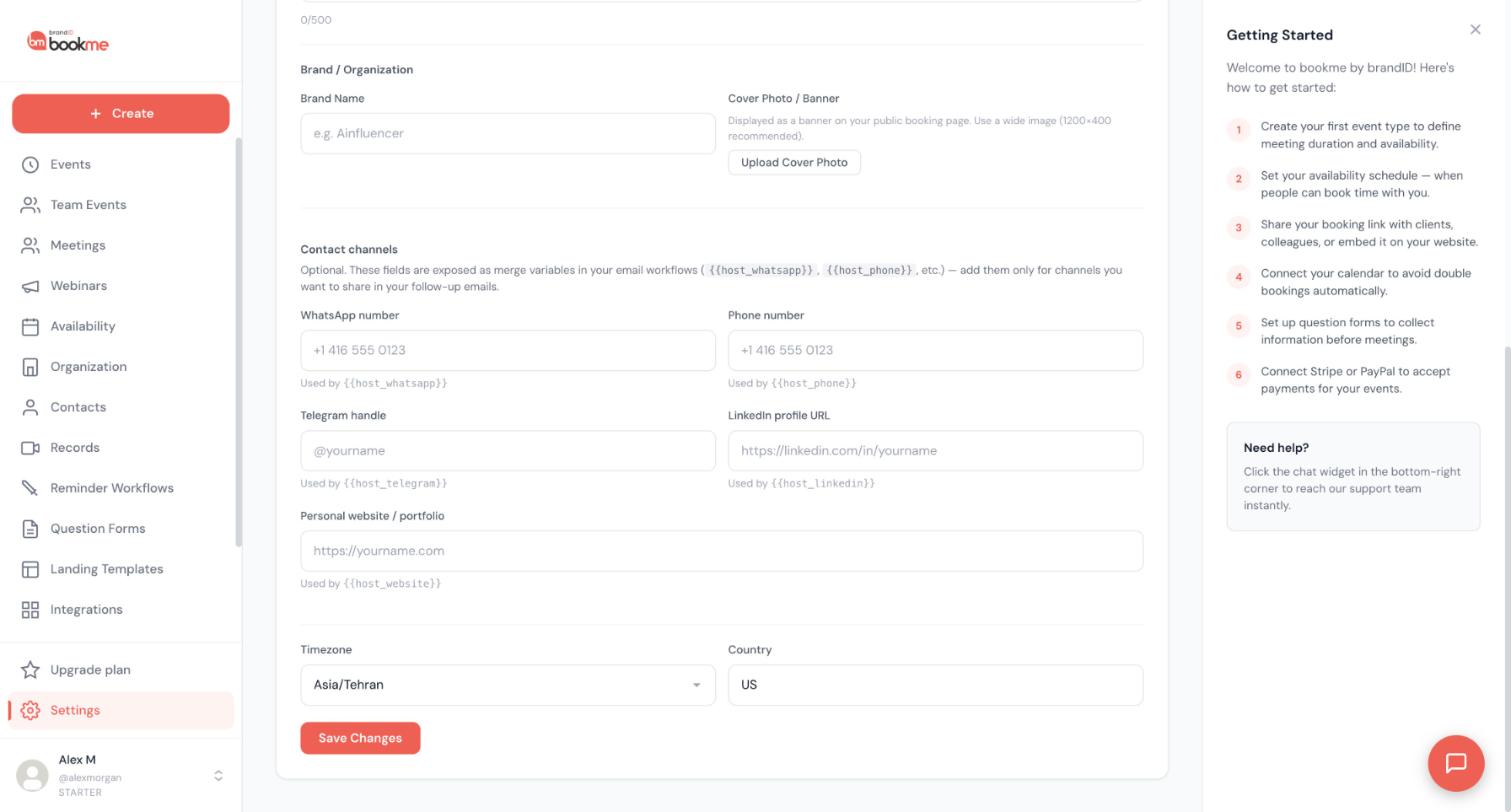
Fill in the channels you want to share
Each field shows the variable it feeds:
- WhatsApp number:
{{host_whatsapp}} - Phone number:
{{host_phone}} - Telegram handle:
{{host_telegram}} - LinkedIn profile URL:
{{host_linkedin}} - Personal website / portfolio:
{{host_website}}
The empty fields show the expected format, such as a number like +1 416 555 0123, @yourname for Telegram and a full link for LinkedIn and your website. Your account email is always available as {{host_email}}.
Save your changes
Click Save Changes at the bottom of the Settings page.
Open the workflow you want to edit
Click Reminder Workflows in the sidebar. The page is titled Email Workflows, and each workflow is a card with an Edit button and an on/off switch. The post-meeting follow-ups are a natural place for a sign-off. You can also create your own with + New Email Workflow.
Add the variables to the email
In the workflow’s subject or body, type the variable exactly, for example {{host_whatsapp}}, or use the {{ var }} picker to insert one at the cursor. A simple sign-off might read:
Reach me on WhatsApp at {{host_whatsapp}} or on LinkedIn at {{host_linkedin}}.When the email is sent, each variable is replaced with the value from your profile. A channel you left empty renders as empty text, not as the variable name.
Save and check it
Click Save in the editor. The editor shows a live preview of the email while you work. To see your real details in an email, book a test event with your own address and read the email that arrives. Changes apply to future emails, not to ones already sent.
Tips
- Add only the channels you actually answer. A WhatsApp number you never check will still be shown to every invitee who gets that email.
- Your channels show up only where you place their variables in a workflow. They are not shown on the booking page by themselves.
- The same Settings page holds your time zone and country, so you can review both while you are there.
If something goes wrong
The email has an empty space where my number should be.
The variable rendered as empty text, which happens when the field in your profile is empty. Fill it in under Settings, Profile, Contact channels and click Save Changes.
I edited a workflow but an already-queued email did not change.
Reminders for a booking are queued from the workflows as they were at booking time. A workflow you changed today applies to bookings made or rescheduled from now on. Rescheduling a booking queues its reminders again.
The workflow email never arrived.
Check the workflow’s switch is on, that its event types include the booked event, and that its action emails the invitee rather than only you. The workflow’s activity log lists every recent firing attempt and any reason it was skipped.
Related how-to guides
Still stuck? We’re happy to help.
Create your bookme account, see pricing, or reach out to support directly.




