
Contacts, Records & Organization
See the people who booked you, find recordings, understand your organization and earnings, and connect your apps.
The Contacts page in the sidebar is your list of people. bookme builds it from your bookings, so you never type anyone in by hand: everyone who has booked a meeting with you, as host or co-host, appears as a contact.
For each person the page tells you:
- their name and email address
- how many meetings they have booked with you
- how many of those meetings are still upcoming
- how many times they did not show up (no-shows)
- how many times they cancelled
- the date of their first meeting and of their last meeting
Search and sort
Type part of a name or an email address into the search box to narrow the list. You can sort the list by most recent, which puts the people you met or booked latest at the top, or by most meetings, which puts your most frequent clients first.
What you can do with it
- Spot your regulars and see who has not booked for a while.
- Notice people with several no-shows or cancellations before you offer them a long slot.
- Check how long someone has been working with you, using the first and last meeting dates.
The no-show numbers come from the outcomes you record after each meeting, so they are only as complete as your record keeping. See Bookings Inbox for how outcomes work.
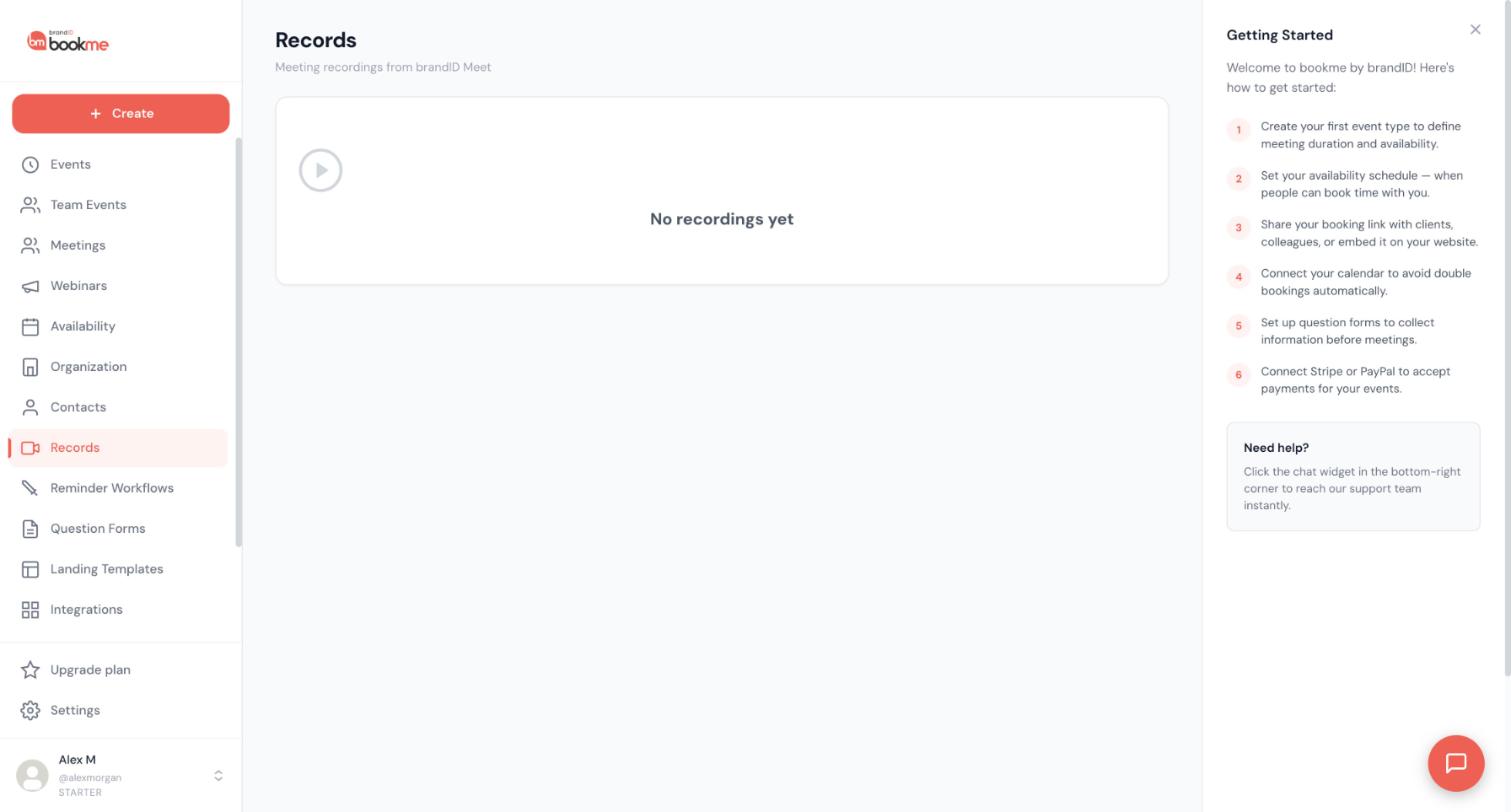
The Records page lists meeting recordings from brandID Meet, bookme’s built-in video tool. Until you have recorded a meeting it shows No recordings yet.
What lands in Records
Records only lists recordings of your own bookings and webinars that were held in brandID Meet. Recordings made in Zoom or Google Meet are not pulled into the dashboard: a Zoom recording stays in your Zoom account under Recordings, and a Google Meet recording stays in your Google Drive.
How a recording starts
- Click Record in the meeting toolbar while you are in the call.
- Or switch on Auto-record this event in the event editor, and every booking of that event is recorded.
Watching, downloading and sharing
You can watch and download recordings on the Records page, including from a phone browser. The Help Center describes the download as an MP4 file and a Share recording button that creates a temporary public link.
For where Zoom and Google Meet keep their own recordings, see Conferencing. To look up your recordings with an AI assistant, see the last article in this category.
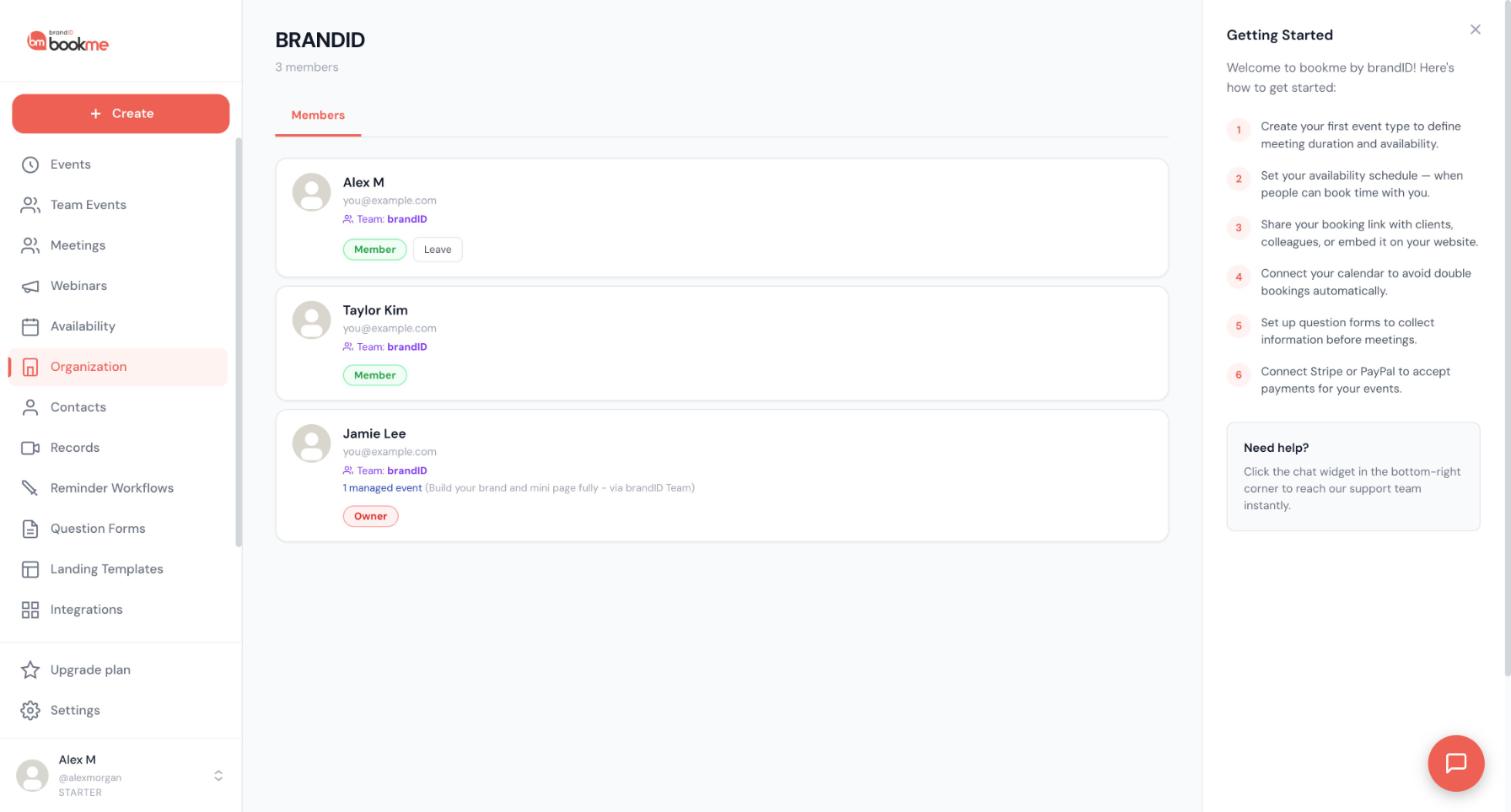
The Organization page in the sidebar shows the organization you belong to. At the top is its name and the number of members, for example 3 members. Below is a Members tab with one card per person.
What is on a member card
- the person’s name and email address
- the team they are in, shown as Team: followed by the team name
- a role badge, Owner or Member
- a line such as 1 managed event when a managed event is assigned to that person
- a Leave button, on your own card only
Who can see it
The page is for people who belong to an organization: the owner and the members all see the same member list. The screenshot is from a free Starter account that is a member of an organization, so you do not need a paid plan of your own to see the page as a member.
Plans
On the plan cards in the app, the Pro card lists Build your Organization (invite members, assign roles) and Managed Events. The Elite card lists unlimited organization seats and teams, advanced admin controls and advanced member permissions. Check the Upgrade plan page for the current details before you rely on a feature.
Related articles in this category cover managed events, roles, team pages and leaving. For inviting people, see Getting Started.
A managed event is an event template that one person creates for the whole organization and assigns to members. Each member then offers the same event, under their own name and on their own calendar.
What stays the same for everyone
According to the Help Center, a managed event gives every member the same duration, location and questions, with some settings locked. Members can edit the parts that are not locked.
Where you see them
- On the Organization page, a member card shows a line such as 1 managed event when a template is assigned to that person.
- An AI assistant that looks up your organization can list the managed event templates and how many members use each.
Managed events and team events are different
A managed event is the same kind of event offered separately by several people. A team event (collective or round robin) is one event hosted by several people together. For team events, see Teams, Co-Hosts and Round-Robin.
Plans
The Pro and Elite plan cards on the Upgrade plan page list Managed Events, described as creating event templates and assigning them to members. Starter does not list it.
The Organization page shows a role badge on every member card. In the app you will see Owner and Member.
Owner
The owner created the organization. The Help Center says there is exactly one owner, who runs the workspace and its subscription, and that the owner cannot be removed.
Member
A member keeps their own bookme account, booking page, meetings and calendars. In the organization your AI assistant reports on, members may:
- create event types
- create automated emails
- invite people
- edit their availability
- connect calendars
These permissions belong to the organization and can differ from one organization to the next. The Help Center says the defaults let members work normally while inviting people and managing payments stay with owners and admins, and that owners and admins can change this in the organization settings. If you are not sure what you may do, ask your owner.
Admin
The Help Center also describes an Admin role between owner and member. The Elite card in the app lists advanced member permissions. Read Getting Started for the full list of what each role can do.
A team page is a public booking page that shows several people from your organization together. A visitor sees the team, its members with their names and photos, and the events each member offers, then picks the person and the event.
The public link
Each team page has its own address in this form:
https://bookme.brandid.app/team/your-team-slug
Share it on your website, in your email signature or in a message, the same way you would share a personal booking link.
How a team page is set up
- The organization owner creates a team and gives it a name.
- Members of the organization are added to that team.
- The team page appears at the public link, listing the members and their events.
On the Organization page, each member card shows which team the person belongs to. Owners and admins manage teams; other members are listed on them.
Book anyone on the team
A team page lets visitors choose a person. If you would rather they just book whoever is free, create a round-robin team event with the whole team in the rotating pool and link to it from your website. See Teams, Co-Hosts and Round-Robin for how round robin works.
If you no longer want to be part of an organization, you can leave it yourself. Open Organization in the sidebar and find your own member card. It shows a Leave button next to your role badge. Other people’s cards do not show it for you.
What to check first
- Do you have a managed event assigned? Your card shows a line such as 1 managed event. Managed events come from the organization.
- Are you listed on a team page? Your card shows the team you belong to.
- Do you hold meetings through an organization event? Look at your Meetings page and your upcoming bookings first.
What happens to your account
The Help Center describes what happens when someone is removed from an organization: they keep their personal bookme account and everything in it, and only lose organization features, managed events assigned to them and their place on team pages. It does not describe the Leave button separately, so treat leaving the same way and expect to lose those organization items.
An AI assistant cannot leave an organization for you: changing your organization or its members is never available to AI apps.
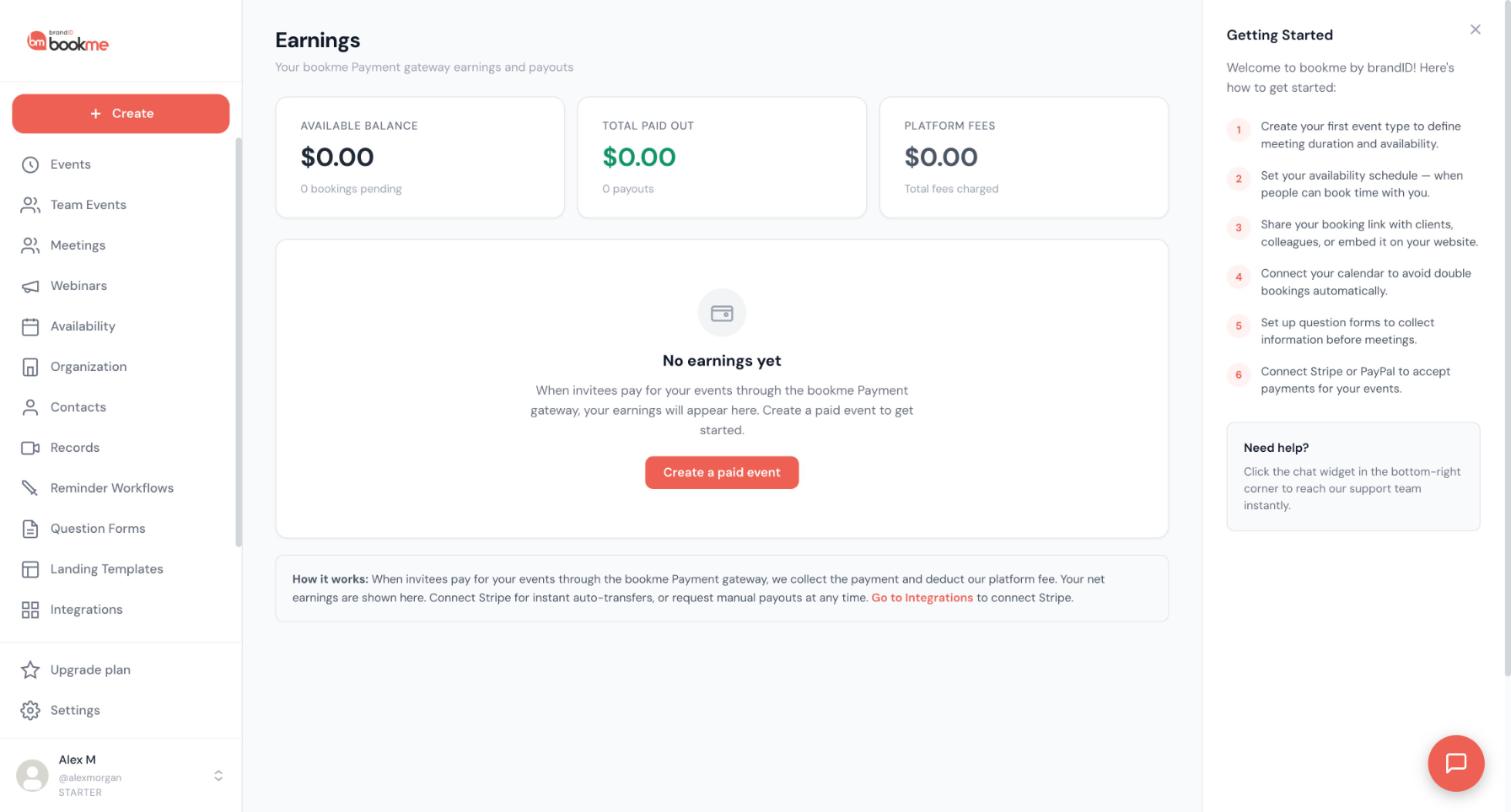
The Earnings page shows money from paid bookings that invitees pay through the bookme Payment gateway. Its subtitle reads Your bookme Payment gateway earnings and payouts.
The three cards
- Available balance: what you have earned and not yet been paid. Under it the page counts the bookings that are pending.
- Total paid out: what has already been paid to you, with the number of payouts.
- Platform fees: the total fees bookme has charged.
Before your first paid booking the cards show $0.00 and the page shows No earnings yet with a Create a paid event button.
How it works
The note at the bottom explains it: when invitees pay through the bookme Payment gateway, bookme collects the payment and deducts its platform fee. Your net earnings are shown here. Connect Stripe for instant auto-transfers, or request manual payouts at any time. The note links to Integrations where you can connect Stripe.
Payments that go straight to your own Stripe or PayPal do not pass through this page. For fees, refunds and payouts in detail, read Paid Bookings.
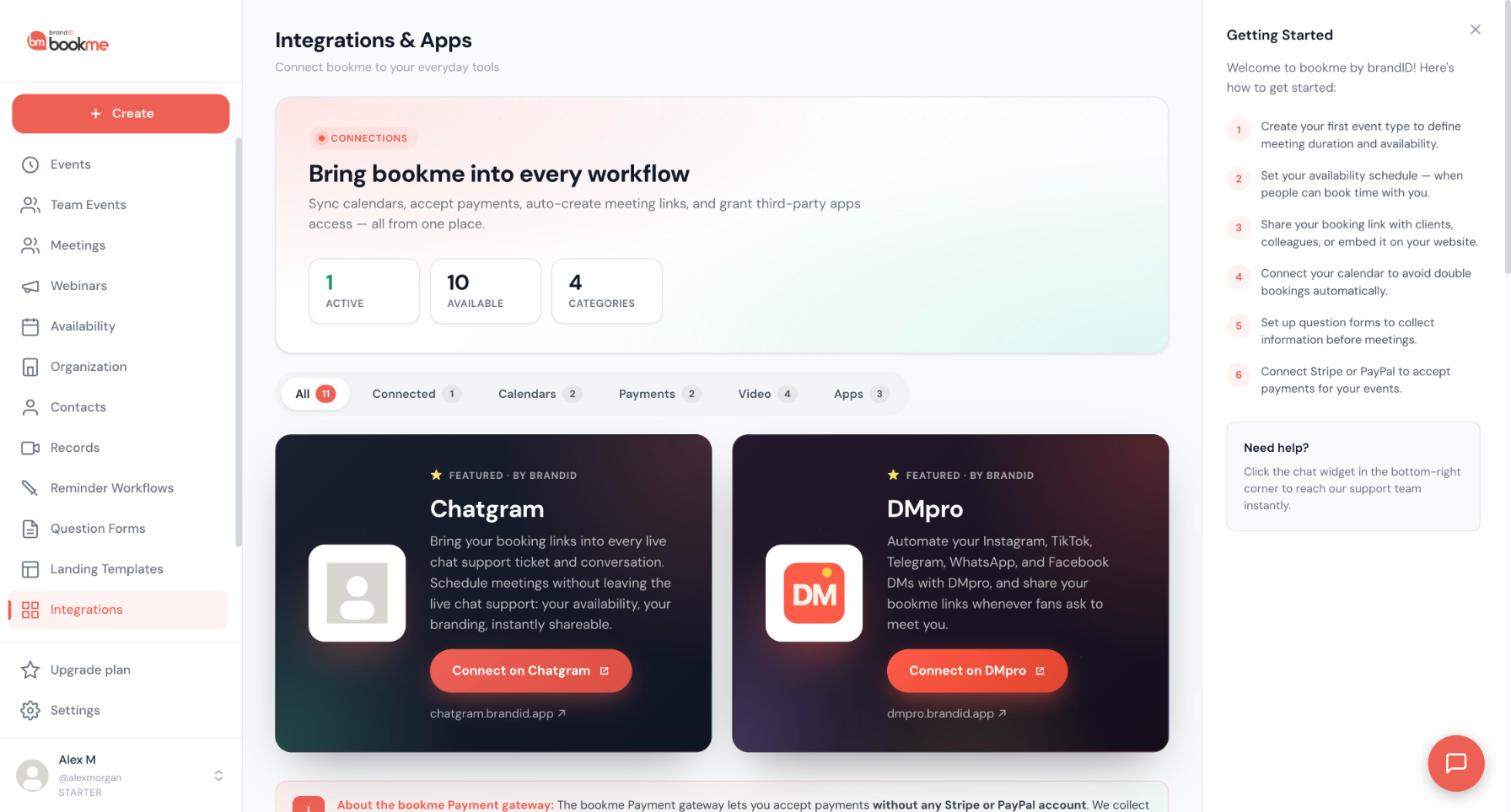
The Integrations page, titled Integrations & Apps, is where you connect bookme to your everyday tools: calendars, payments, video and other apps.
Counts and filter tabs
At the top three boxes show how many integrations are Active, Available and in how many Categories. Below them, filter tabs narrow the list:
- All
- Connected: only the ones you have connected
- Calendars
- Payments
- Video
- Apps
Each tab shows a number, which depends on your account.
Featured: Chatgram and DMpro
Two cards at the top are marked Featured, by brandID. Chatgram brings your booking links into live chat support. DMpro automates direct messages on Instagram, TikTok, Telegram, WhatsApp and Facebook and shares your bookme links when people ask to meet you. Their buttons, Connect on Chatgram and Connect on DMpro, open those products on their own sites.
The bookme Payment gateway note
A note on the page explains that the bookme Payment gateway lets you accept payments without any Stripe or PayPal account. Your earnings from it appear on the Earnings page.
To connect a calendar see Calendar Integrations, for video see Conferencing, and for payments see Paid Bookings.
If you connect an AI assistant such as Claude or ChatGPT to bookme, it can look up three of the areas in this category without changing anything. These lookups are read only.
Contacts
The assistant can list the people who booked you, with their name, email, number of meetings, upcoming meetings, no-shows, cancellations, and first and last meeting. It can search by name or email and sort by most recent or most meetings. You could ask: Who are my most frequent clients, and who has not booked in 3 months?
Recordings
It can list recordings of brandID Meet meetings and webinars you hosted: the meeting, who it was with, when, how long it was and its status. It does not return a media link, so you still watch or download the recording on the Records page.
Organization
It can show your organization’s name, your role, what members may do, the members with their roles and status, team pages with their public links, and managed event templates with how many members use them. Billing is never included.
What you control
When you choose access on the consent screen, contacts and recordings fall under the Meetings area and the organization under the Organization area. For Organization, an assistant can only view: changing the organization, its members or billing is never available to AI apps. You can also set an assistant’s read-only tools to Always allow in the AI app so look-ups do not ask each time.
To connect an assistant and see the full list of what it can and cannot do, read AI Assistants.
Still stuck? We’re happy to help.
Create your bookme account, see pricing, or reach out to support directly.




