
How to read your Overview dashboard
Learn what each card, the conversion funnel and the Messages over time chart on Overview tell you, so you can see at a glance whether your automations are healthy.
Before you start
- A DMpro account (the Free plan is enough)
Open Overview and choose a time range
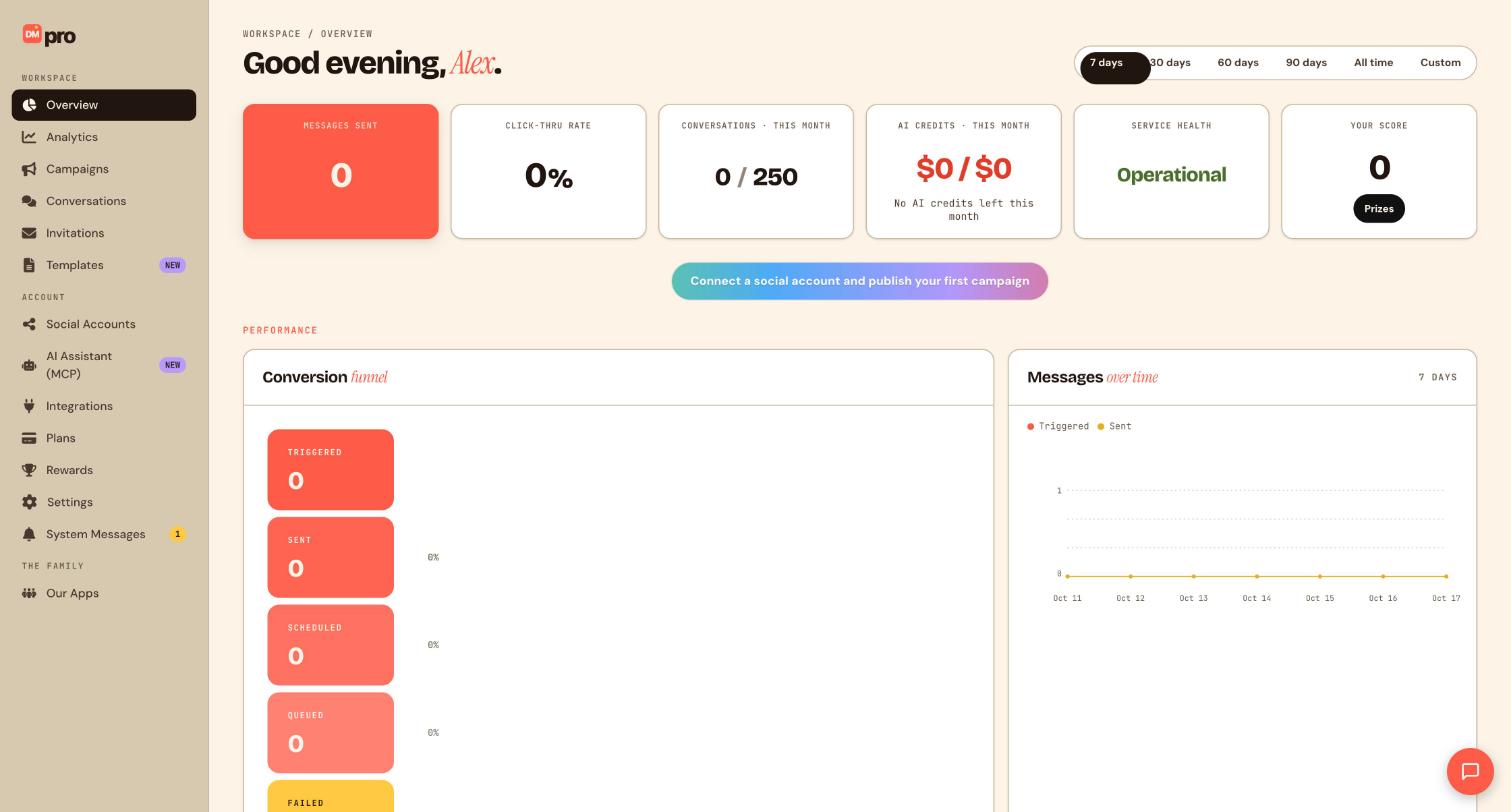
Click Overview at the top of the WORKSPACE section of the sidebar. At the top right, pick the period you want to look at: 7 days, 30 days, 60 days, 90 days, All time or Custom for your own dates. The performance charts follow this choice.
Read the six cards
The row of cards under the greeting gives you the headline numbers:
- Messages sent: how many messages your automations have sent.
- Click-thru rate: how often fans click the links you send.
- Conversations this month: your usage against your plan, for example 0 / 250 on the Free plan.
- AI credits this month: what you have spent against your monthly AI credits (the Free plan includes $3 per month).
- Service health: shows Operational when DMpro is running normally.
- Your score: your Rewards score, with a Prizes button that takes you to prizes you can redeem.
Follow the banner if you are just starting
While you have no connected account and no published campaign, a banner reads Connect a social account and publish your first campaign. Treat it as your checklist: connect an account in Social Accounts, then build a campaign from Templates or Campaigns. Until then every number on this page is zero, and that is normal.
Study the Conversion funnel
The Conversion funnel follows your messages from the moment a fan sets off a campaign. You see counts for Triggered, Sent, Scheduled and Queued, plus Failed for messages that did not go out. A big gap between Triggered and Sent, or a rising Failed count, tells you to look at your campaigns and your connected accounts.
Watch Messages over time
The Messages over time chart plots two lines for the chosen period: Triggered and Sent. A spike after you post a Reel with a comment keyword is exactly what you hope to see. If Triggered climbs but Sent stays flat, open Campaigns and check that your campaign is live and your account is still connected.
Go deeper in Analytics when you need detail
Overview is the summary. For revenue, the people who interacted with your campaigns, and the emails and phone numbers fans shared, open Analytics in the sidebar. It uses the same range buttons.
Tips
- Check Overview once a day. If Service health is not Operational, wait a few minutes and check again before you change anything.
- Keep an eye on Conversations this month so you are not surprised when you reach your plan allowance.
If something goes wrong
Everything on Overview shows zero.
Overview only counts activity from live campaigns on connected accounts. Connect an account in Social Accounts, publish a campaign and trigger it yourself from a second account. Also check the range at the top right in case it is set to a short period.
My campaign is live but nothing is being sent.
Open Campaigns and confirm the campaign is live, then check the keyword match, the post you scoped it to and that the account still shows as connected. Two live campaigns with the same trigger can also get in each other’s way.
Service health is not Operational.
Wait a few minutes and refresh. If it stays that way and your automations stop, contact support from System Messages in the sidebar.
Related how-to guides
Still stuck? We’re happy to help.
Create your DMpro account, see pricing, or reach out to support directly.




