
How to read your Analytics
Learn what each card on the Analytics page tells you, how to change the date range, and how to spot where your automations lose people.
Before you start
- A DMpro account (the Free plan works)
- At least one published campaign, so there is activity to measure. A brand new account shows zeros everywhere.
Open Analytics
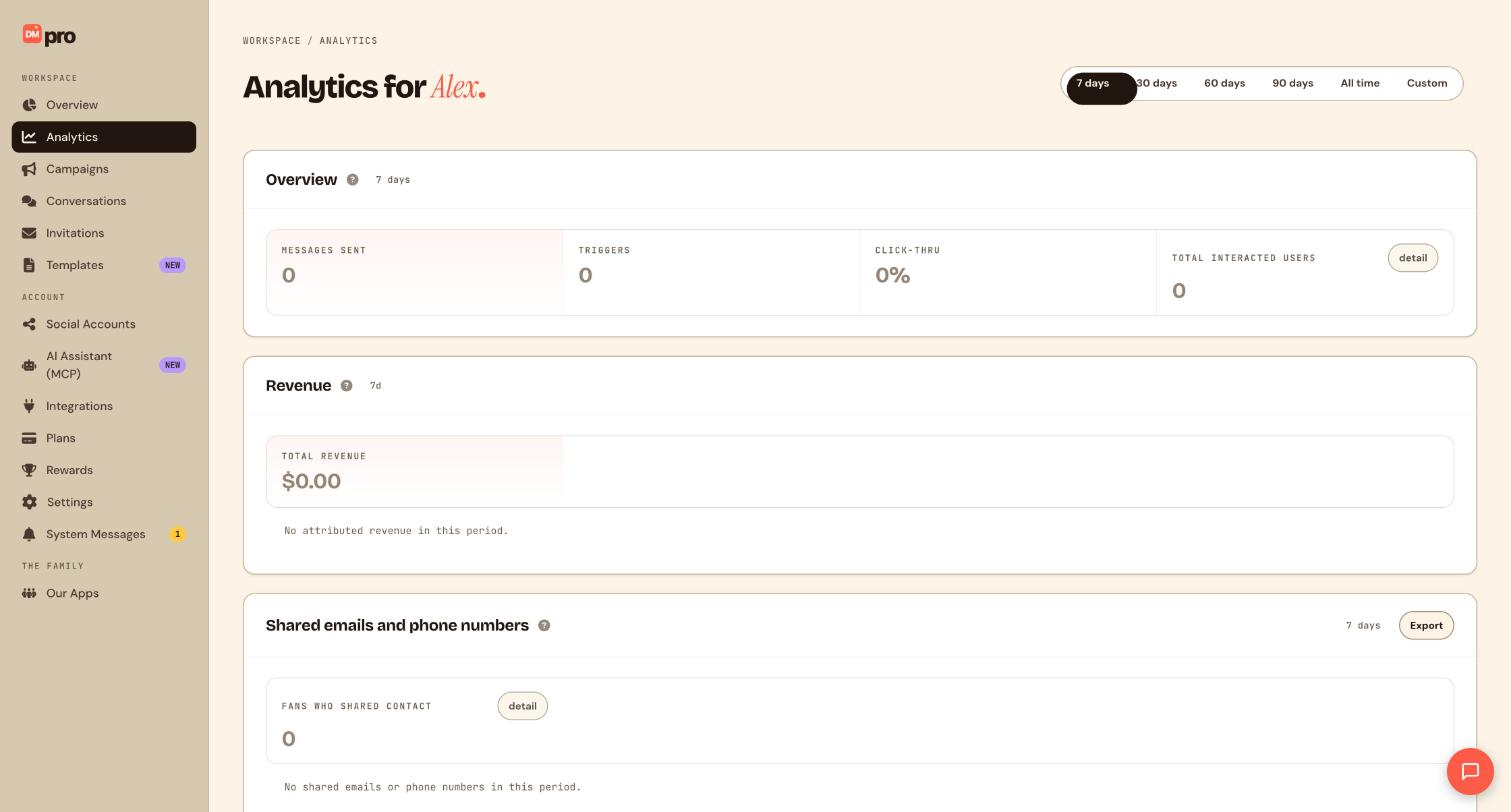
Click Analytics in the left sidebar, in the Workspace section. The page is called Analytics for followed by your name, and it has three cards stacked on top of each other: Overview, Revenue and Shared emails and phone numbers.
Choose a date range
The pill at the top right of the page sets the period for every card. Pick 7 days, 30 days, 60 days, 90 days, All time or Custom for exact dates. Each card repeats the period next to its title, so you always know what you are looking at.
When you compare two periods, use ranges of the same length, for example this 30 days against the last 30 days, so the totals are fair.
Read the Overview card
The Overview card has four numbers:
- Messages sent: the messages your automations sent in the period.
- Triggers: how many times fans set off one of your campaigns.
- Click-thru: how often fans clicked the links you sent.
- Total interacted users: how many different fans interacted with your automations. Click the detail button next to it for a closer look.
The small question mark next to a card title explains how that card is counted.
Check the Revenue card
The Revenue card shows Total revenue for the period. It only counts sales attributed to your automations from stores and affiliate accounts you have connected in Integrations. Until you connect one, it reads $0.00 with the note No attributed revenue in this period. The guide on tracking store revenue shows how to set that up.
Review shared emails and phone numbers
The third card, Shared emails and phone numbers, shows Fans who shared contact: how many fans gave you an email address or phone number in the period. Click detail to look closer, or Export to take the list with you.
Find where people drop off
Analytics tells you what happened. To see where, compare it with two other places. The Overview page has a Conversion funnel that runs from Triggered to Sent, Scheduled, Queued and Failed. The Campaigns list shows Triggers and Sent for each campaign.
Example: many triggers but few messages sent means the automation started but messages are not going out. Check the funnel for Queued or Failed, and check that your social account still shows as connected.
Tips
- Look at 7 days for what is happening now and 30 days or more for trends. A single quiet day rarely means anything.
- Click-thru only means something when your messages contain links. A message with no link cannot be clicked.
- You can also ask a connected AI assistant to summarise the same numbers in plain language. See the guide on having an assistant report on your results.
If something goes wrong
Everything shows zero.
Analytics only counts activity from campaigns that are published and running on a connected social account. Check that the campaign is live, that the account is connected on the Social Accounts page, and that your keyword matches what fans actually type. Also confirm the date range is not set to a period before your campaign started.
The Revenue card shows $0.00 but I made sales.
Revenue only counts sales attributed to your automations from stores and affiliate accounts connected to DMpro. Sales from a store that is not connected, or that did not come through your campaign links, do not appear.
My numbers do not match the Overview page.
Analytics and Overview each have their own date range picker. Set both to the same period before comparing.
Related how-to guides
Still stuck? We’re happy to help.
Create your DMpro account, see pricing, or reach out to support directly.




