
How to invite another account to a campaign
Share one campaign so the same flow also runs on another person’s connected account, and manage the invitations from the Invitations page.
Before you start
- A plan that includes collaboration (Pro or Enterprise; the Free plan allows one account per campaign)
- A finished campaign and the person or account you want to invite
Check your plan
Running a campaign on more than one account is a collaboration feature. The Free plan allows one social account per campaign, while Pro adds collaboration and unlimited accounts per campaign. Compare plans on the Plans page if you are unsure.
Open Invitations
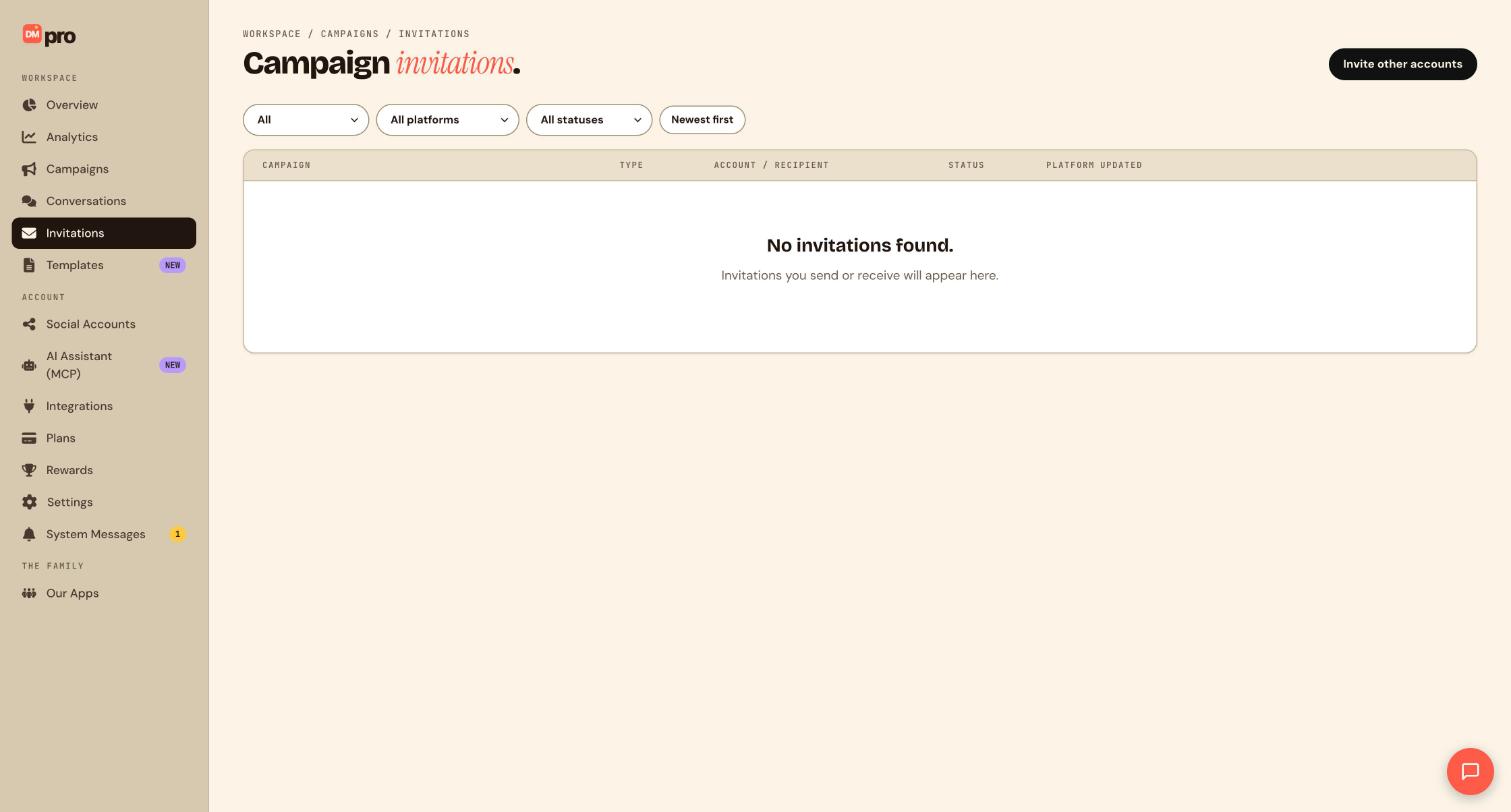
Click Invitations in the WORKSPACE section of the sidebar. The page, titled Campaign invitations, lists the invitations you send and receive, with three filter menus (All, All platforms and All statuses) and a Newest first sort. It is empty until the first invitation exists.
Invite the other account
Click Invite other accounts, choose the campaign, and invite the person by email. You can also copy an invite link and share it yourself. The invited person signs in or creates a DMpro account and connects their own Instagram, TikTok or Telegram account.
Let DMpro check for conflicts
Before an invitation is accepted, DMpro checks that the invited account does not already have a live campaign using the same trigger and keyword. If it does, resolve the clash first, for example by changing your keyword.
Decide whether to wait for invites
With the Wait for invites start mode, the campaign stays pending until every invited account has accepted, and you cannot publish until then. Add the participants when you create the campaign in this mode. A campaign can have up to 50 participants.
Know what does not carry over
Steps such as Send Instagram post and Send products only work on the account that owns the post or the catalog, so they cannot run on an invited account. Design the shared flow around text, links and replies.
Follow up and manage invitations
Open Invitations to see which invitations are pending, accepted or declined. You can take an invited account off a campaign at any time, and the campaign stops running on that account straight away. If you later change a shared flow, invited accounts have to accept again.
Tips
- Agencies: build the flow once on your own account, test it, then invite clients’ accounts instead of rebuilding it for each.
- Tell the invitee to look in their Invitations page, since that is where a received invitation appears.
If something goes wrong
I cannot publish because of pending invites.
The campaign is in Wait for invites mode. Check Invitations, resend the invite or share the link again, or remove that start mode.
Free plan says I cannot add a second account.
Free allows one social account per campaign and excludes collaboration. Upgrade to Pro, or create a separate campaign for each of your own accounts.
The invitation cannot be accepted because of a trigger conflict.
The invited account already has a live campaign with the same trigger and keyword. Change your keyword or ask them to pause or edit their campaign.
Related how-to guides
Still stuck? We’re happy to help.
Create your DMpro account, see pricing, or reach out to support directly.




