
How to turn on AI personalization for an Agent
Switch on AI Messages for an Agent so contactID writes the spots you mark in your pitch, once per website. Setup takes about five minutes.
Before you start
- An Agent with a pitch message
- At least one saved prompt in your Prompts Library, because a placeholder works only after you save a prompt with that name
- A balance in your AI wallet. AI credits are separate from website credits
Open the AI Personalization page
In the dashboard sidebar, open the group Configuration and click AI Personalization. The top section, Profile AI Settings, lists each of your agents with its email, an AI OFF label while AI is disabled, an AI Messages switch, a Model list and the agent’s Message template. Below it sits the Prompts Library.
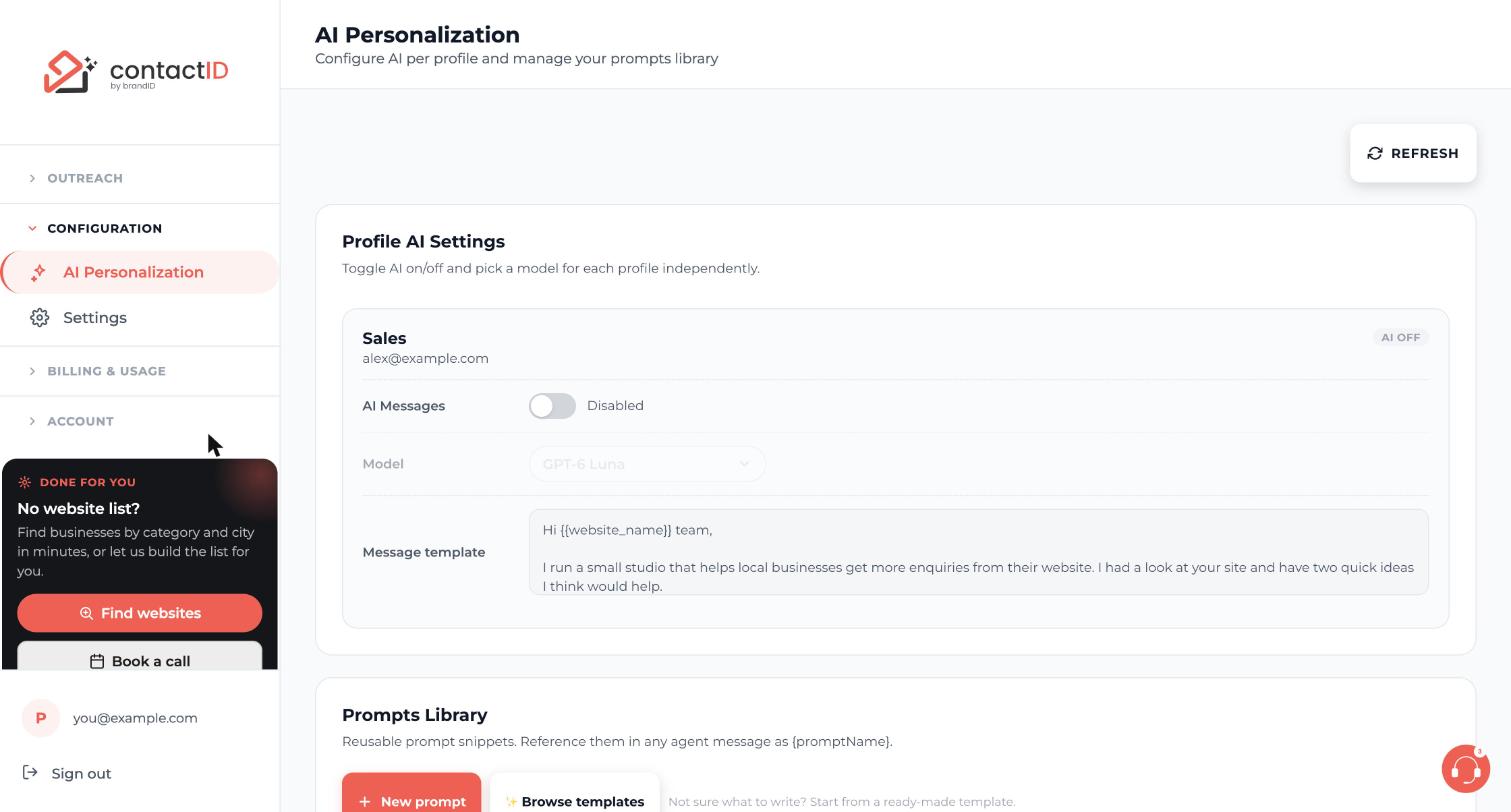
Turn on AI Messages for the agent
Find the agent you want and turn its AI Messages switch on. The label changes from Disabled and the change saves at once. Each agent is independent, so you can use AI on some agents and leave it off on others.
With AI on, the AI writes only the spots you mark with a placeholder. Every other word of your pitch is sent as you wrote it. A message with no placeholder is sent exactly as written and costs no AI credits.
Choose a model
The Model list becomes available once AI is on. The default is GPT-6 Luna. OpenAI, Anthropic and Google Gemini models are offered. Larger models write more carefully and cost more. contactID does not switch models on its own, so if a model shows No API key pick another one.
On the default model a placeholder costs about $0.0003 per website. For one placeholder across 1,000 websites that is about $0.30. Each different placeholder is one AI request per website, so three placeholders cost about three times as much.
Add a placeholder to the pitch
Open the Agents page, press EDIT on the agent and add a placeholder in single curly braces where the personalized sentence should go, for example {Opener}:
Hi, {Opener} I run a small studio that helps local businesses get more enquiries. If a free audit sounds useful, reply and I’ll send it this week.
A prompt with that exact name must exist in your Prompts Library. Names are not case sensitive, but a typo means the placeholder is not filled and the website is not sent. See the guides on custom prompts and ready-made templates to create one.
Make sure your AI wallet has credit
Open Buy AI Credits under Billing & Usage and top up if the balance is empty. A run with AI on cannot start on an empty balance, and a run that empties the wallet pauses until you add credit and press Resume. Top-ups range from $5 to $500 and no plan includes AI credits.
Test on a small batch
Open the extension, go to the Targets tab, add three or four websites and let the check finish. In the Preview on a site card pick one website and press AI sample. It shows exactly what would be sent, with the placeholders written, plus the model and the cost. It is charged like one AI message and nothing is sent.
Then run about 10 websites before a large batch. Check that the lines fit each business. The AI does not open the website. It knows only the site’s name and address, plus your name, company and job title, so check that it does not invent news, posts or products.
Turn AI off when you no longer want it
Switch AI Messages off at any time. Your pitch is then sent exactly as written, so any {PromptName} in it would go out as literal text. Remove the placeholders first. In the extension the same switch is Use AI to write personalized messages under Your message on the Agent tab. Once the change reaches the extension it applies to the next website that starts, even during a run.
Tips
- Use one or two placeholders per pitch for high volume. Each different placeholder is a separate AI request for every website.
- Each account can have up to 20 websites per minute personalized by the AI. A fast run with a high Forms filled at once setting can reach it. Websites whose text could not be written are not sent, so retry them later.
- Save AI for your best lists. Personalization does not rescue a poor list.
If something goes wrong
My messages went out without any AI text.
Check that AI Messages is on for that agent, that the pitch contains a placeholder, and that a prompt with the same name exists in your Prompts Library. A message without a placeholder is sent as written. Then check that the AI wallet has a balance.
A website failed with a message about a placeholder.
The message still held a placeholder when it was about to be sent, so it was not sent and no credit was used. The usual causes are AI off for the agent, no prompt with that name, or the AI provider failing for that website. Fix the cause and retry the website.
The run paused and the AI wallet opened.
The AI balance was too low for the next request. The website goes back to Queued. Add credits on Buy AI Credits, then press Resume on the Send tab.
A model is greyed out or shows No API key.
The model is unavailable on contactID’s side and cannot be chosen. An agent that still has it saved does not switch to another model, so pick an available one and save.
Related how-to guides
Still stuck? We’re happy to help.
Install the extension, start a free trial, or reach out to support.




