
How to use a ready-made AI prompt template
Install a ready-made prompt from the template gallery instead of writing your own, then use it as a placeholder in your pitch. It takes about three minutes.
Before you start
- A contactID account with at least one Agent
- AI Messages turned on for that Agent to see the AI text at send time
- A balance in your AI wallet for testing
Open the Prompts Library
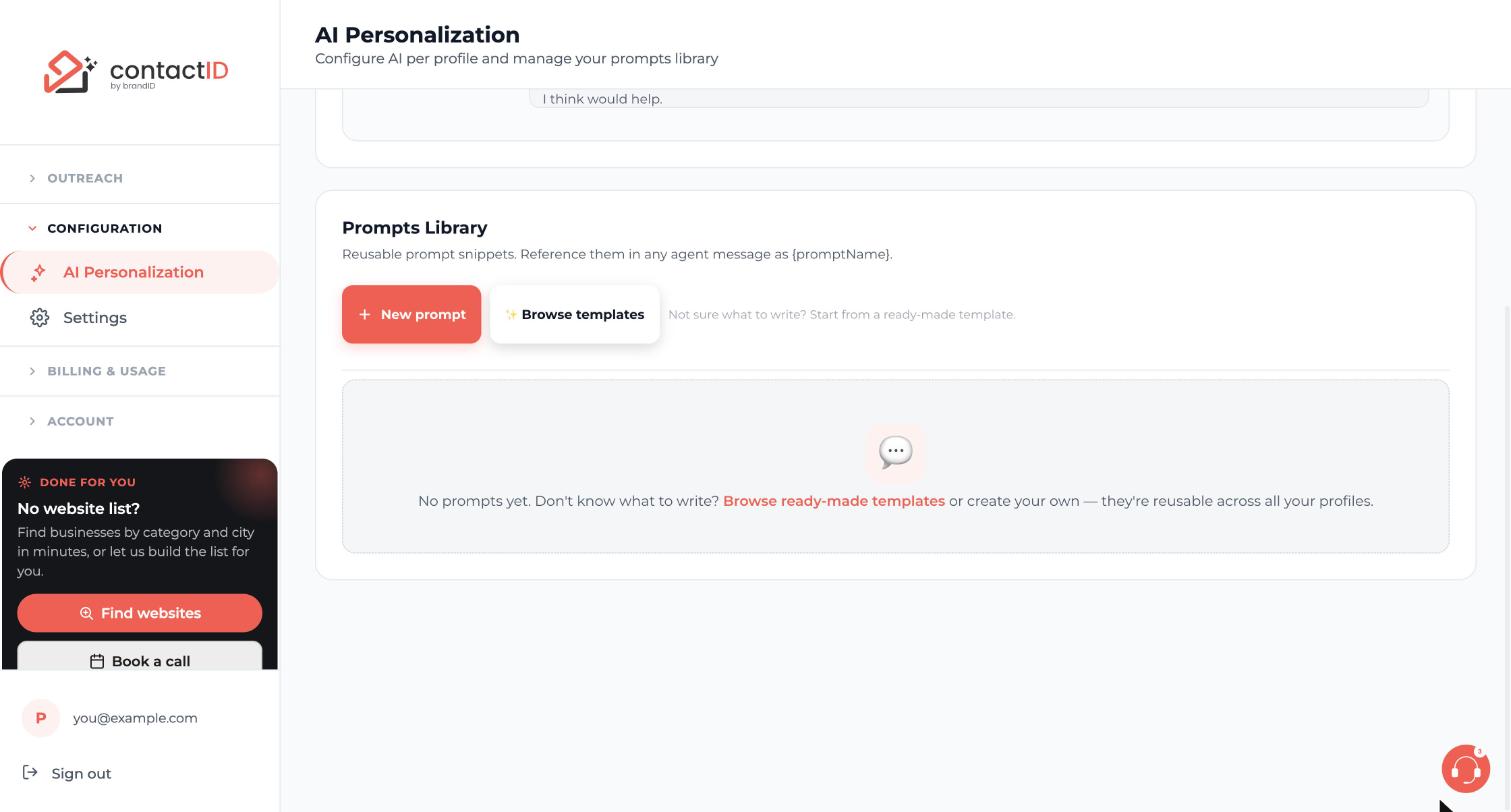
In the dashboard sidebar, under Configuration, click AI Personalization and scroll to Prompts Library. Click Browse templates next to New prompt. The library also says: Not sure what to write? Start from a ready-made template.
You can reach the same gallery from an agent: on the Agents page press EDIT and use the BROWSE AI PROMPT TEMPLATES button under the pitch message.
Choose a template that fits your list
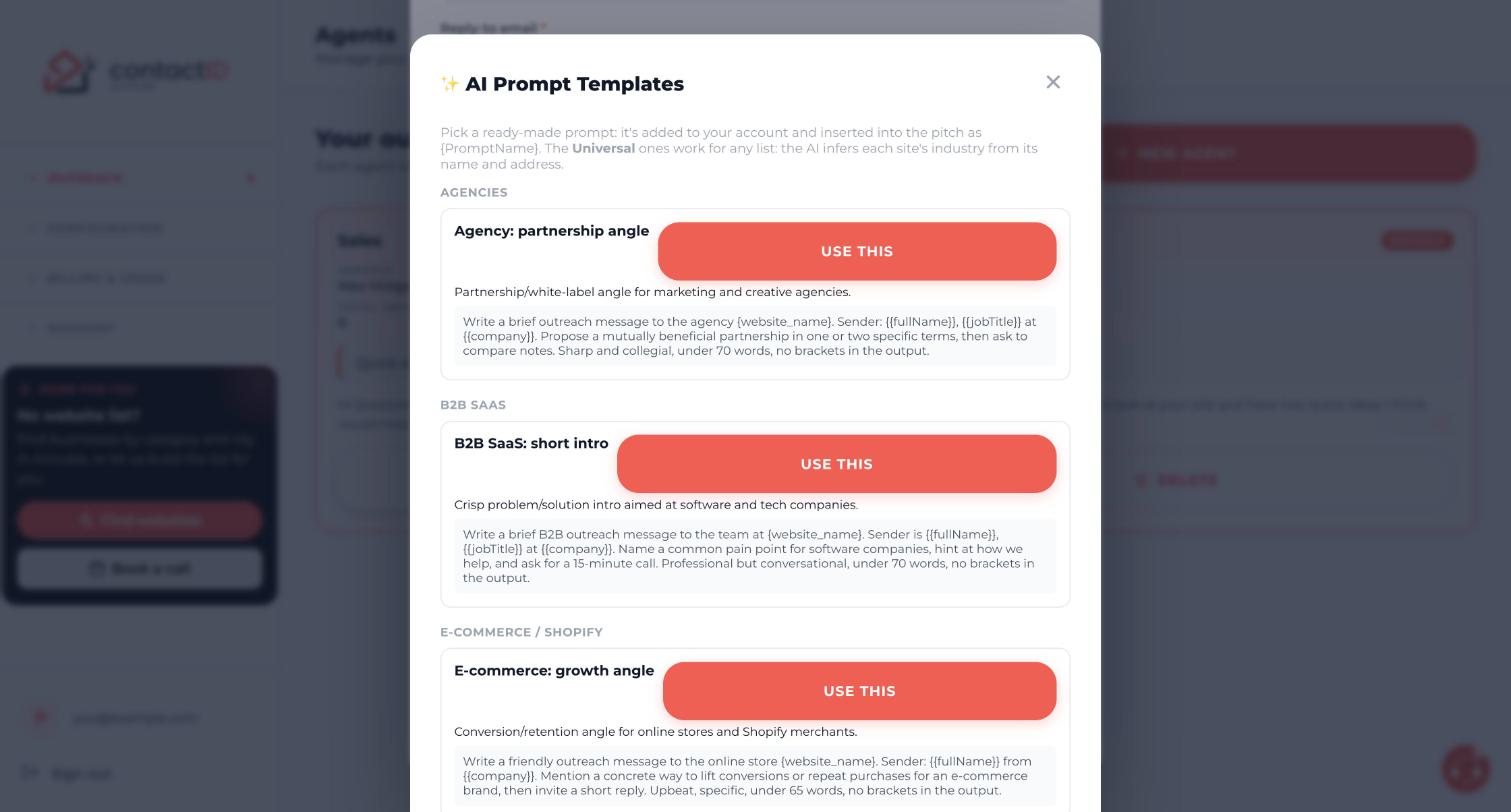
The AI Prompt Templates window groups ready-made prompts by niche, such as Agencies, B2B SaaS and E-commerce / Shopify. Each card has a title, a one-line description of who it suits, a preview of the instruction and a USE THIS button.
A group named Universal works for any list. Those templates, {AdaptiveIntro} and {ValueFirst}, ask the AI to infer each website’s industry from its name and address, because contactID does not look up the industry at the moment.
Press USE THIS
Press USE THIS on the template you want. It is added to your account as a prompt under a suggested name, such as {AdaptiveIntro}. When you opened the gallery from an agent’s editor, the placeholder is also inserted into the pitch for you. Templates also exist for niches such as restaurants, hotels, real estate and local services.
Check the new prompt and edit it if you like
Go back to the Prompts Library. The installed template is now a normal prompt that you can edit to suit your voice. In the extension you will find it under Your message, Manage Prompts, where you can click Edit, change the instructions and press Update Prompt. Keep an instruction short, with a length limit such as under 20 words.
Put the placeholder in your pitch
If it was not inserted for you, open the Agents page, press EDIT and type the prompt’s name in single curly braces where the AI text should go, for example:
Hi, {AdaptiveIntro} I run a small studio that helps local businesses get more enquiries. If a free audit sounds useful, reply and I’ll send it this week.
Everything outside the braces is sent exactly as you wrote it. Then open AI Personalization and make sure the agent’s AI Messages switch is on.
Test with an AI sample
In the extension open the Targets tab, add a few websites and let the check finish. In Preview on a site pick a website and press AI sample. It shows what would be sent, plus the model and the cost, and nothing is sent. If the line reads generically, edit the prompt and test again before a bigger batch.
Do not confuse prompt templates with message templates
In the extension, the Agent tab has a different button above the editor: Start from a template. It offers twelve ready-made full messages for niches such as agencies, SaaS, local services, e-commerce, recruiting, PR, consulting and events. Use this template replaces your message, and it asks first if you already wrote one. If you leave the box ticked it also replaces the subject line.
Replace every [bracketed] hint with your own words. The deliverability check reminds you if a bracket is left.
Tips
- An installed template becomes a normal prompt in your library, so you can rename the pitch around it and edit the instruction at any time.
- You can keep up to 50 prompts. Prompts belong to your account and every agent you own can use them.
- Each different placeholder in a pitch is one AI request per website, so one or two placeholders keeps costs low.
If something goes wrong
I installed a template but my message has no AI text.
The AI only writes the spots marked with a placeholder. Check that the placeholder is in your pitch, spelled like the prompt in your library, and that AI Messages is on for the agent.
The template text mentions things that do not fit my business.
Edit the prompt in your Prompts Library and change its instruction. The installed copy is yours to change.
I clicked Start from a template and lost my message.
Using a message template replaces your message, and contactID asks first if you already wrote one. Unsaved text cannot be restored, so copy your message somewhere safe before trying a template.
Related how-to guides
Still stuck? We’re happy to help.
Install the extension, start a free trial, or reach out to support.




