
How to set or change your password
Add an optional password so you can sign in with your email and password, or change the one you have. It takes about two minutes.
Before you start
- A contactID account signed in on the dashboard at https://contactid.brandid.app/
- A password you will remember: at least 8 characters, with an uppercase letter, a lowercase letter and a number
Open the Security page
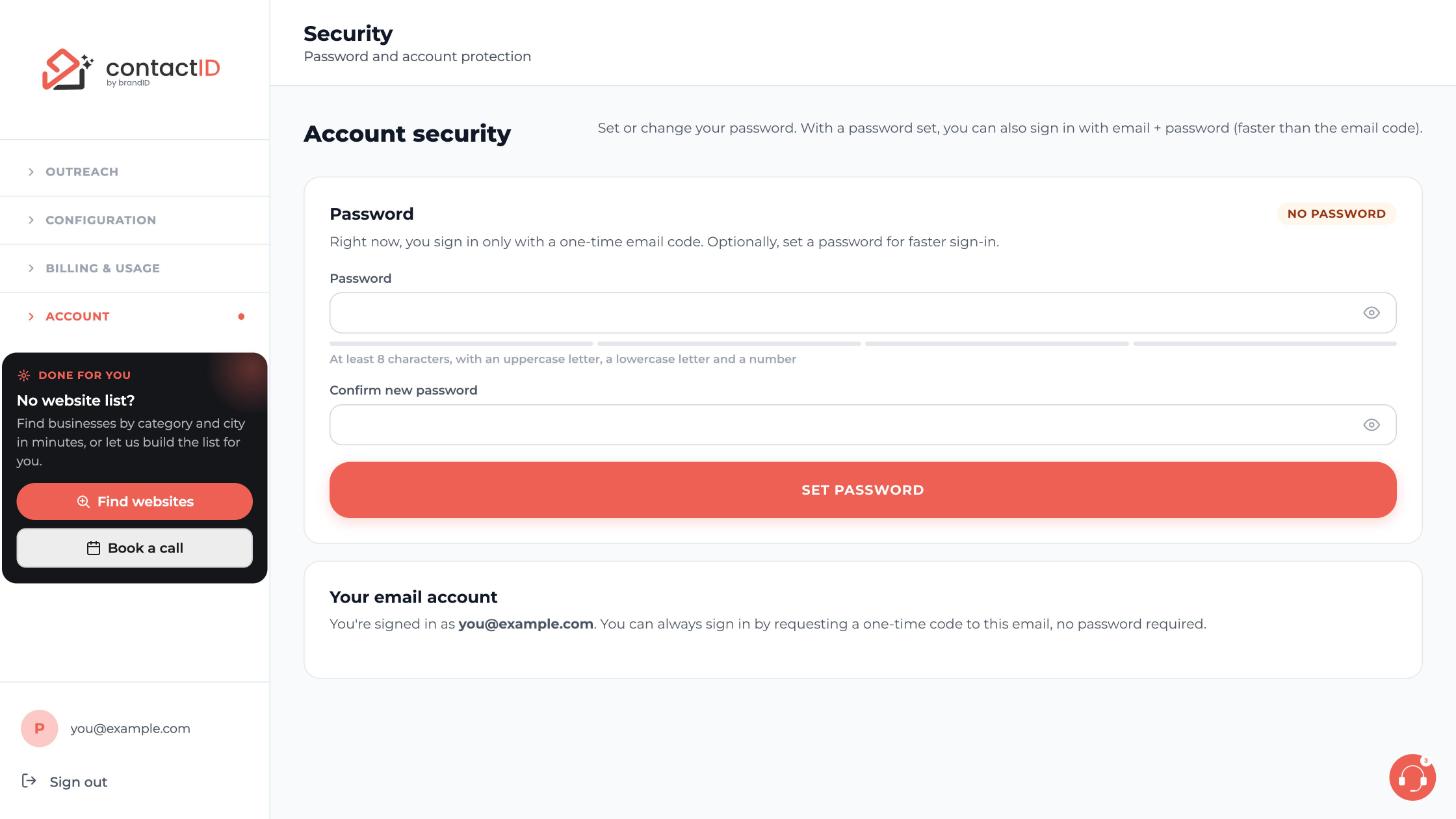
In the left sidebar, click Account, then click Security. The page is titled Account security. If you never set a password, the Password card shows NO PASSWORD and says you sign in only with a one-time email code.
Type your new password
Click the Password box and type the password you chose. A strength bar fills as you type, and the line under it reminds you of the rule: at least 8 characters, with an uppercase letter, a lowercase letter and a number. The eye icon on the right shows or hides what you typed.
If you already have a password and want to change it, you also need your current password.
Confirm it
Type the same password in Confirm new password.
Click Set password
Click SET PASSWORD. If you already have a password, the button is for changing it.
Sign in from now on
With a password set, you can sign in with your email and password, which is faster than the email code. You can still sign in with a one-time code sent to your email, with no password needed.
If you forget it
On the sign-in page, use Forgot password?. contactID emails you a 6-digit code, you enter it, and you choose a new password. This signs you out everywhere, so sign in again with the new password. Or just sign in with an email code instead.
Tips
- A password is optional. The email code and Google sign-in are secure and need nothing to remember.
- A password mainly matters if you want to sign in without access to your inbox.
- Never share your password or type it into a chat or an email.
If something goes wrong
The page will not accept my password.
It needs at least 8 characters, with an uppercase letter, a lowercase letter and a number. Check that both boxes match.
I was signed out of the extension after changing my password.
That is expected. Setting or changing a password signs you out on other browsers and devices. Sign in again in the extension. Any AI app you connected asks you to connect again.
I never set a password but I can sign in.
Most people sign in with Google or a 6-digit email code, so no password is needed.
Related how-to guides
Still stuck? We’re happy to help.
Install the extension, start a free trial, or reach out to support.




