
How to see your usage and transaction history
See how many websites you have filled and where your credits came from on the Usage page, and every payment and credit entry on Transaction History. It takes about three minutes.
Before you start
- A contactID account signed in on the dashboard at https://contactid.brandid.app/
Open the Usage page
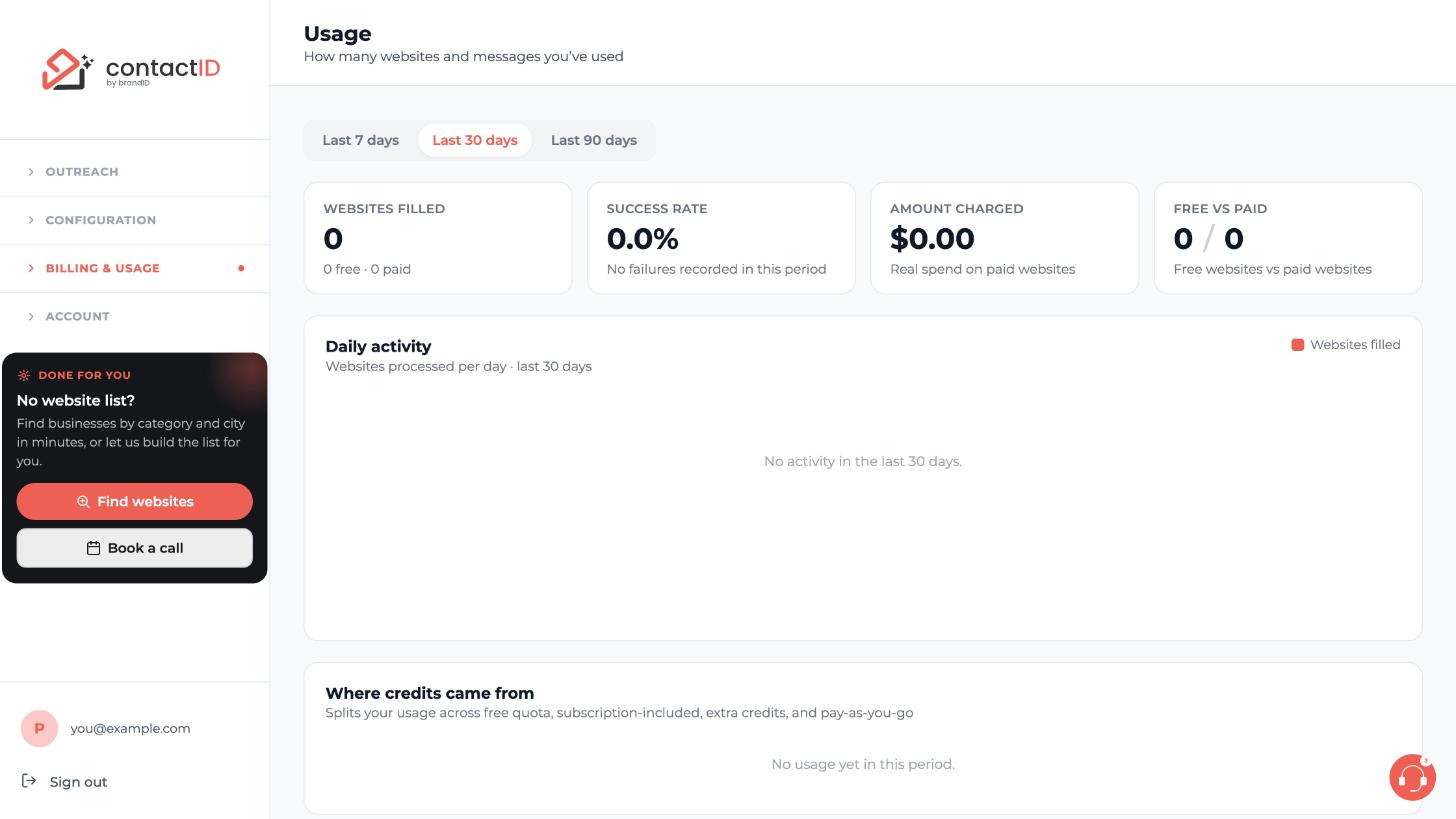
In the left sidebar, click Billing & Usage, then click Usage. The page is titled How many websites and messages you’ve used.
Choose the period
Click Last 7 days, Last 30 days or Last 90 days at the top. The cards and charts below change to that period.
Read the cards and charts
- Websites filled: how many, split into free and paid.
- Success rate: and a note on failures in the period.
- Amount charged: real spend on paid websites.
- Free vs paid: free websites against paid websites.
- Daily activity: websites processed per day.
- Where credits came from: your usage split across free quota, subscription-included credits, extra credits and pay-as-you-go.
In the example account nothing has been sent yet, so the values are zero and the charts say there is no activity.
Open Transaction History
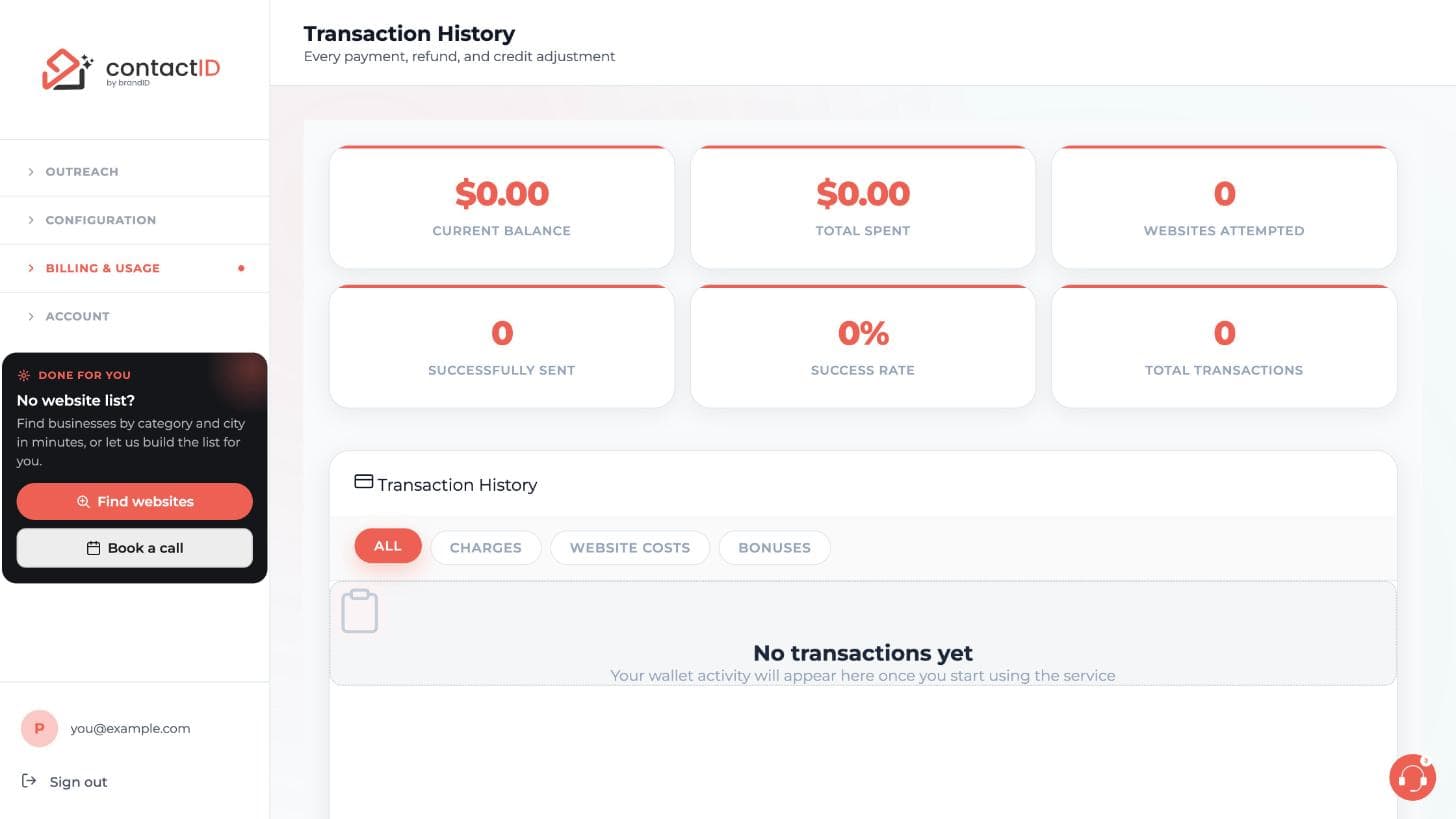
In the sidebar, under Billing & Usage, click Transaction History. The page shows every payment, refund and credit adjustment. Six cards sit at the top: Current Balance, Total Spent, Websites Attempted, Successfully Sent, Success Rate and Total Transactions.
Filter the list
The list below the cards shows your 100 most recent entries, newest first. Use the tabs above it: All, Charges, Website Costs and Bonuses. There is no date filter or search. When nothing has happened yet, the page says No transactions yet.
Each entry shows its type, description, date and time, amount and, where one applies, the balance after it. Types include subscription payments, credit purchases, extra credits, bonus credits, wallet charges and website completions.
Find payments that are listed elsewhere
- AI credit top-ups and AI auto-recharge payments are under Payment History on the Buy AI Credits page.
- Lead credit packs are under Recent activity on the Credits tab of Find websites.
- Subscription invoices are in Stripe’s billing portal: on Plan & Billing, click Manage billing.
Tips
- A credit is used only for a send the website confirms. Checks, failed sends, websites with no form and sends the site did not confirm are free.
- Credits are used in this order: included credits from your plan, then wallet balance if you have one, then extra credits.
- Transaction History has no download or export button.
If something goes wrong
A charge on my card is not in Transaction History.
Check Payment History on Buy AI Credits for AI credits, and Recent activity on the Credits tab of Find websites for lead credit packs. Some differences are only timing, because a pending charge may not have settled yet. If you cannot match it, contact support with the date, the amount and the line from your bank statement.
A failed payment or a refund is not listed.
Failed payments and refunds are not added as entries on Transaction History. A failed AI payment shows the status Failed on Buy AI Credits.
My sends do not appear one by one.
Sends that use your free, plan or extra credits are not listed individually. Use the Usage page, or Analytics, to see them.
Related how-to guides
Still stuck? We’re happy to help.
Install the extension, start a free trial, or reach out to support.




