
How to save your Send lists to your account
Keep a copy of your Send lists in your contactID account so they come back on another computer or after a reinstall. It takes about two minutes.
Before you start
- contactID installed in Chrome and signed in to your account
Open Settings and go to Sync & AI access
In the left sidebar, click Configuration, then click Settings. Open it in the Chrome where contactID is installed and where you are signed in to the same account, because each computer keeps its own settings.
Click Sync & AI access in the list on the left of the page.
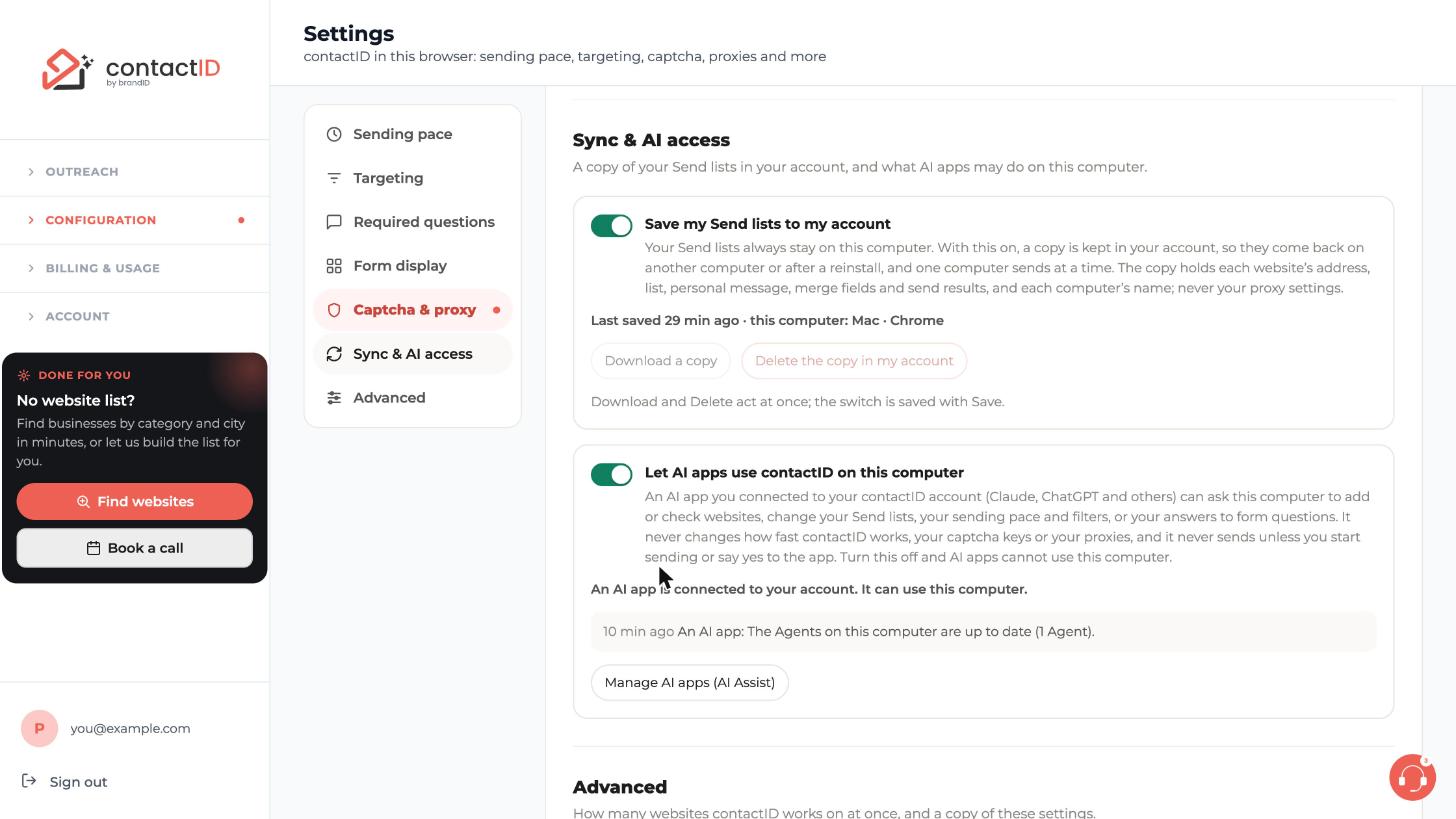
Understand what the copy is
Your Send lists always stay on the computer you use. With Save my Send lists to my account turned on, a copy is also kept in your account. That is how they come back on another computer or after a reinstall. One computer sends at a time.
The copy holds each website’s address, list, personal message, merge fields and send results, and each computer’s name. It never holds your proxy settings.
Turn the switch on or off
Click the Save my Send lists to my account switch. Green means on. Then press Save at the top right of the page, because the switch is saved with Save.
Check when it was last saved
Under the switch, the line that starts with Last saved tells you how long ago the copy was saved and names the computer it came from.
Download or delete the copy
Two buttons sit under the line:
- Download a copy saves the copy so you have your own file.
- Delete the copy in my account removes the copy kept in your account. Your Send lists on this computer stay.
Download and Delete act at once. They do not wait for Save.
Tips
- The same section has Let AI apps use contactID on this computer and a Manage AI apps (AI Assist) button. That is a separate setting for AI apps you connected.
- While an AI app may see your Send lists, a copy of them is kept in your account. It stays after the app is gone until you delete it here.
- A reinstall removes the local queue, so keep the copy turned on or use Advanced Export on the Send tab first.
If something goes wrong
The Send tab asks me to answer a Send lists question.
The extension on that computer found websites added while another contactID account was signed in, or is asking whether to combine its lists with the copy in your account. Answer it on the Send tab. Until you do, an AI app’s changes to the Send lists on that computer wait.
My lists are not on my other computer.
Check that Save my Send lists to my account is on and saved on the first computer, and that the other computer is signed in to the same account.
Settings says it cannot reach contactID.
Open the page in the Chrome where the extension is installed and signed in. The page tells you if contactID is not installed or not on, needs an update, or is signed in to another account.
Related how-to guides
Still stuck? We’re happy to help.
Install the extension, start a free trial, or reach out to support.




