
How to connect Codex to contactID
Add contactID to Codex with two commands. The Codex CLI, its IDE extension and the ChatGPT desktop app share the same setup. It takes about 3 minutes.
Before you start
- A contactID account you can sign in to
- Codex installed (CLI, IDE extension or the ChatGPT desktop app), and a terminal
- A computer with a browser, for the sign-in
Open AI Assist and copy the address
In the dashboard at https://contactid.brandid.app/, open Account in the sidebar and choose AI Assist (MCP). Open the Apps tab. On the right is the panel Connect an AI app.
Press Copy next to the address, which is:
https://contactid.brandid.app/mcpUnder Steps for your app, press Codex to see the steps for that app.
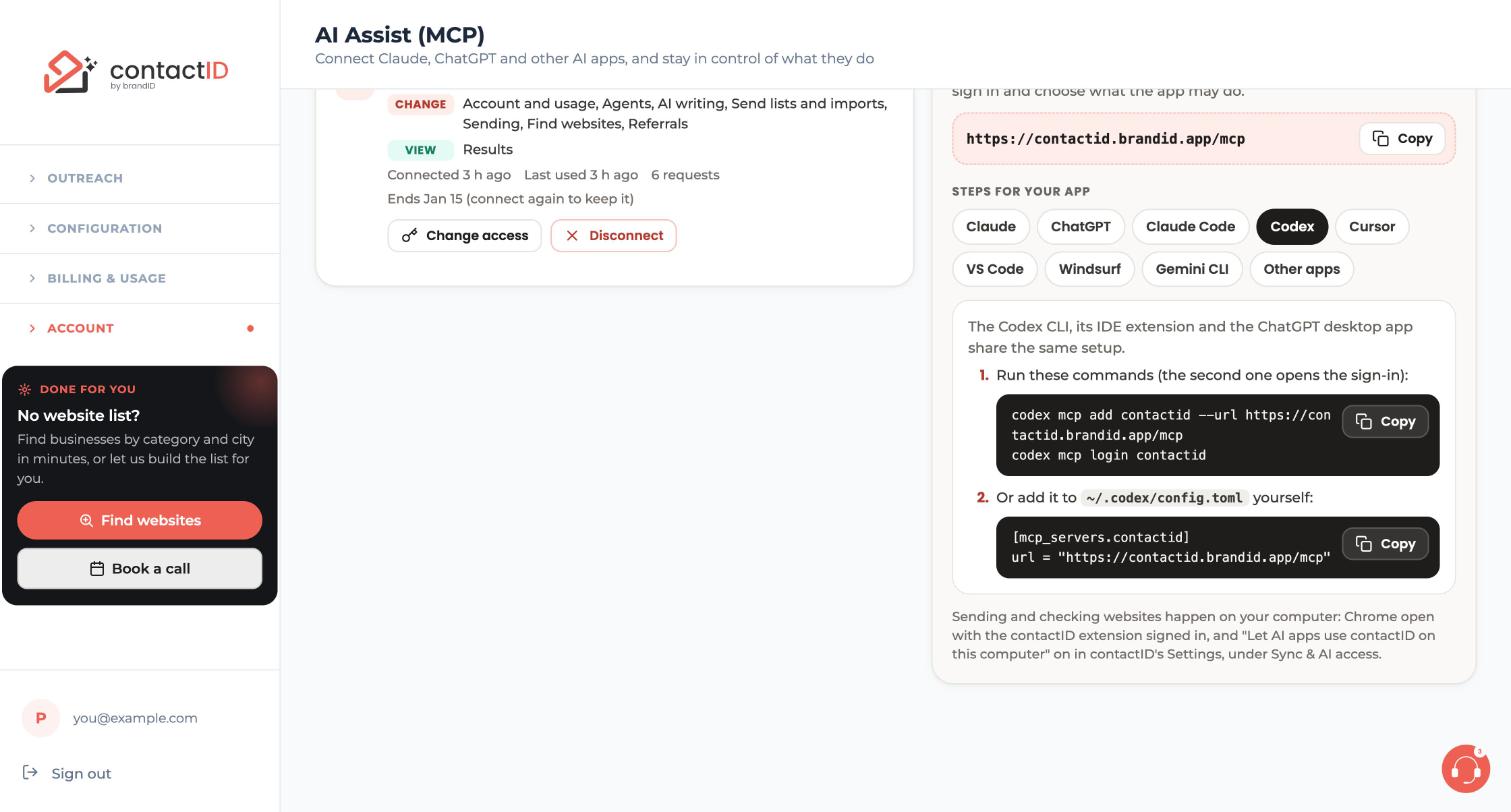
Add contactID to Codex
In a terminal, run these two commands. The second one opens the sign-in:
codex mcp add contactid --url https://contactid.brandid.app/mcp
codex mcp login contactidOr edit the config file yourself
If you prefer, skip the first command and add these lines to ~/.codex/config.toml yourself:
[mcp_servers.contactid]
url = "https://contactid.brandid.app/mcp"
Then run codex mcp login contactid to sign in.
Sign in on contactID’s page
A browser window opens on a contactID page. Sign in. If you signed in more than 10 minutes ago, enter the 6-digit code contactID emails you (Confirm it is you).
Choose what Codex may do and press Allow
Choose View only, View and manage or Custom. If you are unsure, start with View only.
Codex returns to a program on your own computer, so contactID marks it Known app (Known app on this computer on the AI Assist page). Continue only if you just started Codex yourself, then press Allow. If a connection page opens that you did not start, press Cancel.
Try a first request and check the connection
In Codex, ask something that only looks, for example:
Show me my Agents
Then open Account, AI Assist (MCP), Apps in the dashboard. Codex appears under Connected apps.
Tips
- The ChatGPT website is a different setup from Codex. See the guide on connecting ChatGPT.
- Anything that reaches people or spends credits asks you first, and nothing is sent unless you start sending or say yes.
- Sending and checking websites happen on your computer. For an AI app to add websites or send, keep Chrome open with the contactID extension signed in to the same account, and keep Let AI apps use contactID on this computer on in Settings, Sync & AI access. See the dashboard and the guide on letting AI apps use your computer.
If something goes wrong
The sign-in did not open
Run codex mcp login contactid again. Check the address is exactly https://contactid.brandid.app/mcp.
Codex asks me to connect again
The connection ended (90 days, 30 days unused, a new password or a disconnect). Run codex mcp login contactid again.
A request says it cannot reach my computer
Open Chrome with the contactID extension signed in to the same account, and check Let AI apps use contactID on this computer is on in Settings, Sync & AI access.
Related how-to guides
Still stuck? We’re happy to help.
Install the extension, start a free trial, or reach out to support.




