
How to choose or change your plan
Compare the plans, pick Monthly or Annual billing, and subscribe, upgrade or move to a lower plan from the Plan & Billing page. It takes about five minutes.
Before you start
- A contactID account signed in on the dashboard at https://contactid.brandid.app/
- A card for Stripe Checkout if you subscribe or upgrade
Open Plan & Billing
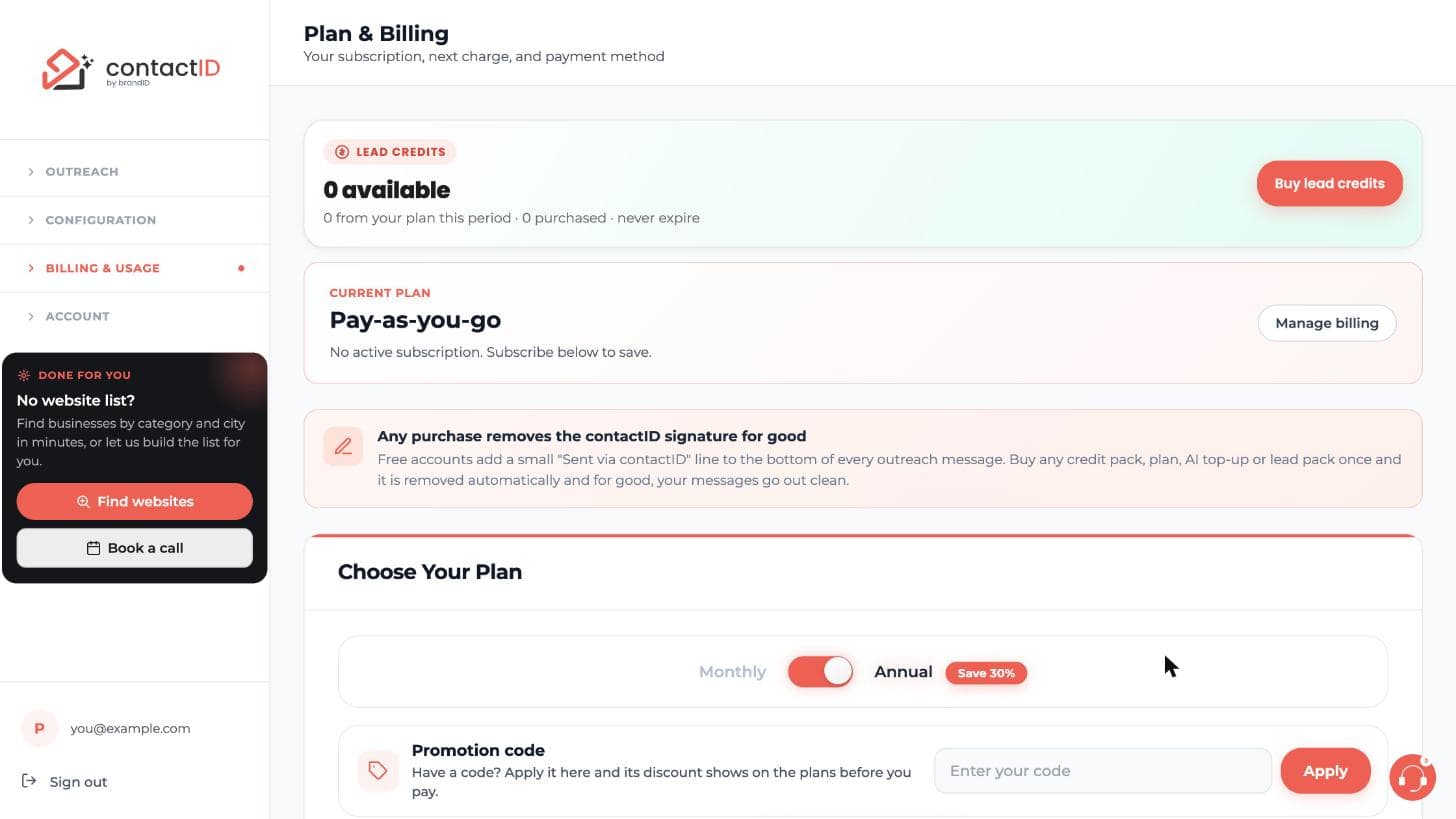
In the left sidebar, click Billing & Usage, then click Plan & Billing. At the top you see your lead credits, your Current plan and a Manage billing button. The Choose Your Plan section is further down the page.
Pick Monthly or Annual
In Choose Your Plan, use the Monthly / Annual switch. Annual saves 30%. The dashboard always opens with Annual switched on, so switch to Monthly yourself before you click Subscribe or Upgrade if you want monthly billing.
Compare the plans
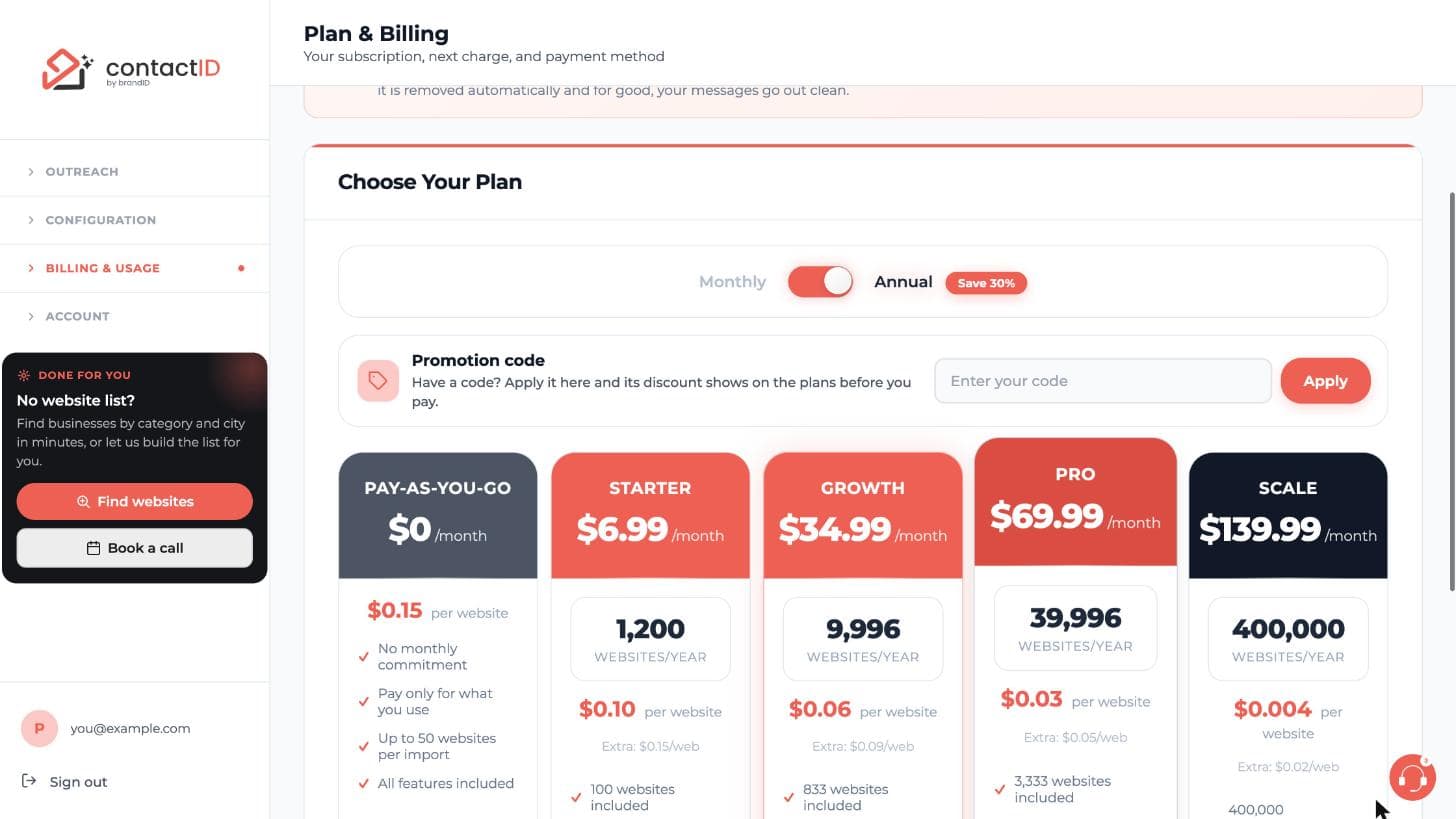
Each card shows its price, its per-website price, the extra price, the limit per import and the support level. With Annual on, the prices shown are the yearly price spread over a month.
- Pay-as-you-go: $0.15 per website, no monthly commitment, up to 50 websites per import.
- Starter: $9.99 a month, or $6.99 a month on annual billing. 100 websites a month, up to 500 per import.
- Growth: $49.99 a month, or $34.99 on annual. 833 websites a month, up to 1,000 per import.
- Pro: $99.99 a month, or $69.99 on annual. 3,333 websites a month, up to 2,500 per import.
- Scale: $199.99 a month, or $139.99 on annual. 19,999 websites a month, unlimited per import.
A simple way to choose is the smallest plan whose included websites cover your usual month.
Subscribe to a plan
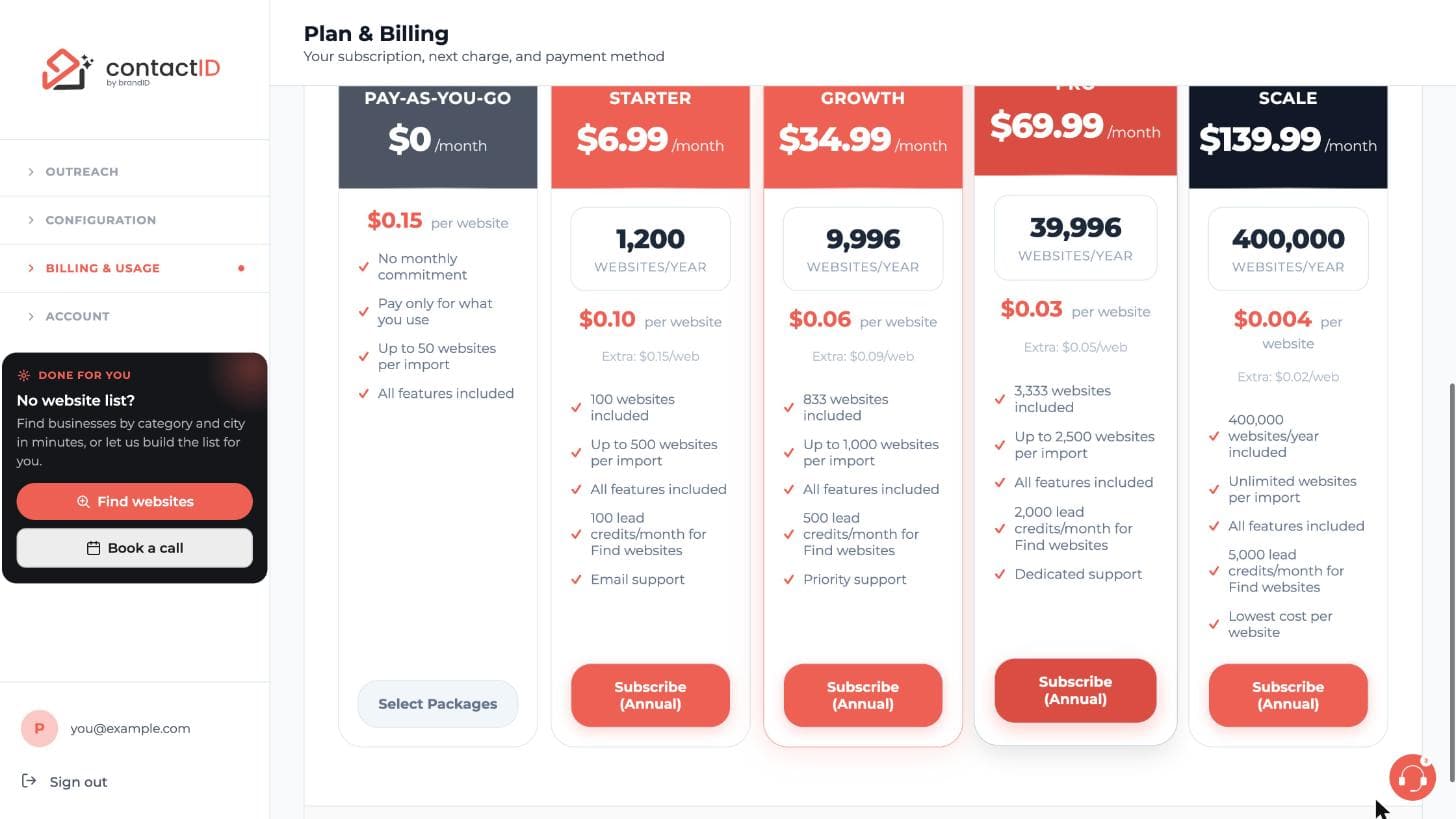
Click Subscribe on the card you chose. Stripe Checkout opens and takes your card. Your plan changes only when the payment succeeds. If your card is declined, nothing changes.
On the pay-as-you-go card the button is Select Packages, which lets you buy credit packages instead of a subscription.
Upgrade to a higher plan
If you already have a plan, the higher plans show Upgrade. Click it, and the window tells you what is charged today. Confirm, and the card on file is charged at once. Your included credits switch to the new plan right away.
If you have a promotion code, enter it in the Promotion code box before you click Upgrade.
Move to a lower plan
There is no direct downgrade. Click Cancel subscription on Plan & Billing. Your plan keeps running until the end of the period you paid for. When it has ended, open Plan & Billing again and click Subscribe on the lower plan.
While your plan is active, lower plans say Current plan is higher and cannot be picked. Until the end date, you can click Reactivate to keep your current plan.
Tips
- Included credits you do not use roll into your extra credits at renewal, and extra credits never expire.
- To move a monthly plan to annual billing, keep Annual on and click Switch to annual on your plan’s card. The window shows what is charged today.
- An annual plan runs to the end of the year you paid for, even if you cancel earlier.
If something goes wrong
I was charged for annual billing but wanted monthly.
The dashboard opens with Annual switched on. Always check the switch before you click Subscribe or Upgrade. For a special case, contact support at [email protected].
My card was declined during an upgrade.
Nothing changed: your plan, billing date and credits stay as they were. Update the card on the Plan & Billing page and try again.
The upgrade window will not let me confirm.
It waits while a plan payment is due, and for a short time after a renewal until that payment is recorded. Update your payment method if a payment did not go through, or try again later.
Related how-to guides
Still stuck? We’re happy to help.
Install the extension, start a free trial, or reach out to support.




