
Your buttons and fonts give your page its personality. brandID lets you pick from a big set of button shapes and finishes, set their colours and transparency, and choose separate typefaces for your profile and your link buttons. This guide covers both the Buttons and Fonts sections.
Quick answer
Open the editor, go to Design, then Buttons to pick a shape and finish and set colours, and Fonts to choose a typeface, size and spacing. Every change previews live on the right.
Before you start
- You need a brandID page open in the editor. If it has no links yet, start by adding your links.
- Buttons and fonts are on every plan, including the free Trial.
- Pick your background first, then style your buttons and text to sit well on top of it.
Style your buttons
-
1
Open the Buttons settings
On the Design tab, click Buttons (next to Profile, Templates, Background and Fonts). The header reads Shape and finish for your links.
-
2
Pick a shape and finish
Button styles are grouped by finish, and each finish comes in three shapes, rectangle, rounded and pill:
- Fill is a solid button in your button colour.
- Outline shows just a border, with the page showing through.
- Shadow adds a drop shadow for a raised, tactile look.
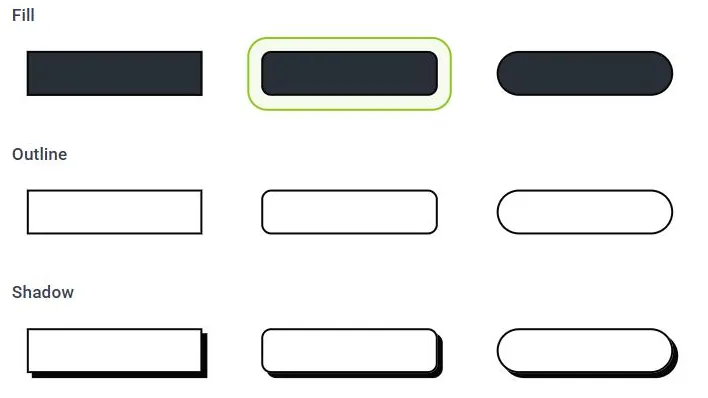
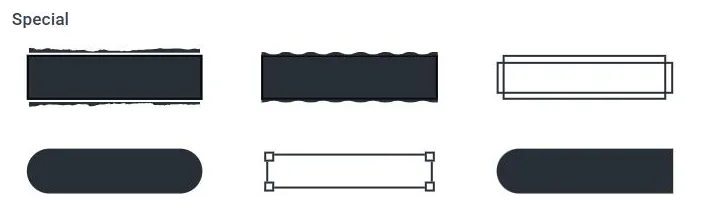
The Special group adds six decorative styles: torn edges, jiggly edges, a formal double outline, a frosted pill, an outlined “vector” style, and an alternating half-circle pill. Click any style to apply it; the one with the green outline is the style your page is using now.
-
3
Set the button colours
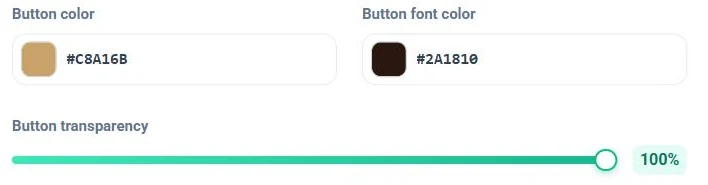
Below the styles, set the Button color (the fill or border) and the Button font color (the text on the button). Type a hex code or click the swatch to pick by eye. The Button transparency slider lets you fade the button, which looks great as a glassy effect over a photo or video background. Keep enough contrast between the button colour and the font colour so your links stay easy to read.
Choose your fonts
-
1
Open Fonts and pick a typeface
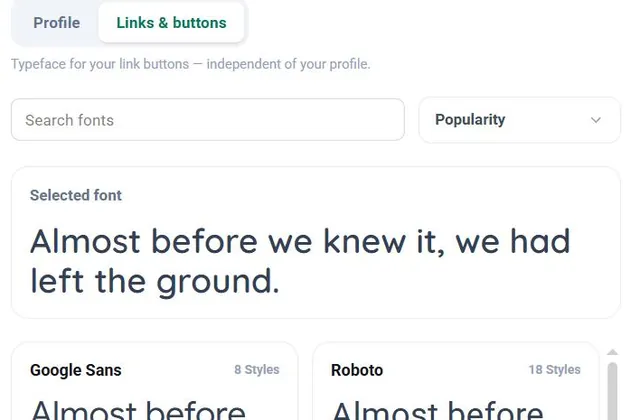
Click Fonts in the Design row. You can set a separate typeface for your profile and for your link buttons, so switch between the Profile and Links & buttons tabs at the top. Search by name or sort by Popularity, then click a font to use it. Each one shows a live preview and how many styles (weights) it has, and your current pick appears under Selected font.
-
2
Fine-tune size, spacing and colour
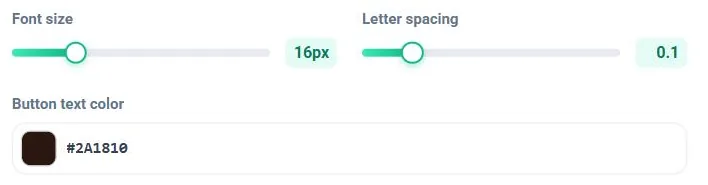
Under the font list you can choose a weight from the row of Aa samples, then set the Font size and Letter spacing with the sliders. For the buttons scope there is also a Button text color. Small adjustments go a long way: a touch more letter spacing can make a bold font easier to read.
A few styling tips
- Stick to one font for a clean look. A clear sans such as DM Sans, Montserrat or Quicksand suits most pages; save a display font for a strong personal brand.
- Match the mood. Rounded or pill buttons feel friendly; rectangle and outline feel more formal.
- Use transparency over images. A semi-transparent button sits nicely on a photo or video background without hiding it.
- Keep contrast high. If a button is hard to read, change the button colour or the font colour until the text stands out.
If something looks off
- Your button text is hard to read. Raise the contrast between Button color and Button font color, or lower the transparency.
- The profile font didn’t change. Fonts are set per scope. Switch to the right tab, Profile or Links & buttons, before you pick.
- Your page looks busy. Use a single font and one button finish across the whole page.
- A change didn’t show. The editor saves on its own and shows All changes saved at the top. Refresh your live page to see the latest.
Key takeaways
- Button styles come in Fill, Outline, Shadow and Special finishes, each in rectangle, rounded and pill shapes.
- Set the button colour, font colour and transparency to match your page.
- Choose a separate font for your profile and your buttons, from a searchable library.
- Fine-tune with weight, font size and letter spacing.
Keep building
With your look dialled in, finish your page by adding your social icons, sorting everything into tabs with the Top Menu, and adding products to sell or share.