
How to download an invoice
Find a payment in your history and download its Stripe invoice as a PDF for your records. About two minutes.
Before you start
- At least one completed payment: a Free account with no payments has no invoices
Open your billing page
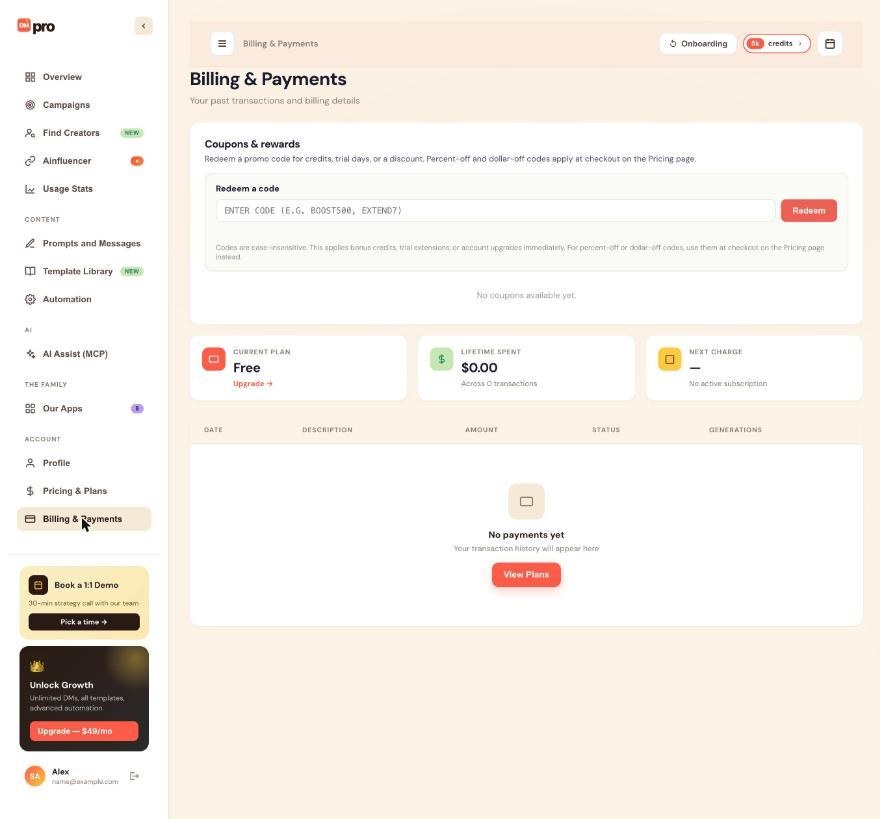
Click Billing & Payments in the left menu. Below the plan cards there is a table of your payments with the columns DATE, DESCRIPTION, AMOUNT, STATUS and GENERATIONS. Lifetime spent above it adds them up.
Find the payment you need
Each payment is a row: a subscription charge, a one-time credit package or a trial conversion. A new account shows “No payments yet” with a View Plans button. Rows appear as soon as a payment completes.
Open or download the invoice
On the row, use the invoice link. View opens Stripe’s hosted invoice page in a new tab, with the payment status and a PDF button. PDF downloads the PDF directly. The invoice lists the invoice number, date, amount with the tax breakdown, the plan or credits you bought and your billing email.
Add your company details before the next invoice
An invoice shows only your email by default. To have a company name, address or tax ID (VAT or GST number) on future invoices, add them to your billing information: use Billing Info on Billing & Payments if you see it, or the billing address and tax ID fields in the Stripe portal. Save, and every invoice from then on carries them.
Get older invoices from the Stripe portal
Click Update Payment Method or Manage Subscription in Stripe to open Stripe’s billing portal. It keeps your full invoice history and lets you download each PDF. You may be asked for your DMpro account email to get in, and a portal session ends after 24 hours.
Check your email as a second source
Stripe also emails a receipt to your account email within seconds of each payment. Search your inbox for the receipt if you cannot get into the dashboard.
Tips
- There is no bulk download. Save each PDF as it arrives, for example once a month for a monthly plan.
- An annual plan produces one invoice a year; a monthly plan produces twelve.
If something goes wrong
A payment on my bank statement is missing from the table
Wait 24 hours, check that the amount matches exactly and that you are signed in with the same email you paid with. If it is still missing, contact support with both the DMpro side and the bank statement side.
My invoice does not show my company name or tax ID
Add the details to your billing information first. Invoices issued earlier are not updated, so add them before the next payment.
The table is empty
The table lists payments made to DMpro only. An empty table with “No payments yet” means no payment has completed on this account. Check that you are signed in to the right account.
Related how-to guides
Still stuck? We’re happy to help.
Create your account, or reach out to support.




