
Monitoring Results
See exactly what contactID sent, track status in real time, export your history, and understand what drives your success rate.
Every submission is recorded on your account and shown in two places: the Send tab while you work, and the dashboard’s Analytics page for the full history.
1. On The Send Tab
Each card shows the website, its status, when it was last attempted, the agent, the category, the language, and the error if it failed. Filters and exports are on the same tab.
2. On The Analytics Page
Open Analytics from the account menu, or with the Analytics button on the Send tab’s run panel. On its Sent and Failed filling tabs, every website opens a detailed view (a send the site did not confirm is marked “sent, not confirmed” in the list, and the detail says whether the site confirmed it): when it was sent, total time, page load, form detection and filling times, the submit method, CAPTCHA handling, whether a custom message was used, the extension version, and the form fields on that website with the exact values contactID typed into each one (your name, your email, the message, the box that was ticked). The website address is a link.
3. Charts
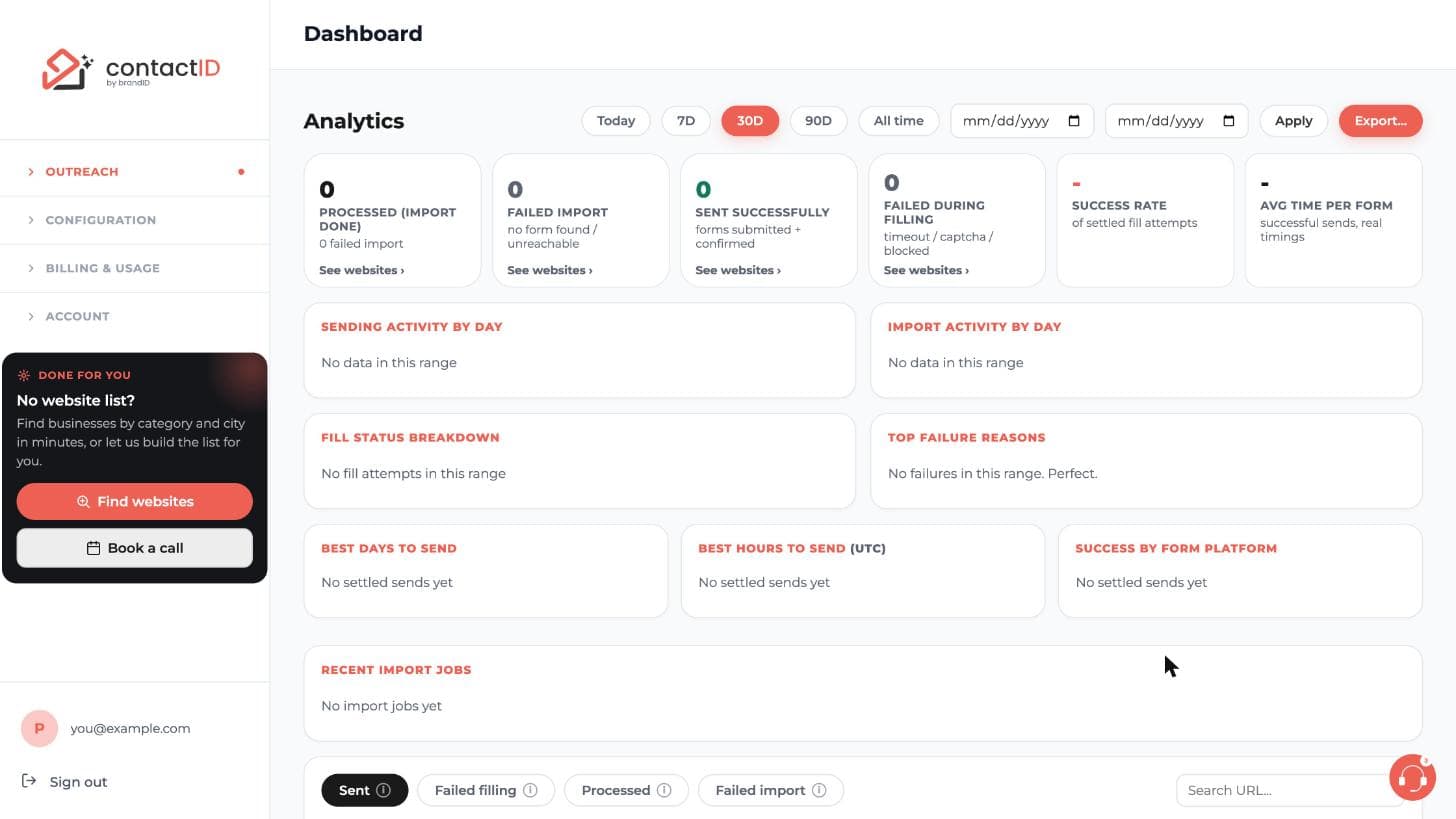
Totals and the success rate for the dates you pick (Today, 7D, 30D, 90D, All time or your own dates), sending and import activity by day, a fill status breakdown, top failure reasons, the best days and hours to send, success by form platform, and your recent import jobs. There are no per-domain, per-category or per-agent charts.
4. Retention
Your history stays on your account; nothing is deleted on a schedule. Clear Completed and Clear All on the Send tab remove websites from that list only, not from Analytics, and there is no button that deletes Analytics history.
Related questions:
Every send ends in Sent, Sent not confirmed or Failed, with No form for sends never attempted. Here is what each really means, when it fires, and what the underlying rules are.
1. Sent: What Really Happened
A Sent status means all of these:
- contactID opened the target URL in a background tab.
- The content script identified a contact form on the page.
- Every required field was filled with your agent’s details, your message (with its AI-personalized text) or a usual honest answer, such as “Online search” for “How did you hear about us?”. contactID never makes up a value.
- The submit button was clicked.
- The target site confirmed it after the submit: a thank-you message or a success block that was not visible before, a form plugin’s confirmation box, a confirmation page or address, or the form plugin’s own answer (Contact Form 7).
At this point, one website credit is consumed and the record is marked Sent.
Sent, not confirmed
When the form was submitted and no error appeared, but the site showed no confirmation at all, the record is marked Sent, not confirmed. It counts as sent: it is not sent again and it counts in the success rate. No credit is used for it. If the confirmation appears a few seconds later while the tab is still open (on the same page, or on the page the site answers with), the record changes to Sent and the credit is used then.
2. What Sent Does Not Guarantee
Sent means the submission was accepted by the site. It does NOT guarantee:
- The recipient will read it. Contact form submissions land in an inbox that may not be actively monitored.
- The recipient will reply. Reply rates vary hugely by pitch and target quality.
- The message was not filtered out. Some sites route submissions through spam filters; you may pass at the form level and get filtered before reaching the human.
Successful send is a necessary but not sufficient condition for a reply.
3. Failed: What Went Wrong
Failed means one of the above steps did not complete:
- Form not detected. Content script found no contact form. Blog comment forms, search boxes, login forms and newsletter signups are never used.
- A required question your agent cannot answer. The form requires something such as a budget, a service or an order number. Nothing is submitted, and the reason starts with “Not sent, no credit used” and names the question. Most such questions (a budget, a service, a project name) you answer once under Fields we could not fill on the Send tab, then press Send again; an order number or another number of that website’s own records is never answered once (see A Website Was Skipped: The Form Asked Something Your Agent Cannot Answer).
- A step of the form did not open. On a form in steps, Next did not move on, for example because the site takes only a work email. Nothing is submitted; the reason reads like “Not sent, no credit used: the form did not go past step 1 of 2: “Please use your work email address.””.
- The message still holds a tag. A tag or an AI placeholder was left in the message, so it was not sent; the reason says which one.
- Field could not be filled. A required field was of a type the extension does not handle (file upload, custom widget).
- Submit was blocked. Bot protection or a JavaScript validation stopped the click.
- The site said it was not sent. After the submit the site answered with an error such as “Your message could not be sent” or “Une erreur s’est produite” and showed no confirmation; the card shows the site’s words.
- The site refused a field. After the submit the site marked a field it would not take (“Please enter a valid phone number”, “120 characters at most”, “This field is required”). When contactID can correct it truthfully, it does and submits one more time (see How contactID Knows A Form Was Sent). Otherwise nothing more is sent and the reason names the field in the site’s words, for example “Not sent, no credit used: the site refused “Email” (“Please use your business email address.”)”.
- No success signal. After clicking Submit, no acceptance signal was received within the timeout.
- Network error. Something went wrong at the transport layer.
Failed does not consume a website credit.
4. No form: Never Attempted
No form means contactID checked the website when you added it and found nothing to send to, so no send was attempted:
- No contact form found. The page has no contact form, and neither its Contact, Support or Help links nor common addresses such as /contact lead to one (“No valid contact form found on page”, “Contact page found but no valid form detected”).
- The site could not be reached. It does not exist, refused the connection, or timed out.
- Your settings left it out. It is on your do-not-contact list, or Targeting leaves it out (its country, its page’s language, or a contact form on another website). The reason ends with “(Settings).”, and the Targets tab lists it under By your settings.
No form never consumes a credit and does not count in the success rate. The reasons, Add URL and Open are on the Targets tab, and Retry checks the website again. A website already in your list is not added a second time, mailto: and tel: links are skipped when you add websites, websites you contacted before are flagged on the Targets tab (skip or keep them), and contactID has no blocklist of its own: only the websites your settings leave out are skipped on purpose.
5. Ambiguous Cases
Some real scenarios have to be classified but the outcome is not perfectly clear:
- Site accepted the form silently. No error, but no confirmation either: Sent, not confirmed, and no credit is used.
- Site redirected to a page contactID does not recognize as a confirmation. Sent, not confirmed, unless the new page shows a confirmation.
- Site answers slowly. Some sites send their email before they answer, so the page after the submit can take a minute or more. contactID waits up to 5 minutes for it and reads it as soon as its text is there, even when the rest of the page is still loading. When no answer comes, the send is Failed with “The site did not answer within 5 minutes after the message was sent. It may not have received it.” A page of another website that the tab goes to (a link or a script, not the site’s answer) is not taken as the answer; if the site never answers, the send is Failed with “The page went to another site after the message was sent, and the website never answered it. It may not have received it.”
- contactID or Chrome stopped in the middle of a send (Chrome closed, or the extension updated or restarted). A website whose message was already sent is never sent again. When contactID starts again, it reads the site’s answer if the website’s tab still shows that website; otherwise the website is marked Sent, not confirmed. A website that was not sent yet goes back to Queued (its tab is closed first).
- You closed the tab after the message was sent. The website is Sent, not confirmed (no credit used): its message went out, and sending it again would contact the business twice. If the site’s server had already refused the message, it is Failed with “Not sent, no credit used: the site refused the message (HTTP …)”.
A send that shows neither a confirmation nor an error is not marked Failed, because many sites accept messages without saying so, and sending it again would contact the business twice. It is marked Sent, not confirmed, so you can see the difference and you pay only for sends the site confirmed. When a site shows a thank-you line and a “not sent” line at the same time, no credit is used: it is marked Sent, not confirmed, or Failed when the error is one contactID recognizes (or the form plugin itself says so). A thank-you beside a field the site marked (for example “Please use digits only.” under the phone box) is Sent, not confirmed: the site may have taken the message, so contactID does not correct that field or submit the form again.
6. Manual Reclassification
You cannot manually reclassify a send. If you believe a Sent was actually a failure (or vice versa), the record stays as recorded. The classification is meant to reflect what contactID observed at send time, not what actually happened at the target site’s downstream systems.
7. Success Rate Metrics
The Analytics page shows aggregate success rates (Sent, confirmed or not, out of all sends that were attempted; No form is not counted):
- Any period. Today, 7, 30 or 90 days, all time, or your own dates.
- By day of the week, hour of the day (UTC) and form platform.
- Per import job. Recent import jobs show, for each job, how many websites had a contact form found and how many failed the check.
The run panel on the Send tab shows the success rate of the current run, and with an A/B split the Send tab shows each agent’s rate. Compare across agents and lists to spot patterns. A batch with a 90% success rate on a curated list may be structurally different from a batch with 40% success on a scraped list.
Related questions:
Every contactID user hits failed sends. The realistic goal is not zero failures but tuning your setup to keep failure rate at 20% to 30% on cold lists. Here are the biggest levers and what they buy you.
1. Typical Failure Rates
Reference points for a healthy batch:
- Curated B2B list from a paid database: 10% to 20% failure rate.
- Scraped list from public directories: 25% to 40%.
- Scraped list from generic Google searches: 40% to 60%.
- Unfiltered “any URL from the internet”: 60% to 80%.
Anything above 60% suggests fundamental list quality issues, not a contactID problem.
2. List Quality Is The Biggest Lever
Clean lists have low failure rates because:
- Real companies have real contact forms.
- Real companies are hosted on standard platforms contactID knows how to fill.
- Real companies do not have aggressive bot detection at the contact form.
Investment in list quality pays back on every batch forever. If you send once a month, spend that money on data; if you send once a week, spend it on both data and contactID’s higher plans.
3. The Common Failure Categories
Ranked by prevalence in typical batches:
- Form not detected (30% to 40% of failures). The URL is a homepage, not a contact page.
- Bot protection (25% to 35% of failures). Full-page bot checks (Cloudflare “Verifying you are human” and similar) and captchas that could not be solved.
- Required field could not be filled (10% to 15%). File uploads, unusual pickers.
- Network / timeout (10% to 15%). Slow sites, unstable connections.
- Site rejected the submission (5% to 10%). Server-side errors, form validation.
4. Fixing Form-Not-Detected
Two patterns cause this:
- URL is a homepage without a contact form. contactID already follows Contact, Support or Help links on the page and tries common addresses such as /contact and /contact-us; only when none of them has a form does the website show as No form. Point it at the right page with Add URL on the Targets tab, or Retry, then Replace URL, or use a list source that gives contact-page URLs directly.
- Site has an unusual form layout contactID’s detector does not recognize. Report the URL to support; detection improvements go into the next extension release.
5. Working Around Bot Protection
Most captchas on contact forms (reCAPTCHA, hCaptcha, Turnstile and others) are solved automatically; see the article on bot detection. What usually stops a send is a full-page bot check that judges behavior, which contactID does not try to defeat. Options:
- Check captcha solving. In Settings, Captcha & proxy, make sure your own captcha key (if you saved one) is valid and has balance, or remove it to solve through the contactID server.
- Contact these sites via LinkedIn or email instead.
- Skip and move on. Sites behind a full-page bot check are out of contactID’s scope.
6. Reducing Timeout Failures
- Lower concurrent tabs. If you are at 8, drop to 3. Fewer tabs get more browser resources each, so each loads faster.
- Better internet. Fiber or 5G with 100+ Mbps upload keeps things smooth.
- Run during off-peak hours if your batches are hitting sites that are slow during business hours. A send window in Settings, Sending pace, keeps a run to the hours you choose.
7. Tuning The Agent
Some failures are agent-driven:
- Pitch is too long. Some forms limit the message length. contactID then shortens your message at the end of a sentence, keeping your last link (for example your booking link) and the signature when they fit, so the most important part should come first. A short pitch avoids the cut.
- AI wallet runs out. This is not a failure: when the AI wallet is empty the run pauses and the website goes back to the queue with “Paused: insufficient AI credits”. Add funds (or turn on Auto-Recharge) and press Resume.
8. Tracking Failure Reasons Over Time
- Open Analytics and look at Top failure reasons, which lists the reasons by count for the dates you pick.
- Open the Failed filling tab to see each website with its reason.
- The top three reasons tell you where to focus improvements.
Rebuild your list to exclude the sites causing top failures, and you rebuild your success rate for the next batch.
Related questions:
contactID does not take screenshots of filled forms. The screenshot setting is hidden in the current version and switched off, so no images are taken or stored.
1. What You Get Instead
The Analytics detail view records, for every submission, each field on the form and the exact value that was typed or selected: the name, email, phone, subject, the message text, and which checkbox was ticked. That is the audit trail of what was sent.
2. Why
Screenshots of thousands of pages are heavy, slow and often blank (many forms redirect or clear after submit). The field record is exact and searchable.
Related questions:
Advanced Export is available from the Send tab’s run menu and from the Agent tab (for agents).
1. What You Can Export
Websites from the Send tab (all of them or one status), or your agents.
2. The Seven Steps
- Format: CSV, Excel (XLSX), JSON, XML, HTML report or Markdown, to a file or the clipboard.
- Filters: status, agent (profile), website domain, error category, date range; quick chips for the last 7 or 30 days, successful only, failed only.
- Columns: 24 columns for websites (URL, domain, status, form type, attempts, dates, time taken, stage, errors, CAPTCHA, agent, proxy, language and more) or 33 for agents; turn them on or off, reorder them and rename headers.
- Transformations: per column, text case, trimming, truncating, phone numbers to E.164, and HTML to plain text. The date format is set on the Format step.
- Sort, dedup, sample: order rows, drop duplicates by a column, export a subset for testing.
- Presets: save your configuration; recent exports are kept.
- Preview: the first rows exactly as they will be exported, with the record count, column count and file size.
3. Quick Exports
Each status filter on the Send tab (every chip except All) has an Export button for CSV or TXT of the visible websites.
4. No Scheduling
Exports run when you ask for them; there is no scheduled or emailed export.
5. Exporting Your Whole History From Analytics
Advanced Export and the Send tab exports cover the websites in this browser’s list. For everything on your account, open Analytics on the dashboard and click Export…: choose CSV or JSON, the current view or everything sent and failed in the date range, a column preset (Default, Failures, Successes, Timings, Audit, All columns) or your own columns, and optionally one row per form field. Each export holds up to 20,000 rows.
Related questions:
contactID does not track replies yet. Replies to a contact form arrive as normal emails in the inbox of the address your agent used, and the extension has no access to that inbox.
1. What You Can Measure Today
- Success rate: the share of websites whose form was submitted, on the run panel and in Analytics.
- A/B results: with two agents in an A/B split, the Send tab shows each agent’s success rate live and which one is winning.
- By day of the week, hour and form platform: success rates on the Analytics page. There is no per-category or per-agent breakdown there; per-agent results are the A/B strip on the Send tab.
2. Counting Replies Yourself
Search your inbox for the subject line you used (for example “Quick question about”): most websites echo it back. Note replies in a spreadsheet: Advanced Export on the Send tab has a Profile Name column for the agent, and Export… on the Analytics page has a Category column.
3. What Is Coming
A reply-tracking option that gives each agent a dedicated reply address is being designed. Until it ships, do not expect reply counts anywhere in contactID.
Related questions:
contactID has no single activity log of sign-ins, plan changes and settings. Your history is kept in a few places on the dashboard. Here is where to look for auditing, debugging, and reporting.
1. Where Your History Is
- Analytics: every website contactID checked or sent to, with its status, time, failure reason and, for sends, the fields it filled.
- Transaction History: your latest 100 payments and credit changes (filters All, Charges, Website Costs, Bonuses).
- Usage: websites filled per day over the last 7, 30 or 90 days, and where the credits came from.
- Buy AI Credits: AI wallet top-ups and auto-recharge charges (Payment History) and AI requests (Recent Usage).
Most day-to-day use is Analytics.
2. What Is Not Shown
Sign-ins, agent edits, setting changes, and run starts and stops are not listed anywhere in your account.
3. Filtering
On Analytics:
- Date range: Today, 7D, 30D, 90D, All time, or your own dates.
- Tabs: Sent, Failed filling, Processed, Failed import.
- Search by URL.
4. Audit Use Cases
- Something looks wrong: open the website in Analytics to see when it was sent and what was typed.
- A billing question: Transaction History lists your recent payments with their dates.
5. Retention
Your history stays on your account. Clearing websites on the Send tab removes them from that list only, not from Analytics; nothing is deleted on a schedule.
6. Downloading
- Click Export… on the Analytics page.
- Pick CSV or JSON, the rows and the columns.
- Download (up to 20,000 rows per export).
Exports download at once; there is no background job and no email.
7. If You See Activity You Do Not Recognize
Set or change your password on the dashboard’s Security page: that signs you out on every other browser and device (the contactID extension there too), and the browser you use stays signed in. Signing out on the extension or the dashboard ends only that browser’s session (on both sides and on the server). Then contact support if something still looks wrong. contactID does not send automatic alerts.
Related questions:
Still stuck? We’re happy to help.
Install the extension, sign up, or reach out to support directly.




