
AI Personalization
Have contactID read each target site and personalize your pitch automatically, or take full control with placeholders and custom prompts. Choose your AI model per agent from OpenAI, Google Gemini, and Anthropic.
AI Personalization is an optional feature that has an AI write the parts of your pitch you mark with a {PromptName} placeholder, separately for each website, so every message carries a line written for that site. Here is what it does, when to use it, and how much it costs.
1. What The AI Does
When AI Personalization is on for an agent, contactID asks an AI model at send time to write the parts of each website’s message that you mark with a {PromptName} placeholder. For each placeholder the AI:
- Gets your prompt (the instructions you saved under that name).
- Gets the website’s name and address and your name, company and job title (not the website’s industry: contactID does not look that up at the moment).
- Writes the text for that spot in your message, once per website.
- Leaves everything else as you wrote it. Your ask and value proposition are never rewritten.
contactID does not open or read the target website for the AI. A message with no {PromptName} placeholder is sent as written and costs no AI credits.
2. Example Before And After
Your message (agent template), with a saved prompt named Opener that says “Write one friendly sentence about {website_name}. Under 20 words.”:
What goes out to a dental clinic’s website:
Only the {Opener} spot changes; the rest stays your pitch.
3. When AI Personalization Is Worth It
Turn it on when:
- You are doing cold outreach where reply rate matters (as opposed to volume broadcasts).
- Your list is targeted enough that per-website context makes sense.
- You are comfortable with the AI cost (see below).
Skip it when:
- Your pitch is already generic on purpose (like a broad announcement).
- Your list is very cold and you want to test at high volume first.
- Your AI wallet is empty and you do not want to top up.
4. Cost Per Message
AI Personalization costs about $0.0003 per placeholder per website on the default model (GPT-6 Luna, roughly 500 tokens in and 200 out). Larger models cost more: about $0.0015 on Claude Haiku 4.5, about $0.006 on GPT-6.1 Sol, about $0.0075 on Claude Opus 5 and about $0.015 on Claude Fable 5.1. Each different {PromptName} in your message is one AI request. For a 1,000-URL batch with one placeholder:
- Typical cost on GPT-6 Luna: about $0.30.
- On a large model: from several dollars (about $6 on GPT-6.1 Sol, $7.50 on Claude Opus 5) up to about $15 on Claude Fable 5.1.
This is charged from your AI wallet, separate from your website credits.
5. Which AI Model Is Used
You pick the model for each agent: on the Agent tab under Your message, or on the dashboard’s AI Personalization page. OpenAI, Anthropic and Google Gemini models are offered. If you never pick one, GPT-6 Luna is used. contactID does not switch to another model on its own; there is no failover. The one exception is a model its provider retired: an agent still set to it is written with the model that replaced it (see Which AI Model Is Being Used?).
The model each agent uses is shown on the AI Personalization page.
6. Enabling AI Personalization
- Go to AI Personalization in your dashboard sidebar.
- Find the agent you want to enable.
- Turn on its AI Messages switch. It saves at once.
- Confirm the AI wallet has a balance (top up on Buy AI Credits if needed).
You can also do it in the extension: on the Agent tab, under Your message, turn on Use AI to write personalized messages and save the agent. The change applies to every website that starts after it reaches the extension, including the rest of a run in progress.
7. Placeholders Decide What The AI Writes
Placeholders are how AI Personalization works, not an extra. Writing {sell} in the pitch makes the AI fill that spot for each website, using the prompt you saved under the name sell. There are no built-in placeholders: create the prompt first (or install a ready-made template). See the article on creating custom AI prompts for details.
Related questions:
Enabling AI Personalization for an agent takes about a minute: turn it on, top up your AI wallet, and confirm the pitch template is ready. Here is the full walkthrough.
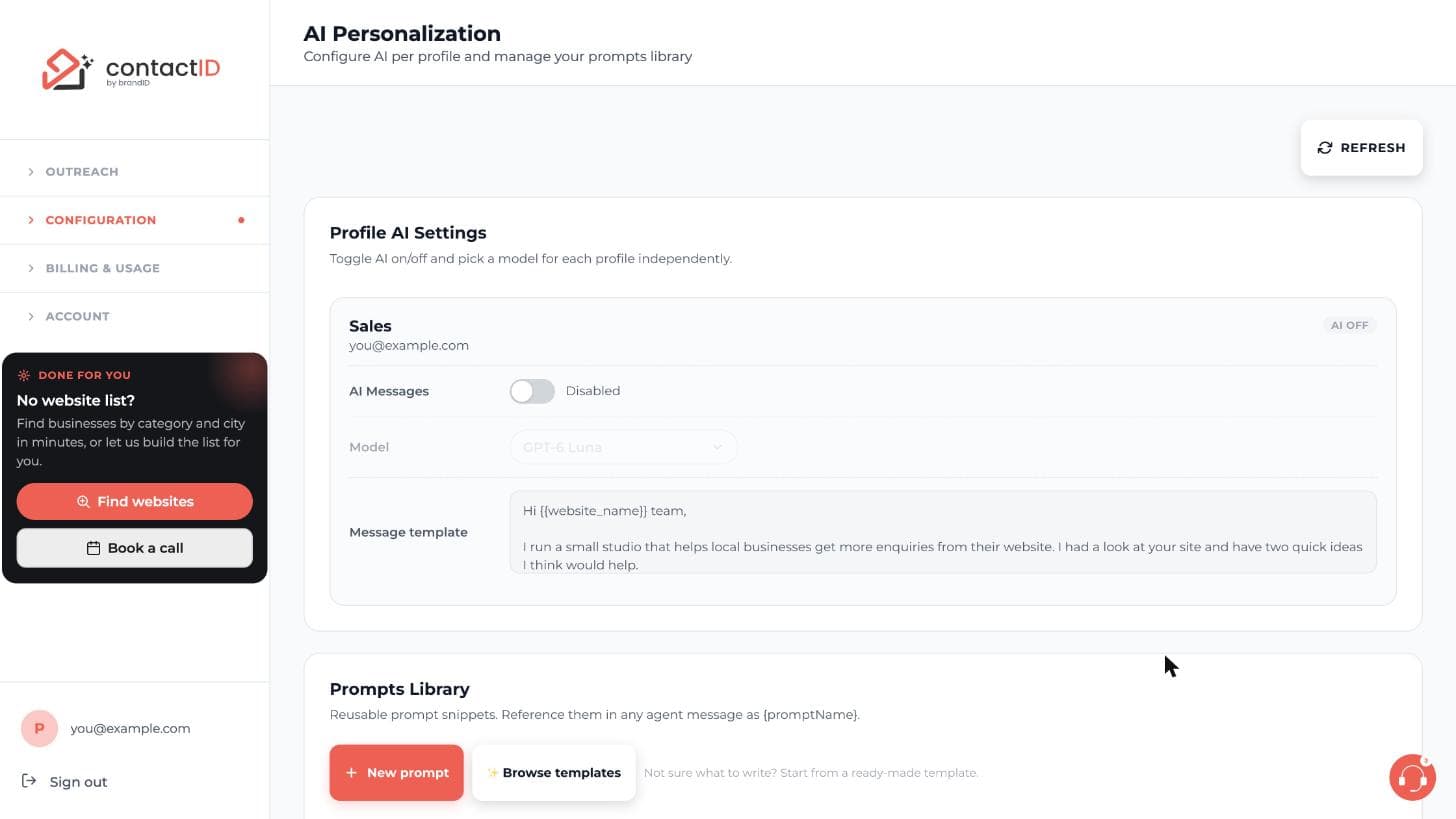
1. Open The AI Personalization Section
- Sign in to your dashboard.
- Click AI Personalization in the left sidebar.
- The screen shows every agent you have created, each with an AI-enabled toggle.
2. Enable AI On Your Agent
- Find the agent you want to personalize.
- Turn on its AI Messages switch. The change saves at once (a short confirmation appears).
- Check your AI credits. If the balance is empty, add credits on the Buy AI Credits page; a run with AI on cannot start on an empty balance.
You can enable AI on some agents and leave it off on others. Each is independent.
3. Confirm The Pitch Template
With AI on, the AI writes only the spots you mark with a {PromptName} placeholder; every other word of your pitch is sent as written. A pitch without a placeholder gets no AI text at all. Review your pitch to check:
- It contains at least one placeholder, for example
{Opener}where the personalized sentence should go, and you have a prompt with that name in your Prompts Library. - The value and ask are strong on their own, since these stay verbatim.
4. Add Your Placeholders
Placeholders are single curly braces around a prompt name, for example {sell} or {Opener}. Each one is filled by the AI with the prompt saved under that name. There are no built-in placeholders: a name with no saved prompt is sent as literal text.
Create prompts under Prompts Library on the same page (New prompt, or Browse templates for ready-made ones), or in the extension under Your message, Manage Prompts. See the article on custom AI prompts.
5. Top Up Your AI Wallet
If your AI wallet is at zero, contactID cannot run personalization. Top up:
- Open Buy AI Credits in the dashboard sidebar (in the extension: account menu, AI credits, then Add or Manage).
- Pick an amount ($5 to $500).
- Complete checkout via Stripe.
Top-ups are separate from website credits. No plan includes AI credits; every account, free or paid, tops up the AI wallet itself.
6. Test On A Small Batch First
Before running 1,000 URLs with AI on, run 10 first. Watch:
- Personalization quality. Does the AI text fit each website (its name and kind of business), or is it generic filler? The AI does not read the website, so also check that it does not invent news, posts or products.
- Cost per send. Divide total AI spend by number of sends to see per-message cost.
If the quality is poor, refine your prompt’s instructions (tone, length, what to mention) and check the result with AI sample on the Targets tab before the next batch.
7. Turning AI Off
Turn AI Messages off any time (or, in the extension, turn off Use AI to write personalized messages and save the agent). Your pitch is then sent exactly as written, so any {PromptName} placeholder goes out as literal text; remove them first (the deliverability check under the editor warns about this). Once the change reaches the extension it applies to the next website that starts, even during a run: a change saved in the extension applies at once, and a change made on the dashboard arrives the next time the side panel is opened or comes back into view.
Related questions:
Placeholders are the syntax for inserting AI-generated content into a specific spot in your pitch. They are the only way AI Personalization changes a message: the AI writes the placeholder spots and everything else stays exactly as you wrote it. Here is how they work.
1. The Placeholder Syntax
Placeholders are text in curly braces. Examples:
{sell}{intro}{recentPost}{customPlaceholderName}
When contactID sends the pitch with AI on for the agent, every placeholder that matches a prompt in your Prompts Library is replaced with AI-written text for that website (unless that AI request fails; see When Placeholders Fire below). Names are letters, numbers and underscores. A few names are kept for tags and never go to the AI, even in single braces (for example {company}, {name}, {email}, {phone}, {today}, {industry} and {website_name}); write them with double braces ({{company}}), and do not use them as prompt names. A message that still holds a placeholder or a tag when it is about to be sent is not sent, and no credit is used: the reason on the website’s card says which one and what to do. Double braces such as {{website_name}} are tags filled from your details, your list and the website address, with no AI request; only {{target_industry}} can use a tiny amount of AI credit when that website’s industry is not known yet.
2. Ready-Made Prompt Templates
contactID has no built-in placeholders. A placeholder works only after you save a prompt with that name. To start fast, install a ready-made template: Browse templates on the AI Personalization page, or Templates in the extension’s Manage Prompts, then Use this. The gallery is grouped by niche:
- Universal:
{AdaptiveIntro}and{ValueFirst}work for any list. They ask for the website’s industry, which contactID does not look up at the moment: the AI infers it from the website’s name and address. - By niche:
{SaaSIntro},{StoreGrowth},{RestaurantHello},{HotelOutreach},{RealEstateIntro},{LocalServiceIntro},{AgencyPartner}and{ProductPitch}for B2B SaaS, e-commerce, restaurants, hotels, real estate, local services, agencies and general sales.
An installed template becomes a normal prompt in your library that you can edit.
3. Example Pitch Using Placeholders
Template:
At send time, {intro} and {sell} get filled per target, provided you saved prompts named intro and sell. The rest stays as written.
4. Placeholder Behavior
- Placeholders are case-insensitive.
{Sell}and{sell}both work. - Unknown placeholders are left in place. If you type
{typo}and there is no prompt for it, it stays as literal{typo}in the sent message. Bad; proofread before batch send. - Nested placeholders are not supported. You cannot have
{sell {compliment}}. - One placeholder can be used multiple times.
{intro}at the start and{intro}again later works but reads awkward.
5. When Placeholders Fire
Placeholders are resolved at send time, per target website. Each placeholder is a separate AI request:
- Cost. Each placeholder is billed independently. A pitch with three placeholders costs about 3x a pitch with one.
- Failure handling. An empty AI wallet or a reached budget limit pauses the run, so nothing is sent. An unavailable model or a billing check that keeps failing is tried three times and then marked Failed (see Which AI Model Is Being Used?). Any other AI failure does not stop the website: if the AI service times out or returns an error, the request goes over the speed limit below, or the connection to contactID drops, the website is still sent and the affected placeholder stays as literal
{name}in the message. The rest of the pitch is unaffected, and failed requests cost nothing. - Speed limit. Each account can have up to 20 websites per minute personalized by the AI (the limit counts one request per website, however many placeholders the message has). A fast run with a high Forms filled at once setting can reach it; a website whose AI text could not be written is not sent (its card says “The AI could not write … for this website”), so retry those websites later.
For heavy volume, keep to one or two placeholders per pitch.
6. Placeholders Are The Only Mode
There is no full-message rewrite. The AI never changes your pitch outside the placeholders: a message without a {PromptName} placeholder is sent exactly as written, with no AI cost. To have a whole message drafted for you instead, use AI write my message on the Agent tab; you review the draft once, and it is then sent like any other message.
7. Testing Your Placeholders
- Add a few websites on the Targets tab and let the check finish.
- In the Preview on a site card, pick one of the websites.
- Click AI sample (the button shows when AI is on for your active agent).
- The preview shows exactly what would be sent, with placeholders resolved, plus the model and the cost (charged like one AI message; nothing is sent).
Useful for tuning custom placeholder prompts before a big batch.
Related questions:
contactID has no built-in placeholders: every placeholder is a prompt you create, or install from a ready-made template. Custom prompts give you full control over how the AI personalizes each part of your pitch. Here is how to create them.
1. What A Custom Prompt Contains
Every custom prompt has two parts:
- A placeholder name. What you type in your pitch (e.g.,
{myOpener}). - An AI instruction. What the AI is told to generate for that placeholder.
At send time, the AI gets your instruction plus the website’s name and address and your name, company and job title, and writes the replacement text. It does not open the website. Inside the instruction you can use {website_name}, {website_url} and {target_industry}; contactID fills them before the AI sees it (contactID does not look up a website’s industry at the moment, so {target_industry} asks the AI to infer it from the website’s name and address).
2. Create A New Prompt
- Go to AI Personalization in your dashboard.
- Under Prompts Library, click New prompt.
- Fill in:
– Name (used as the placeholder). 2 to 50 letters, numbers or underscores, no spaces. – Content (what to tell the AI), 10 to 2,000 characters.
- Click Save.
In the extension the same form is under Your message, Manage Prompts, New Prompt (fields Prompt name and Prompt instructions, then Create Prompt). You can keep up to 50 prompts.
3. Writing A Good Instruction
The instruction is a prompt for the AI. Best practices:
- Be specific about tone. “Write in a friendly, professional tone” beats “Write a message”.
- Set a length limit. “Keep it under 20 words.” Otherwise the AI rambles.
- Use what the AI knows. The AI does not open the website. It knows the website’s name and address (
{website_name},{website_url}) and your name, company and job title; not the website’s industry ({target_industry}asks the AI to infer it from the name and address for now). Asking for “something specific from the website” makes it invent details, so build on those instead. - Include an example. One or two examples of what a good output looks like sharpen results.
Example instruction:
4. Test Before Using
Every new custom prompt should be tested:
- Put the placeholder in your agent’s message and turn AI on for the agent.
- Add three or four sample websites (mix of industries) on the Targets tab.
- In Preview on a site, pick each website and click AI sample.
- If they read badly, refine the instruction and re-test.
Each AI sample costs the same as one AI message (a fraction of a cent on GPT-6 Luna), well worth it before running a batch of 1,000.
5. Editing Or Deleting A Prompt
- In the extension, open Your message, Manage Prompts, and click Edit on the prompt.
- Change the name or instructions and click Update Prompt.
- Or click Delete to remove it (also available in the dashboard’s Prompts Library).
If you delete a prompt that is currently referenced in an agent’s pitch, that placeholder stops resolving; the literal {name} will appear in future sends. Edit the pitch to remove or rename the placeholder.
6. Sharing Custom Prompts
Prompts belong to your account: every agent you own can use them, and they cannot be shared with another account. There is no shared team library.
7. Start From A Template
Click Browse templates in the Prompts Library (or Templates in the extension’s Manage Prompts) and pick Use this on any ready-made prompt. It is added to your library under a suggested name, such as {AdaptiveIntro}, and you can edit it like your own.
Related questions:
The AI wallet is a separate balance from your website credits, used to pay for AI Personalization on each send. Here is how it is loaded, spent, and monitored.
1. What Is In The AI Wallet
The wallet holds one balance in US dollars:
- What you add. You top up AI credits yourself, from $5 to $500 at a time, by hand or with auto-recharge. The balance does not expire.
- No plan allowance. No plan includes AI credits; website credits and AI credits are separate.
Every AI request is paid from that balance, except Search by AI on Find websites, which is free. When it is too low for the next request, a run that uses AI pauses until you top up and press Resume.
2. No Monthly AI Allowance
No plan includes AI credits. Every account, free or paid, tops up the AI wallet separately; see AI Wallet Balance And Top-Ups. Nothing resets on your billing date.
3. How To Top Up
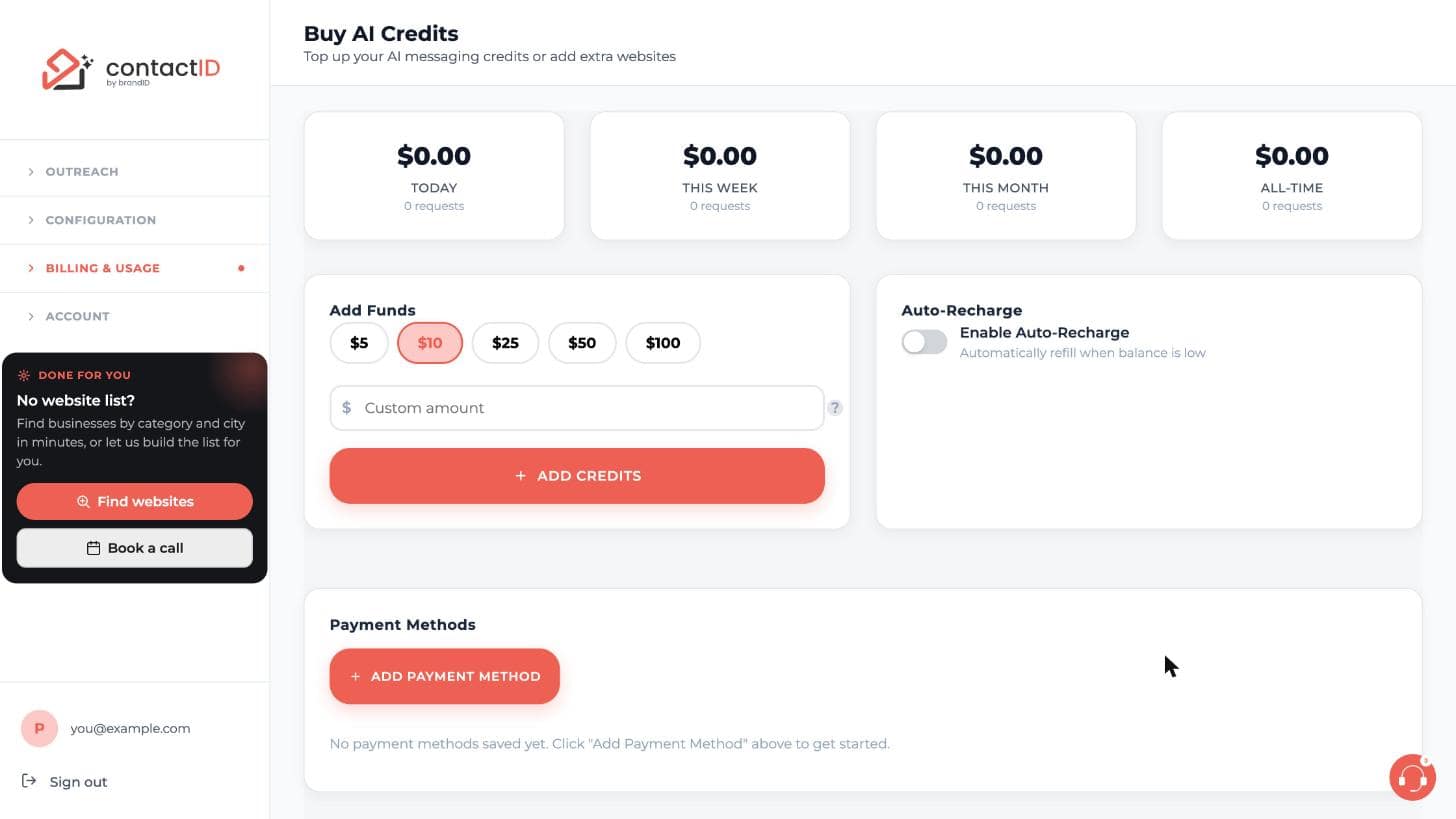
- Go to Buy AI Credits in the dashboard sidebar (in the extension: account menu, AI credits, then Add or Manage).
- Pick a preset amount ($5, $10, $25, $50, $100).
- Or enter a custom amount (minimum $5, maximum $500).
- Complete Stripe checkout.
The balance is available immediately.
4. What Each Send Costs
Every AI-personalized send bills a per-request AI cost from the wallet. Typical costs:
- Each different placeholder is one AI call. On the default model (GPT-6 Luna) a call costs about $0.0003.
- The model sets the price. Larger models cost more, for example about $0.0015 per call on Claude Haiku 4.5 and about $0.0075 on Claude Opus 5. The Pricing tab of the AI Wallet lists every model.
Longer prompts and longer answers cost slightly more; the target website’s own content plays no part, because the AI does not read it. A batch of 1,000 websites with one placeholder costs about $0.30 on GPT-6 Luna.
5. Estimating Before A Batch
When you press Start sending with an agent that uses AI, contactID compares your AI balance with an estimate for the run: the number of queued websites times the price of one typical AI message (about 500 tokens in and 200 out) on the agent’s model.
- If the balance is empty, the run does not start and AI-written messages need credits offers Add credits.
- If the balance may not cover every website, AI credits may run out shows the balance, the queued count and the estimated cost, with Add credits or Continue anyway (the run then pauses when the balance runs out).
The estimate counts one AI call per website, so add more if your message has several placeholders.
6. Refills On Empty Wallet
If your wallet runs out mid-batch, the run pauses. The website that needed the AI is not sent: it goes back to Queued, the AI Wallet opens so you can add credits, and Resume on the Send tab continues from there. There is no setting to send unpersonalized messages instead.
7. Refunds On Unused Balance
AI credits you have already used are not refundable. Refunds of unused balance are not automatic; they are decided case by case, and a charge made in error or twice is always corrected. Your balance does not expire.
Write to [email protected] with your account email and the transaction details to request a refund.
Related questions:
AI credits are a separate balance in US dollars that pays for AI-written messages and drafts. Website credits are not affected.
1. Seeing Your Balance
The account menu shows your AI credits and says Low balance when they drop under $1. The AI Wallet sheet (menu, AI credits, Manage or Add) shows the balance and what you spent today and this month; its Usage History adds this week and the cost by model.
2. Topping Up
Choose an amount between $5 and $500 and pay through Stripe Checkout. Credits are added the moment the payment completes. There is no bonus on AI top-ups; you pay exactly what is added.
3. Auto-Recharge
In the AI Wallet’s Auto-Recharge tab set a threshold and a recharge amount; when the balance falls below the threshold, the saved card is charged and credits are added automatically. Turn it off any time.
4. Limits
Optional daily and monthly budget limits and a per-request limit stop a run from spending more than you want.
5. Usage History
Every AI request is listed with its model, tokens and cost, including drafts from “AI write my message”.
Related questions:
You choose the model per agent. contactID does not switch models on its own, except when a provider retires a model (section 5).
1. Picking A Model
On the Agent tab, under Your message, turn on Use AI to write personalized messages and pick a model from the list grouped by provider (OpenAI, Anthropic and Google Gemini models, each with a short description). You can also pick it on the dashboard’s AI Personalization page. The choice is saved with the agent and remembered as your preferred model for new agents.
2. What The Model Does
It writes the text for every {PromptName} placeholder in your message, once per website, using that website’s name and your prompt. With “AI write my message” the same model drafts full messages for you.
3. Cost
Cheaper models (GPT-6 Luna, the default, and Gemini 3.1 Flash-Lite) cost a fraction of a cent per message; larger models cost more and write more carefully. The AI credits card under the picker shows your balance and what you spent today and this month. The Pricing tab of the AI Wallet lists each model’s price per million tokens; a typical message on GPT-6 Luna costs about $0.0003.
4. When A Model Is Unavailable
If a model is unavailable on our side, the picker shows No API key next to it and it cannot be chosen. An agent that still has such a model saved does not switch to another one: each website is tried three times, a minute or two apart, and then marked Failed with an AI billing error. Pick an available model and save the agent. Nothing is charged for failed requests.
5. When A Provider Retires A Model
A model its provider retires is no longer offered. An agent still set to it keeps working: its messages are written with the model that replaced it, at that model’s price, and the picker shows that model.
- OpenAI: GPT-4o Mini and GPT-3.5 Turbo are replaced by GPT-6 Luna; GPT-4o and GPT-4 Turbo by GPT-6.1 Sol. (OpenAI turns GPT-4 Turbo and GPT-3.5 Turbo off on October 23, 2026, and GPT-4o and GPT-4o Mini on January 14, 2027.)
- Google: Gemini 2.0 Flash and 2.0 Flash-Lite are replaced by Gemini 3.1 Flash-Lite; Gemini 2.5 Pro by Gemini 3.6 Flash.
To use another model, pick it and save the agent.
Related questions:
If your AI wallet balance hits zero mid-batch or right before you start one, contactID has to decide what to do. Here is exactly what happens and how to recover.
1. What Happens On An Empty Wallet
There is one behavior and no setting: the run pauses. When the balance is too low for the next AI request, that website is not sent: it goes back to Queued, sending pauses, and the AI Wallet opens so you can add credits.
2. Why The Run Pauses
Your placeholders would otherwise go out as literal {name} text. Pausing means no website is sent while the wallet is empty; the queue waits for you, and you lose nothing.
3. Nothing To Clean Up
No website is sent while the wallet is empty, so there is nothing to resend after a top-up. Press Resume and the website that was waiting gets a fresh AI request.
4. Recovering After Pause
If a batch paused:
- The Send tab shows the run as PAUSED, and the AI Wallet opens by itself.
- Add credits there (or on Buy AI Credits in the dashboard).
- Click Resume on the Send tab.
- Sending continues from where it stopped.
5. Preventing The Situation
Two features stop you from hitting empty:
- Start check. When you press Start sending with an AI agent, contactID estimates the run’s AI cost. An empty balance blocks the start; a balance that may not cover every website shows a warning with Add credits or Continue anyway.
- Auto-recharge. Set it in the AI Wallet’s Auto-Recharge tab (or on Buy AI Credits in the dashboard) with a saved card. When an AI request leaves the balance below your threshold, contactID charges the card for your recharge amount.
Auto-recharge is the “set it and forget it” option for regular users. To cap spending, set daily, monthly or per-request limits in the AI Wallet’s Limits tab.
6. Emergency Top-Up During A Batch
If a batch is paused and you need to resume urgently:
- Top up in the AI Wallet, which opens on its own when the run pauses (or account menu, AI credits).
- Or top up on the Buy AI Credits page of the dashboard.
Top-ups appear in your balance within a few seconds. Click Resume; the batch continues.
Related questions:
Knowing what AI Personalization costs per send lets you plan a batch, top up correctly, and compare to your reply-rate lift. Here are the numbers and how to estimate.
1. The Typical Cost Range
Per placeholder, AI Personalization costs about $0.0003 on the default model, GPT-6 Luna (about 500 tokens in and 200 out). That is a few hundredths of a cent.
Factors that set the cost:
- Which model the agent uses. You choose it; larger models cost much more (about $0.0015 per call on Claude Haiku 4.5, about $0.006 on GPT-6.1 Sol, about $0.0075 on Claude Opus 5). There is no automatic switch to another model, except from a model its provider retired to the one that replaced it.
- Number of placeholders in your pitch. Each different placeholder is a separate AI request.
- Length of your prompt and of the answer. The target website’s content plays no part; the AI does not read it.
2. Real Batch Examples
Typical batch costs on GPT-6 Luna:
- 200 websites, one placeholder: about $0.06.
- 1,000 websites, one placeholder: about $0.30.
- 1,000 websites, three placeholders per pitch: about $0.90.
- 10,000 websites, one placeholder: about $3.
Multiply by about 5 for Claude Haiku 4.5, by about 20 for GPT-6.1 Sol and by about 25 for Claude Opus 5. Use these as a ballpark.
3. Pre-Batch Estimate
When you press Start sending with an AI agent and your balance may not cover the run, contactID shows AI credits may run out with an estimated cost. The estimate uses:
- Number of queued websites.
- The price of one typical AI message (about 500 tokens in and 200 out) on the agent’s model.
It counts one AI call per website, so multiply by your number of placeholders. When your balance clearly covers the run, no estimate is shown and the run simply starts.
4. Estimating Your Own Cost
For a fast personal estimate:
- Websites × placeholders × the cost of one call on your model (about $0.0003 on GPT-6 Luna; the AI Wallet’s Pricing tab lists the others).
- Add a 20% safety margin.
Example: 500 websites, two placeholders, GPT-6 Luna. Estimate: 500 × 2 × $0.0003 × 1.2 = $0.36. The smallest top-up, $5, covers it many times over.
5. How To Reduce AI Cost Per Send
If you are running high volume and want to tighten spend:
- Use fewer placeholders. Each different placeholder is one AI call per website.
- Pick a cheaper model. GPT-6 Luna and Gemini 3.1 Flash-Lite (when offered) cost a fraction of the larger ones.
- Keep prompts short. The AI receives your prompt, not your whole pitch, so a shorter prompt costs less.
- Use precise instructions in custom prompts. “Write one sentence under 20 words” is cheaper than “Write a message about…” because the AI stops sooner.
- Skip AI on cold, low-quality lists. Personalization does not save a bad list; save the AI budget for your best segments.
6. Cost Vs Reply Rate Lift
The whole point of AI Personalization is a reply-rate lift. Typical numbers:
- Unpersonalized cold outreach: 0.5% to 2% reply rate.
- AI-personalized cold outreach: 2% to 8% reply rate.
The 2 to 4x lift means one AI-personalized send is often worth more than one hand-typed unpersonalized send, and both are cheaper than manual research per prospect. The math is clear.
7. AI Cost In Your Usage History
Every AI request is listed with its prompt name, model, tokens and cost: in the extension under AI Wallet, Usage History (with this month’s cost by model), and on the dashboard’s Buy AI Credits page under Recent Usage. Use it to find:
- The most expensive prompts and models.
- Failed requests, which cost nothing.
Useful for tuning cost efficiency over time.
Related questions:
Test on one website before you send to hundreds. Two tools on the Targets tab do it without starting a run.
1. Preview On A Site
After a check, the Preview on a site card lets you pick any queued website and shows your message with the tags filled in for that site: the website name, your details, your spreadsheet columns.
2. AI Sample
With AI on for the agent, the AI sample button in the same card runs the real AI for that one website and shows exactly what would be sent, with the model and the cost. It is charged like a normal AI message (a fraction of a cent) and does not send anything.
3. Drafting The Whole Message
On the Agent tab, AI write my message produces three drafts with subject lines from a short brief. Each draft shows a preview with your details filled in before you choose one.
4. Then Send A Small Batch
Start with 10 to 20 websites, read the Sent cards, then scale up.
Related questions:
Still stuck? We’re happy to help.
Install the extension, start a free trial, or reach out to support.




