
How to use the Template Library
Start from a ready-made prompt, preview it, add it to your prompts and adjust it to your brand. It takes about three minutes.
Before you start
- A DMpro account
Open the Template Library
In the dashboard, click Template Library in the left menu, or click the Browse Template Library banner on Prompts and Messages. In the extension, open Prompts and Messages and click Browse Template Library, or click Browse Templates on the campaign form.
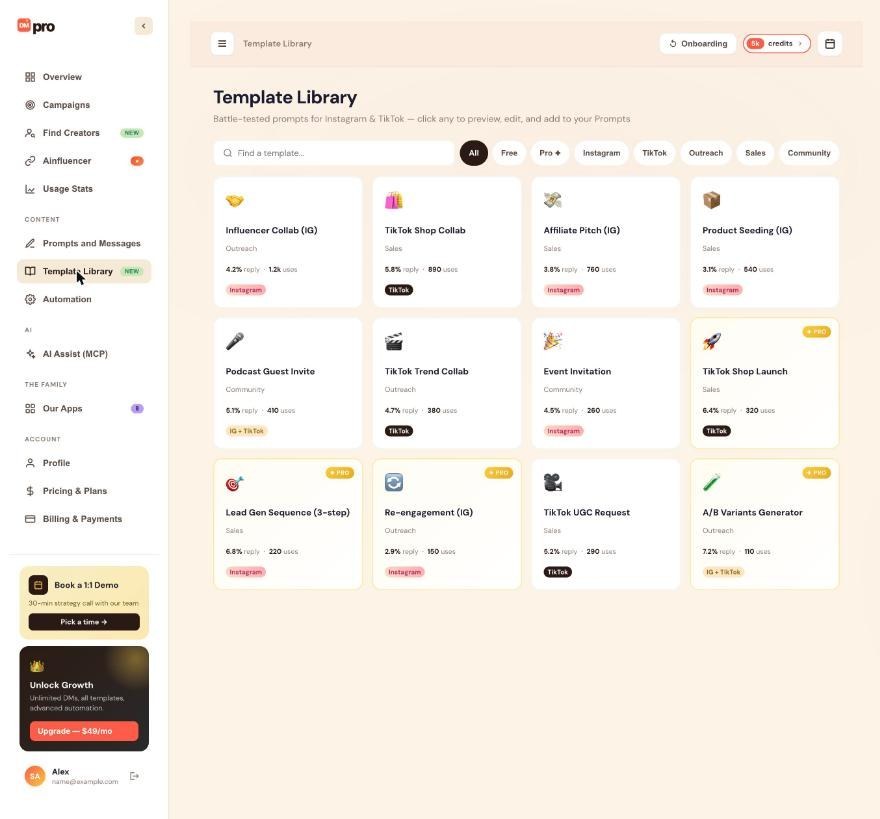
The library holds 12 templates for Instagram, TikTok or both.
Find a template
Type in Find a template… or use the filter chips All, Free, Pro, Instagram, TikTok, Outreach, Sales and Community. Cards for some templates carry a PRO badge. Examples include Influencer Collab (IG), TikTok Shop Collab, Affiliate Pitch (IG), Podcast Guest Invite and Event Invitation.
The reply percentage and use count on each card are figures the app shows. Treat them as information, not as a promise of what you will get.
Preview the template
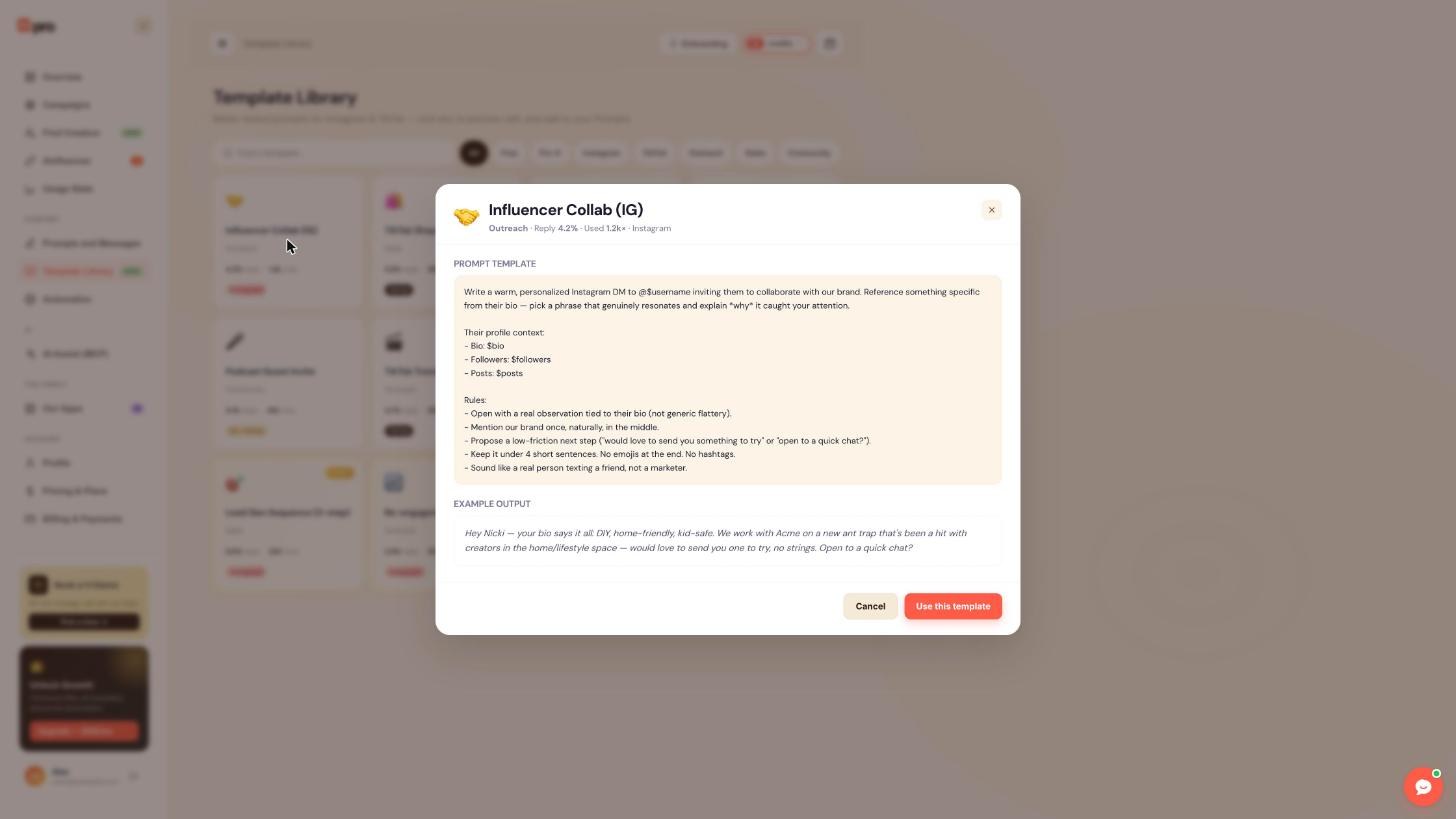
Click a card. A window shows the PROMPT TEMPLATE, the full instruction the AI will follow, and an EXAMPLE OUTPUT, a sample DM written from it. Read both to check the tone and the rules suit you.
Click Use this template
Click Use this template. DMpro adds a copy to your prompts, and what happens next depends on where you are:
- Dashboard: DMpro opens Prompts and Messages. Click Set active when you want to use it.
- Extension: DMpro adds it and makes it your active prompt (“Template added and set as your active message.”).
Adjust your copy
Open Prompts and Messages and click Edit on the new prompt. Templates use profile variables such as $username, $bio and $followers. Rewrite them so they mention your brand, your offer and your tone. You can add your own details such as $offer if they are set up on your account.
Your copy is independent. Editing it never changes the library.
Test it before you send at volume
Turn Auto Send DMs off in the extension, open a few different profiles and click Generate. Each message the AI writes uses 1 credit, like any prompt. Browsing and adding templates is free.
Tips
- Using a template adds a prompt. It does not switch your message mode, so check the In use badge if your DMs still look like your own text.
- You can also add templates while building a rotation: the prompt picker in Rotate prompts has a Template Library tab.
- Test on three to five very different profiles before you use a prompt in a campaign.
If something goes wrong
I added a template but cannot find it.
On the dashboard, Use this template adds a copy to your prompts and opens Prompts and Messages. Look for it on the AI Prompt tab and click Set active to use it.
My new template is active and I did not want that.
In the extension, Use this template makes the template active. Set your previous prompt active again with Set active on its card.
The template’s wording does not sound like me.
Edit your copy. Change the tone line, add one sentence about who you are and an ask, and remove rules you do not want. See the first-prompt guide for what a good prompt covers.
Related how-to guides
Still stuck? We’re happy to help.
Create your account, or reach out to support.




