
How to rotate prompts in a campaign
Let one AI campaign write from two or more of your prompts so you can compare messages. It takes about five minutes on top of creating the campaign.
Before you start
- At least two saved AI prompts (or templates you will add from the picker)
- A list of usernames for the campaign
Open the campaign form
In the dashboard, click Campaigns, then Create Campaign. In the extension, click Bulk Campaign at the top of the panel and use the New Campaign form.
Enter a Campaign Name, choose Instagram or TikTok, add your usernames and check the pace settings. One campaign targets one platform.
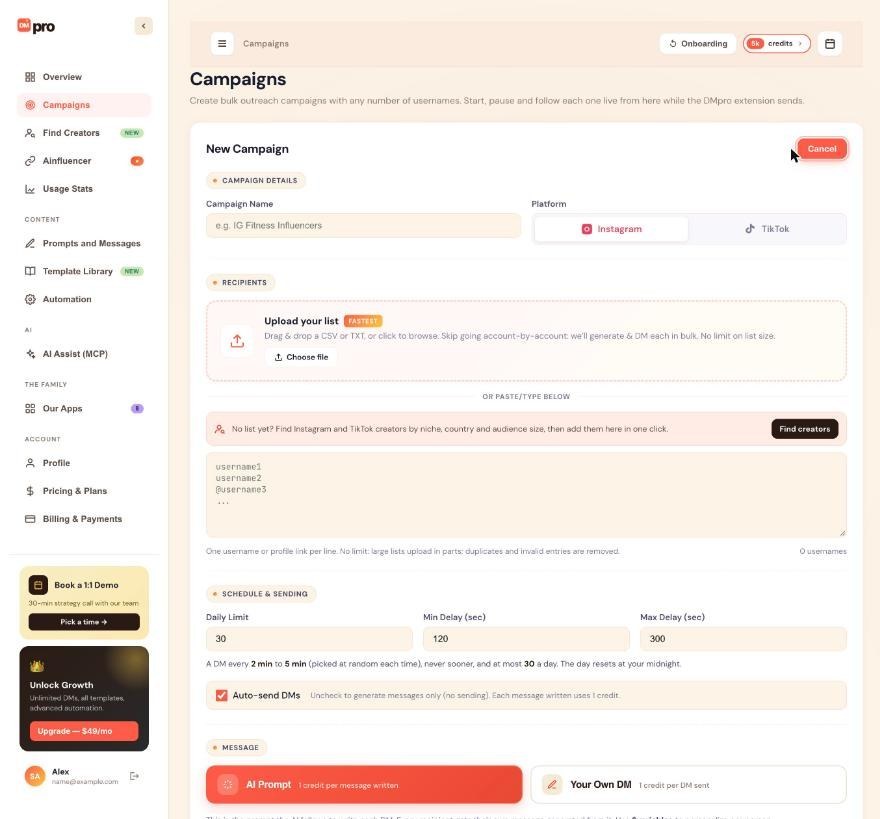
Choose AI Prompt, then Rotate prompts
In the MESSAGE section, choose AI Prompt (“1 credit per message written”). Under it you will see Single prompt and Rotate prompts. Click Rotate prompts.
Rotation is only for AI prompt campaigns. To vary an own DM campaign, use spintax in the DM.
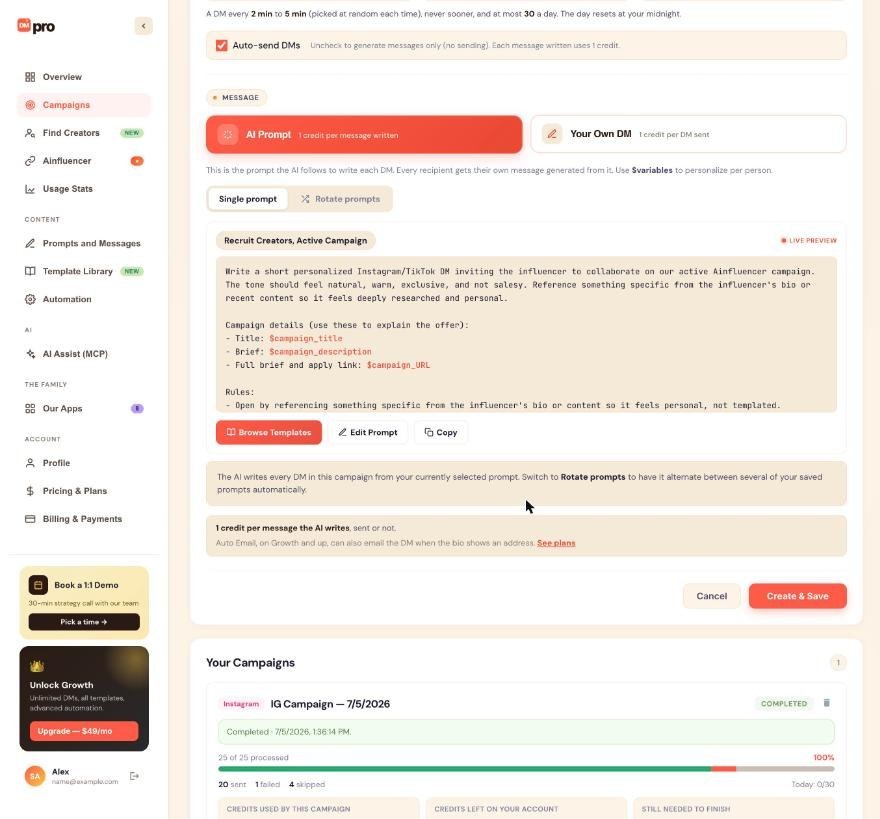
Add at least two prompts
Add 2 or more of your saved prompts. You can add templates from the Template Library tab of the picker too.
Choose how to split the list
Pick a rotation style:
- Even: one after another, A, B, C, A, B and so on.
- Sequential: each prompt for a block of sends. You choose how many people each prompt gets before switching (1 to 1,000; 10 by default).
- Weighted %: give each prompt a share, and choose whether the prompts are mixed through the list or sent in blocks.
- Random: a random pick per recipient, following the shares. The pick is stable, so a retry reuses the same prompt.
Check the preview and create the campaign
A preview shows how your recipients will split across the prompts. Check it, then check the cost line under the message. Click Create & Save on the dashboard. The campaign is saved as a draft, and you click Start on its card when you are ready. In the extension, Start Campaign creates it and starts it right away.
Edit the rotation later
For a campaign that is not finished, click Edit rotation (or Set up rotation) in View Details on the dashboard, or Edit on the extension’s Active Campaign card. The change applies from the next person.
Tips
- To compare two messages, put two versions of one prompt into a rotation and compare the replies you get in your own inbox after 10 to 20 DMs. DMpro does not read replies.
- A rotating campaign ignores your active prompt. Editing one of its prompts changes what it writes next.
- Two single-prompt AI campaigns always write from the same active prompt. Give one of them a rotation if they should say different things.
If something goes wrong
The rotation will not save with one prompt.
A rotation needs at least 2 prompts. If a rotated prompt is deleted later and fewer than 2 remain, the campaign writes from your active prompt.
I deleted a prompt that the campaign rotates.
The campaign leaves it out and splits the people still waiting across the remaining prompts.
The campaign is not writing what I expected after I edited a prompt.
Edits apply from the next message the campaign writes. Messages already written are not changed. Pause the campaign first if you want to try changes safely.
Related how-to guides
Still stuck? We’re happy to help.
Create your account, or reach out to support.




