
How to manage, edit and delete prompts
Find, copy, edit and delete your saved prompts, and learn what each change does to your DMs and running campaigns. It takes about three minutes.
Before you start
- At least one saved prompt besides the Default Prompt
Open your prompt list
In the dashboard, click Prompts and Messages and stay on the AI Prompt tab. Each card shows the title, a preview, how often the prompt was used and when it was last used or updated, and the buttons Copy, Edit and Delete (or Set active).
Use Search prompts… to search titles and text, and the filters All, Active and Drafts. Drafts means every prompt that is not active.
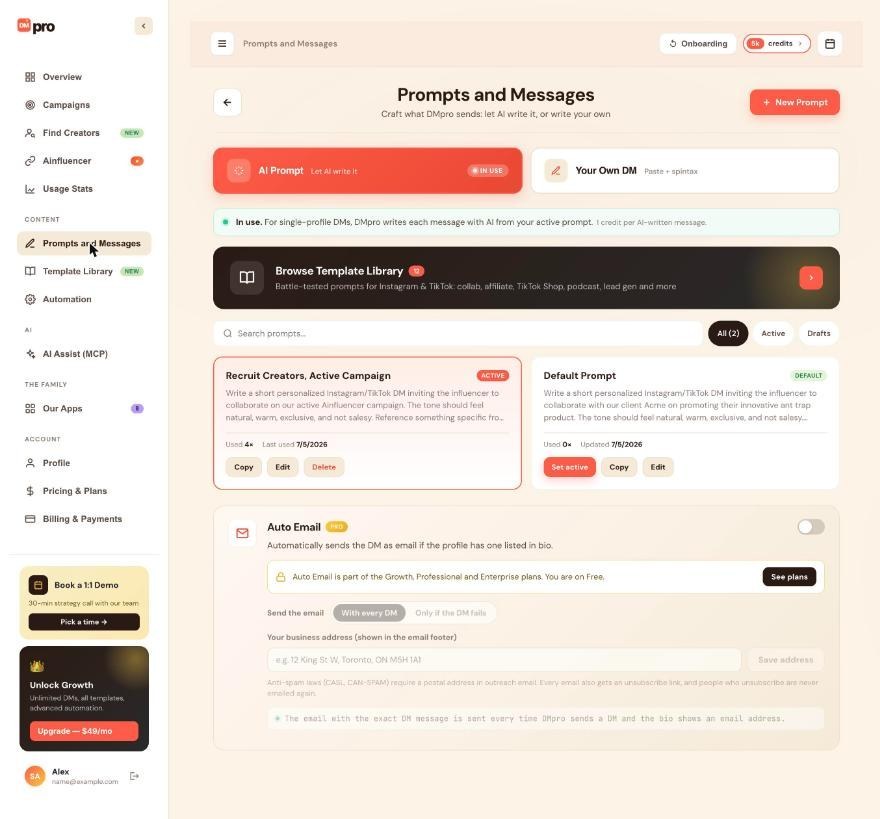
Copy a prompt to make a variation
Click Copy on a card to copy its text. Click New Prompt and paste it to start a variation. In the extension, each prompt except the default has a Copy button. Prompts belong to one account, so to share one, send the copied text to the other person.
Edit a prompt
Click Edit on the card (or click the card), change the title or the content and click Save. In the extension, click Edit next to the prompt, or Edit Prompt on the campaign form to edit the active prompt directly.
Messages already written are not changed. The next message written from that prompt uses the new text.
Know what editing the default prompt does
The “Default Prompt” never changes. When you edit it, DMpro saves your version as a new prompt, makes it active and shows “Saved as a new prompt and set as active. Your default prompt is kept as a fallback.” If you leave the title empty, the new prompt is named “My Prompt”, then “My Prompt 2” and so on.
Delete a prompt you no longer need
Click Delete on the card and confirm. In the extension, click Delete next to the prompt. There is no archive and no bulk delete, so delete prompts one at a time. The default prompt cannot be deleted.
Check what a deletion changed
If you deleted the active prompt, the default prompt becomes active and a running AI campaign that used it continues with the default prompt. A rotating campaign leaves the deleted prompt out and keeps using its other prompts. With fewer than 2 left, it writes from the active prompt.
Tips
- Name prompts with a pattern such as “[Audience] [Purpose] [Version]”, for example “Fitness creators collab v2”.
- You can keep up to 500 prompts. Saving, editing and switching prompts is free.
- Copy the text of a prompt before you delete it, in case you want it back.
If something goes wrong
I cannot delete the Default Prompt.
The default prompt is your fallback and cannot be deleted. It has no Delete button. You can still write your own prompt and set it active.
I edited the Default Prompt and a new prompt appeared.
That is expected. DMpro saves edits to the default prompt as a new prompt of your own and makes it active. Check that the new prompt is the one marked ACTIVE.
A deleted prompt is gone.
There is no undo in the dashboard or the extension. If an AI app deleted it for you through AI Assist (MCP), you can bring it back from the AI Assist (MCP) page. Otherwise write the prompt again.
Related how-to guides
Still stuck? We’re happy to help.
Create your account, or reach out to support.




