
How to choose what an AI app may do
Set an AI app’s access when it connects, and change it later on the Apps tab. It takes a couple of minutes.
Before you start
- An AI app connected to DMpro, or about to be (see the connect guides)
- Access to the email you use for DMpro, for the 6-digit code
Choose a level on the consent page
When you connect an app, DMpro opens its own page. After you sign in with the 6-digit code, look for What may it do? and pick one level:
- View only: looks things up (prompts, campaigns, creators, reports) and changes nothing.
- View and manage: writes prompts and DMs, builds campaigns and creator lists. Anything that reaches people or spends credits asks you first, and big requests wait for your approval in DMpro.
- Choose per area: you decide area by area.
DMpro marks one level Recommended: View and manage for verified apps that ask to make changes, View only for the others.
Fine-tune each area if you chose per area
Set each area to Off, View or View and change. The areas are Account, Prompts and messages, Automation, Campaigns, Find Creators, Ainfluencer and Reports. Reports is view only. An app can use only the areas you allow.
Read the two lists, then press Allow
It will be able to lists what each allowed area lets the app do. It can never lists what no app can do: pay, buy credits, or change your plan or billing; use coupons or gift links; change your email or sign-in, or create or delete your account; approve its own requests, undo, pause AI apps or change your limits. If the app shows Not verified, tick I trust [app] and I started this connection myself. first. Then press Allow (or Cancel).
Change access later on the Apps tab
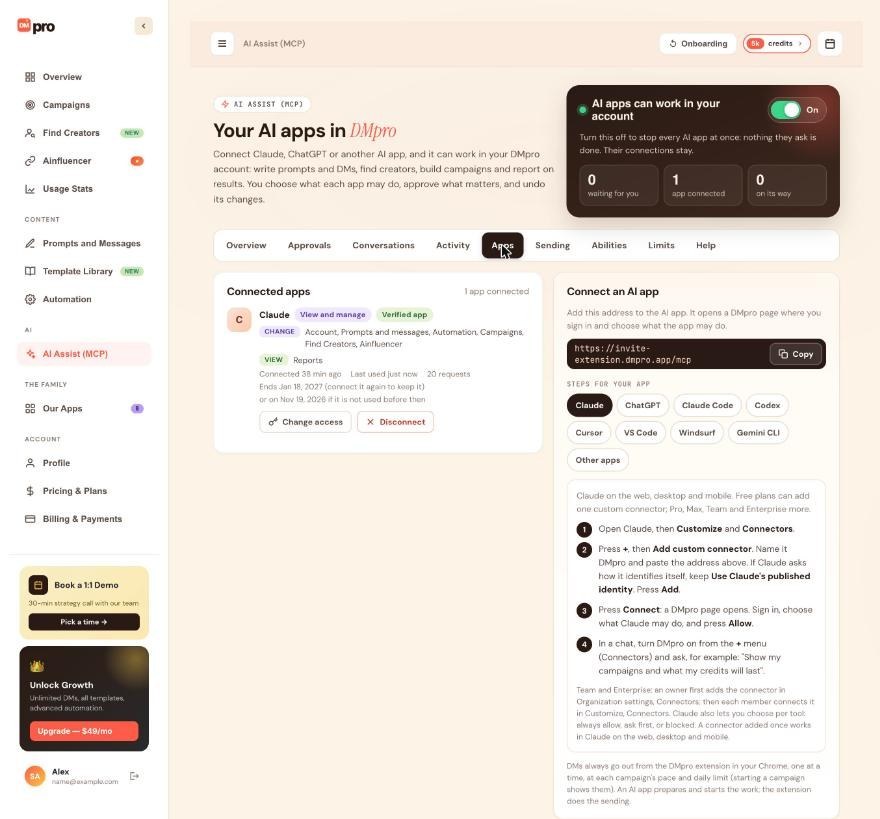
On the dashboard open AI Assist (MCP), then the Apps tab. Each connected app shows its level (View only, View and manage or Custom access), whether it is Verified app or Not verified, and the areas it may Change and View. Click Change access, set each area to Off, View or View and change, and save.
Know when a change takes effect
- Less access applies from the app’s next request.
- More access needs a fresh sign-in: DMpro emails you a 6-digit code unless you signed in within the last 10 minutes. It reaches the app within 15 minutes. For a not verified app, tick the trust box again.
See what each ability does on the Abilities tab
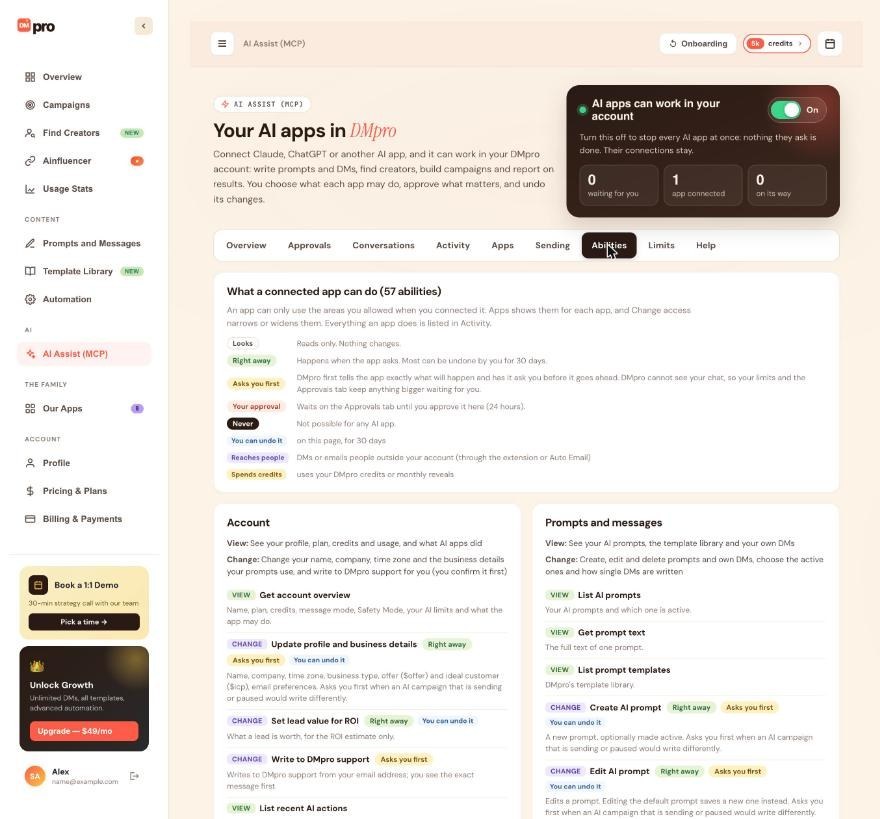
Open the Abilities tab (What a connected app can do) to read every ability in plain words. Badges tell you how each one behaves: Looks (reads only), Right away, Asks you first, Your approval, Never, You can undo it, Reaches people and Spends credits. Everything an app does is listed in Activity.
Tips
- Start new or unfamiliar apps on View only. Verified apps (Claude, Claude Code, ChatGPT, Codex, VS Code) are recognized by DMpro; for others, connect only apps you set up yourself.
- Giving an app View and change on an area does not let it send a DM. DMs go out from the DMpro extension in your Chrome.
If something goes wrong
The app says it needs the campaigns:write permission (or another area)
The app’s access does not include that area. Activity shows the request as Refused, for example “Not allowed for this app: change Campaigns”. Use Change access on the Apps tab to allow it.
DMpro asks for a code even though I am signed in
Your last sign-in is more than 10 minutes old, and widening access needs a fresh one. Enter the new 6-digit code. If you see “Too many codes this hour”, wait and try later.
I cannot find Change access
It sits on each connected app’s card on the Apps tab. If no app is listed, connect one first.
An app did something I did not expect
Open Activity to see the request, undo it if it offers Undo, and narrow the app’s access with Change access.
Related how-to guides
Still stuck? We’re happy to help.
Create your account, or reach out to support.




