
How to add usernames to a campaign
Paste usernames or upload a CSV or TXT file when you create a campaign, and see how DMpro cleans the list. It takes a couple of minutes.
Before you start
- The New Campaign form open on the dashboard (Campaigns, then Create Campaign)
- A list of Instagram or TikTok usernames or profile links, one platform per campaign
Choose the platform first
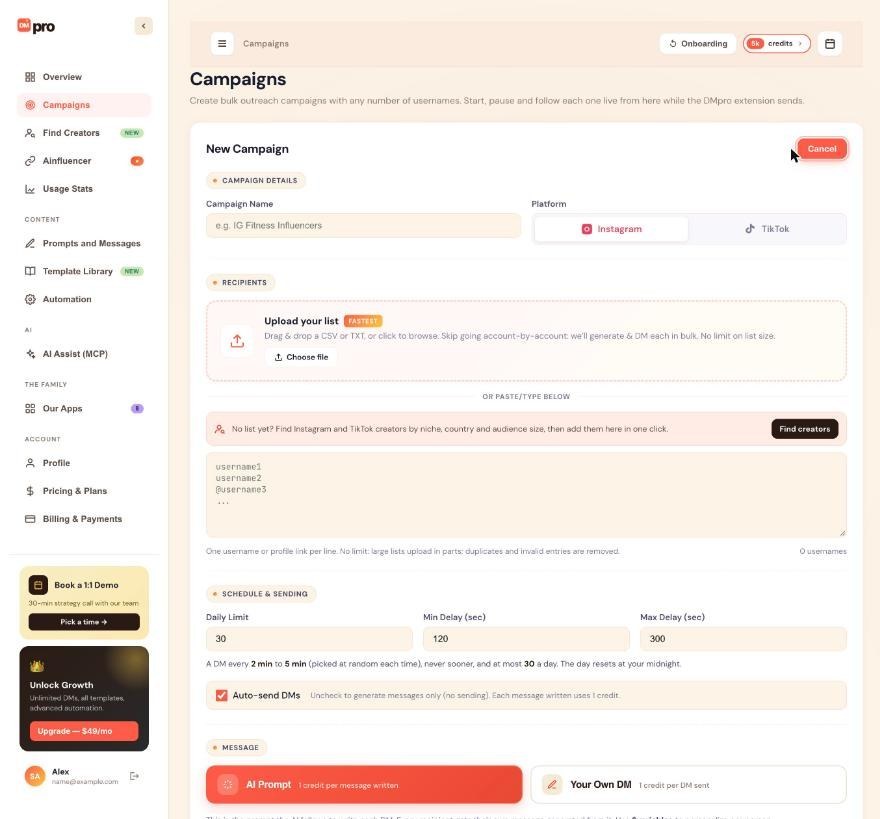
In the New Campaign form, choose Instagram or TikTok under CAMPAIGN DETAILS before you add anyone. A campaign has one platform, and your list should contain people from that platform only.
Usernames are added when you create the campaign. After the campaign has started you cannot add more, so collect the whole list first.
Paste usernames
Under RECIPIENTS, click the box under “OR PASTE/TYPE BELOW” and enter one username or profile link per line:
example_user1
@example_user2
https://www.instagram.com/example_user3/
https://www.tiktok.com/@example_user4
DMpro removes the @, reads the username out of profile links and writes everything in lowercase. The counter at the bottom right of the box (“0 usernames” when empty) goes up as it recognises entries.
Or upload a file
Drag a file onto Upload your list (marked FASTEST) or click Choose file. DMpro accepts CSV, TSV and TXT files.
- If the file has a header such as “username”, “handle”, “Instagram”, “TikTok” or “profile url”, DMpro reads only that column. Emails, names and follower counts in other columns never become recipients.
- Without a known header, DMpro picks the column that looks most like usernames or profile links.
- In a TXT file, entries can be separated by new lines, commas, semicolons or tabs.
The hint under the upload box says which column it used and how many entries it skipped. Read it before you continue.
Know what is accepted and what is dropped
A valid username has letters, numbers, dots and underscores, up to 30 characters, or it is a profile link. Blank lines are ignored.
- Duplicates are removed, so each person is in the campaign once.
- Invalid entries are skipped and counted.
- An Instagram link to a post or a Reel is not a profile, so it is skipped. A TikTok video link counts as that creator’s profile.
Upload a very large list
There is no limit on the size of a list. Very large lists are uploaded in parts of 5,000, and the form shows the progress. Keep the page open until it finishes.
If an upload is interrupted, the campaign card shows Upload incomplete, and Start asks whether to run the usernames received so far.
Finish the form, and remember the list is fixed
Set the rest of the form and click Create & Save. The guide How to create your first campaign covers those fields.
Once the campaign has started, you cannot add usernames and you cannot remove individual ones. To skip the rest of a list, stop the campaign. To reach new people, create a new campaign.
If you use an AI app through AI Assist (MCP), it can add up to 5,000 usernames per request to a campaign that has not started yet. It asks you before it starts anything.
Tips
- Start from a spreadsheet export with a column named “username”. DMpro then ignores every other column.
- Use Find creators above the paste box when you have no list yet. It lets you find creators by niche, country and audience size, and the guide How to DM a creator list in a campaign explains the rest.
- Check the counter before you save. If it shows far fewer usernames than your file, read the hint under the upload box to see what was skipped.
If something goes wrong
The counter shows fewer usernames than my file has.
Duplicates and invalid entries are removed and counted, and the hint under the upload box says how many were skipped. Instagram post and Reel links are skipped because they are not profiles. If the wrong column was used, add a header named “username” and upload again.
I need to add more people after the campaign started.
That is not possible. Create a new campaign for the next list. Stopping the old one skips whoever was still waiting.
The card says Upload incomplete.
The upload was interrupted. Start asks whether to run the usernames received so far. If you want the full list, delete the draft and upload it again.
Related how-to guides
Still stuck? We’re happy to help.
Create your account, or reach out to support.




