
How to find your meeting recordings
The Records page lists recordings of meetings you held on brandID Meet. Recordings from Zoom and Google Meet stay in those tools.
Before you start
- Events that use brandID Meet as the location.
- If you do not see a Record control in your meeting toolbar, check your plan on the Upgrade plan page.
Hold the meeting on brandID Meet
Recordings only appear for events whose location is brandID Meet. Set the location in the event’s Details step. Each booking gets its own room that runs in the browser, so nobody installs anything. To start the meeting as the host, open the booking on Meetings and use Join in its details, or the host link in your new-booking email. Your host link carries moderator controls over the room.
Start the recording during the meeting
Click Record in the meeting toolbar. In the event editor there is also an Auto-record this event toggle, which records every booking of that event by default.
Tell the invitee at the start that you are recording. Some places require consent.
Recording is something you do on purpose in the room. A meeting that nobody records leaves nothing on the Records page.
Open Records
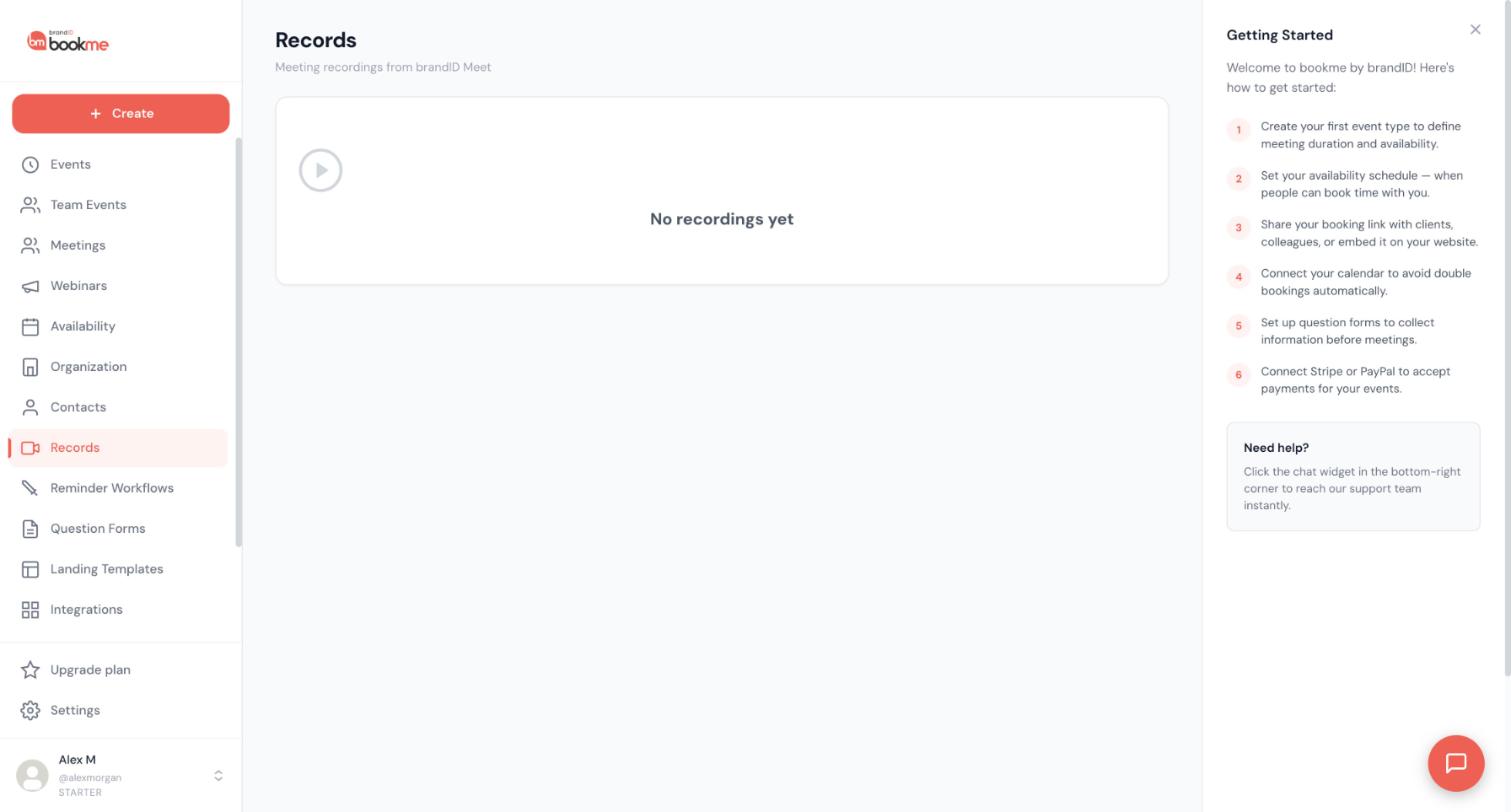
After the meeting, click Records in the sidebar. The page is titled Meeting recordings from brandID Meet. Until you record something it shows No recordings yet.
Records only lists recordings of your own bookings and webinars. Each recording is listed with the booking it belongs to, and that includes recordings of webinars you held on brandID Meet.
Download the recording
Recordings download as an MP4 file. brandID Meet recordings are kept for 30 days, so download any you want to keep before then.
Share a recording with someone
Click Share recording under Records. bookme generates a temporary public link.
Anyone who has the link can open the recording while it works. Send it only to the people who should see it.
Look in the right place for Zoom and Google Meet
bookme does not pull Zoom or Google Meet recordings into the dashboard.
- Zoom: your Zoom cloud account, under Recordings on zoom.us, or locally if you chose local recording. Auto-record is a setting in your Zoom account, not in bookme.
- Google Meet: your Google Drive, in the Meet Recordings folder. Start recording from the three-dot menu in Meet, because there is no reliable auto-record setting that bookme can switch on.
Zoom and Google Meet keep recordings under their own plan rules, so check your Zoom or Google account for storage and how long they stay.
Tips
- Pick brandID Meet for the events you want to record, then use Zoom or Google Meet for the rest.
- Download recordings you need long term. Zoom and Google Meet keep theirs by their own rules.
If something goes wrong
Records is empty after my meeting.
An older recording is gone.
A booking got a brandID Meet link when I chose Zoom.
Related how-to guides
Still stuck? We’re happy to help.
Create your bookme account, see pricing, or reach out to support directly.




