
How to create a webinar
A webinar is a session at a fixed date and time with its own attendee list and emails. You can start one from scratch or from an event type you already have.
Before you start
- A bookme account. Your plan sets how many webinars you can have (see the guide on webinar limits).
- A title, a start date and a start time.
Open the Webinars page
Click Webinars in the sidebar. The page is for broadcasting events with custom email campaigns. Under the title, counters show your webinars, your emails this month and the attendees per webinar. With no webinars yet you see No webinars yet and a + Create your first webinar button; the + New Webinar button is always at the top right.
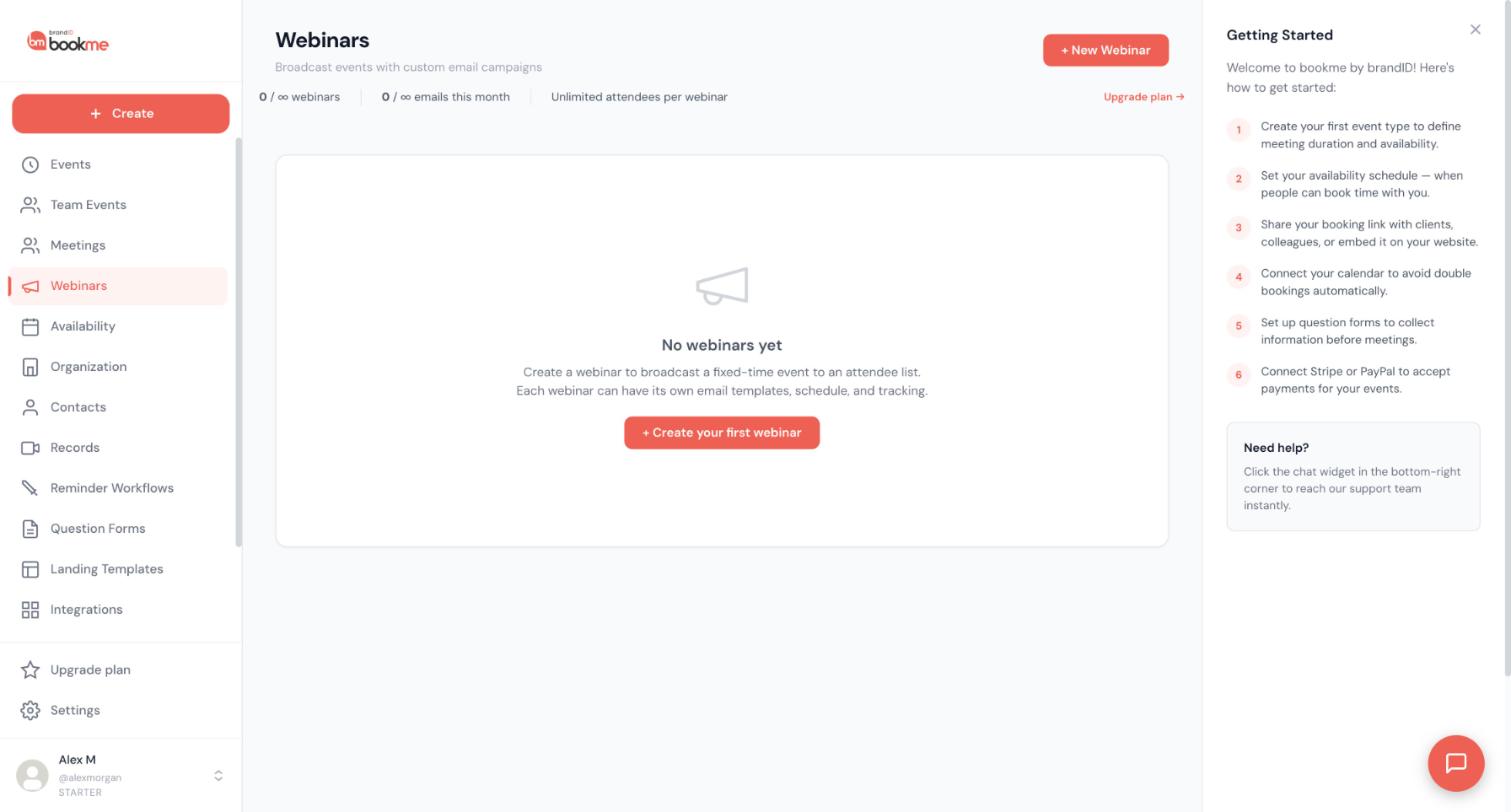
Click + New Webinar and choose how to set it up
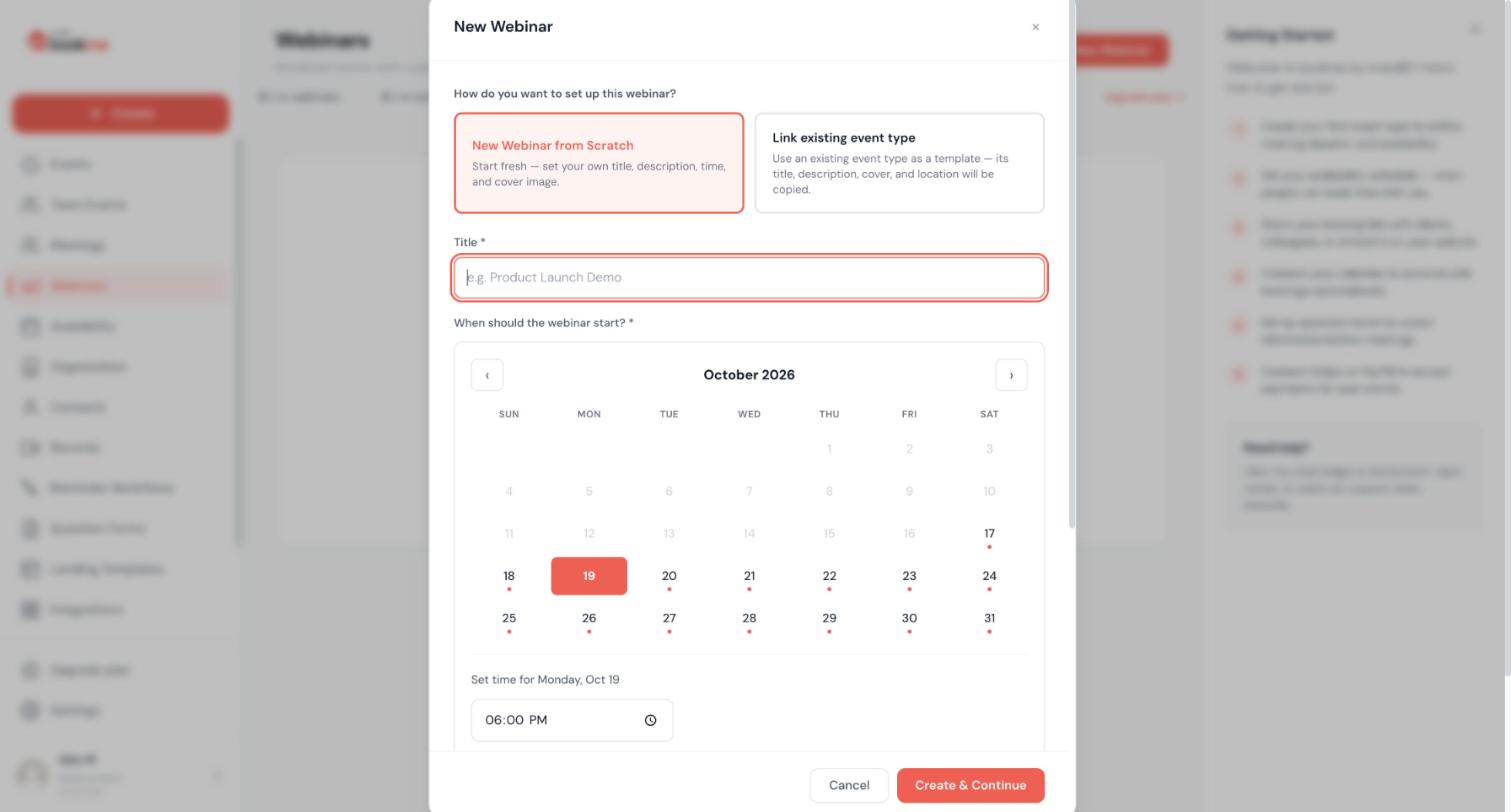
The New Webinar dialog asks How do you want to set up this webinar? with two cards:
- New Webinar from Scratch. Start fresh and set your own title, description, time and cover image.
- Link existing event type. Use an existing event type as a template; its title, description, cover and location are copied.
Pick the card that fits. Linking saves typing when you already have an event type with the right wording.
Enter the title
Type a Title. It is required, and the dialog suggests the style with an example such as Product Launch Demo. Choose a title attendees will recognise in an email.
Pick the start date and time
Under When should the webinar start?, click a day in the calendar. Days before today are greyed out. Then use the time field under Set time for your chosen day to enter the start time.
Create the webinar and continue
Click Create & Continue to create the webinar and carry on to its details. Cancel closes the dialog without creating anything. Emails go out only when you send them from the webinar, not when you create it.
Complete the webinar’s details
The Help Center lists these webinar settings: a description, a cover image, the time zone, the duration and the meeting type (Google Meet, Zoom, brandID Meet, or a custom URL with optional dial-in and passcode). A webinar can be one-time, daily, weekly, monthly or repeat every N days.
Next, add attendees and set up the emails. The guide on inviting people to a webinar covers both.
Tips
- Check your webinar limits before you plan a large session: webinars and attendees per webinar both depend on your plan.
- Every registration also creates a booking on your Meetings page, marked with a Webinar chip, so attendees get the same confirmation and reminders as any booking.
- Prepare a webinar with a connected AI assistant if you like: it can create a draft with an invitation and a reminder and send you a test.
If something goes wrong
I cannot find my webinar in Events.
Can I record an outcome for webinar attendees?
A guest cancelled their webinar RSVP. Can I bring it back?
Related how-to guides
Still stuck? We’re happy to help.
Create your bookme account, see pricing, or reach out to support directly.




