
How to connect Cursor, VS Code or any other AI app to bookme
Any AI app that can use a remote HTTP MCP server can connect to bookme with the same address. Apps that bookme cannot identify start at View only.
Before you start
- A bookme account (MCP access is listed on Starter, Pro and Elite).
- An AI app that supports remote MCP servers over HTTP, such as Cursor, VS Code or Gemini CLI.
Copy the bookme address
In bookme open AI Assistants and click Copy address: https://bookme.brandid.app/mcp. The Other apps tab on that page is for apps not listed by name.
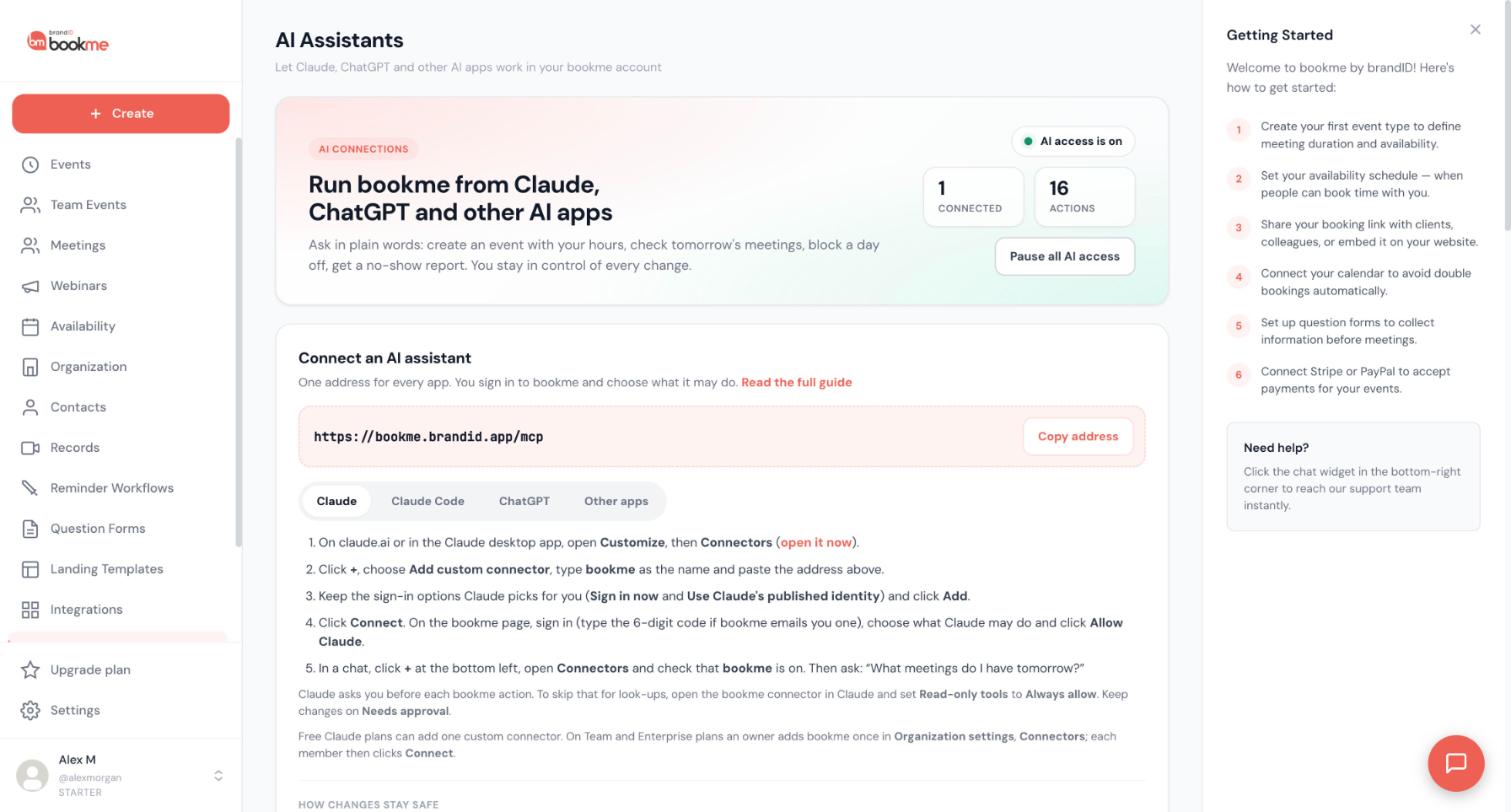
Add a remote HTTP MCP server in your app
In Cursor, VS Code, Gemini CLI or another app that supports remote MCP servers, add a new server of the type remote HTTP. Use bookme as the name and the address you copied. Where and how you add it differs from app to app, so follow that app’s own MCP settings.
Sign in to bookme
When the app starts the connection it opens bookme. Sign in to bookme there. If your last sign-in is older than 10 minutes, bookme emails you a 6-digit code first.
Confirm an Unverified app
bookme recognizes apps such as Claude and ChatGPT. If it cannot identify your app, it is marked Unverified, starts at View only and asks you to confirm that you started the connection yourself.
Only approve an Unverified app that you started yourself a moment ago. If you did not start it, close the page.
Pick access and test
Choose View only, View and manage or Custom and allow the app. Then ask it a look-up:
List my event types. Do not change anything.Afterwards open AI Assistants in bookme to see the app under Connected apps and its requests under Activity.
Know what stays under your control
Every AI app follows the same rules. Changes to your own settings happen right away and are listed in Activity. Changes that reach other people ask you first, and high-impact requests wait for your approval on the AI Assistants page. No app can change payments, plans, billing, refunds or payouts, your password or sign-in methods, or its own access. To stop an app, pause all AI access or click Disconnect on its card.
Tips
- Start with View only. Move up to View and manage once you have seen how the app behaves.
- Apps that support MCP prompts may show bookme’s ready-made commands in their own menus.
If something goes wrong
The app says the server needs OAuth or sign-in.
The app is marked Unverified and can only view.
Related how-to guides
Still stuck? We’re happy to help.
Create your bookme account, see pricing, or reach out to support directly.




