
How to block a day off with a date override
A date override changes one specific day. Block it completely for a holiday or trip, or give it custom hours. It applies to all your schedules and events at once.
Before you start
- A bookme account with a schedule set up
- The dates you want to block
Open the Date Overrides tab
Click Availability in the sidebar, then click the Date Overrides tab next to Schedules. The tab shows a count in brackets, so it reads Date Overrides (0) until you add one.
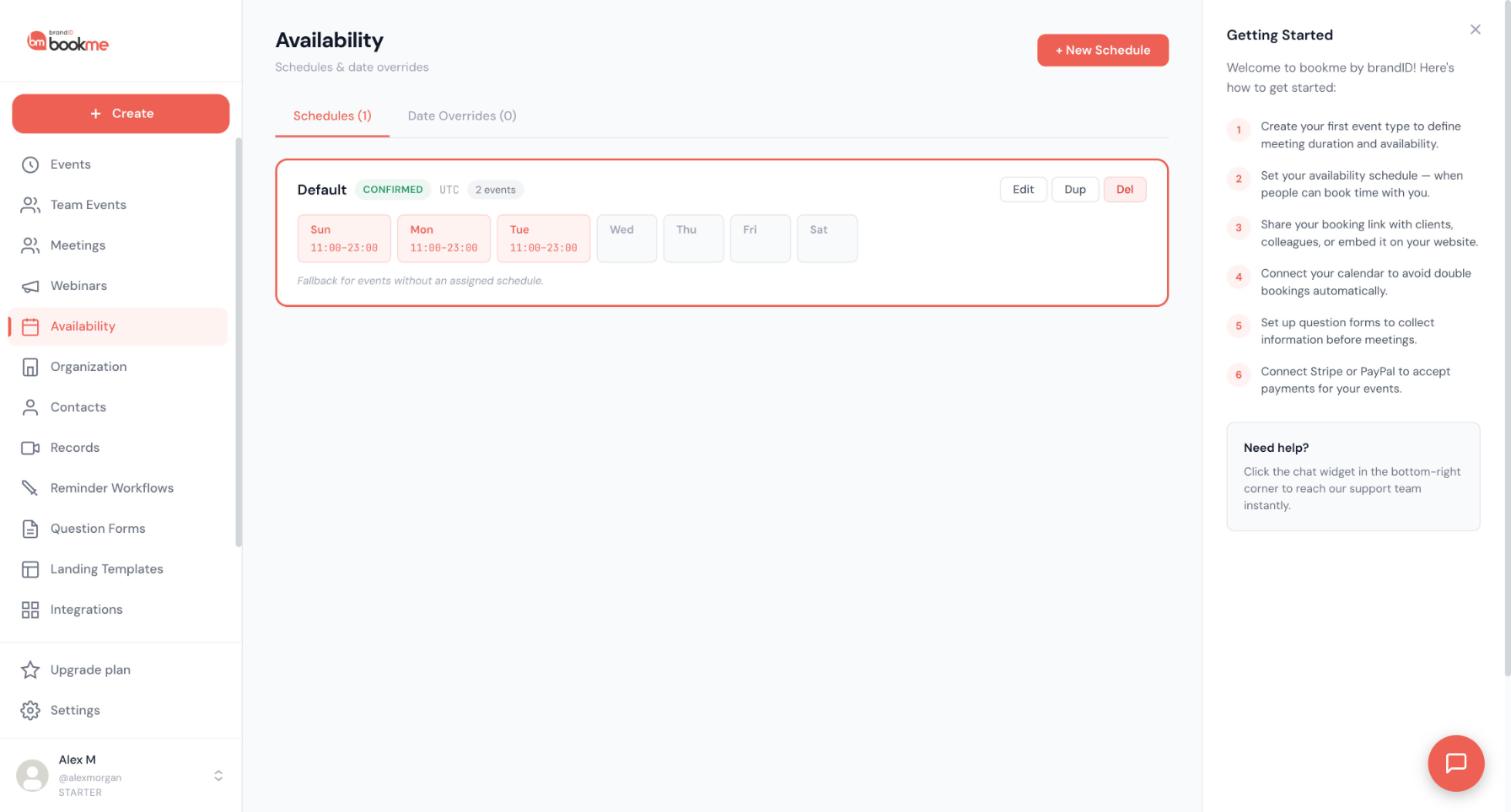
Pick the day and block it
Pick the date on the calendar and choose to block the whole day. A fully blocked day offers no times on any event, whichever schedule the event uses.
For the fastest route, click the date and then Block this day. That creates a full-day unavailable override in one click.
Or give the day custom hours
If you can still take a few meetings that day, choose custom hours instead and enter one or more time windows. They replace the schedule’s hours for that date only, and they also open a day your schedule normally leaves closed, such as a weekend.
This is handy for half days. For example, set 9 AM to 1 PM on a day with an afternoon appointment.
Add a reason and save
Add an optional reason such as Holiday or Conference. It is only for you. Then save the override.
Deal with bookings already on that day
If the override cuts across meetings you already have, bookme lists them before saving. For each booking you can reschedule it to a new time, cancel it, or keep it and save anyway. Bookings you keep are honoured even though the day is blocked.
Block a longer trip
There is no date range yet, so add one override per day. For a trip from the 14th to the 21st, add a blocked override for each date in that span. bookme does not repeat overrides year after year, so add them again for next year.
Check it and remove it if plans change
Open your booking page in a private window and look at the blocked date. To bring the day back, click it again in the Date Overrides tab and delete the override. The schedule’s normal hours return.
Tips
- An override replaces the weekly hours for that date, so you never need to edit your schedule for a one-off day.
- bookme blocks nationwide public holidays automatically from the country in your profile. A custom-hours override opens a holiday again if you want to work.
- For a pattern that repeats every week, such as half-day Fridays, change the schedule instead of adding an override for each Friday.
If something goes wrong
I blocked a day but people can still book it.
Changes reach the booking page within a couple of minutes, so wait and reload in a private window. Also check that you blocked the right date, and remember that bookings you chose to keep on that day stay on your calendar.
A day shows no times and I do not know why.
Look in the Date Overrides tab for an accidental unavailable override, and check public holidays for the country in your profile. A holiday can be opened with a custom-hours override for that date.
My availability change has not appeared yet.
bookme remembers availability briefly to keep booking pages fast, then refreshes it. Wait two minutes and reload in a private window. If it is still wrong, check that the event is not using locked custom hours.
Related how-to guides
Still stuck? We’re happy to help.
Create your bookme account, see pricing, or reach out to support directly.




