
How to find and filter your campaigns
Use the search box, tabs and filter menus on the Campaigns page to find any campaign quickly, even when you run many.
Before you start
- At least one campaign, so there is something to find
Open the Campaigns page
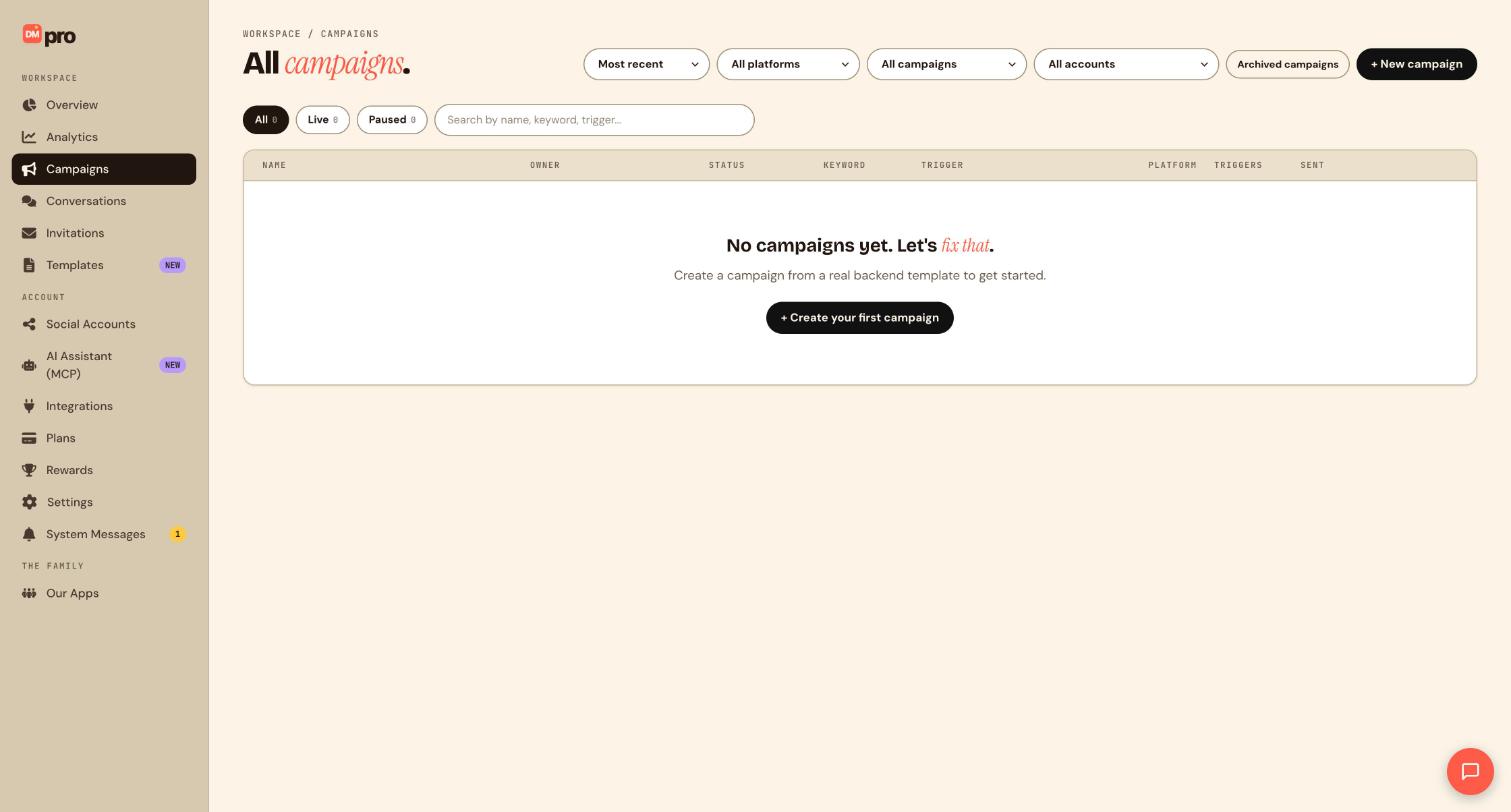
Click Campaigns in the WORKSPACE section of the sidebar. The page is titled All campaigns. Until you create one, it says No campaigns yet and offers a + Create your first campaign button. Once you have campaigns, the + New campaign button at the top right is always there, and the list shows your most recent campaign first.
Read the table
Each campaign is one row with these columns: Name, Owner, Status, Keyword, Trigger, Platform, Triggers (how many times it fired) and Sent (messages delivered). Together they answer most questions without opening the campaign: which keyword a campaign answers, which platform it runs on, whether it is doing anything, and who in your workspace owns it.
Switch between All, Live and Paused
The three round buttons under the title, All, Live and Paused, show how many campaigns are in each group. Use Live to see what is currently talking to your fans and Paused to find what you stopped.
Search by name, keyword or trigger
Type in the search box that says Search by name, keyword, trigger…. Searching for the keyword fans type, such as GUIDE, is the quickest way to find which campaign answers it. You can also type part of a name, or a trigger such as the kind of comment a campaign listens for. Clear the box to see everything again.
Narrow with the filter menus
At the top right are four menus: a sort menu set to Most recent, All platforms, All campaigns and All accounts. Open each to see the choices. Combine them, for example one platform plus one account, to see exactly what runs on that account.
Look at archived campaigns
Click Archived campaigns to see the ones you retired. They are kept with their flow, so you can bring one back later.
Use the list to catch conflicts
Filter by one account, then scan the Keyword and Trigger columns for live campaigns that use the same keyword. If you find two, pause or change one so each live campaign has its own keyword or post.
Tips
- Name campaigns with the post and the offer, for example Free guide, Reel 12, so search works well.
- Check the Triggers and Sent columns after you publish. If Triggers grows but Sent does not, something is stopping messages.
If something goes wrong
I cannot find a campaign I made.
Set the tab to All and every menu to its All option, clear the search box, then check Archived campaigns.
The list is empty.
A new account has no campaigns yet. Create one from Templates or with + New campaign.
A campaign shows Triggers but nothing Sent.
Open Conversations and look for ignored events on the thread, then check the keyword match, the account connection and any Frequency cap or Only followers rule in the flow.
Related how-to guides
Still stuck? We’re happy to help.
Create your DMpro account, see pricing, or reach out to support directly.




