
How to use a promotion code
Enter a promotion code on the plan picker so its discount shows on the plans before you pay. It takes about a minute.
Before you start
- A promotion code from contactID, a newsletter or a partner
- A contactID account signed in on the dashboard
Open Plan & Billing
In the left sidebar, click Billing & Usage, then click Plan & Billing. Scroll down to the Choose Your Plan section.
Find the Promotion code box
The Promotion code box sits under the Monthly / Annual switch. It is always open, with an Enter your code field and an Apply button.
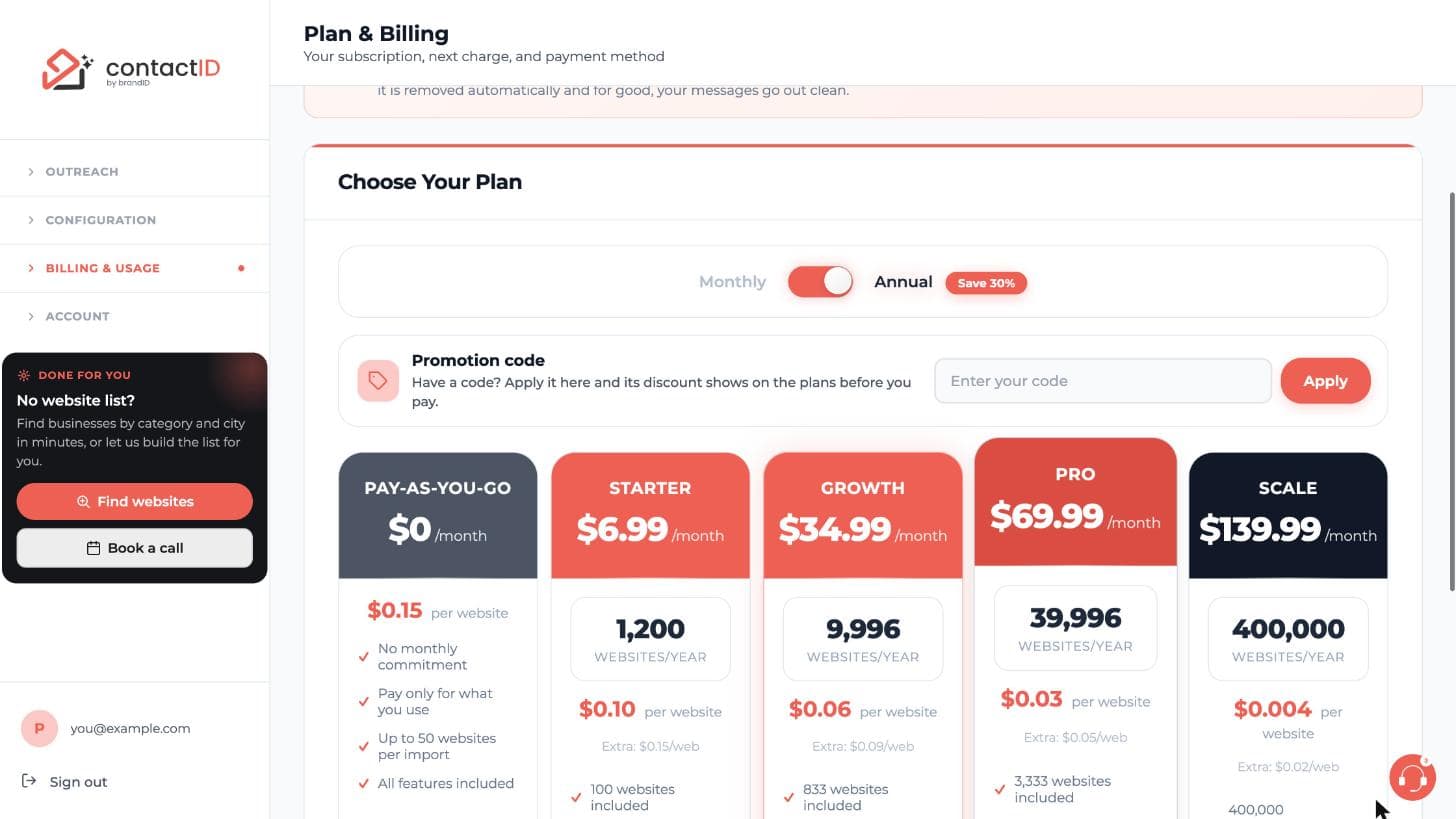
Type your code and click Apply
Click the field, type the code and click Apply. Capital letters and spaces do not matter.
A code that came from a link, such as a contactID email or a partner’s page, is applied for you when the plans open, and it waits up to 14 days, through sign-in.
Check that it was accepted
The box turns green and shows the code, what it gives and when it ends, with a Remove button. Each plan card then shows its price with the code. A code made for the other billing cycle switches the plans to it, and a code for credit packs offers Show credit packs.
If a code cannot be used, the box says why in plain words.
Choose your plan and check the checkout
Click Subscribe on the plan you want. The checkout shows the discount before you pay. If you already have a plan, the code goes with Upgrade on a higher plan, or with Switch to annual on your plan’s card when the code is for moving to yearly billing.
If you reached payment without entering it
Stripe’s payment page has no place for a code. While a promotion is running, it says above the Pay button how to add one: use the back arrow at the top of the page, enter your code in the Have a promotion code? box on the page you come back to, and you return to the plans with the code applied. Nothing is charged when you go back.
Tips
- Codes for lead credit packs are entered under Find websites, then Credits, not on Plan & Billing.
- Some codes give a different offer for monthly and annual plans, and the plan cards show which applies.
- Click Remove in the green box if you applied a code by mistake.
If something goes wrong
The box says my code cannot be used.
Read the reason in the box. A code works until its end date or until its uses run out, is one use per account, and some codes are for new customers, certain plans or certain billing cycles only.
Can I use a code together with a referral discount?
They do not add up. The one that saves you more is used, and the plan cards say which.
Does the code work on AI credits?
No. Promotion codes never apply to AI credits.
My plan already has a discount.
A plan that already carries a discount takes no new code until that discount ends.
Related how-to guides
Still stuck? We’re happy to help.
Install the extension, start a free trial, or reach out to support.




