
How to set your sending pace
Put your own cap on how many websites contactID sends to each day, and choose the hours it is allowed to send. It takes about two minutes.
Before you start
- contactID installed in Chrome and signed in to your account
- Chrome kept open on that computer while a run sends
Open Settings in the right browser
In the left sidebar, click Configuration, then click Settings. Open it in the Chrome where contactID is installed and where you are signed in to the same account, because each computer keeps its own settings.
The card at the top of the page names the computer and says Connected when the page can reach contactID there. The Sending pace section is the first one on the page, and the list on the left jumps between sections.
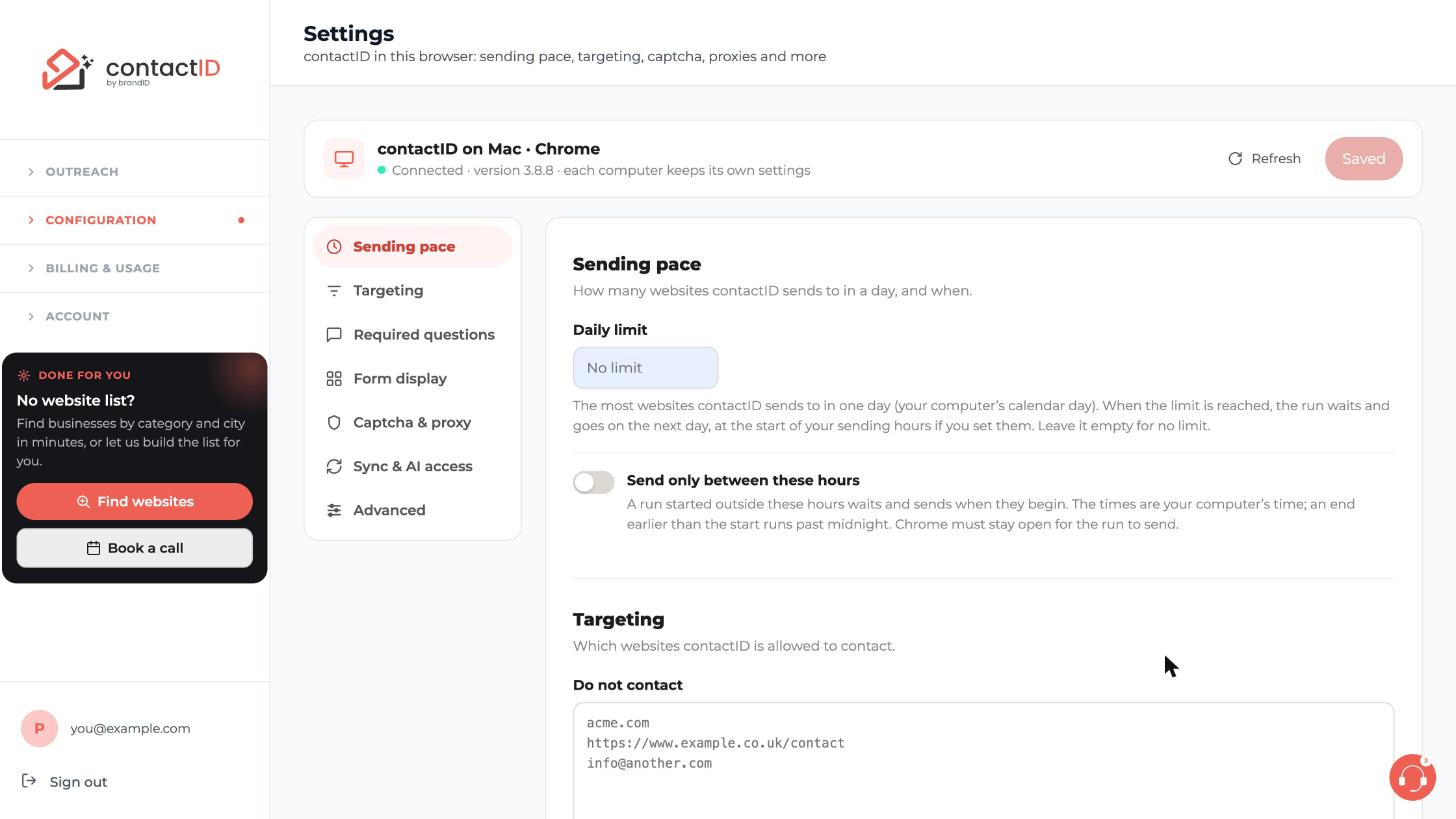
Set a Daily limit
Click the Daily limit box, which reads No limit, and type the most websites you want contactID to send to in one day, for example 200.
The day is your computer’s calendar day. When the limit is reached, the run waits and carries on the next day. Leave the box empty if you do not want a limit.
Choose the hours it may send
Turn on Send only between these hours. Pick a start time, an end time and the days you want. The times are your computer’s time, and an end earlier than the start runs past midnight.
A run started outside these hours waits and starts sending when they begin. When the window closes, no new websites are started, and websites already being filled finish.
Press Save
Press Save at the top right of the page. The button reads Saved and is greyed out while there is nothing new to save. Nothing changes until you save, and once you do contactID uses the new pace at once.
Know what a held run looks like
On the Send tab of the side panel, the run panel shows WAITING when your pace is holding the run: the day’s limit is reached, or it is outside your hours. The panel says why and when it sends again, and the run goes on by itself then. Resume is greyed out because you did not pause it.
To send sooner, raise or clear the limit, or widen or turn off the hours, and press Save. The run continues as soon as you save.
Tips
- Both settings are off until you set them. contactID adds no per-minute or per-day cap of its own; the only automatic spacing is one new website on the same domain every 45 seconds.
- A daily limit is a simple way to split a large list into daily batches: the run sends that many websites a day and carries on the next day while Chrome stays open.
- The limit and the hours apply to the browser where you set them. If you use contactID on two computers, set each one.
If something goes wrong
The run shows WAITING and nothing is sending. Is something broken?
No. WAITING means your own Sending pace holds the run, either because today’s limit is reached or because it is outside your hours. The run panel says when it sends again. Change the settings and press Save to send sooner.
The run waits but I never set a limit.
If the run says it is waiting to check your website credits, it keeps trying by itself, and the button reads Try now so you can check again yourself. Otherwise open Settings and look at both pace settings.
Settings says it cannot reach contactID.
Open the page in the Chrome where the extension is installed and signed in. The page tells you if contactID is not installed or not on, needs an update, or is signed in to another account.
Related how-to guides
Still stuck? We’re happy to help.
Install the extension, start a free trial, or reach out to support.




