
How to set how many websites and forms run at once
Tune how many websites contactID checks and how many forms it fills at the same time, and save a backup copy of your settings. It takes about three minutes.
Before you start
- contactID installed in Chrome and signed in to your account
Open Settings and go to Advanced
In the left sidebar, click Configuration, then click Settings. Open it in the Chrome where contactID is installed and where you are signed in to the same account, because each computer keeps its own settings.
Click Advanced in the list on the left of the page.
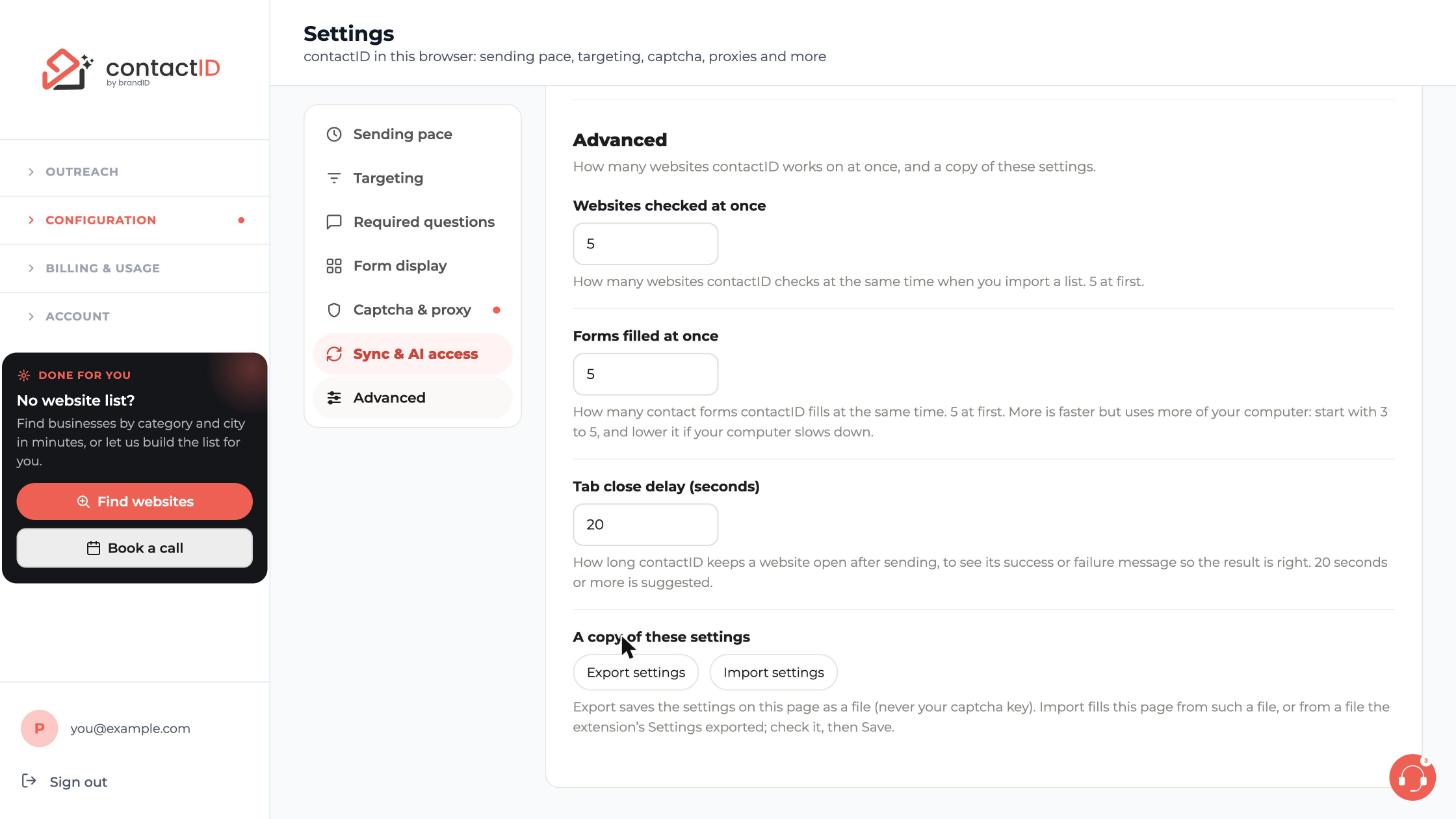
Set Websites checked at once
This number is how many websites contactID checks at the same time when you import a list. It starts at 5. Click the box and type a new number.
Set Forms filled at once
This number is how many contact forms contactID fills at the same time. It runs from 1 to 100 and starts at 5. More is faster but uses more of your computer: each open tab uses about 100 to 300 MB of memory. Start with 3 to 5 and lower it if your computer slows down.
The new number takes effect on the next tab opened. Whatever the number, contactID starts at most one website on the same domain every 45 seconds, so a list with many pages on one site runs slower than the number suggests.
Set Tab close delay
This is how many seconds contactID keeps a website open after sending, to read its success or failure message so the result is right. It starts at 20, and 20 seconds or more is suggested.
Press Save
Press Save at the top right of the page. Nothing changes until you do.
Export or import your settings
Under A copy of these settings, press Export settings to save the settings on this page as a file. An export never includes your captcha key.
Press Import settings to fill the page from such a file, or from a file the extension’s Settings exported. Check what it filled in, then press Save.
Tips
- Most people keep the default of 5 forms at once. Raise it only with a fast, stable connection and a computer with plenty of memory.
- Each computer has its own settings. If you run on two computers, each one uses its own number.
- contactID adds no per-minute or per-day sending cap. To cap a day yourself, use the Daily limit under Sending pace.
If something goes wrong
Chrome becomes slow during a run.
Lower Forms filled at once back toward 3 to 5 and close other heavy tabs. Lowering it can also help on an unstable internet connection.
A list with many pages of one site is slow.
That is expected. contactID starts at most one website on the same domain every 45 seconds, whatever number you set.
My settings were lost after reinstalling.
A reinstall removes your extension settings. Use Import settings with a file you exported earlier, check it, and press Save. Your captcha key is not in an export, so add it again.
Related how-to guides
Still stuck? We’re happy to help.
Install the extension, start a free trial, or reach out to support.




