
How to set a default Agent, and edit or delete an Agent
Choose which Agent sends your next run, change an Agent’s details, copy one, or remove one you no longer need. Each takes under a minute.
Before you start
- At least one Agent already created
- The contactID extension installed and signed in, for choosing the default sender
Open the Agents page
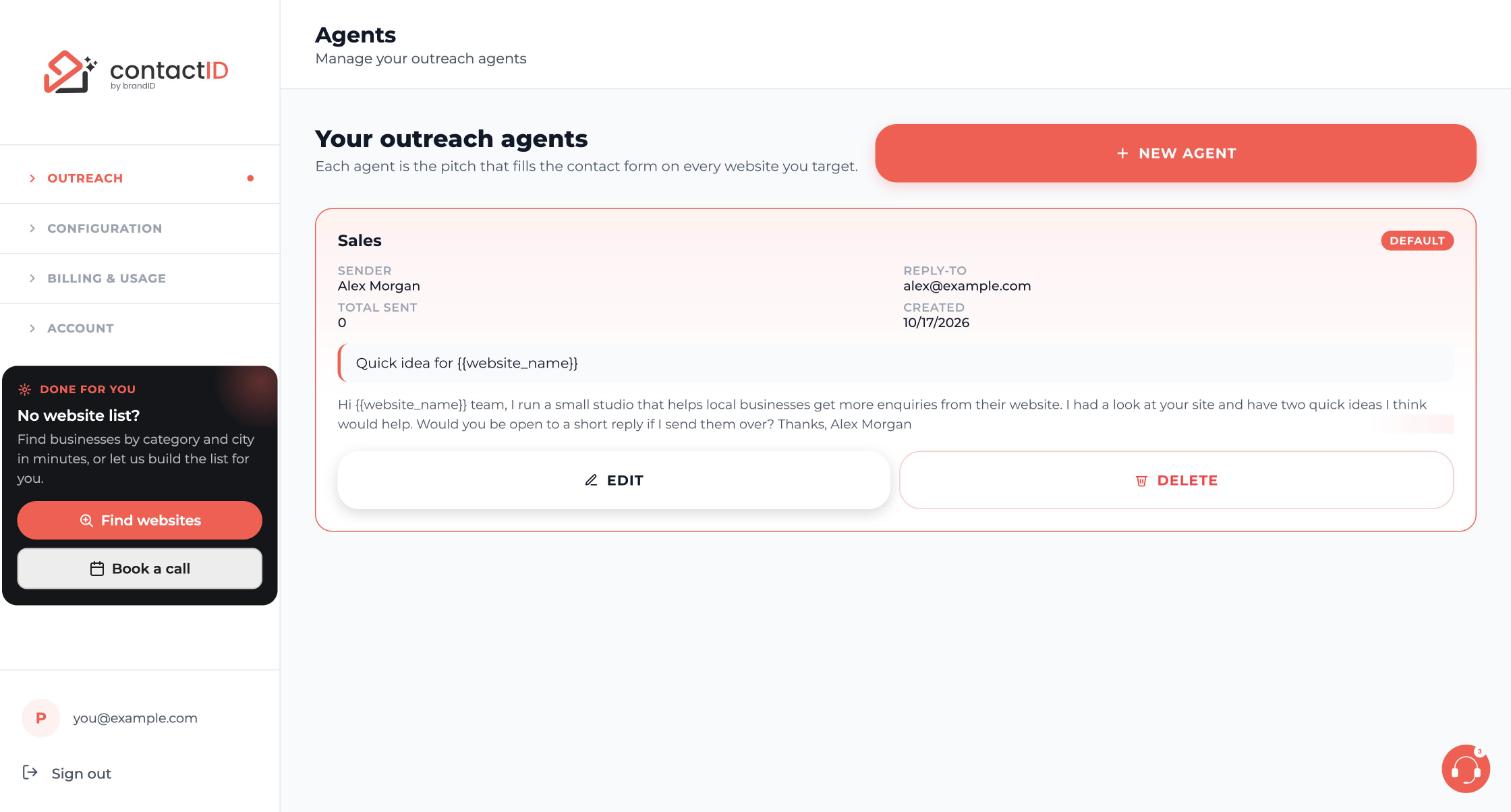
In the dashboard sidebar, open Outreach and click Agents. Each agent shows as a card with its sender, reply-to email, total sent, subject and message. The agent marked with the DEFAULT badge is the default sender. At the bottom of each card are the EDIT and DELETE buttons.
Set the default agent in the extension
The default agent is the one that sends. To change it, open the contactID extension, go to the Agent tab and click any row in the Sending as list. That row gets the DEFAULT badge, loads into the editor, and every following run uses it. The Send tab header shows as followed by the agent’s name, so you always see who is sending.
Edit an agent on the dashboard
On the Agents page press EDIT on the agent. Change the agent name, sender name, reply-to email, subject line or pitch message and press SAVE CHANGES.
The dashboard form edits only those fields. Saving there also copies your name, phone, company details and country from the Profile page into the agent. For any other change, use the Agent tab in the extension.
Edit an agent in the extension
On the Agent tab, click Edit on the agent’s row. The editor scrolls into view and highlights briefly. Sections open one at a time: open the one you need, change the fields and press Save. Changes apply to every website filled after you save, even during a run.
If you edit something and then select another agent or start a new one, contactID asks whether to keep or discard your changes. Discard changes shows the agent as it was last saved.
Duplicate an agent to try a variation
Each agent row in the extension has three buttons: Edit, Duplicate and Delete. Duplicate copies every detail into a new agent named after the original. It is the fastest way to test a different message with the same sender details. Change the copy, save it, and compare the two later in the A/B tools on the Targets tab.
Delete an agent you no longer need
Press DELETE on the agent’s card on the dashboard, or Delete on its row in the extension, and confirm if you are asked. Deleting an agent only removes the sender from your list. Websites already sent are not affected.
Pick the agent when you start a run
With one agent, it is used automatically. With two or more, pressing Start sending on the Send tab opens a sender picker that starts on the default. The agent you pick sends that run and becomes the default. A run uses one agent for every queued website unless you turn on A/B Split Testing on the Targets tab, where you tick two or more agents and set the percentage each one gets.
Tips
- Agent names are short labels only you see, 2 to 15 characters, so pick tags you recognize at a glance such as Demo req Q1 or A/B test A.
- If you only change the pitch for a different vertical, edit the one agent instead of creating a new one. Multiple agents make sense when the sender, the ask or the product is genuinely different.
- Send two lists with two different agents by running them one after the other, since a run uses one agent.
If something goes wrong
I set a default on the dashboard but the extension still sends with another agent.
The dashboard’s Make default button does not change the extension. Open the Agent tab in the extension and click the agent in Sending as.
My dashboard edit does not show in the extension yet.
A change made on the dashboard or another device arrives when you open the side panel or bring it back into view. If you have unsaved edits open, a note says the agent was changed elsewhere. Choose Load the new version (your edits are dropped) or Keep my edits (saving then replaces the other change).
Did deleting an agent erase my results?
No. Websites already sent are not affected, and your results stay in Analytics. Only the sender is removed from the list.
Related how-to guides
Still stuck? We’re happy to help.
Install the extension, start a free trial, or reach out to support.




