
How to personalize a message with merge fields
Merge fields, also called tags, are small placeholders such as {{website_name}} that contactID replaces for each website. You can add them to your message in about five minutes.
Before you start
- An Agent with a pitch message (see the guide on creating your first Agent)
- Optional: a spreadsheet with extra columns if you want your own tags
Open the agent you want to personalize
In the dashboard sidebar, under Outreach, click Agents. Press EDIT on the agent, or press NEW AGENT to start a new one. The editor opens with Subject line and Pitch message fields.
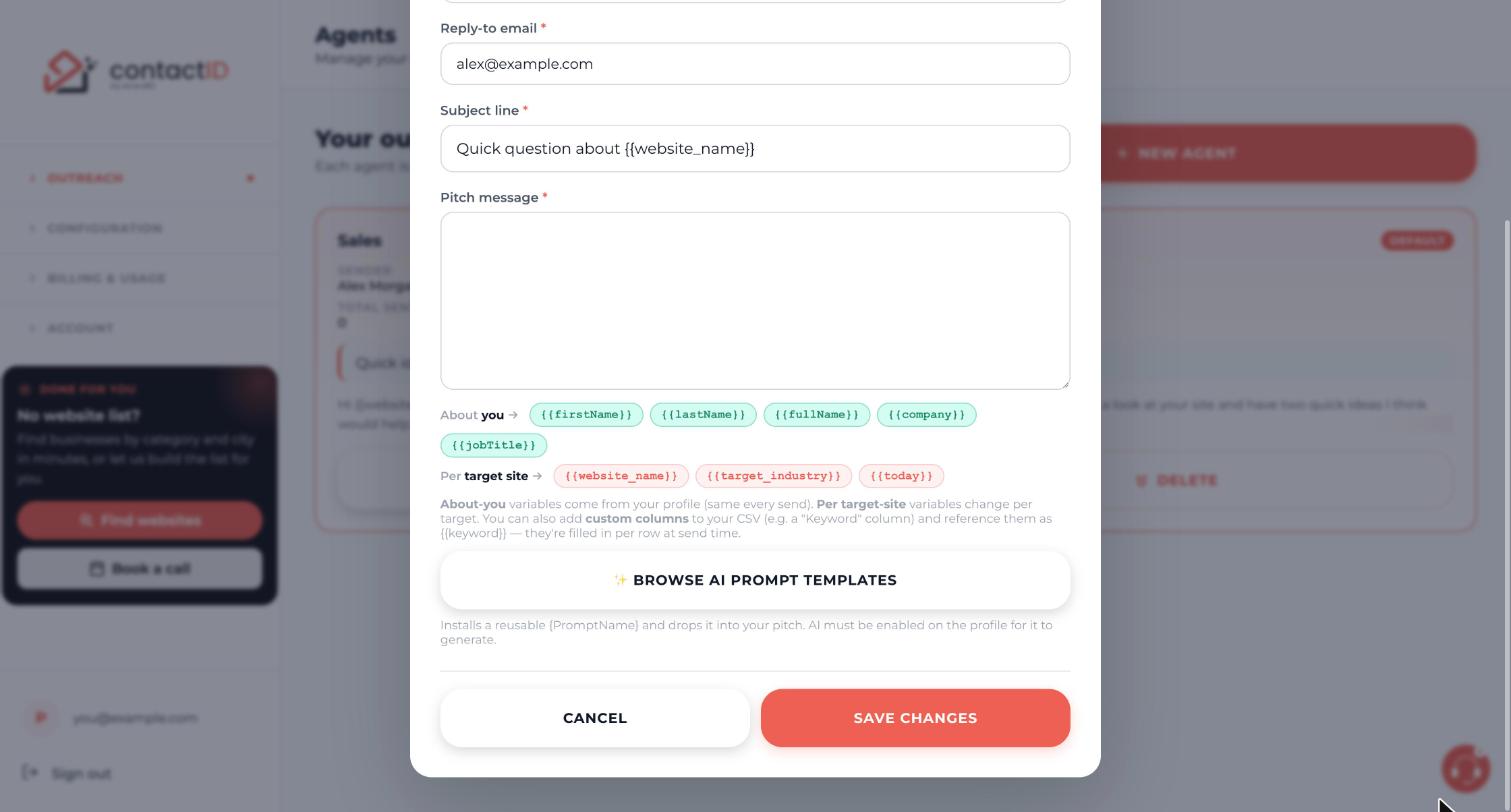
Find the merge-field chips
Scroll below the Pitch message box. You will see two rows of chips:
- About you (the same on every send, taken from your profile):
{{firstName}},{{lastName}},{{fullName}},{{company}}and{{jobTitle}}. - Per target site (changes for each website):
{{website_name}},{{target_industry}}and{{today}}.
A note under the chips adds that you can also add custom columns to your CSV and reference them with the same double-brace pattern.
Add tags to your message
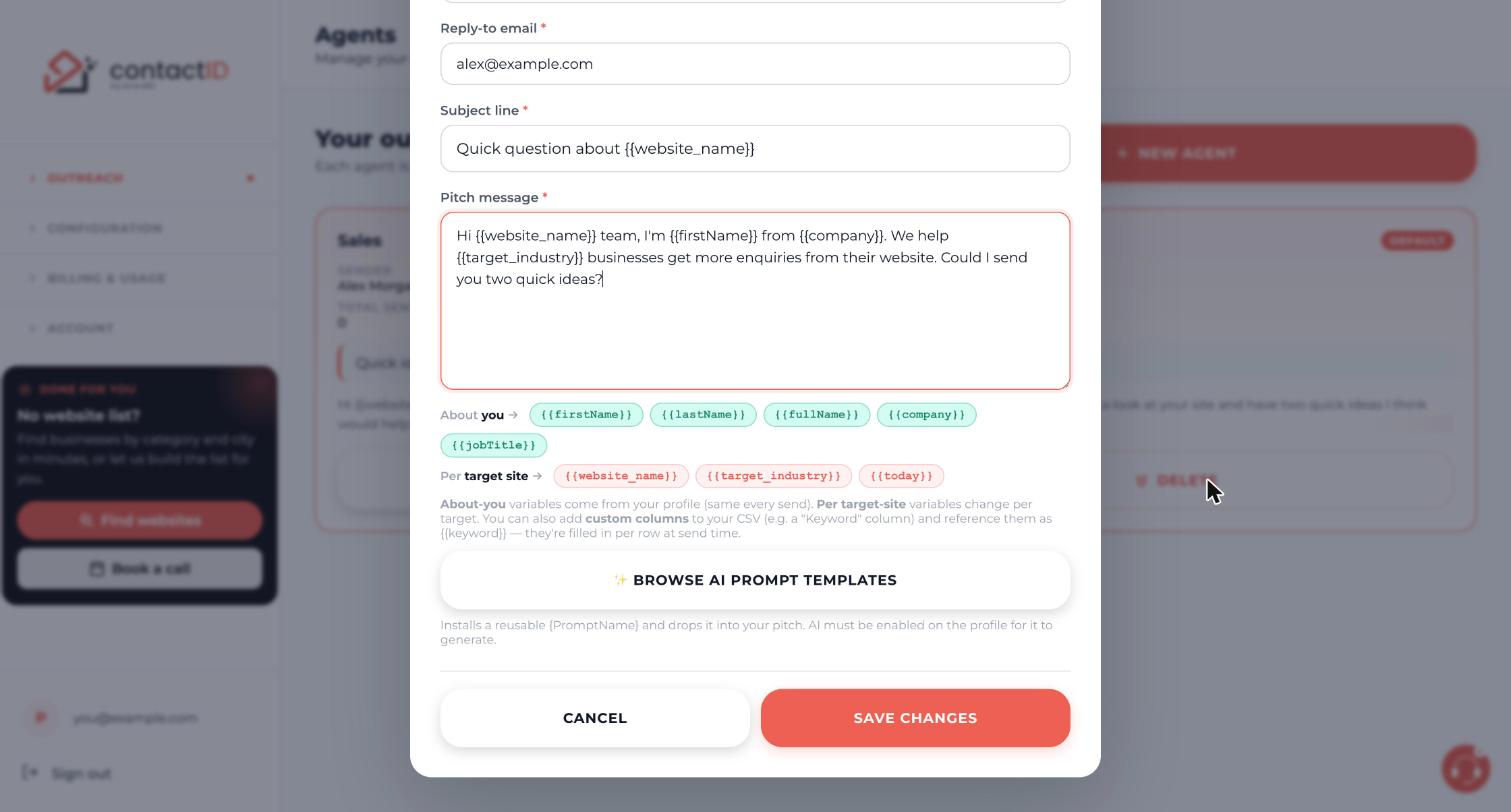
Click into Pitch message and type a tag exactly as shown, with two curly braces on each side. In the extension’s Agent tab you can instead click a tag to insert it at the cursor. A message using several tags might read:
Hi {{website_name}} team, I’m {{firstName}} from {{company}}. We help local businesses get more enquiries from their website. Could I send you two quick ideas?
Use {{website_name}} at least once so each message names the site it goes to. Tags are filled from your details, your list and the website address, with no AI request.
Use tags in the subject line
The subject line accepts a shorter list of tags: {{website_name}}, {{firstName}}, {{lastName}}, {{fullName}}, {{email}}, {{company}} and {{today}}. For example: Quick idea for {{website_name}}.
{{target_industry}}, spreadsheet columns and lead fields, comes out empty. AI Personalization does not write or change the subject.Add your own tags from a spreadsheet
Extra columns in the CSV or spreadsheet you import become tags. If your file has a column called city, write {{city}} in the message and each row fills its own value when the form is sent. Another example is a column called owner_name, used as {{owner_name}}.
Spreadsheet columns work in the pitch message, not in the subject line.
Vary the wording with choices
To make each message sound a little different, write choices in single braces with a bar between them: {Hi|Hello|Good day} or {I came across|I found} {{website_name}}. Each website gets one choice of each and always gets the same version. You can use this in the message and in the subject line.
Braces without a bar keep their usual meaning. {{tag}} in double braces is a merge field, and {PromptName} in single braces is an AI placeholder.
Save and preview a real website
Press SAVE CHANGES. Then open the contactID extension, go to the Targets tab, add a few websites and let the check finish. In the Preview on a site card pick one website. It shows the message that website would get, with every tag filled. Nothing is sent from the preview.
The deliverability check under the editor in the extension warns about unknown tags and leftover [hint] text. A message that still holds a tag or placeholder when it is about to be sent is not sent, and no credit is used.
Tips
- Write tags with two curly braces on each side and no spaces. Anything else is read as ordinary text.
{{target_industry}}is best checked in a preview first. contactID does not look up a website’s industry at the moment, so the value can read generically.- Personalizing with tags costs nothing extra. For one-off lines written for each website, see the guide on AI personalization.
If something goes wrong
A tag shows up as literal text such as {{city}} in my preview.
Check the spelling and that the column exists in your imported file. A tag that cannot be filled keeps the message from being sent, and no credit is used. The reason appears on the website’s card.
My subject line is missing a value.
The subject only understands {{website_name}}, {{firstName}}, {{lastName}}, {{fullName}}, {{email}}, {{company}} and {{today}}. Any other tag comes out empty.
What is the difference between {{tag}} and {name}?
Double braces are merge fields filled from your details, your list and the website. Single braces around a name, such as {Opener}, are AI placeholders that only work after you save a prompt with that name. A name with no saved prompt is sent as literal text, and the website is not sent.
Related how-to guides
Still stuck? We’re happy to help.
Install the extension, start a free trial, or reach out to support.




