
How to manage your lists and find new places
Learn what each list state means, what you can do with a list, and how to go back to a city for businesses you do not have yet. It takes about five minutes to read.
Before you start
- At least one list saved from Find websites
Open the Lists tab
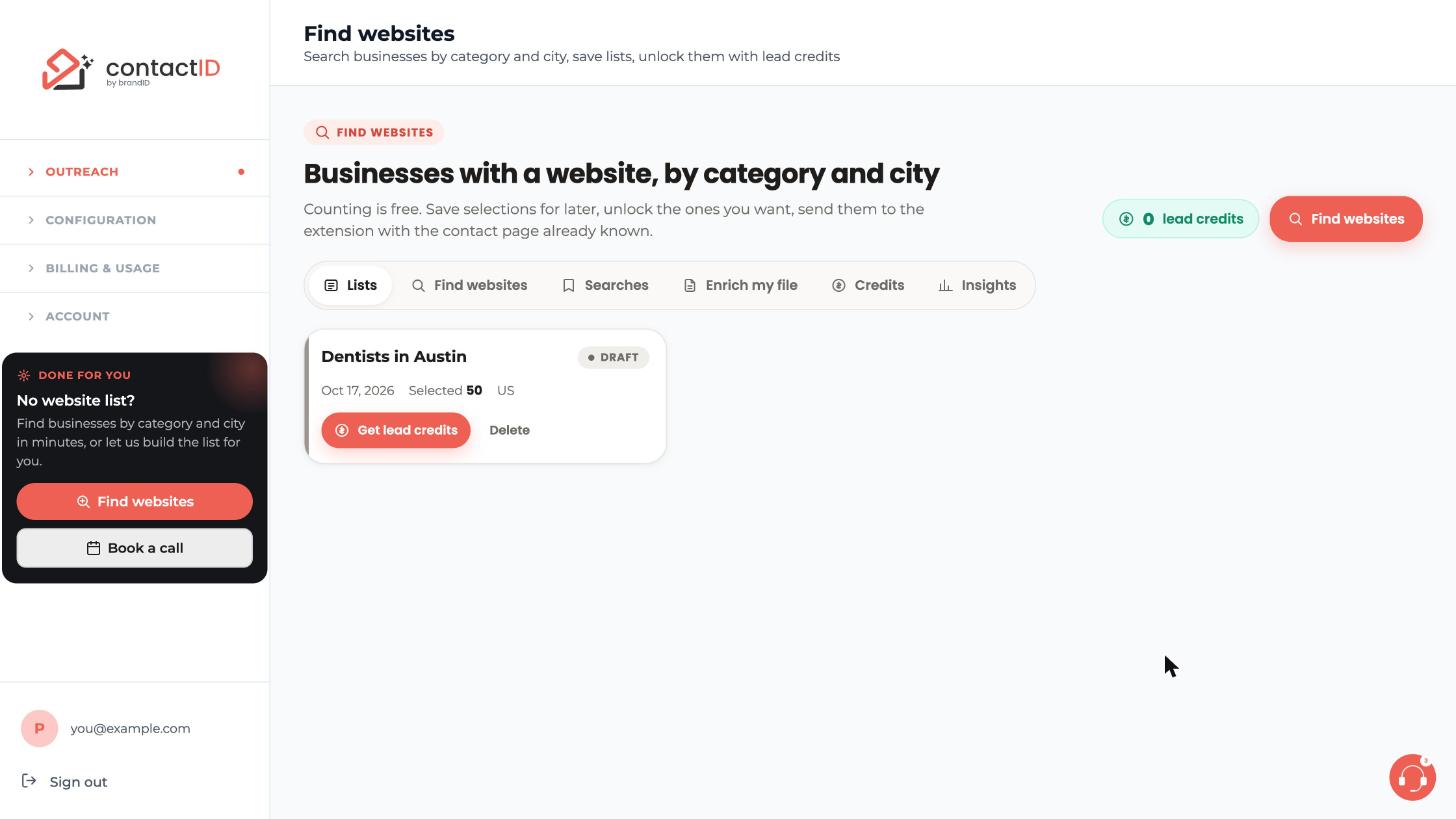
Go to Outreach, then Find websites, and click the Lists tab. Every selection you save becomes a card with its name, the date, how many businesses were selected, the country and a state pill. This draft card shows Get lead credits and Delete.
Know the five states
- Draft: saved, nothing spent. You can unlock it or delete it. Its quantities cannot be edited.
- Unlocking: credits are reserved and the businesses are being fetched, usually in seconds.
- Ready: businesses delivered. You can send it to the extension, download a CSV, use Find new places, duplicate it or archive it.
- Imported: sent to the extension at least once. You can re-send what was not sent, download, use Find new places (not for a list made from a file) or archive it.
- Failed: nothing could be delivered and the credits were released. Try again or archive it.
Download a list as a CSV
On a Ready or Imported list, download the CSV. It includes name, category, website, contact page, phone, business email, address, city, state, postal code, country, rating, reviews, claimed, technologies, language, coordinates and the Google Maps id. The list page also offers a map of the businesses.
Check the businesses before you send
On the list page, untick any business you do not want. Unticked rows are left out when you send. After a send, the contactID column shows the result for each business: sent, failed or not sent.
Find new places for a city you searched before
From a Ready or Imported list, or from a saved search on the Searches tab, use Find new places. It creates a new draft with the same categories and cities that contains only businesses you do not have yet. Businesses in your Ready, Imported or Archived lists are skipped, and if fewer new businesses exist than you asked for, the difference is released.
Be careful with Duplicate
Duplicate makes a copy of a list and does not skip anything. Unlocking the copy can deliver, and charge, the same businesses again.
Archive or delete lists you no longer need
Archive a Ready, Imported or Failed list to tidy up. Delete a draft you will not use. Archived businesses still count as yours, so new searches do not deliver them again.
Tips
- Before you pay, each city row in the finder tells you how many you already have there and how many new businesses are left to take.
- If a listing should not be contacted, untick it on the list page before you send. If it is already in the extension, move it to the Trash on the Send tab.
- Find new places is not available for a list made from your own file.
If something goes wrong
I want to change the quantities of a draft.
A draft’s quantities cannot be edited. Open the search from Searches with Open in finder, set new quantities and save or unlock again. Delete the old draft if you no longer need it.
A list shows Failed.
Nothing could be delivered and the credits were released. Try again, or archive the list.
Find new places is missing on my list.
It is offered on Ready and Imported lists, but not on a list made from a file with Enrich my file. Use a saved search on the Searches tab instead.
Related how-to guides
Still stuck? We’re happy to help.
Install the extension, start a free trial, or reach out to support.




